


So, you’ve rolled out ServiceNow's AI Search. It’s a pretty neat tool, meant to give your employees and customers a search experience they’re actually used to, like on Google. But once it's live, the real work begins. How do you know if it's actually helping? Are people finding what they need, or are they just hitting a dead end and logging a support ticket anyway?
Getting answers to these questions comes down to solid ServiceNow AI Search Monitoring. If you track the right things, you can see if you're getting your money's worth, spot the holes in your knowledge base, and make your self-service portal genuinely better over time. This guide will walk you through how to keep an eye on your AI Search performance, what to look for, and a few common bumps you might hit along the way.
What is ServiceNow AI Search?
Before we get into the monitoring side, let's do a quick refresher on what ServiceNow AI Search is. It's the platform's built-in, intelligent search engine that took over from the older Zing search. It's designed to understand what people mean, not just the keywords they type. This helps it deliver much more relevant results across your Service Portal, the Now Mobile app, and your Virtual Agent.
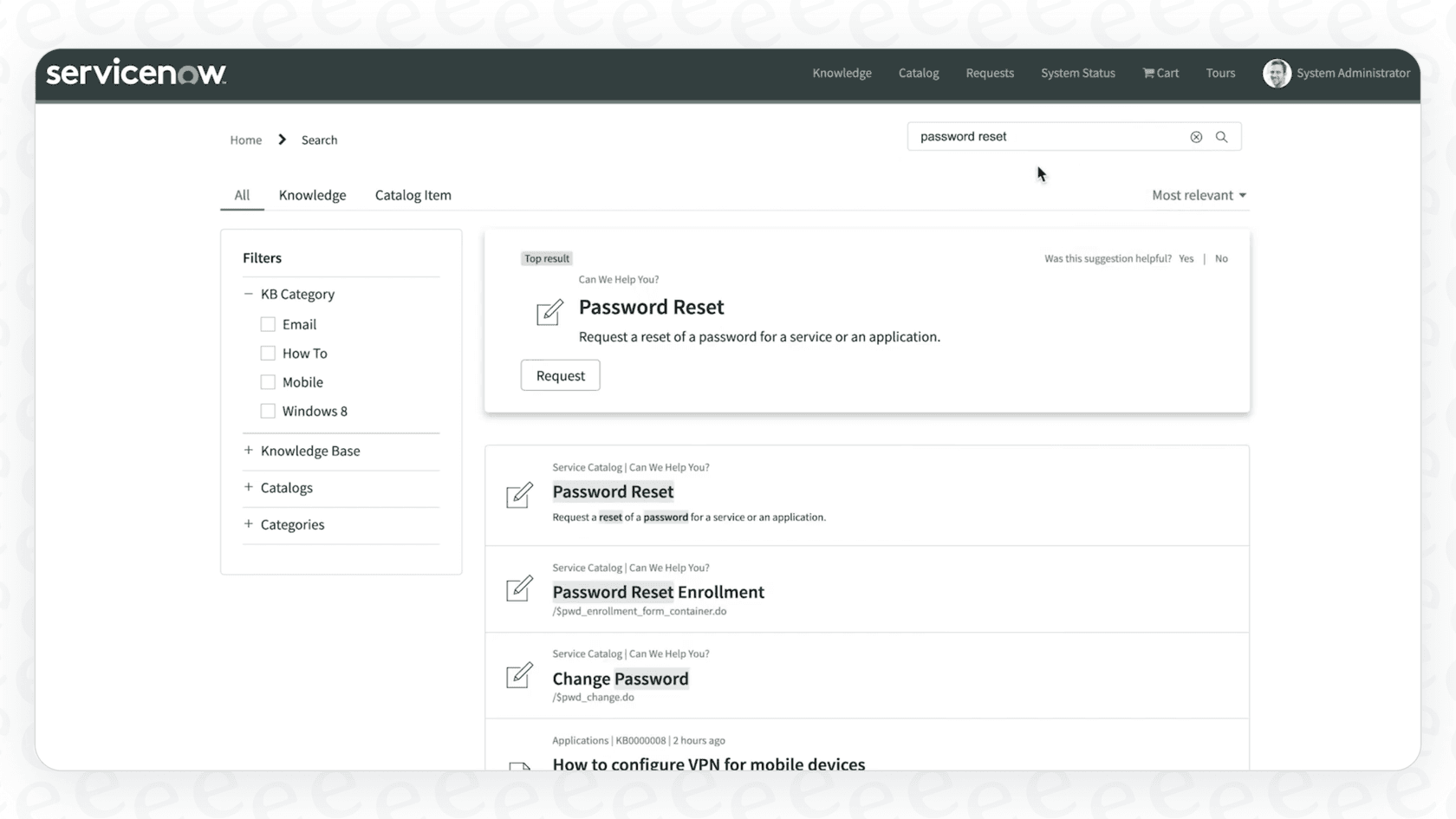
The main goal is to get people answers fast and cut down on the number of support tickets. It does this by offering up contextual answers, "Genius Results" (those handy cards that give you a direct answer or a link to the right form), and even supporting multiple languages for global teams. It’s a powerful engine, but it only runs as well as you tune and monitor it.
How to set up ServiceNow AI Search Monitoring
Here’s something you might not know: the analytics you need for monitoring aren't always switched on by default. To get the dashboards for ServiceNow AI Search Monitoring, you’ll have to install an application from the ServiceNow Store first.
The Advanced AI Search Management Tools app
The main tool for the job is the Advanced AI Search Management Tools app. It's a free application from ServiceNow that you need to install on your instance. This package is what gives you the dashboards and analytics to see what your users are doing and how search is performing. Without it, you’re pretty much flying blind.
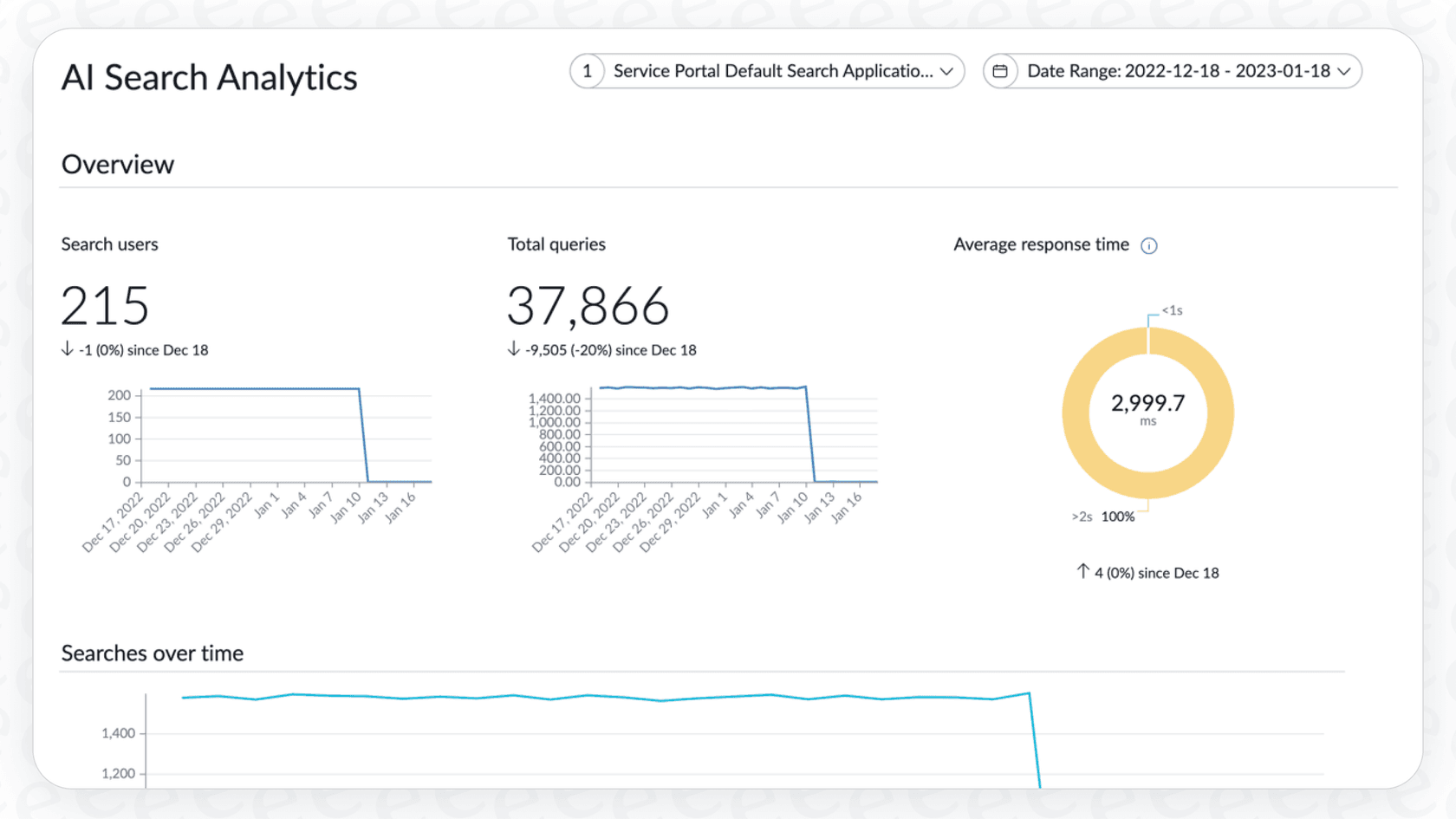
Once it's installed, you can find the main dashboard by heading to User Experience Analytics > Dashboard. From there, just pick your search application (like your Employee Center), click on "Search Analytics," and you'll be looking at the data.
Key metrics for effective ServiceNow AI Search Monitoring
When you first open the dashboard, you'll see a lot of charts and numbers. It can feel like a bit much. The best approach is to focus on the data that tells a clear story about what your users are experiencing. You can break it down into a few key areas.
Understanding user engagement
These numbers tell you if people are actually using the search bar and if they’re finding the results helpful.
-
Total Queries and Unique Search Users: These are your basic adoption metrics. They show how many searches are happening and how many different people are doing the searching. It's a quick pulse check to see if people are even trying to use the tool.
-
Average Click Rank: This one’s interesting. It shows the average position of the results people click on. A low number (like 1 or 2) is great, it means people are finding what they need right at the top of the list without a lot of scrolling.
-
Self-Solved Rate: This metric tracks the percentage of searches where a user actually clicks on a result. The idea is that a click suggests they found something useful. This is probably your closest indicator for ticket deflection and a win for self-service.
Identifying content gaps and opportunities
This is where you’ll find the real gold for your knowledge management team.
-
Queries with no results: Pay close attention to this report. It’s a straightforward list of things your users are looking for that you have zero content on. Every line item here is basically a direct request for a new knowledge article or catalog item.
-
Queries with no clicks: This report shows you what people searched for, saw a list of results, and then… did nothing. They didn't click on a single link. This usually means the results weren't relevant, the article titles weren't convincing, or the answer just wasn't clear. It's a big sign that your existing content needs a tune-up.
Measuring search performance
Finally, you need to know if the search tool itself is fast. The main metric here is Average Response Time. If a search takes too long to load, people will get frustrated and just go back to what they know, whether that's creating a ticket or calling the help desk. Keeping an eye on this helps you make sure your ServiceNow instance is running smoothly.
The hidden challenges of ServiceNow AI Search Monitoring
While ServiceNow gives you these tools, getting the full story isn’t always as simple as looking at one dashboard. Many teams run into a few common hurdles when they start digging into ServiceNow AI Search Monitoring.
Fragmented data
As some folks on the ServiceNow community forums have pointed out, the data you need is often scattered. The main dashboard gives you a good overview, but if you want to answer a question like, "Which specific knowledge base is this clicked article from?" you might have to dig into raw data tables like "sys_search_event". This often means you need someone with technical chops to build custom reports just to connect the dots.
It's a common headache, and it's why some teams look for tools like eesel AI that pull everything into one clean dashboard from the get-go. It’s built to connect search queries directly to outcomes and knowledge gaps, so you can spend your time improving content instead of wrestling with reports.
Lack of robust simulation and forecasting
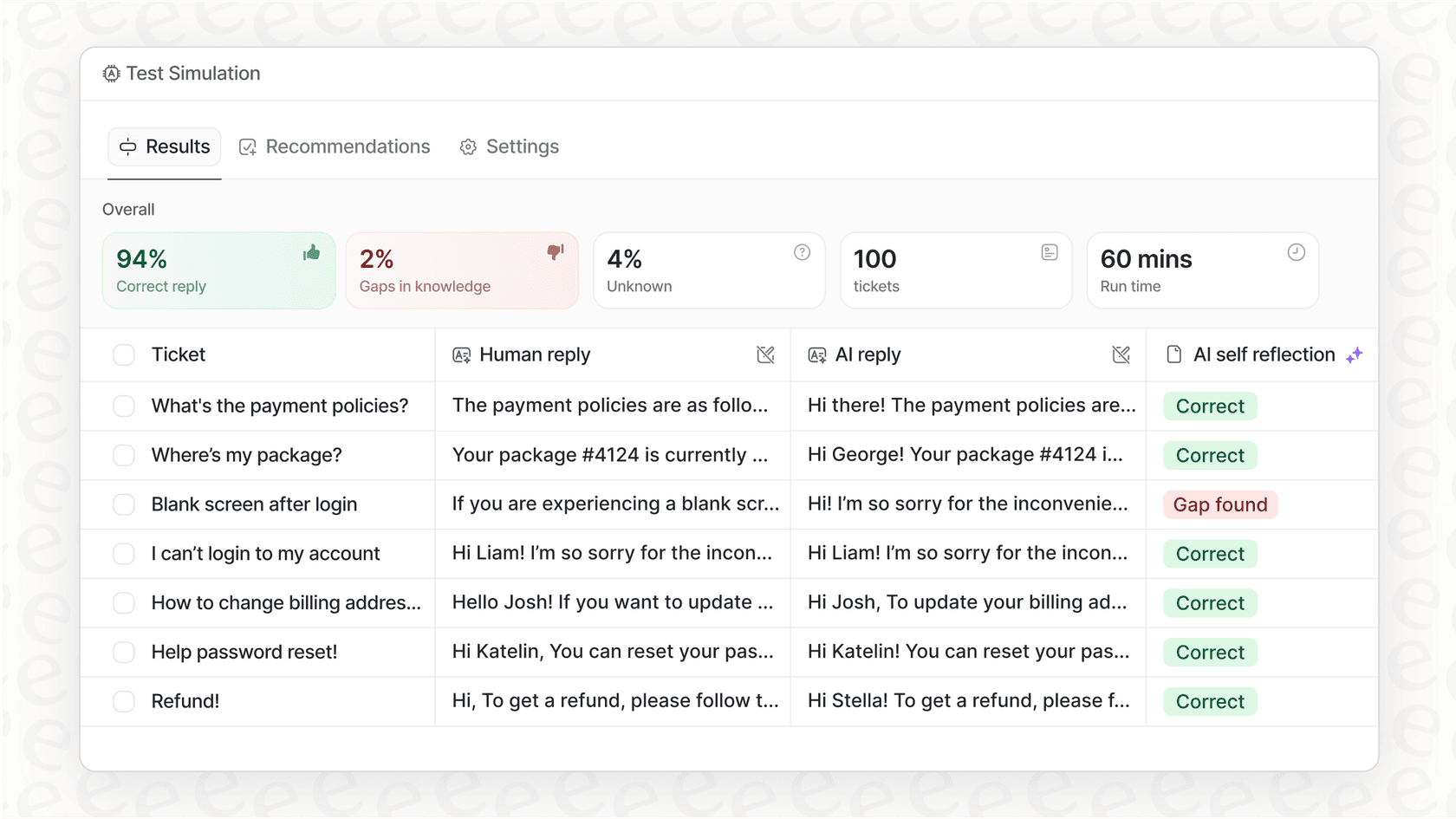
ServiceNow has a "Search Preview" UI, which is handy for testing what a single search might look like for one user. But it doesn't really let you test changes at scale. For example, how can you predict the impact of adding a whole new knowledge source? You can't, really, not until you push the change to production and see what happens. This "test-in-prod" method can be a bit nerve-wracking.
Complex setup and opaque maintenance
As we covered, just getting started with monitoring means installing a separate app. The AI Search product itself involves following detailed implementation guides and keeping up with frequent updates. On top of that, with no public pricing for ServiceNow's advanced AI features, just figuring out the budget can be a project in itself.
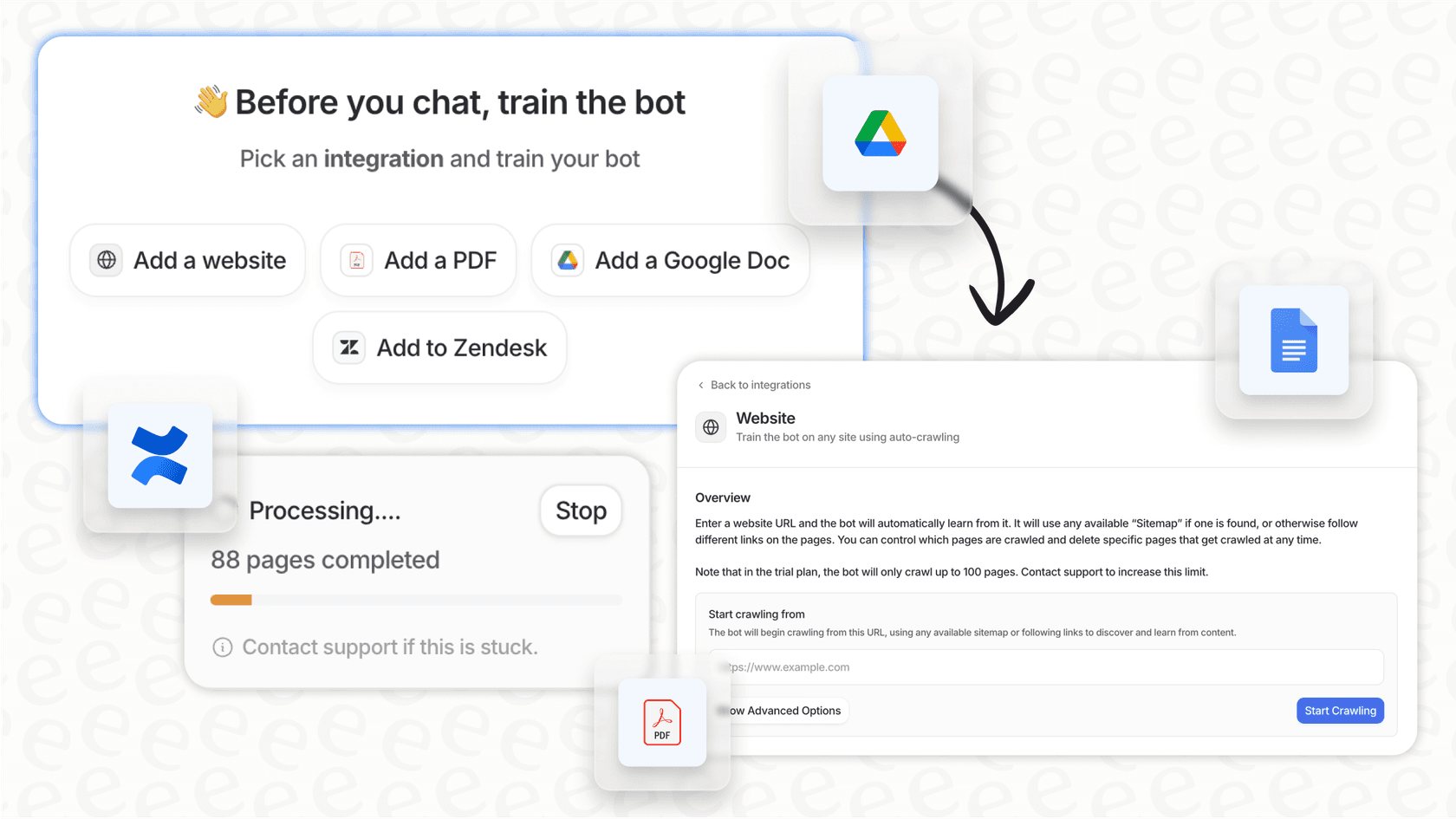
This is a pretty big contrast to more modern, self-serve tools. eesel AI, for example, is designed for a simple setup you can get live in minutes. With one-click integrations for your helpdesk and knowledge bases, and clear pricing plans, you can get started without a long implementation project.
From ServiceNow AI Search Monitoring data to actionable insights
ServiceNow AI Search Monitoring is a must-do for any team that wants to get the most out of the platform. By focusing on the key metrics around how people are using search and where your content is falling short, you can turn a pile of data into a clear plan for making things better.
But the native tools can be tricky and disconnected, sometimes making it hard to see the whole picture. The goal isn't just to have data, it's to use that data to get real results, like more people helping themselves and a less frustrating user experience.
Unlock effortless AI search and analytics with eesel AI
If you're finding yourself wrestling with dashboards and looking for a simpler way to manage your support, you might want to check out eesel AI. You can connect your helpdesk (like Zendesk, Freshdesk, or even ServiceNow) and all your knowledge sources in just a few clicks.
eesel AI gives you a single dashboard with clear, actionable insights and a risk-free simulation mode to test changes with confidence. The setup is simple enough that you can get up and running in minutes. See how you can improve your support and get the straightforward analytics you need to succeed.
Frequently asked questions
How do I get started with ServiceNow AI Search Monitoring on my instance?
[To begin, you need to install the "Advanced AI Search Management Tools" application from the ServiceNow Store. Once it's installed, you can access the monitoring dashboards by navigating to User Experience Analytics > Dashboard within your ServiceNow instance.
What are the most critical metrics to focus on during ServiceNow AI Search Monitoring?
For effective monitoring, prioritize the Self-Solved Rate to understand user engagement, "Queries with no results" and "Queries with no clicks" to identify content gaps, and Average Response Time to assess search performance. These provide a holistic view of your AI Search's effectiveness.
How can ServiceNow AI Search Monitoring help us identify gaps in our knowledge base?
ServiceNow AI Search Monitoring helps identify gaps through reports like "Queries with no results," which list topics users seek but are missing content. The "Queries with no clicks" report also points to content that exists but isn't relevant or clear enough, signaling areas for improvement or new articles.
Are there common challenges when implementing or using ServiceNow AI Search Monitoring?
Yes, common challenges include fragmented data that often requires building custom reports from raw tables, and a lack of robust simulation tools to predict the impact of changes before deployment. The initial setup can also be complex, involving separate app installations and adherence to detailed implementation guides.
Can ServiceNow AI Search Monitoring really help reduce support tickets, and if so, how?
Absolutely. By analyzing the Self-Solved Rate, you can gauge if users are finding solutions independently. Addressing content gaps identified by "Queries with no results" and improving existing articles based on "Queries with no clicks" directly empowers users, thereby reducing their need to log support tickets.
What does a good "Self-Solved Rate" tell me in ServiceNow AI Search Monitoring, and how can I improve it?
A good Self-Solved Rate indicates that users are successfully finding and clicking on relevant search results, signifying effective self-service and potential ticket deflection. To improve it, focus on creating content for "Queries with no results" and refining existing articles based on "Queries with no clicks" to boost relevance and clarity.