

What Freshdesk AI agent assist actually is
A useful helpdesk copilot reduces the work between reading a ticket and sending a correct answer. That includes catching up on a long thread, locating the applicable policy and writing a response that does not repeat a failed troubleshooting step.
I would evaluate those jobs separately. In eesel’s customer records, a digital-media support admin correcting a Zendesk agent on May 27, 2026 put the problem plainly:
"This is incorrect. You have not provided troubleshooting steps yet."
That is a real example of human review catching a missing step, not a claim about Freddy’s performance. A fluent draft can still miss the work the customer needs.
Freddy AI Copilot is the agent-facing part of the Freshworks suite. The separate Freddy AI Agent can handle customer conversations directly, with behavior determined by its configuration. “Copilot” and “AI Agent” are not interchangeable licenses or rollout plans.
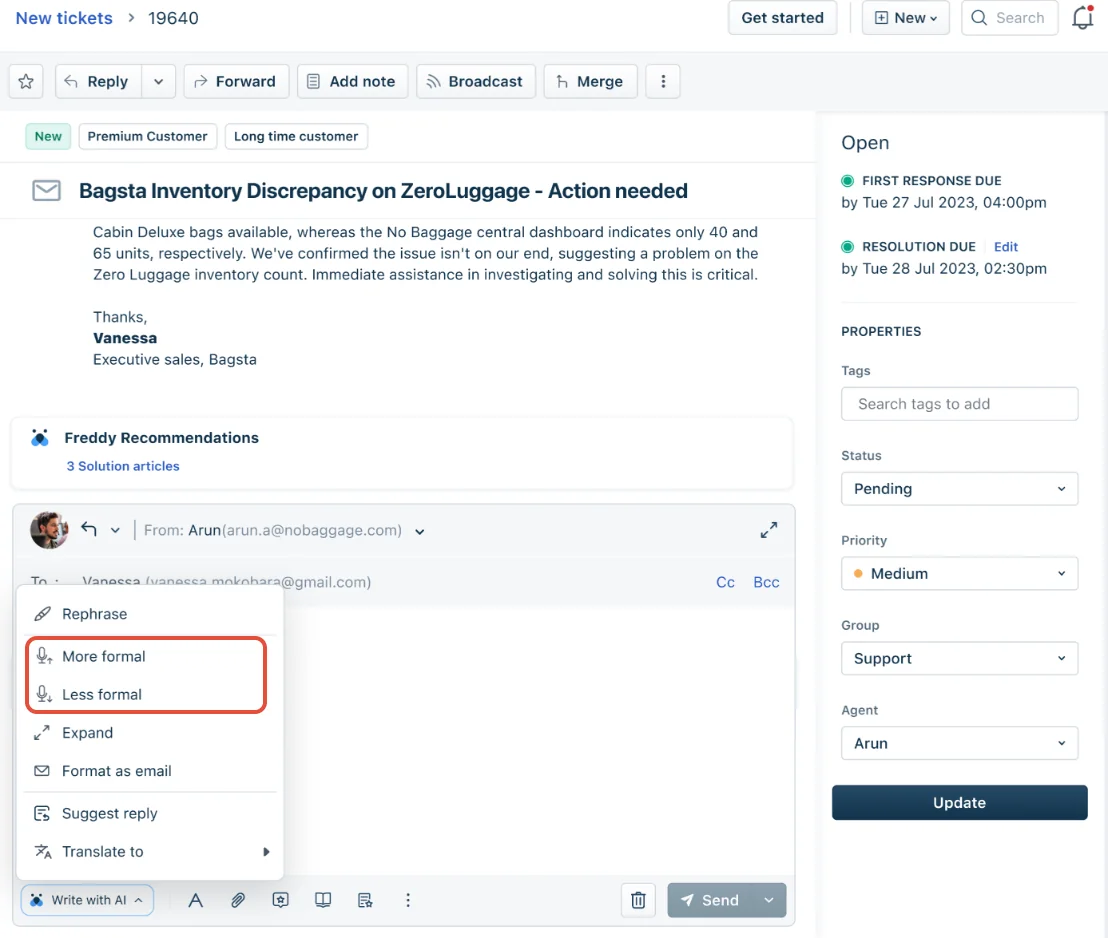
The Freshworks feature overview places writing tools in the reply editor, summaries in the ticket view and adoption reporting in analytics. That proximity to the agent’s daily work is a practical reason to start with the native option.
What Freddy Copilot does inside the workspace
The most useful distinction is between rewriting supplied text and finding information for an answer.
| Agent's job | Copilot capability | What I would check |
|---|---|---|
| Catch up before taking over | Summary generator | Does it retain the latest unresolved issue? |
| Improve an existing draft | Writing Assistant | Does it preserve the facts and intended language? |
| Find an answer | Reply and article suggestions | Does the cited source apply to this customer? |
| Reuse approved wording | Canned response suggestions | Is the template current and appropriate? |
| Prioritize work | Sentiment analysis and auto triage | Are suggested fields appropriate for the actual issue? |
These capabilities appear in the Freddy overview. For implementation details, inspect each feature’s documentation and the options actually available in your account.
Writing Assistant: polish is not research
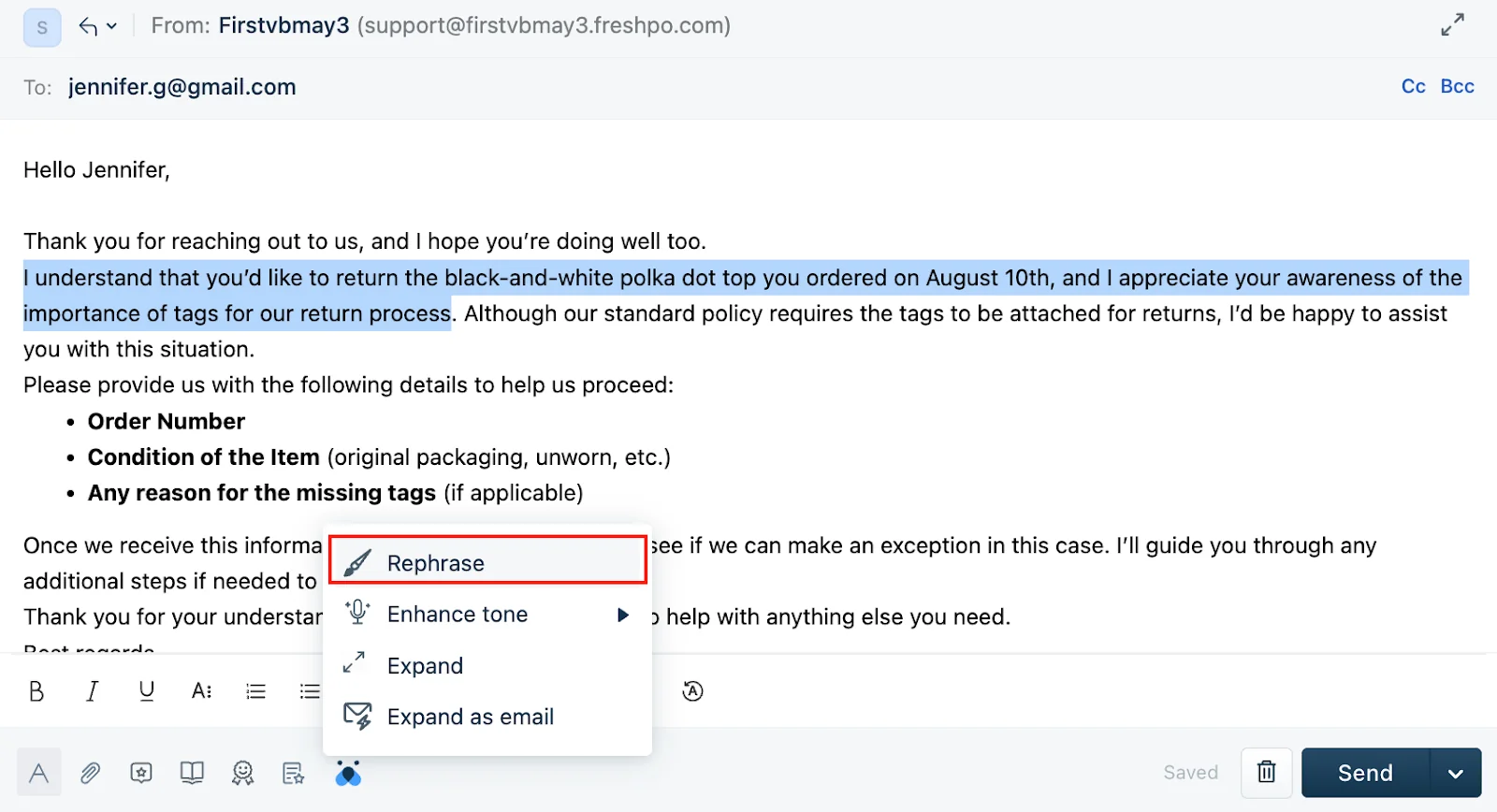
The Writing Assistant documentation describes Rephrase, Enhance Tone, Expand and Expand as email. Two limits matter:
- Enhance Tone and Expand follow the agent’s profile language. Check that setting when evaluating multilingual replies.
- Expand as email uses the subject, customer replies and cues in the editor. Freshworks says it does not extract content from knowledge-base articles or ticket history.
That makes Expand as email different from a retrieval-based reply suggestion. Supply the facts you want rewritten; do not treat a polished paragraph as evidence that the policy was checked.
Reply Suggester: check which version you have
Freshworks’ July 2026 improved Reply Suggester documentation describes drafts grounded in solution articles, similar resolved tickets and canned responses. It also describes reading the conversation, including private notes for context, and showing source citations.
However, the page explicitly labels the improved version early access for selected customers. Its prerequisites also conflict with the plan badges on the same page, so confirm access with Freshworks rather than assuming Growth includes Copilot.
It is no longer accurate to describe every Freddy reply feature as “articles only.” Equally, an early-access description does not prove those capabilities are enabled in your account. Check the actual source controls before comparing it with other assist tools.
How to set up Freddy AI agent assist
Freshworks’ documented admin setup has three separate parts:
- Purchase the relevant Copilot add-on.
- Assign Copilot access to the agents who need it.
- Enable the selected capabilities under Admin > Freddy.
Buying licenses alone is not the final step. After configuration, sign in as a licensed agent and check that the expected controls appear. For a reply feature, also check the agent’s permission to respond to tickets.
Then use a small evaluation set. I would include a first-contact question, a long handover, a customer who already tried the suggested fix, and a case where the policy does not contain an answer. These are proposed checks, not results from a hands-on Freddy benchmark.
For conversation summaries, compare the summary with the entire thread. For drafting, compare the proposed answer with its source. An agent accepting a suggestion quickly does not, on its own, establish accuracy.
What Freshdesk agent assist costs
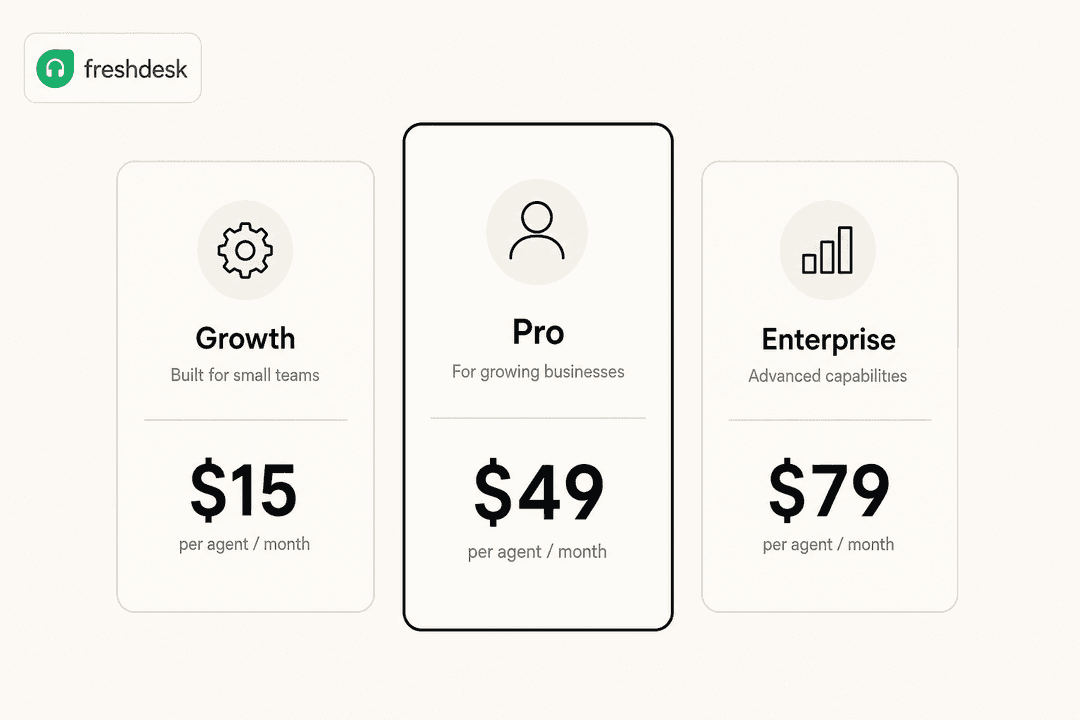
The following public prices were checked on September 8, 2026. They are annual-billing rates from the Freshdesk pricing page, not Freshdesk Omni prices.
| Line item | Monthly equivalent | Copilot availability |
|---|---|---|
| Freshdesk Growth | $19 per agent | Not listed as an add-on |
| Freshdesk Pro | $55 per agent | $29 extra per licensed agent |
| Freshdesk Enterprise | $89 per agent | $29 extra per licensed agent |
For ten Pro agents with ten Copilot licenses, the monthly equivalent is $840: $550 base plus $290 Copilot, billed annually. This is a worked example, not a quote including tax or negotiated terms.
The current page lists Freddy AI Insights under Enterprise. Do not budget on the assumption that buying a single Copilot license unlocks Insights account-wide.
The separate AI Agent uses session-based charges. Keep those out of a Copilot-only estimate unless you also plan to deploy that product. The Freshdesk pricing breakdown gives broader plan context.
Test Freshdesk reply drafts through eesel CLI
eesel’s helpdesk teammate is another option for preparing replies while your agents retain the final decision. eesel CLI is how you or a coding agent can inspect and operate that teammate from a terminal, including its knowledge, instructions, conversations and activity. It is the same agent and workspace as the dashboard, not a separate test copy.
This is useful when a support lead and technical colleague are reviewing an agent-assist rollout together: the lead judges the answer, while the technical colleague checks what information and instructions produced it.
Inspect the workspace before testing
With Node.js 18.17 or newer, the following uses the current eesel CLI. Log in to the intended workspace, then select a test agent you have already created in the dashboard. Replace TEST_AGENT_ID with that agent’s ID.
npx @eesel/cli login
npx @eesel/cli whoami
npx @eesel/cli agents
npx @eesel/cli --agent TEST_AGENT_ID status
npx @eesel/cli --agent TEST_AGENT_ID integrations
npx @eesel/cli --agent TEST_AGENT_ID instructions
npx @eesel/cli --agent TEST_AGENT_ID automations
The output helps you check the selected workspace, source readiness and existing rules. Connected is not the same as fully downloaded. If source content is missing, complete its sync and inspect the resulting document counts before evaluating an answer.
For Freshdesk, the full connection uses your subdomain and API key. Enter the key only in eesel’s secure form, never in a prompt or shell command. The public-help-center quick start does not include tickets or canned responses. Full access can include published articles, canned responses and resolved or closed tickets; check source toggles and PII-redaction settings.
Before any chat test, keep customer replies and other unwanted write actions off, or require approval. Inspect existing automations as well. Starting a new conversation does not disable them.
Test whether the draft understands the conversation
Start with fictional content rather than a live customer ticket. This example tests whether the teammate distinguishes a completed troubleshooting step from an unresolved request:
npx @eesel/cli --agent TEST_AGENT_ID new --name "assist-review"
npx @eesel/cli --agent TEST_AGENT_ID chat "Fictional test only. Customer: My invitation email never arrived. Agent: Please check spam. Customer: I checked spam and confirmed the address is correct; there is still no email. Summarize what has been tried and what remains unresolved. Then propose a customer reply using available invitation troubleshooting guidance, identify its sources, and flag anything unsupported. Do not send a message or change a ticket."
This is a proposed evaluation prompt, not a claim that the test has passed. The request not to send anything reinforces your intent; action permissions are the actual control. Chat can invoke tools and run billable work.
When reviewing the output, I would check three things:
- The summary retains that the customer already checked spam and verified the address.
- The draft does not claim an invitation was resent or an account checked unless that actually happened.
- Any proposed next step is supported by the applicable guide, or clearly identified as missing guidance.
If the source is absent, add an approved document or connect the relevant knowledge source. If the source is present but the draft ignores a rule, review the teammate’s standing instructions. Those are different repairs.
A fresh named conversation lets you repeat the case without the previous coaching messages in that conversation. It does not create a new agent or isolate workspace settings.
Let a coding agent help with the review
A colleague using Claude Code, Cursor or Codex can run the CLI too. Commands return structured JSON, with lists emitted one object per line. That makes it possible to collect results and compare a small set of approved cases without manually copying every response.
Give the coding agent a bounded job: inspect the selected teammate, run the fictional cases, compare outputs against your expected answers and report proposed fixes. Require your approval before it changes instructions or automations. Do not put customer credentials in its prompt.
The CLI’s --dry-run previews a supported write command’s server call; it is not a simulation that predicts answer quality or resolution rate. Review actual test outputs for quality and use activity, approvals and billing to inspect what ran, what is still held, and current usage.
Move to a private-note pilot
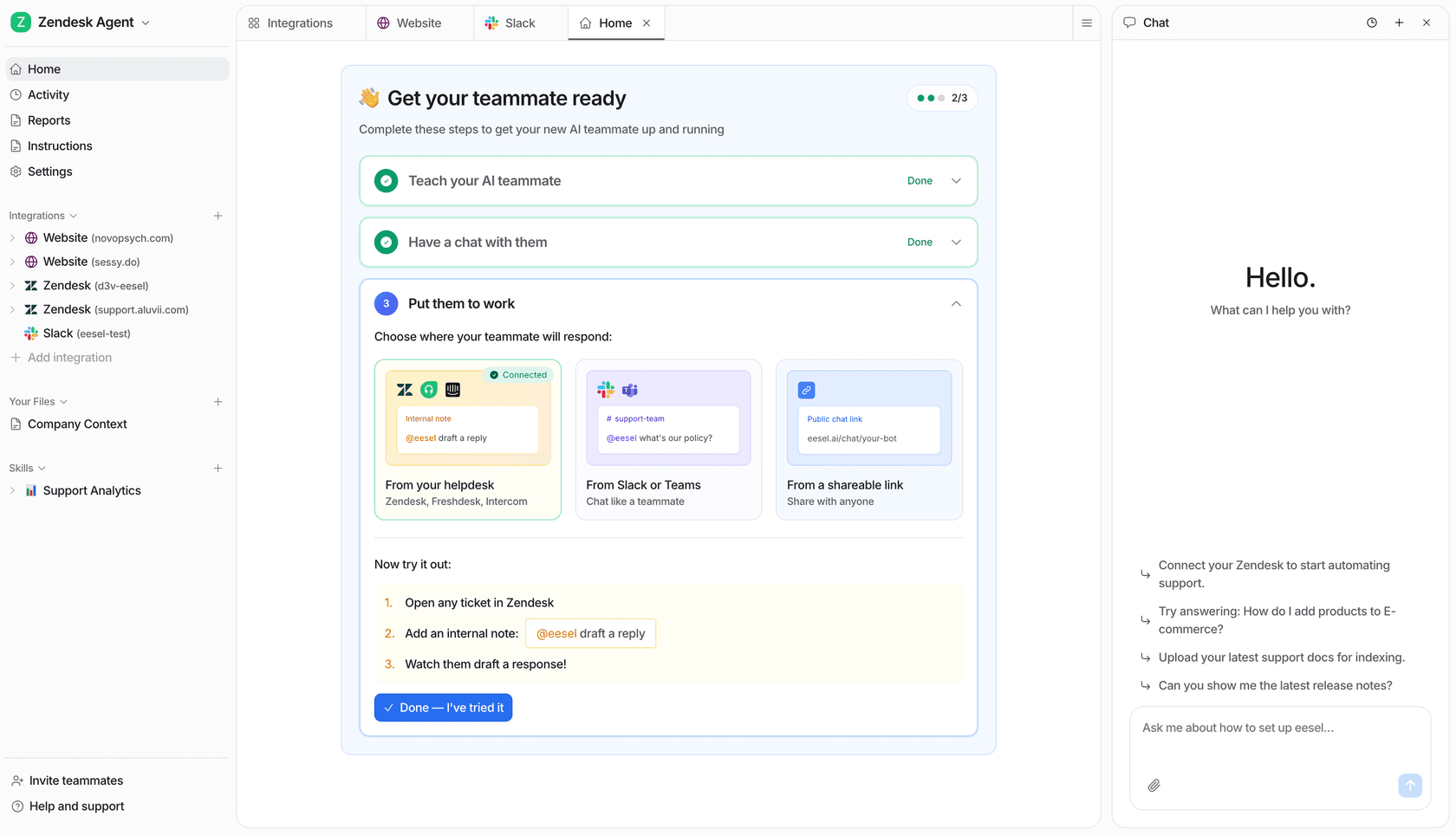
Once the drafts are useful, configure a narrow Freshdesk ticket automation that leaves an internal note, while keeping customer replies off. A human can read, edit and send the draft from Freshdesk. Set note creation to require approval too if that is appropriate for the pilot.
Confirm your Freshdesk plan supports the required webhooks: eesel’s integration documentation specifically excludes Sprout/free from ticket triggers. Verify the note appears on an actual approved test ticket. A good terminal response does not prove that the ticket trigger, filter or delivery works.
This is a different delivery experience from Freddy’s editor suggestions, so include that difference in the trial. Count review time and corrections as well as whether a draft was produced.
Choose based on the reviewed reply
Freddy Copilot is worth evaluating when you want assistance inside the Freshdesk editor. Confirm its feature version, sources and license cost, then test it on the conversations your agents actually find difficult.
If you want to inspect and adjust an eesel teammate with a technical colleague or coding agent, start with the eesel CLI draft-review workflow above. Keep the same evaluation cases for both options, but account for their different delivery methods.
On eesel’s pay-as-you-go plan, a regular support task costs $0.40, with no per-seat fee or monthly minimum. Tasks are billed regardless of outcome. That is not directly comparable to a Copilot seat: estimate your assisted ticket volume and the human review effort instead of assuming either model is cheaper.
Try eesel with a small set of approved cases, then decide whether its private-note drafts make your agents’ work easier.
Frequently Asked Questions
What is Freshdesk AI agent assist?
Freddy AI Copilot is Freshdesk’s agent-facing assistance add-on. It helps with writing, summaries and recommendations while a person reviews the reply. It is distinct from the customer-facing Freddy AI Agent.
How much does Freddy Copilot cost in Freshdesk?
The public price is $29 per licensed agent per month, billed annually, on top of Freshdesk Pro or Enterprise. Check your account’s terms and the current Freshdesk pricing before purchasing.
How do I enable Freshdesk AI agent assist?
Purchase the Copilot add-on, assign Copilot access to the selected agents, then enable the required features under Admin > Freddy. Check permissions and feature availability in that account. The reply suggestions guide covers the drafting use case.
Does Freddy Copilot use past tickets?
It depends on the feature and version. Freshworks’ improved Reply Suggester documentation describes similar resolved tickets, canned responses and solution articles, but labels that version early access. Do not assume every account has it, or that Expand as email uses the same sources. See Freddy knowledge sources.
How can eesel CLI help evaluate Freshdesk agent assist?
You or a coding agent can inspect the eesel teammate’s connected sources, instructions and activity, then test summaries and drafts in a named conversation. The CLI operates the same teammate as the dashboard; it does not control Freddy Copilot. Start with the eesel CLI documentation.
Can eesel draft Freshdesk replies without sending them?
Yes. Configure the Freshdesk action to leave an internal note and keep customer replies off, or require approval for actions. A human can review and send the draft. A request in a prompt is not a substitute for these settings. The Freshdesk integration guide explains the controls.
Is eesel cheaper than Freddy Copilot?
There is no universal winner. Copilot charges per licensed seat; eesel’s pay-as-you-go plan charges $0.40 per regular support task, regardless of outcome. Compare actual assisted ticket volume and review time, not seats directly against tasks. See eesel pricing.


Article by
Riellvriany Indriawan
Riell is a designer and writer at eesel AI with about two years of experience researching CX platforms, AI chatbots, and helpdesk software. She combines her design background with a sharp eye for how these tools actually look and feel in practice — making her comparisons unusually visual and user-focused.