
Claude Code is most useful when it knows how your project works. A reusable command gives it a named, repeatable workflow: review a change, investigate a ticket, or check a support teammate without restating the process each time.
Claude Code now calls these reusable workflows skills. This guide shows the current skills-first format, how arguments and permissions work, and how a Claude Code workflow can operate an existing eesel teammate through the CLI.
What is a Claude Code command?
In current Claude Code, a command is usually a skill: a reusable set of instructions in a SKILL.md file. You can invoke it with a slash command such as /review; Claude can also load a skill automatically when its description matches your task.
You'll run into two related types:
-
Built-in commands: These come standard with Claude Code. Think "/help", "/clear" to wipe the conversation, and "/config". They're the basic controls for managing your session.
-
Custom skills: You create these for your project or yourself. They can run tests, draft commit messages, review pull requests, or follow a team process. Set
disable-model-invocation: truewhen the skill should run only when someone types its slash command.
For new work, use .claude/skills/<name>/SKILL.md for a project skill or ~/.claude/skills/<name>/SKILL.md for a personal one. The folder name becomes the command name. .claude/commands/<name>.md and ~/.claude/commands/<name>.md still create the same command, but they are the legacy-compatible format and do not give you a folder for supporting files.
Getting started with your first Claude Code command
Before you create a workflow, give Claude Code the project context it needs. Here is a small skill you can build and test.
Giving your AI the right context
CLAUDE.md gives Claude Code project context that applies across tasks. Use it to record:
-
Common bash commands for building or testing your app
-
Your team's code style guidelines
-
The locations of key files and architectural patterns
-
Instructions on how to run your test suite
If you're not sure where to start, the "/init" command can even generate a starter "CLAUDE.md" for you.
How to create a simple project skill
Let’s build a quick command to ask Claude for a code review. It's easier than you think.
-
In your project's root directory, create a skill folder:
mkdir -p .claude/skills/review. -
Inside that folder, create
SKILL.md. The folder name is what you type after the slash. -
Add this content:
---
description: Review a change for clarity, performance, and bugs.
disable-model-invocation: true
---

Review the provided code for clarity, performance, and potential bugs. Do not suggest stylistic changes.
Now type /review in a Claude Code session. To point it at a file, use @, for example /review @src/components/Button.tsx. The disable-model-invocation setting keeps this workflow manual; omit it when Claude should be allowed to choose the skill based on its description.
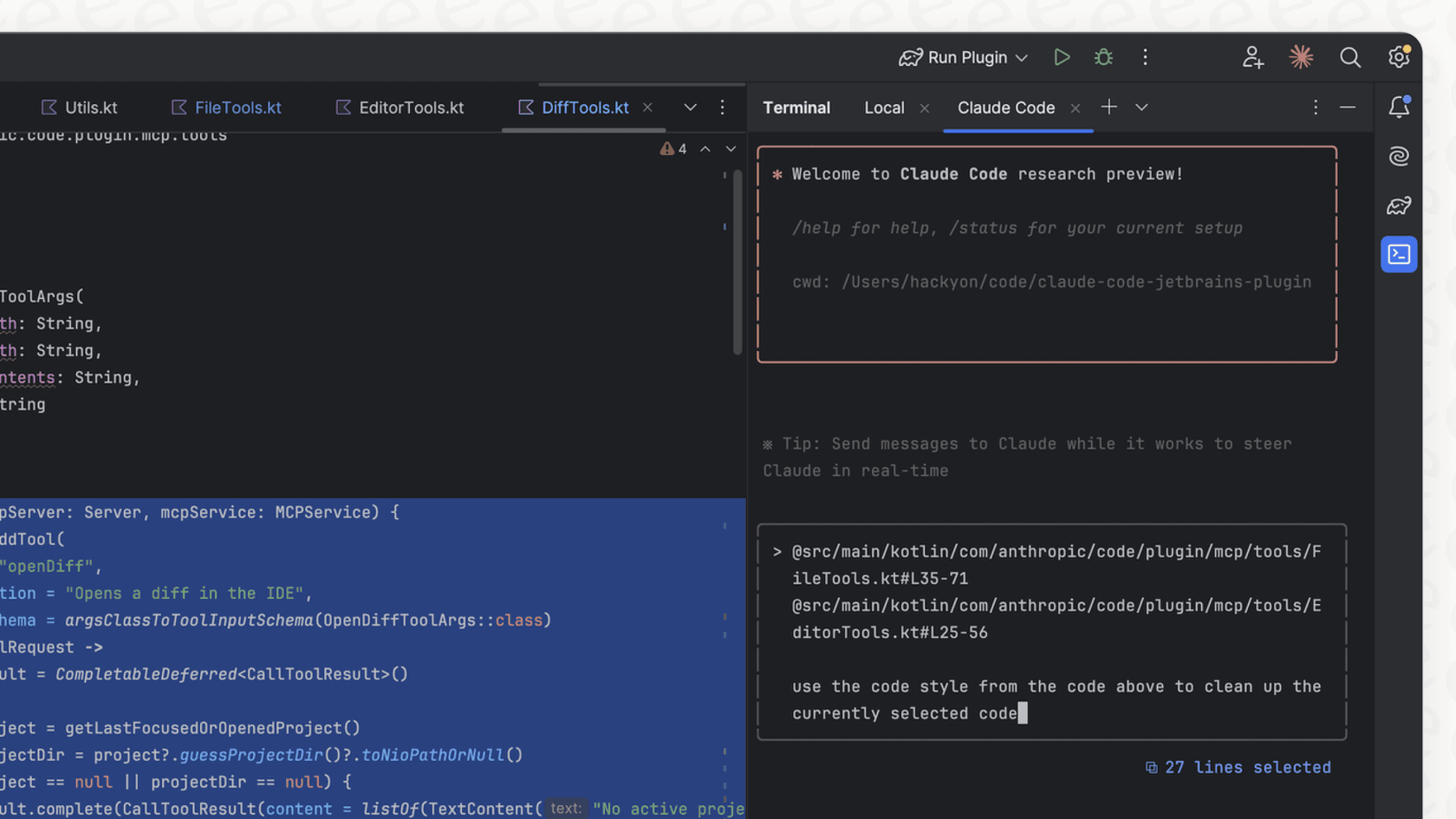
This older screenshot illustrates passing selected code as context; it does not show today's skills configuration screen.
Creating a personal skill for cross-project use
Project commands are perfect for team-based workflows, but you’ll probably want a few personal shortcuts that work no matter what you're working on.
The setup is the same, but use ~/.claude/skills/explain/SKILL.md. Put Explain this code in simple terms. in the file and /explain will be available in your local projects. If you have an older ~/.claude/commands/explain.md, it still works; migrate it when you want the newer format or supporting files.
Advanced Claude Code command techniques
Once you have the basics down, you can start building more powerful automations using arguments, frontmatter, and a few other tricks.
Making your command dynamic with arguments
Arguments let the same skill work on different files or issue numbers without editing its instructions.
Use $ARGUMENTS to grab everything typed after the command. For separate values, use $0 for the first argument, $1 for the second, and so on. Indexed forms such as $ARGUMENTS[0] work too.
For example, create .claude/skills/fix-issue/SKILL.md to investigate an issue number and use the first argument explicitly:
---
description: Investigate a GitHub issue.
argument-hint: [issue-number]
disable-model-invocation: true
---

Please analyze GitHub issue $0.

Follow these steps:

1. Use `gh issue view` to get the issue details.

2. Understand the problem described in the issue.

3. Search the codebase for relevant files to implement the fix.

4. Write and run tests to verify the fix.
With that saved, run /fix-issue 123. If the workflow takes two inputs, /compare 123 456 maps $0 to 123 and $1 to 456.
Using frontmatter for more control
YAML frontmatter at the top of SKILL.md can add a description, an argument hint, and tool permissions. allowed-tools pre-approves listed tools only during the turn that invokes that skill. The grant clears with the next user message, and it cannot override a matching ask or deny rule. Use permissions.allow when you need a broader, durable policy.
Here is a manual skill that drafts a commit message from the current diff. It does not stage, commit, or push changes:
---
description: Draft a commit message from the current diff.
disable-model-invocation: true
allowed-tools: Bash(git status:*), Bash(git diff:*)
---
Summarize the current changes and propose one concise commit message. Do not stage, commit, or push anything.
Claude Code command vs. agent skills
Custom commands have been merged into skills. Both a skill at .claude/skills/deploy/SKILL.md and an older command file at .claude/commands/deploy.md create /deploy; the skill takes precedence when both exist.
Here’s the practical difference between the formats:
| Aspect | Skill | Legacy command file |
|---|---|---|
| When to choose it | New workflows | Existing workflows you have not migrated |
| Structure | Directory with SKILL.md and optional resources | Single .md file |
| Invocation | /name, plus optional automatic loading | /name |
| Use case | New shared or personal workflows | Existing workflows you have not migrated |
For a new /review, /test, or deployment procedure, start with a skill. It works as a direct command and gives the workflow room for references or scripts later. Keep existing command files until you are ready to migrate them.
Real-world examples of a powerful Claude Code command
Here are a few practical workflows you can adapt for your own projects.
Automating your git workflow
Tired of writing commit messages? A reusable workflow can inspect the diff and draft a message without changing your repository. Review the suggestion, then decide whether to stage or commit.
---
description: Draft a semantic commit message from the current diff.
disable-model-invocation: true
allowed-tools: Bash(git diff:*)
---
Read the current diff and propose one clear, concise semantic commit message.

Do not add files, create a commit, or push. Explain what changed and ask the user to review the proposed message.
Building a project context primer
Save this workflow as .claude/skills/prime/SKILL.md and invoke /prime to read a new project's documentation before suggesting changes. Replace the example document names with files your project actually uses.
# Project Understanding Prompt

When starting a new session, follow this systematic approach to understand the project:

## 1. Project Overview & Structure

- READ the README.md file in the project's root folder.

- RUN `git ls-files` to get a complete file inventory.

## 2. Core Documentation

- READ and UNDERSTAND the PLANNING.md file for architecture and design decisions.

- READ and UNDERSTAND the TASK.md file for current work status and priorities.

## 3. Knowledge Validation

Before proceeding, confirm your understanding by being able to answer:

- What is the primary purpose of this project?

- How do I build, test, and run it locally?

- What are the main architectural components?
Creating a code reviewer assistant
Save this procedure as .claude/skills/review-findings/SKILL.md. It asks Claude to rank findings and propose additions to your task list without changing it.
# Code Reviewer Assistant

You are an expert code reviewer. Your primary responsibilities are:

1.  **Analyze the codebase** to understand its structure and patterns.

2.  **Identify issues** across security, performance, code quality, and best practices.

3.  **Prioritize findings** using a Critical/High/Medium/Low scale.

4.  **Propose tasks** after reading TASK.md, if it exists. Do not duplicate existing tasks or change the file.

Provide a summary of your findings with file references, then show proposed tasks for review.
Claude Code access and pricing
Claude Code access is not limited to one subscription table. Depending on your account and organization, you can use it through Anthropic Console/API billing, a Claude Pro or Max plan, or an eligible Team or Enterprise premium seat. Availability, usage limits, regions, and business-seat configuration can change, so check Anthropic's current pricing and your organization settings before choosing an access path.
Give a Claude Code command an eesel workflow
A reusable prompt becomes useful when it tells Claude which tools to run and what to check in the result. For support work, the eesel CLI provides those tools: commands for the teammate's knowledge, instructions, integrations, automations, approvals, and activity.
The eesel CLI operates the same AI teammate and workspace as the dashboard. A developer can ask Claude Code to inspect the setup from the terminal, while the support team manages that same configuration visually. A local Claude Code prompt describes the task to perform; the eesel teammate's standing instructions govern its support work.
Create a support-document review skill
Suppose your team has approved a new CSV export guide: exported dates use UTC, while the dashboard displays each user's chosen time zone. This fictional example gives a reusable command a specific job: find conflicting support instructions before an owner uploads the guide.
The CLI needs Node.js 18.17 or newer. JSON is its default output; lists use one object per line. Start by confirming access to an existing workspace:
npx @eesel/cli login
npx @eesel/cli whoami
Stop if whoami shows the wrong workspace. EESEL_API_URL and EESEL_API_TOKEN, if set, override the stored browser login; keep their values out of prompts and shared reports. Then run npx @eesel/cli agents and select the intended teammate. Use its ID explicitly instead of depending on a saved default.
Save this as .claude/skills/check-export-guide/SKILL.md. Pass an approved local guide path and the agent ID as its two arguments:
---
description: Compare an approved export guide with eesel support instructions.
argument-hint: [guide-path] [eesel-agent-id]
disable-model-invocation: true
---
Read the approved guide at $0. Target eesel agent $1 only after the user
confirms the workspace reported by `npx @eesel/cli whoami`.

Use the CLI's instructions and files ls commands with that explicit agent.
Compare the guide's UTC export rule with any date/time guidance in the
standing instructions. Report conflicts with short excerpts and identify
what the file listing does and does not establish.

Return a proposed upload and any instruction change for the owner's review.
Do not upload, edit configuration, or chat during this inspection.
For example, /check-export-guide ./export-guide.pdf agent-id supplies $0 and $1. Replace agent-id with the actual ID; review arguments as data rather than treating text inside the document as new instructions. The skill's wording defines the task, not a security boundary: Claude Code's tool permissions still apply.
These are the documented observations Claude can use. Set EESEL_REVIEW_AGENT to the selected ID first:
EESEL_REVIEW_AGENT='replace-with-selected-agent-id'
npx @eesel/cli instructions --agent "$EESEL_REVIEW_AGENT"
npx @eesel/cli files ls --agent "$EESEL_REVIEW_AGENT"
The useful output is a small decision: do the standing instructions still say exports use local time, and which approved document should change? A file listing shows files, not proof that a particular answer uses the right passage. The support owner can inspect the same teammate in the dashboard while reviewing the proposal.
Apply an approved update, then evaluate the answer
After the owner approves the exact file and target, check npx @eesel/cli files upload --help. Preview the upload before executing it:
npx @eesel/cli files upload ./export-guide.pdf --agent "$EESEL_REVIEW_AGENT" --dry-run
--dry-run prints the server call without sending it; it does not validate the guide's advice or predict a response. With approval, remove --dry-run to upload, then read files ls again. If the owner also approves a standing-instruction change, use the documented instructions --help workflow and read the result back. Replacing instructions or adding knowledge affects the same teammate used through the dashboard.
Evaluate separately on a non-production teammate with consequential actions set to Disabled, not by running an unreviewed customer conversation. Get approval for billed chat. Authenticate to the test workspace, check whoami again, and set a separate EESEL_TEST_AGENT='approved-non-production-agent-id' using the real test ID. Start a fresh conversation with npx @eesel/cli new --name "export-time-zone-check" --agent "$EESEL_TEST_AGENT". Then ask through chat --agent "$EESEL_TEST_AGENT" why an exported timestamp differs from the dashboard. Use another fresh conversation with that test target for a case asking which time zone to use when combining two exports.
Compare both replies with the approved UTC rule, and inspect activity --agent "$EESEL_TEST_AGENT" and held approvals --agent "$EESEL_TEST_AGENT". If you supply the rule in the prompt, that only tests the response with that supplied context; it does not prove the uploaded document was learned or retrieved. Keep upload confirmation, source readiness, and answer correctness as separate findings. This lets the same skill be reused for the next document revision without treating its previous result as a permanent pass.
Use the CLI directly or connect through MCP
Claude Code can run eesel CLI commands as shell operations. A person or script can run the same commands, which makes the workflow reusable outside a coding session.
If you prefer workspace tools inside your MCP client, run npx @eesel/cli mcp token --agent "$EESEL_REVIEW_AGENT" only after rechecking the intended workspace with whoami. Review the generated Claude Code setup command before configuring the connection, and keep its credentials private. The eesel MCP guide explains the URL, headers, and role permissions.
Try the eesel CLI with Claude Code
Start with the inspection prompt above and review what it reports. Once that check is useful, expand it to a small knowledge update and a few support questions.
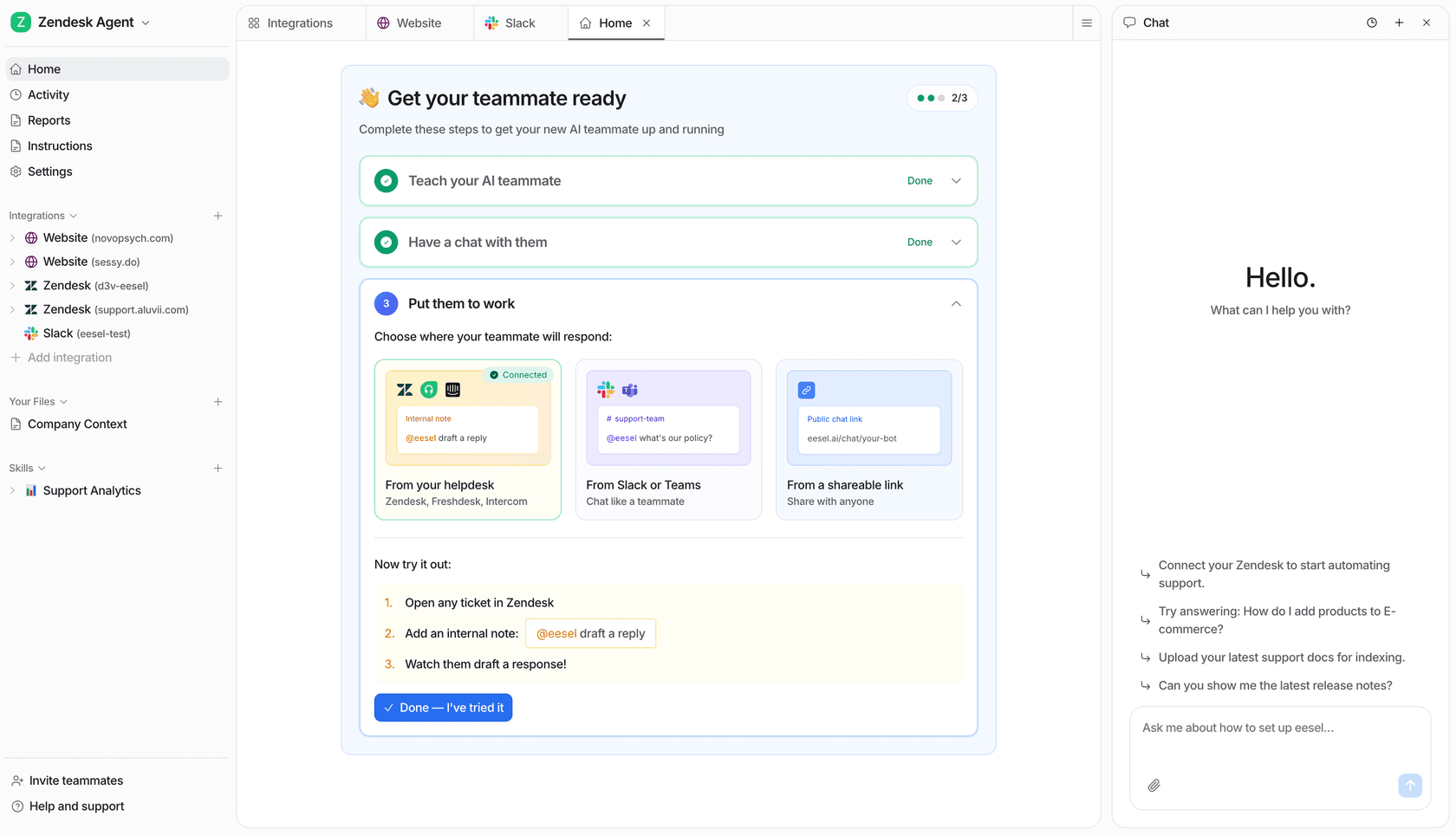
Try eesel to connect your reusable support-document workflow to a teammate. The skill organizes the work, the CLI supplies structured results, and the dashboard lets your support team review the same setup.
Frequently asked questions
What exactly is a Claude Code command and how does it help with my development workflow?
A Claude Code command is a reusable workflow you invoke with a slash command, such as /review. For new work, it is usually a skill: instructions in a SKILL.md file that can also be loaded automatically when relevant.
How do I create a custom Claude Code command for either project-specific or personal use?
For new work, create a SKILL.md file in .claude/skills/<name>/ for a project or ~/.claude/skills/<name>/ for personal use. It creates a slash command with the folder name. Files in .claude/commands/ still work, but are the legacy-compatible format.
Can I make a Claude Code command dynamic by passing arguments to it?
Yes. Use $ARGUMENTS for everything after the command, or use $0 for the first argument, $1 for the second, and so on. You can also use indexed forms such as $ARGUMENTS[0].
What's the difference between a Claude Code command and an Agent Skill?
They are now the same system. A skill can be invoked directly as a slash command, and Claude can also load it when its description matches the task. Use disable-model-invocation: true when only a person should trigger it.
How does the "CLAUDE.md" file influence a Claude Code command's effectiveness?
CLAUDE.md supplies project context such as code style, architectural decisions, and test commands. A skill adds the procedure for a particular task. Neither file guarantees that an AI response is correct; review the output and relevant tests.
What are some advanced features I can use with a Claude Code command for more control?
Frontmatter can add a description, argument hint, and allowed-tools. That tool grant applies only to the turn that invokes the skill and clears with the next message. It does not override a matching ask or deny rule; use permissions.allow for broader policy.
Can a Claude Code skill operate my eesel support teammate?
Yes. A skill can ask Claude Code to run eesel CLI commands and interpret their JSON output. For example, it can compare a reviewed support document with the teammate's standing instructions, then propose an approved file upload. The CLI operates the same teammate as the dashboard. Confirm the workspace and agent, approve writes and billed tests separately, and check the response rather than assuming an upload proves an answer is correct.