

What the Claude AI coding assistant is
Claude Code is an AI coding tool from Anthropic. It works in the terminal, VS Code, JetBrains IDEs, a desktop app, and the web. Depending on the surface and permissions, it can inspect a repository, change several files, run commands, work with git, and connect to outside tools.
That is a different job from autocomplete. Autocomplete suggests a local next line; Claude Code can trace a feature across files, propose a plan, implement a change, and run the project’s tests. It is valuable when the task has enough context that opening files, checking conventions, and verifying behavior would otherwise take several manual steps.
It is still a tool, not a release owner. A coherent diff can have the wrong product behavior, and a passing narrow test can miss a customer-impacting case. Keep the person who understands the system responsible for the scope, the acceptance criteria, and the final merge.
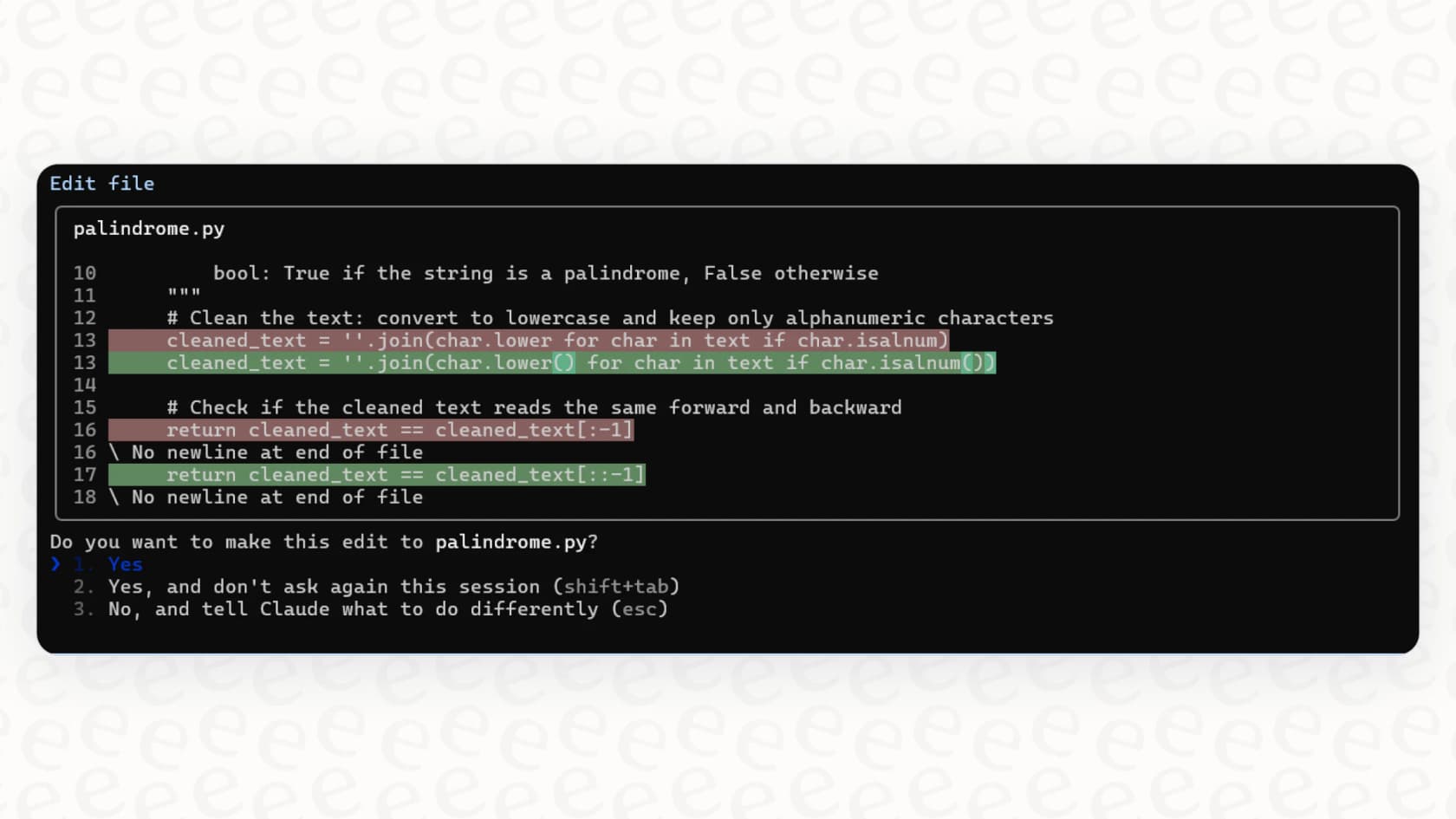
Claude Code shows a file-edit diff and asks for a decision, from eesel’s terminal tool guide.
What Claude Code can do well
Anthropic documents Claude Code for codebase exploration, bug fixes, refactors, tests, documentation, pull requests, and recurring development tasks. The useful question is not whether it can write code; it is whether you can give it a clear, checkable job.
Explore before editing
For an unfamiliar repository, ask it to identify the relevant files, explain the request flow, and name the tests that cover it. This is usually safer than beginning with “fix it.” Claude Code’s common workflows explicitly support starting broad and narrowing to specific components.
Project instructions make this more reliable. A CLAUDE.md file can describe the architecture, required commands, approved libraries, test expectations, and review checklist that Claude Code should use at the start of a session. It reduces rediscovery, but it does not replace reading the current code or checking the output.
Make changes in small, testable pieces
For a feature or a refactor, a practical sequence is:
- Ask Claude Code to explain the current behavior and propose a plan without editing.
- Review the files, affected interfaces, risks, and test plan in that proposal.
- Authorize a small implementation slice, then inspect the diff.
- Run the relevant tests and add a failure case that represents the user-facing risk.
- Review the final change before creating a pull request or deploying it.
Anthropic’s documentation recommends planning before edits and running tests after a change. That order gives reviewers a chance to correct the scope before code reaches disk, rather than trying to unwind a large, plausible-looking patch later.
Use connected tools deliberately
The Model Context Protocol lets Claude Code work with external sources and tools, such as design documentation, issue trackers, chat, or a custom internal service. This can make an implementation much more grounded: a coding agent can compare a request to a design, read the approved issue, or find a decision in the team’s documentation.
It also changes the risk. A connection may expose information or give the agent the ability to create a ticket, modify a record, or send a message. Review each server, its authentication, the tools it exposes, and the action that is being requested. A connection being available is not an instruction to use it.
Permissions are part of the design
Claude Code can read files, write edits, execute commands, and use connected tools. Its permission system is therefore not a nuisance to work around. It is where the engineer decides what an AI turn may do.
Start with the smallest useful access. For investigation, ask it to inspect files and return a plan. For implementation, approve only the commands and directories that the change needs. For a risky operation, use an isolated environment and a known rollback path. Review generated diffs, command output, test results, and any external-system result yourself.
Avoid modes that bypass permission prompts in normal development. They remove a checkpoint precisely when a request is broad, a command has side effects, or a connected tool could act outside the repository. “The prompt said to be careful” is not a permission model.
How Claude Code access and billing work
The command-line tool is free to install, but it needs a model-access route. A paid Claude subscription is one route, not the only one: Anthropic also documents Console accounts with prepaid API credits and supported cloud-provider access. The terminal CLI, VS Code, and JetBrains can use those third-party provider routes; the desktop app requires a paid Claude subscription. Claude Code’s overview distinguishes the available surfaces and account paths.
For an individual Claude subscription, Pro is $20 per month in the US. Anthropic lists its annual option at a rounded $17 per month, with $200 billed up front. Max starts at $100 per month and offers 5× or 20× the Pro usage. Team is for 2–150 people: standard seats are $20 per seat/month billed annually or $25 billed monthly; premium seats are $100 per seat/month billed annually or $125 billed monthly. These displayed prices exclude applicable tax. Claude Code is included in paid Claude plans, but a long coding session is not a separate unlimited allowance. Check Anthropic’s pricing page and the plan’s usage rules before choosing.
Choose the route that matches who pays and where the work runs. A subscription is straightforward for interactive use; Console credits are pay-as-you-go API access; a cloud provider may fit an organization’s existing billing and controls. Check the current plan page before buying, because usage limits and plan packaging change.
A release workflow that includes customer support
A product release often changes more than code. A renamed setting, new entitlement, or updated error path may require a support article, a helpdesk instruction, or an escalation rule to change as well. That work should not live as an afterthought in a pull-request comment.
For example, suppose a release renames the “Auto-resolve refund requests” setting to “Resolve eligible refund requests automatically.” The engineer asks Claude Code to find the UI copy, API field, documentation, and tests that still use the old name. The product owner confirms the new promise: it applies only to eligible requests and does not authorize refunds. Then the support owner checks whether their existing helpdesk instructions or uploaded knowledge still tell customers that the old setting “automatically resolves every refund request.”
The roles are concrete. Claude Code can locate the old strings, propose code and documentation edits, and run the agreed repository tests. eesel CLI can expose the same support teammate, instructions, integrations, and activity that the support owner sees in the dashboard. The product or support owner decides the customer-facing wording, approves a real instruction or knowledge change, and tests an actual support answer after it is live.
This is where eesel CLI is useful beyond writing code. With Node.js 18.17 or newer, npx @eesel/cli gives the engineer a terminal view of the same eesel teammate and workspace that the support team sees in the dashboard. The output is JSON, so Claude Code can inspect it without copying screenshots or maintaining a second configuration.
Use a real existing teammate name or ID in place of RELEASE_SUPPORT_TEAMMATE. The engineer needs an authenticated eesel CLI session and Node.js 18.17 or newer. For this non-production review, the owner sets customer-facing actions to Disabled on the dashboard’s Actions page. These are per-action controls, not a universal approval promise. Sign in first; the remaining commands inspect the setup:
TARGET_EESEL_AGENT="RELEASE_SUPPORT_TEAMMATE"
npx @eesel/cli login
npx @eesel/cli whoami
npx @eesel/cli agents
npx @eesel/cli status --agent "$TARGET_EESEL_AGENT"
npx @eesel/cli instructions --agent "$TARGET_EESEL_AGENT"
npx @eesel/cli integrations --agent "$TARGET_EESEL_AGENT"
npx @eesel/cli activity --agent "$TARGET_EESEL_AGENT"
An engineer can give those results, the approved release note, and the repository test cases to Claude Code and ask: “Which support instruction, knowledge source, or integration behavior conflicts with the renamed setting? Find places that still promise every refund request is resolved automatically. List evidence and tests; do not make a change.” The response is a review artifact, not proof that support is ready.
If the owner approves a narrow knowledge update, preview the upload first. files upload adds an approved document; it does not silently replace standing teammate instructions. The owner then explicitly approves the real upload, and tests the new behavior in the actual helpdesk environment. --dry-run previews a write, but read commands still run; it does not validate a customer answer or a connected action.
# The owner has reviewed approved-setting-copy.md before this request.
npx @eesel/cli files upload ./approved-setting-copy.md --agent "$TARGET_EESEL_AGENT" --dry-run

# Run only after the owner approves this specific knowledge update.
npx @eesel/cli files upload ./approved-setting-copy.md --agent "$TARGET_EESEL_AGENT"
npx @eesel/cli files ls --agent "$TARGET_EESEL_AGENT"
The new file does not resolve a contradictory standing instruction by itself. The support owner reviews that proposed instruction change separately and checks the saved result. Before enabling the production workflow, test questions such as “Where is this setting?” and “Does turning it on issue a refund?” against the approved release note. If using npx @eesel/cli chat for these tests, check billing and authorize the paid work first. File presence and a plausible answer are not proof that the instructions or customer-facing behavior are correct.
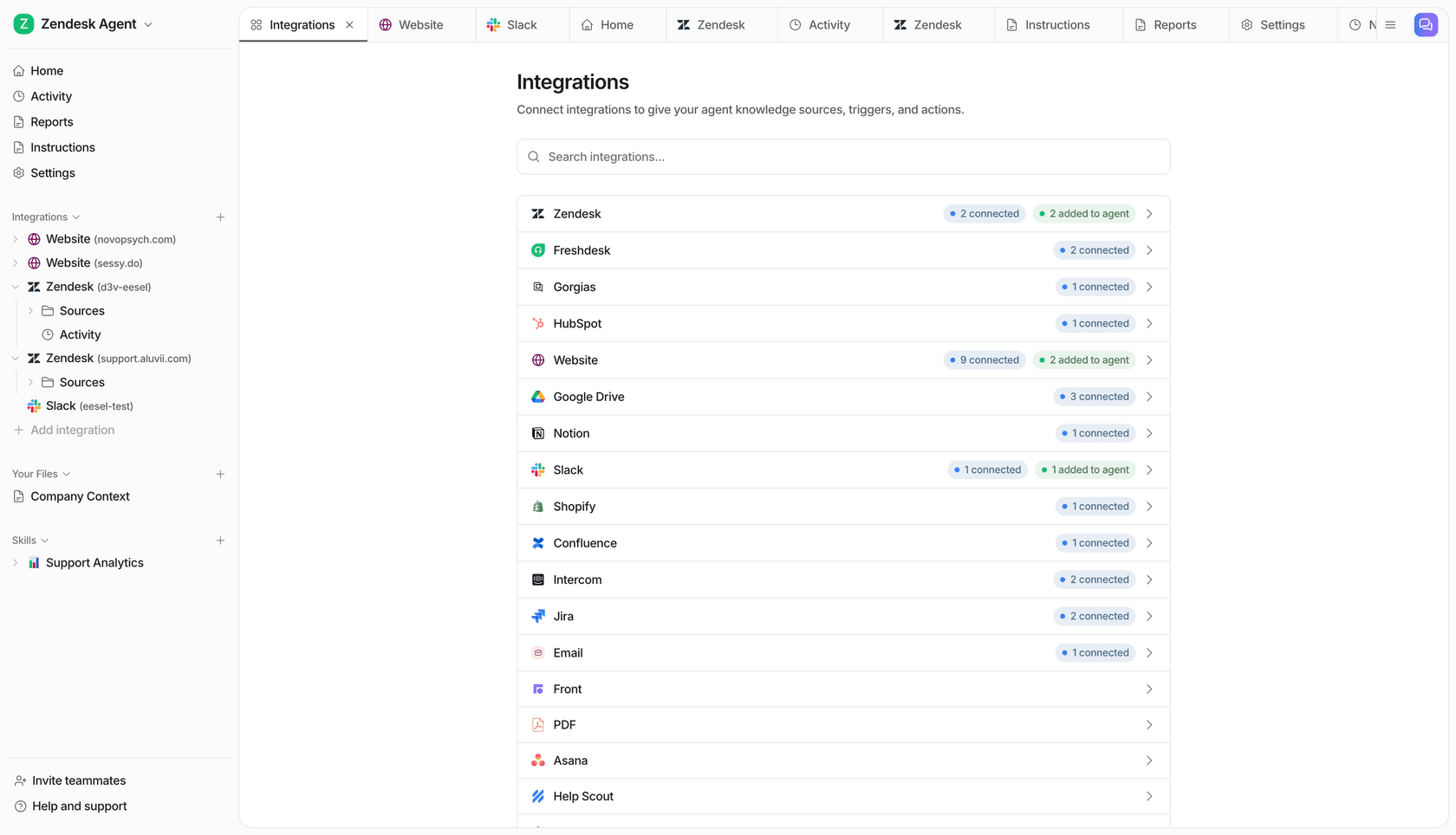
The eesel integrations view, with connected-source and agent-status badges, is part of the same workspace an engineer can inspect through eesel CLI.
Connect engineering work with ongoing support
Claude Code is a strong fit when a developer owns a defined code or release-support task and can review its work. It is a poor substitute for a product decision, security sign-off, customer communication, or a support system already built to handle the job.
Claude Code helps developers explore, change, and test software. eesel offers teammates for helpdesk and blog writing. A person, script, or coding agent such as Claude Code, Codex, or Cursor can use eesel CLI to inspect and configure the existing teammate, connecting the engineering change to the ongoing support or content work.
Sources
- Claude Code overview
- Claude Code workflows
- Claude Code permissions
- Claude pricing
- eesel CLI documentation
Use eesel CLI to make a release-support review concrete
If a release affects what customers can do or what support should say, do not ask an engineer to guess the support configuration. eesel’s AI helpdesk teammate gives the support owner a ready-made operating surface, while eesel CLI lets the engineer inspect that same teammate during a release review. Keep the final product, support, and release decisions with their owners. Try eesel.
Frequently asked questions
What is the Claude AI coding assistant?
Claude Code is Anthropic’s agentic coding tool. It can read a codebase, edit files, run commands, and work across development tools from the terminal, IDE, desktop app, or web.
Can Claude Code work across an entire codebase?
Yes. Claude Code can inspect multiple files and use project instructions such as CLAUDE.md. Give it a bounded task and review the resulting diff and tests rather than assuming broad context makes every answer correct.
Does Claude Code require a terminal?
No. Anthropic documents Claude Code in the terminal, VS Code, JetBrains IDEs, a desktop app, and the web. The right surface depends on whether you need local commands, visual diffs, or a remote task.
How is Claude Code priced?
Claude Code is included with paid Claude plans and shares their usage pool. Anthropic also supports Console prepaid API credits and supported cloud-provider routes, so a Claude subscription is not the only access path.
Can Claude Code use MCP tools?
Yes. MCP can connect Claude Code to external tools and data sources. Each connection expands what the agent can access or change, so review the server, permissions, and requested action before using it.