

Choose the file by who should receive the change
Claude Code can read and edit files, run commands, and use connected tools. Its settings documentation distinguishes personal, project, and managed configuration. Start Claude Code in the intended project directory and decide whether a change belongs to you, your team, or your organization.
| Configuration | Purpose | Who receives it |
|---|---|---|
CLAUDE.md | Project instructions and context | Sessions that load that file |
~/.claude/settings.json | Personal runtime settings | Your projects on that machine |
.claude/settings.json | Shared project settings | Teammates and cloud clones when committed |
.claude/settings.local.json | Personal project overrides | Your local project sessions |
| Managed settings | Organization policy | Devices or sessions covered by its delivery method |
.mcp.json | Project-scoped MCP server configuration | Project sessions, subject to loading and approval rules |
On Windows, the home-directory .claude folder normally lives under %USERPROFILE%. If you create a local settings file manually, ensure Git ignores it: do not assume a filename containing “local” makes it private. Shared settings also have limits: some keys cannot be set by a repository, and some permissions wait for workspace trust.
Use CLAUDE.md for facts a contributor needs
CLAUDE.md is useful for build and test commands, architecture, conventions, and review requirements. Keep it factual: name the actual test command and the directory that owns a behavior. A short instruction such as “Customer-facing wording needs support-owner review” is more useful than “Always produce excellent work.”
For a project that uses eesel, record the workflow rather than credentials:
Before proposing a support configuration change, ask the owner for the authorized workspace and teammate. Read current settings and produce a comparison report. Do not infer a customer policy from repository comments. Do not change standing instructions, schedules, or action permissions without separate approval.
This is a suggested instruction, not an access-control mechanism. CLAUDE.md shapes what Claude tries to do; credentials and enforced permissions determine what it can do. Do not store API tokens or customer records in a shared instruction file.
Configure permissions without granting blanket shell access
Claude Code evaluates matching permission rules in the order Deny, Ask, then Allow. A narrower Allow rule does not cancel a matching Deny or Ask rule. The active mode matters too: Manual and Auto do not handle approvals the same way. Inspect /permissions before a consequential task.
For example, this strict JSON fragment asks before matching eesel CLI calls through Bash and denies direct reads of the named environment files:
{
  "permissions": {
    "ask": ["Bash(npx @eesel/cli *)"],
    "deny": ["Read(./.env)", "Read(./.env.*)"]
  }
}
Merge the relevant keys into the correct existing settings file; do not overwrite unrelated rules. This is not a complete security policy. The Bash pattern does not cover every alias or alternative executable, and a Read rule does not make a secret inaccessible through every other tool. Keep sensitive credentials out of the agent's environment unless the task needs them, and enforce access in the connected service as well.
Do not allow all git or npx commands merely to reduce prompts. Both can do much more than inspect files. Approve the exact requested action after reviewing its target and effect.
Understand precedence before debugging a setting
For ordinary keys, the order is managed settings, command-line settings, project local, shared project, then user settings. But it is not a universal last-file-wins system. Permission lists merge across scopes, some security-sensitive keys keep the more restrictive value, and environment-variable precedence is defined per key.
For example, a shared project choice can override a personal default. A project-local choice may change your session without changing a teammate's. Organization-managed policy can still constrain both. Deleting a personal Allow rule does not necessarily remove a permission supplied elsewhere.
Check the exact key in the settings reference instead of repeatedly editing different files. Model selection deserves the same care: a startup model is different from an organization allowlist of selectable models. Use the current model picker and account availability rather than copying an old model ID from a blog.
Verify what loaded, then test the intended behavior
Use this sequence after a configuration edit:
- Run
/statusinside Claude Code. Its setting-sources list confirms which files loaded; it does not show the source of every individual key. - If something was rejected, run
claude doctorand inspect the reported configuration error. Settings are strict JSON, so trailing commas and comments can invalidate a file. - Check whether the changed key takes effect immediately. Many settings reload, but model and effort changes have their own commands or need a new session.
- Try one harmless action that should be permitted and one that should be refused or require approval. Record the observed result, not only that the JSON parsed.
Do not use real customer data or a production write as the first permission test. A loaded file proves configuration was read, not that every intended boundary works.

The terminal and IDE can use the same local settings files, but their menus differ. The terminal /config menu is not a raw view of every settings key.
Keep integrations and cloud sessions explicit
MCP configuration connects Claude Code to an external tool server. Project-scoped servers use .mcp.json; sharing that file is different from sharing authentication. Review the server, credentials, and exposed actions before connecting it. claude mcp list reports configured-server status, while claude mcp get checks a named server. An “Added” message means configuration was written, not that authentication and every tool work.
Interactive project-server approval is not a universal safeguard for unattended runs. Anthropic documents different loading behavior for print-mode and cloud sessions. Review the exact environment before copying an interactive setup into CI.
Cloud sessions also do not inherit your machine's user and project-local settings. Committed shared settings can reach the repository clone; managed policy delivery and a self-hosted runner's configuration need separate checks. Keep a record of the intended environment and verify there, not only on your laptop.
Check the eesel workspace before comparing configuration
Suppose a support owner asks you to review an after-hours handoff setup. They supply the approved teammate ID, intended knowledge sources, and the rule that overnight requests should wait for the next staffed shift rather than promise an immediate reply. A developer wants to check the configuration from Claude Code; an operations colleague wants the same report from a script.
eesel CLI makes both possible. It operates the same teammate and workspace as the dashboard and returns JSON. With Node.js 18.17 or newer, begin by checking the actual identity and available teammates:
npx @eesel/cli login
npx @eesel/cli whoami
npx @eesel/cli agents
Login stores local credentials. For scripts, the documented EESEL_API_URL and EESEL_API_TOKEN environment variables take precedence over stored login. That makes identity checking especially important: a shell with CI credentials may reach a different workspace than the developer expects. Do not print tokens in a diagnostic report.
The owner confirms the workspace and records the exact authorized teammate ID or name. Replace this placeholder with that value, then inspect without changing configuration:
CONFIG_REVIEW_AGENT="REPLACE_WITH_OWNER_APPROVED_AGENT"
npx @eesel/cli status --agent "$CONFIG_REVIEW_AGENT"
npx @eesel/cli instructions --agent "$CONFIG_REVIEW_AGENT"
npx @eesel/cli automations --agent "$CONFIG_REVIEW_AGENT"
npx @eesel/cli integrations --agent "$CONFIG_REVIEW_AGENT"
Ask the coding agent to produce a short comparison with three columns: the owner's requirement, the observed configuration, and the unresolved question. For this fictional review, useful questions are whether an old immediate-response instruction conflicts with the handoff rule, whether a scheduled job still exists, and whether the intended source is connected and ready. Do not assume every schedule detail appears in a summary: inspect the supported command help or dashboard when a field is missing.
This is an inspection workflow, not an instruction to replace schedules or rewrite policy. The report should distinguish “not found in the inspected output” from “does not exist.” If the laptop and script disagree, resolve their identity, target, and observation time before deciding there is a product bug.
Review and approve the change through eesel CLI
The useful result is a configuration difference the owner can review in the same dashboard, not an automatic edit based on a guess. A person, script, Claude Code, Codex, or Cursor can collect the evidence; the owner decides which instruction or automation should change.
For an approved correction, consult the command's current --help, preview supported writes with --dry-run, apply only the agreed change, and read back the state. A dry run previews a request; it does not test the teammate's answer. If response tests are needed, use an owner-approved nonproduction teammate with consequential actions Disabled in its actual Actions settings. Get approval for billed chats and test an overnight request, a staffed-shift request, and a request with no clear time zone against the explicitly supplied rule. No such tests were performed for this example.
Setup and observation commands are free; eesel chat is billed work. Separately, Claude pricing and account access determine the cost of the coding session. Configuration does not make either product unlimited, and a local JSON change does not purchase a plan or authorize a support action.
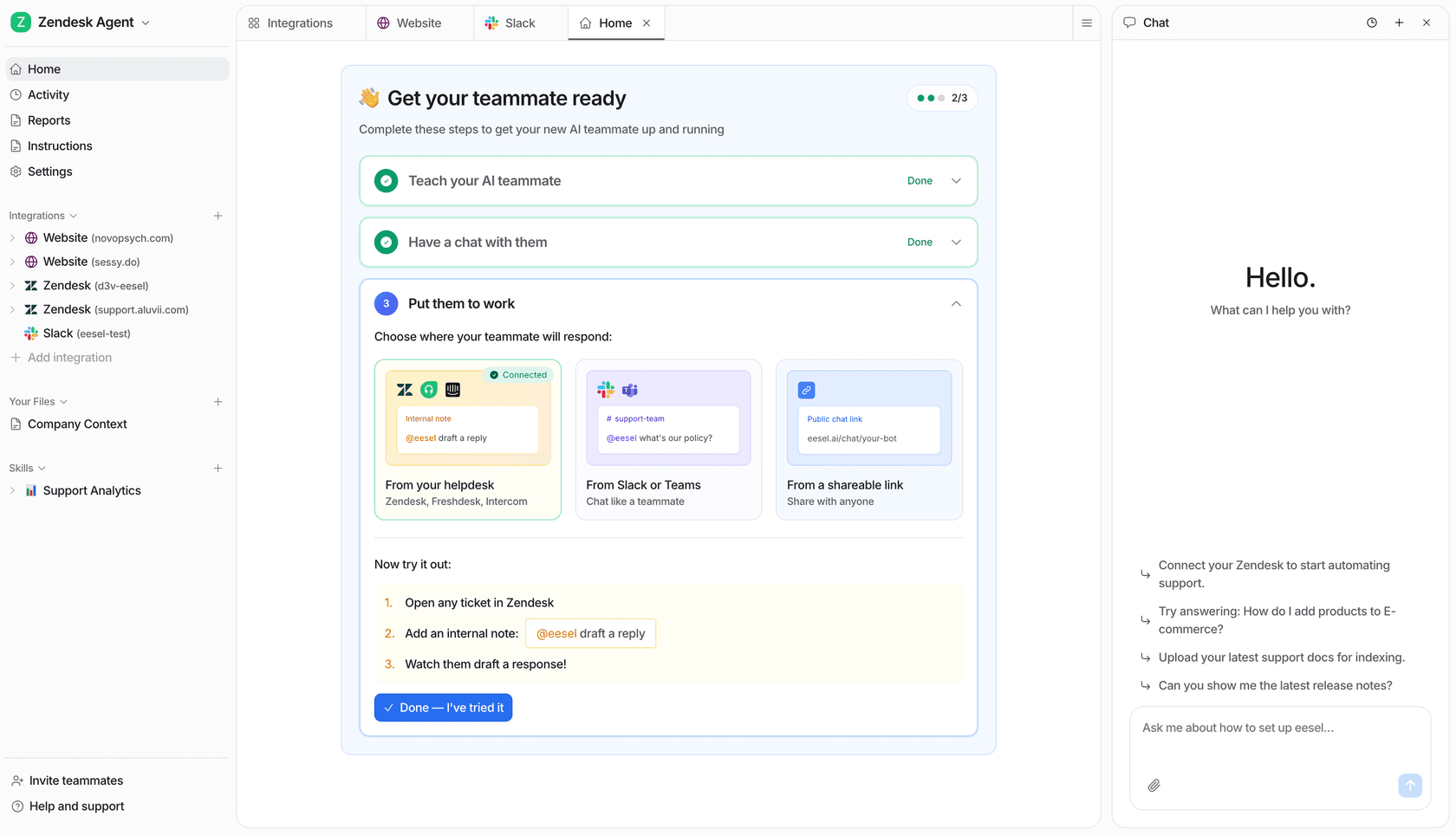
This example workspace is not a record of the fictional handoff review. Try eesel with a named owner and a clearly scoped support job, then use the dashboard or CLI to verify the setup together.
Frequently Asked Questions
Where should I put Claude Code settings?
Use .claude/settings.json for shared project settings and .claude/settings.local.json for personal project overrides. User settings in ~/.claude/settings.json apply across your projects on that machine. Organization-managed settings can constrain all of them.
Does CLAUDE.md replace settings.json?
No. CLAUDE.md supplies instructions and project context. Settings and permission rules control supported runtime behavior and access. A written instruction not to deploy is not a permission boundary.
Which Claude Code settings take precedence?
For ordinary settings keys, managed settings outrank command-line settings, then project local, shared project, and user settings. Lists and some security-sensitive keys have special merging rules, so check the reference for the exact key.
How do I check whether my settings loaded?
Run /status inside Claude Code to see loaded setting sources. It does not identify the source of every individual key. Use claude doctor to inspect configuration errors and check the key-specific precedence when behavior is unexpected.
Are local settings copied to Claude Code cloud sessions?
No. User and project-local files stay on your machine. Committed project settings can reach a cloud clone. Managed policy delivery and self-hosted runner configuration have their own rules.
Does granting a Claude Code tool permission grant eesel access?
No. Claude Code permissions govern its tool use. eesel authentication, selected workspace and teammate, and action controls are separate. Inspect the actual identity and target before allowing any workspace change.
How can eesel CLI help with configuration review?
A person, script, Claude Code, Codex, or Cursor can read the selected teammate’s status, instructions, and automations as JSON. Compare those with the support owner’s approved setup, report differences, and verify any separately approved change in the same dashboard workspace.