
Webhooks are one of the most powerful automation tools in Zendesk. They let your support platform talk to other systems in real time, sending data wherever it needs to go without manual intervention.
Think of a webhook as a messenger that runs between apps. When something happens in Zendesk (a ticket gets created, a user is updated, a priority changes), the webhook carries that information to another system instantly. Instead of checking for updates every few minutes, your systems get notified the moment something happens.
This guide walks you through everything you need to know about Zendesk webhooks: what they are, how to set them up, and how to use them effectively. Whether you're connecting Zendesk to Slack, updating a CRM, or building custom integrations, you'll find practical steps you can follow right away.
If you're looking for automation without the technical complexity of webhooks, tools like eesel AI offer native Zendesk integrations that handle the heavy lifting for you. Our AI Agent can resolve tickets autonomously without any webhook setup. But if you want full control over your data flows, webhooks are the way to go.

Step 1: Access the webhooks section in Zendesk Admin Center
To get started, log into your Zendesk account and navigate to the Admin Center. Click the gear icon in the sidebar, then go to Apps and integrations > Webhooks. For more details, see the official Zendesk webhooks documentation.
The webhooks dashboard shows all your existing webhooks, their status (active or inactive), and when they were last triggered. If this is your first time here, the list will be empty.
Take a moment to familiarize yourself with the interface. You'll see options to create new webhooks, edit existing ones, and view activity logs. The activity logs are particularly useful when you're troubleshooting issues later.
Step 2: Create a new webhook
Click the Create webhook button to start the setup process. You'll see a form with several fields to configure.
Name your webhook something descriptive. You'll thank yourself later when you have multiple webhooks and need to remember what each one does. "Slack urgent ticket notifications" is better than "Webhook 1."
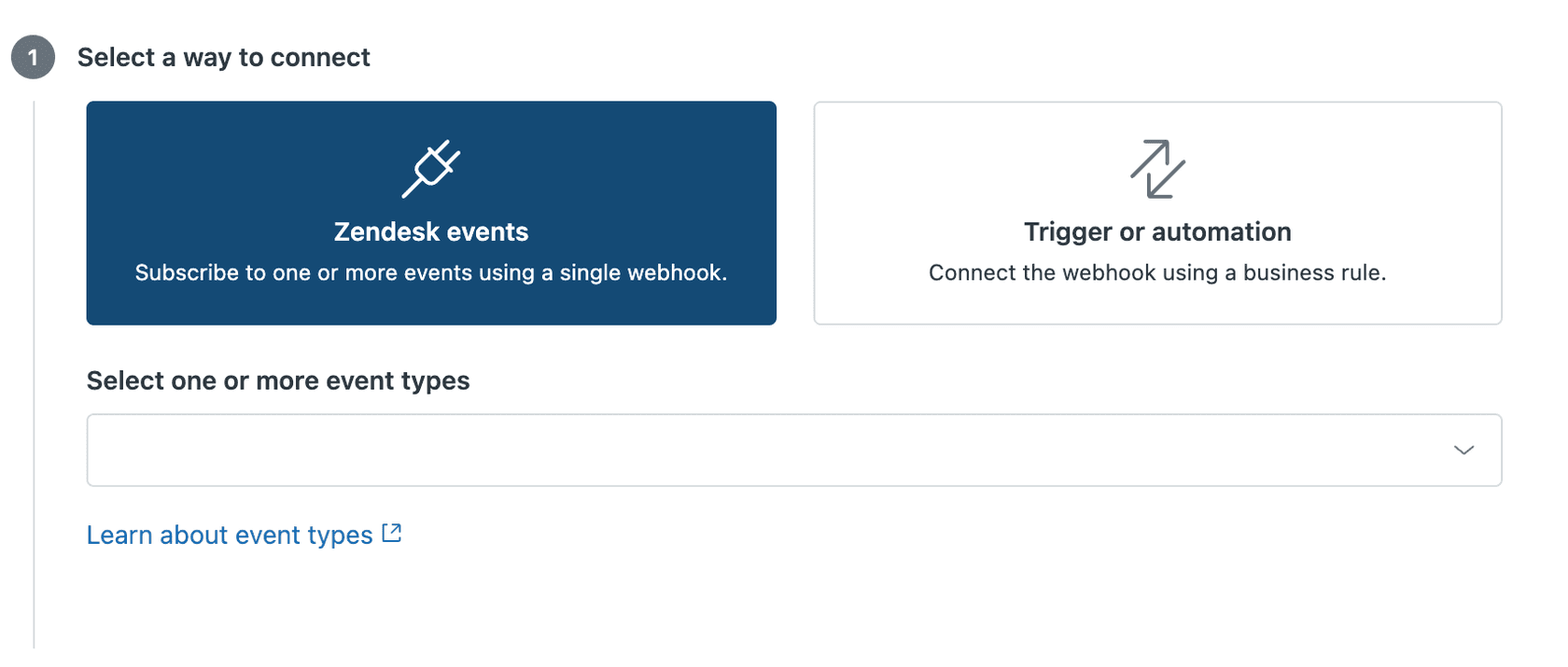
Choose your connection method. Zendesk offers two ways to connect webhooks:
- Trigger or Automation the webhook fires when specific ticket conditions are met (like when a high-priority ticket is created)
- Zendesk Events the webhook subscribes to system events (like when any user is created or updated)
The key difference? Trigger-based webhooks give you fine-grained control over when they fire. Event-based webhooks fire for every instance of that event type, with no filtering at the Zendesk level.
Important: Once you create a webhook, you can't change its connection method. If you start with a trigger-based webhook, it will always be trigger-based. Choose carefully based on your use case.
Enter your endpoint URL this is where Zendesk will send the webhook data. For testing, you might use a service like webhook.site to see the payloads. For production, this should be your actual integration endpoint.
Step 3: Configure request settings
Now you'll configure how the webhook sends data to your endpoint.
Select the HTTP method based on what your endpoint expects:
- POST most common for creating resources or sending data
- PUT/PATCH for updating existing resources
- GET for retrieving data (rarely used with webhooks)
- DELETE for removing resources
If you're connecting to Zendesk events (not triggers), you must use POST. Event subscriptions don't support other HTTP methods.
Choose your request format:
- JSON the standard for modern APIs, human-readable and widely supported
- XML older format, still used by some enterprise systems
- Form-encoded simple key-value pairs, useful for basic integrations
Again, event-based webhooks require JSON. Only trigger-based webhooks give you format flexibility.
Set up authentication. Most production endpoints require some form of authentication. Zendesk supports:
- Bearer token Zendesk sends an
Authorization: Bearer <token>header - Basic auth username and password encoded in the request
- API key custom header with your API key
- None for testing or public endpoints only
For Bearer token authentication, paste your token into the field. Zendesk handles the header formatting for you. If you're using a custom header for API keys, add it in the custom headers section.
Step 4: Test your webhook
Before saving your webhook, test it to make sure everything works.
Click Test webhook to open the testing panel. You'll see a sample payload that Zendesk would send, along with options to customize the test data.
Click Send test and watch for the response. A successful test shows a green checkmark with a 200-level HTTP status code. If you see errors, check:
- Is your endpoint URL correct and accessible?
- Is authentication configured properly?
- Is your endpoint expecting the right request format?
The webhook activity logs are your best friend for debugging. Go to Admin Center > Webhooks > [your webhook] > Activity to see delivery attempts, response codes, and error messages.
Common issues include:
- 401/403 errors authentication problems, check your tokens
- 404 errors endpoint URL is wrong or the service is down
- 500 errors your endpoint is crashing, check your server logs
- Timeouts your endpoint is too slow to respond (Zendesk waits 10 seconds)
Once your test passes, click Create to save the webhook.
Step 5: Connect to triggers or events
Your webhook is created, but it won't do anything until you connect it to a trigger, automation, or event subscription.
For trigger-based webhooks:
- Go to Admin Center > Objects and rules > Triggers (or Automations)
- Create a new trigger or edit an existing one
- Set your conditions (e.g., "Priority is High" AND "Status is New")
- Under Actions, select Notify active webhook and choose your webhook
- Configure the JSON payload using Zendesk placeholders like
{{ticket.id}},{{ticket.requester.email}}, or{{ticket.subject}}
For event-based webhooks:
- Edit your webhook
- Under Subscriptions, select the events you want to subscribe to
- Available events include ticket events, user events, organization events, and more
- Save your changes
Remember: event-based webhooks fire for every instance of that event. If you subscribe to "ticket created," you'll get a webhook for every single ticket. Make sure your endpoint can handle the volume.
Common use cases for Zendesk webhooks
Once you understand the basics, you'll start seeing webhook opportunities everywhere. Here are some of the most common ways teams use Zendesk webhooks:
Slack notifications for urgent tickets
When a high-priority ticket comes in, post a message to your #support-urgent channel with ticket details and a direct link. This keeps everyone informed without constant Zendesk checking.
Updating external CRM systems
When a user is created or updated in Zendesk, sync that data to Salesforce, HubSpot, or your custom CRM. This keeps customer records consistent across platforms.
Sending SMS notifications
Connect Zendesk to an SMS service like 8x8 or Twilio to send customers proactive updates about their tickets.
Data warehouse logging
Send all ticket events to a data warehouse like Snowflake or BigQuery for analytics. This gives you a complete history of support activity for reporting and machine learning.
Automated ticket actions via internal API calls
Use webhooks to call Zendesk's own API for complex ticket updates that triggers can't handle. For example, copying data between custom fields or updating related tickets.
Privacy and compliance automation
Connect to privacy platforms like Transcend to automatically handle data subject requests when customers email your support team.
Testing webhooks locally with ngrok
Building a webhook endpoint on your local machine? You'll need a way to expose it to the internet so Zendesk can reach it. That's where ngrok comes in.
ngrok creates a secure tunnel from a public URL to your localhost. Here's how to set it up:
- Install ngrok download from ngrok.com and authenticate with your authtoken
- Start your local server run your webhook endpoint on localhost (usually port 3000 or 8080)
- Start ngrok run
ngrok http 3000(replace 3000 with your port) - Copy the ngrok URL it looks like
https://1a2b-3c4d.ngrok.app - Use that URL in Zendesk paste it as your webhook endpoint
Now when Zendesk sends webhooks, they'll route through ngrok to your local machine. You can inspect the full request payload, headers, and response in the ngrok dashboard or terminal.
This setup is perfect for development and testing. Just remember: ngrok URLs change every time you restart ngrok (unless you have a paid plan with reserved domains). Update your Zendesk webhook configuration if your ngrok URL changes.
Troubleshooting common issues
Even with careful setup, webhooks sometimes fail. Here's how to diagnose and fix common problems:
Webhook not firing
- Check your trigger conditions are they actually being met?
- Verify the webhook is active, not paused
- Look at the webhook activity logs for delivery attempts
- For trigger-based webhooks, test the trigger separately
Authentication failures
- Double-check your Bearer token or API key
- Verify the token hasn't expired
- Make sure you're using the right authentication method for your endpoint
- Check if your endpoint expects authentication in a specific header format
Rate limiting
Trial accounts are limited to 60 webhook invocations per minute. If you exceed this, Zendesk will temporarily block additional requests. Solutions:
- Upgrade to a paid Zendesk plan
- Batch your webhook calls
- Use trigger conditions to reduce unnecessary webhook firing
Payload format errors
- Verify your endpoint expects the format you're sending (JSON vs. XML)
- Check that required fields are included in your payload
- Test with a tool like Postman to validate your endpoint works independently
Retry logic and delivery failures
Zendesk automatically retries failed webhooks with exponential backoff. If your endpoint returns a 5xx error or times out, Zendesk will retry several times over the next few hours. Check your endpoint logs to see if retries are hitting your server.
Streamlining support automation with eesel AI
Webhooks give you flexibility, but they also require technical setup and ongoing maintenance. If you're looking for automation without writing code or managing endpoints, eesel AI offers a different approach. You can also explore our AI Copilot for drafting replies or AI Triage for automated ticket routing.

Instead of building webhook integrations, you invite eesel AI to your team as an AI teammate. It connects directly to Zendesk and learns from your past tickets, help center articles, and macros. Within minutes, it understands your business and can start handling tickets.
You can start with eesel AI drafting replies for your agents to review. As it proves itself, you level it up to send responses directly, handle specific ticket types, or work 24/7. The progression is controlled you decide when to expand its scope based on actual performance.
For teams already using webhooks, eesel AI can complement your existing automation. Use webhooks for system-to-system integrations, and let eesel AI handle the customer-facing conversation layer. Together, they create a powerful automation stack that covers both technical workflows and human-like support interactions.
If you're spending more time maintaining webhook integrations than benefiting from them, it might be worth exploring whether an AI-native approach fits your needs better.