
If you've ever tried to find a complete list of all your Zendesk organizations and their associated email domains, you've probably hit a wall. Zendesk doesn't provide a native report or view that shows this data in one place. You can see domains when editing individual organizations, but there's no export, no search by domain, and no way to audit your entire domain mapping setup without clicking through each org manually.
This is a real problem for support teams managing B2B customers. When you're dealing with integration sync issues, preparing for migrations, or just trying to keep your data clean, you need that domain list. The good news? There are workarounds.
In this guide, I'll walk you through three methods to extract and manage your Zendesk organization domain list: using the API (most complete), working with CSV exports (limited but native), and setting up triggers and views (for ongoing monitoring).
Why you need to access your organization domain list
Before diving into the how, let's look at why this matters. Here are the most common scenarios where you need a complete view of your organization domains:
Auditing after integration sync issues. If you use the Salesforce integration or another CRM connector, domain mappings can get out of sync. A Salesforce admin might accidentally add "gmail.com" to an account, which then syncs to Zendesk and associates every Gmail user with that company. Finding and fixing this requires seeing all your domains in one place.
Preparing data for migrations. When moving to a new Zendesk instance or consolidating multiple accounts, you need to map organization structures. Without a domain list export, you're manually documenting each organization.
Identifying domain conflicts. When the same domain is mapped to multiple organizations (which Zendesk handles alphabetically), you need to know which orgs are affected to understand the routing implications.
Bulk updating organization mappings. If your company acquires another or reorganizes customer segments, you might need to update dozens or hundreds of domain mappings. Doing this one by one isn't practical.
The Zendesk community has been requesting better organization management tools for years. As one admin noted: "I can't believe this isn't possible already." But until Zendesk adds native functionality, we work with what's available. For more on managing organizations, see Zendesk's guide to creating and managing organizations.
Method 1: Using the Zendesk API to extract organization domains
The most reliable way to get complete domain data is through the Zendesk Organizations API. This method requires admin access and some technical comfort, but it gives you everything. You can also refer to the Zendesk API documentation for authentication details and best practices.

Step 1: Generate an API token
First, you'll need an API token for authentication. Navigate to Admin Center > Apps and integrations > APIs > Zendesk API and create a new token. Copy this token immediately, you won't be able to see it again. See Zendesk's guide on generating API tokens for detailed instructions.
Store this token securely. Anyone with access to it can read and modify your Zendesk data.
Step 2: List organizations with domain data
The Organizations API returns organization objects that include a domain_names array. Use this endpoint:
GET /api/v2/organizations
The API returns up to 100 records per page, so you'll need to handle pagination for larger datasets. The response includes:
{
  "organizations": [
    {
      "id": 35436,
      "name": "Acme Corporation",
      "domain_names": ["acme.com", "acme-corp.com"],
      "external_id": "ACME-123",
      "tags": ["enterprise", "vip"]
    }
  ]
}
Step 3: Parse and export the data
Once you've got the API response, extract the domain_names array from each organization object. You can format this as CSV, JSON, or whatever works for your analysis needs.
A simple Python script can handle the pagination and export:
import requests
import csv

subdomain = "your-subdomain"
email = "your-email@company.com"
token = "your-api-token"

url = f"https://{subdomain}.zendesk.com/api/v2/organizations"
auth = (f"{email}/token", token)

organizations = []
while url:
    response = requests.get(url, auth=auth)
    data = response.json()
    organizations.extend(data["organizations"])
    url = data.get("next_page")

with open("org_domains.csv", "w", newline="") as f:
    writer = csv.writer(f)
    writer.writerow(["Organization ID", "Name", "Domains"])
    for org in organizations:
        writer.writerow([org["id"], org["name"], ", ".join(org.get("domain_names", []))])
API limitations to know
The API approach has some constraints:
- Pagination required: You'll get 100 records per page, so large organizations need pagination handling
- Rate limits apply: Zendesk limits API requests (typically 700 requests per minute for Enterprise plans)
- No native domain filtering: You can't query for "organizations with domain X." You'll need to fetch all and filter client-side
Method 2: CSV export workaround
If you need something simpler and don't mind incomplete data, Zendesk's native CSV export is an option.
How to export organization data
Navigate to Admin Center > People > Bulk actions > Export organizations. This generates a CSV file with your organization data. Learn more about bulk importing and exporting organizations in Zendesk.

What's included (and what's not)
The export includes organization name, ID, external ID, tags, and custom fields. But critically, it doesn't include the domain names field. This is the main limitation that makes this method incomplete for domain auditing.
You can work around this by using the exported organization IDs with API calls to fetch the domain data for specific orgs, but at that point you're combining both methods.
When to use this method
The CSV export works best when:
- You need a quick reference of organization names and IDs
- You're feeding data into another system that doesn't need domain information
- You want to bulk update other organization fields (the export format works for re-import)
Method 3: Using organization-based triggers and views
For ongoing monitoring rather than bulk extraction, Zendesk's native triggers and views can help you work with organization domains.
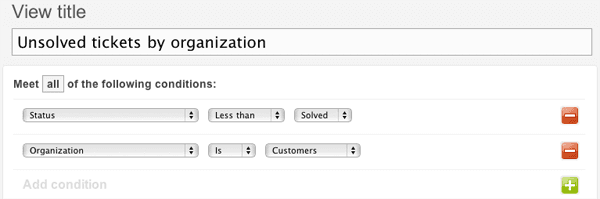
Creating views by organization
Set up views filtered by specific organizations to track tickets from domain-mapped customers. While this doesn't give you a domain list directly, it helps you monitor how tickets flow from different organizations. Check out Zendesk's guide on creating and managing views for step-by-step instructions.
Using triggers to tag by domain
Create triggers that add tags based on organization membership. For example, you could tag all tickets from organizations with the "enterprise" tag, effectively creating trackable segments without needing the domain list itself. Read more about building trigger conditions in Zendesk.

This approach is reactive rather than proactive. It helps you manage tickets from known organizations but doesn't solve the problem of auditing or discovering domain mapping issues.
Handling common organization domain issues
Once you've got access to your domain data, you'll likely find issues that need fixing. Here are the most common problems and how to address them.
Domain conflicts after integrations
Salesforce and other CRM integrations can cause domain conflicts when sync errors occur. The Zendesk Salesforce integration is particularly prone to this when field mappings aren't configured correctly. If you discover that a domain like "gmail.com" has been incorrectly mapped to an organization, you need to:
- Remove the domain from the affected organization in Zendesk
- Check the source system (Salesforce) to prevent re-sync
- Manually reassign any users who were incorrectly associated
Having your complete domain list makes identifying these issues much quicker.
Finding organizations without domains
Organizations created manually or through certain API imports often lack domain mappings. Use your extracted data to identify orgs with empty domain_names arrays, then prioritize which ones need domains added based on ticket volume or customer tier.
Best practices for domain management
- Run regular audits: Monthly or quarterly API extracts help you catch issues early
- Use naming conventions: Clear organization names make it easier to identify the right org when conflicts arise
- Document your mappings: Keep a reference of which domains map to which organizations, especially for complex B2B accounts with multiple domains
Scaling beyond native Zendesk capabilities
API scripts and manual exports work fine for smaller teams or one-time audits. But if you're managing thousands of organizations or need real-time domain-based routing, these workarounds become a real headache.
This is where AI automation becomes worth considering. Instead of maintaining complex scripts and manual processes, an AI system can learn your organization patterns and handle routing intelligently.

At eesel AI, we approach this differently. Rather than building more complex rules around domain mappings, our AI Agent for Zendesk learns how your team actually handles tickets from different organizations. It looks at your past resolutions, understands context beyond just the domain field, and can make intelligent routing decisions without explicit programming.
The approach is progressive. You start with the AI drafting replies for your agents to review, so you can verify it understands your business. Once you're confident, you can let it handle routine tickets directly. This lets you move from simple rule-based routing to intelligent automation that doesn't depend on perfect domain data.
If you're finding that organization domain management is getting you part of the way there but hitting limits, it might be worth exploring what AI automation could add to your workflow. We integrate directly with Zendesk and can enhance your support operations without the maintenance burden of custom scripts.
Start managing your Zendesk organization domains effectively
You now have three methods to work around Zendesk's native limitations for viewing organization domains:
- Use the API for complete data extraction and auditing
- Export CSVs for quick reference (accepting the domain field limitation)
- Set up triggers and views for ongoing ticket monitoring
For most teams, I'd recommend starting with the API method for your initial audit. Get that complete domain list, identify any issues, and clean up your data. Then decide if ongoing API scripts make sense, or if it's time to consider more scalable automation.
If you want to reduce the manual work of organization management altogether, try eesel AI. Our AI agents learn your patterns and handle routing without you maintaining complex domain mappings or scripts. You can also explore our AI Copilot for drafting replies or AI Triage for automated ticket routing.


