If you have spent any time managing a Zendesk help desk, you know that macros are the workhorses of efficient support. They let your agents apply pre-written responses and actions with a single click, turning repetitive tasks into streamlined workflows. But to get the most out of them, you need to understand exactly what actions are available and how they work.

This guide covers every macro action in Zendesk, from the basics like status changes to advanced features like side conversations and custom object placeholders. Whether you are building your first macro or optimizing an existing library, you will find the technical details and practical examples you need here.
For teams looking to go beyond manual macros, we will also touch on how modern AI agents can complement your Zendesk setup by learning from your existing macros and handling more complex scenarios automatically.
What are Zendesk macro actions?
Macro actions are the building blocks of any Zendesk macro. Each action modifies a specific ticket field or property, like changing the status from "Open" to "Solved" or adding a tag for reporting purposes. Unlike triggers (which fire automatically based on events) or automations (which run on schedules), macros are applied manually by agents when they decide the situation calls for it.
This manual control is what makes macros so powerful. An agent can read a ticket, understand the context, and choose exactly the right combination of actions to resolve it. A single macro might update the status, assign the ticket to a specific group, add a helpful comment, and tag the ticket for analytics, all in one click.
Under the hood, macro actions follow a simple JSON structure with two properties: field (what you want to change) and value (what you want to set it to). Here is a basic example:
{
  "actions": [
    {"field": "status", "value": "solved"},
    {"field": "assignee_id", "value": "296220096"}
  ]
}
This structure is consistent across the Zendesk API, making it easy to create, update, and manage macros programmatically.
Complete list of macro actions
Zendesk organizes macro actions into categories based on what they affect. Some actions are shared across macros, triggers, and automations, while others are unique to macros.
Shared actions (available in macros, triggers, and automations)
These actions work the same way whether you are using a macro, trigger, or automation:
Status Sets the ticket status. Macros can use "open", "pending", "on-hold", and "solved". Note that macros cannot set status to "new" (that happens automatically on ticket creation) or "closed" (that requires an automation or manual close).
Type Sets the ticket type: "question", "incident", "problem", or "task". This helps categorize tickets for reporting and workflow purposes.
Priority Sets priority to "low", "normal", "high", or "urgent". Useful for escalation workflows.
Group assignment Assigns the ticket to a specific group. You can use a group ID, or use "current_groups" to assign to the group of the agent applying the macro.
Assignee assignment Assigns to a specific agent by ID, or use "current_user" to assign to the agent applying the macro. You can also leave this empty to unassign the ticket.
Tag management Three separate actions control tags:
set_tagsreplaces all existing tags with the ones you specifycurrent_tagsadds tags to existing onesremove_tagsremoves specific tags while leaving others intact
Tags must be space-separated, and multi-word tags need underscores (like billing_issue).
Custom fields Updates any custom ticket field by referencing its field ID. This works for dropdowns, multi-selects, checkboxes, and text fields.
Ticket forms Changes which ticket form is used. Useful for routing different request types through different workflows.
Followers Adds an agent as a follower on the ticket. Use "current_user" to add the applying agent, or specify an agent ID. This replaces the old CC functionality in modern Zendesk.
Brand Assigns the ticket to a specific brand in multi-brand setups.
Macro-specific actions
These actions are only available in macros:
Subject Replaces the ticket subject line entirely. Useful for standardizing titles or adding reference numbers.
Comment/description Adds a comment to the ticket. This is the most commonly used macro action. You can add plain text or use placeholders for dynamic content.
Comment mode Sets whether the comment is "public" (visible to the requester) or "private" (internal only). This is especially important for macros that add internal notes or sensitive information.
Comment value HTML Adds rich-text comments with formatting, links, and inline images. This uses HTML formatting instead of plain text.
Side conversations Initiates side conversations with external parties. This is useful for collaborating with vendors, partners, or other departments outside your Zendesk.
Actions NOT available in macros
Some actions only work in triggers or automations. Understanding these limitations helps you choose the right tool for each job:
Satisfaction score Only available in triggers and automations. You cannot send CSAT surveys via macro.
Notification emails Triggers and automations can send email notifications to users or groups. Macros cannot send emails directly (though they add comments, which may trigger email notifications depending on your settings).
Webhooks HTTP requests to external systems are trigger/automation only.
CC functionality The old CC action has been replaced by followers in modern Zendesk.
Macro actions JSON reference
For teams managing macros at scale or building integrations, the Zendesk API provides full control over macro actions. Here is what you need to know about the JSON format and API endpoints.
JSON structure
Every macro action is an object with field and value properties:
{
  "field": "status",
  "value": "solved"
}
The value property varies by field type:
- For status, priority, and type: a string like "solved" or "high"
- For assignee and group: a user ID, "current_user", or "current_groups"
- For tags: a space-separated string like "refund billing_issue"
- For comments: the comment text, potentially with placeholders
Complete macro example
Here is a macro that handles a common refund request:
{
  "macro": {
    "title": "Process refund request",
    "actions": [
      {
        "field": "status",
        "value": "solved"
      },
      {
        "field": "comment_value",
        "value": "Hi {{ticket.requester.first_name}}, I've processed your refund for order #{{ticket.custom_field_123456}}. You should see the credit within 3-5 business days."
      },
      {
        "field": "comment_mode_is_public",
        "value": true
      },
      {
        "field": "current_tags",
        "value": "refund_processed"
      },
      {
        "field": "assignee_id",
        "value": "current_user"
      }
    ]
  }
}
Key API endpoints
GET /api/v2/macrosList all macrosPOST /api/v2/macrosCreate a new macroPUT /api/v2/macros/{id}Update an existing macroGET /api/v2/macros/{id}/applyPreview what changes a macro would makeGET /api/v2/tickets/{ticket_id}/macros/{macro_id}/applyPreview changes on a specific ticket
The preview endpoints are particularly useful. They let you see exactly what a macro will do before applying it, which helps with testing and debugging.
Using placeholders in macro actions
Placeholders make macros dynamic by pulling in ticket, user, or organization data. Instead of static text, you can reference specific values that change from ticket to ticket.
Standard placeholders
The most commonly used placeholders include:
{{ticket.id}}The ticket number{{ticket.requester.first_name}}Requester's first name{{ticket.requester.email}}Requester's email address{{ticket.assignee.name}}Current assignee's name{{ticket.created_at}}When the ticket was created{{ticket.description}}The original ticket description
Custom field placeholders
For custom ticket fields, use the field ID:
{{ticket.custom_field_123456}}The value of custom field 123456
You can find field IDs in the Admin Center under Objects and Rules > Tickets > Fields.
Custom object placeholders (2024 feature)
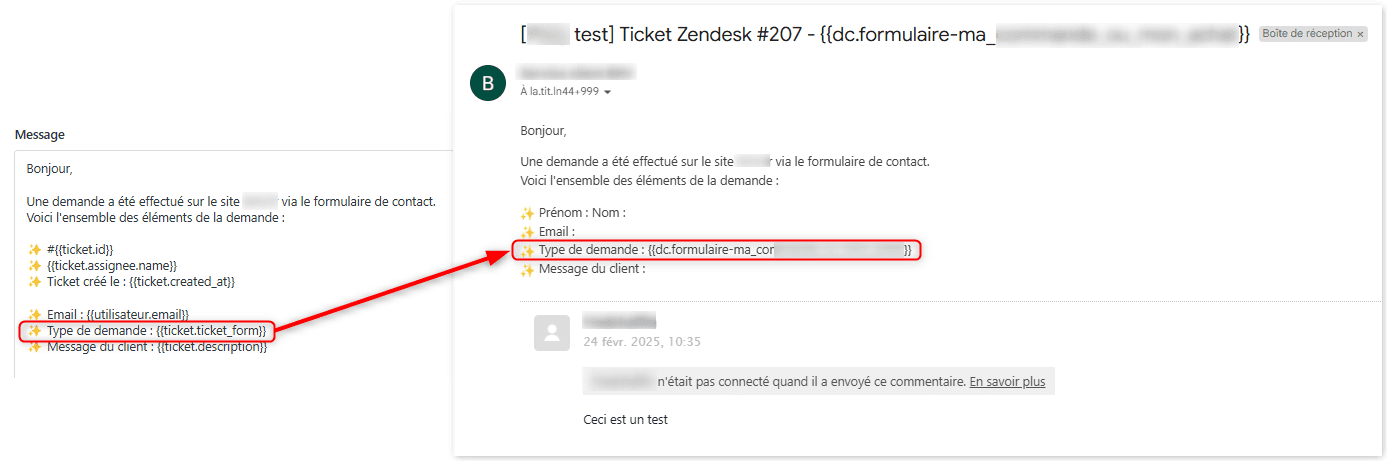
Zendesk introduced custom object placeholders in 2024, opening up powerful new possibilities. If you use lookup relationship fields to connect tickets to custom objects (like products, orders, or contracts), you can reference those object fields in macros:
{{ticket.ticket_fields_123456789.name}}The name of the linked custom object{{ticket.ticket_fields_123456789.custom_fields.director}}A specific field from the linked object
This is useful for scenarios like: "Your order for {{ticket.ticket_fields_123456.name}} has shipped and will arrive on {{ticket.ticket_fields_123456.custom_fields.delivery_date}}."
Liquid markup
Zendesk supports Liquid markup for advanced formatting:
{{ticket.created_at | date: '%B %d, %Y'}}Formats the date as "January 15, 2026"{{ticket.description | truncate: 100}}Limits description to 100 characters
This helps keep macro output clean and readable.
Best practices for macro actions
After working with hundreds of Zendesk instances, certain patterns consistently produce better results. Here are the practices that make the biggest difference.
Combine multiple actions in single macros. A macro that just adds a comment saves some typing. A macro that adds a comment, updates the status, assigns to the right group, and tags the ticket saves entire workflow steps. Think in terms of complete resolutions, not just responses.
Use clear naming conventions. Organize macros with double colons to create categories: "Billing::Refund processed", "Technical::Password reset", "Shipping::Tracking provided". This makes finding the right macro faster for agents.
Add plain text fallbacks for rich content. If you use HTML comments, always include a plain text version. Some channels (like SMS or certain integrations) do not support rich formatting, and you want your macros to work everywhere.
Include all relevant field updates. Do not just add the comment. Update the status, set the assignee, add tags for reporting. The goal is one click to resolution, not one click to start manual work.
Test before rolling out. Use the macro preview feature or the API's apply endpoint to see exactly what a macro will do. Test on a few real tickets before making it available to the whole team.
Audit regularly. Review your macro library every few months. Remove outdated ones, update content that has changed, and check usage stats to see which macros agents actually use.
When to use macros vs other automation
Macros are powerful, but they are not the right tool for every situation. Understanding when to use macros versus triggers, automations, or AI helps you build a more effective support operation.
Use macros when:
- The situation requires agent judgment to determine the right response
- You want to give agents control over when to apply specific actions
- The workflow involves complex scenarios that are hard to automate
- You need to maintain a human touch while still being efficient
Use triggers when:
- Actions should happen automatically based on ticket events
- You want immediate responses to new tickets
- Routing and tagging should happen without agent intervention
Use automations when:
- Actions need to happen after a time delay (follow-ups, escalations)
- You are managing SLA breaches or ticket hygiene
- You need to close solved tickets after a waiting period
Consider AI agents when:
- You want to reduce the manual work of selecting and applying macros
- Your team is drowning in ticket volume and needs more automation
- You want responses that adapt to context rather than using fixed templates
At eesel AI, we have seen teams successfully combine all these approaches. They keep their essential macros for agent-controlled workflows, use triggers for immediate routing, and layer on eesel's AI agent for Zendesk to handle repetitive tickets automatically.
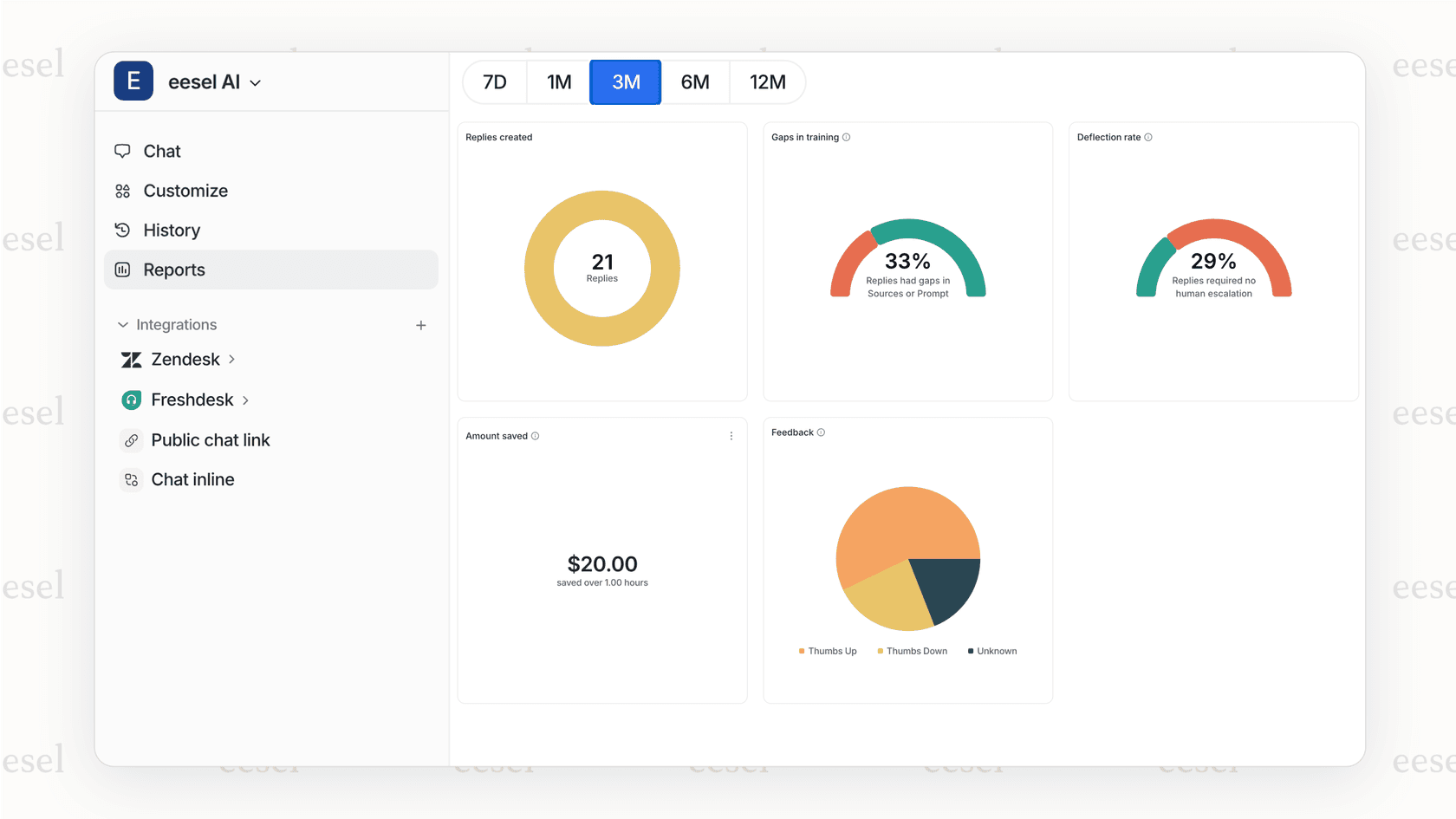
The AI learns from your existing macros and help center content, so it understands your voice and policies from day one. You can start with AI drafting responses for agent review, then gradually expand to full automation as confidence grows.
The key is thinking of it as a progression: macros give you control, triggers add automation, and AI brings intelligence. Each layer builds on the others to create a support operation that scales with your business.