
When your support team is offline, what happens to customers trying to reach you? The Zendesk web widget offline form is designed to capture their messages so no inquiry goes unanswered. But configuring it properly can be confusing, especially when you're trying to decide between the offline form and the contact form.
This guide walks you through everything you need to know about the Zendesk web widget offline form: what it is, how it differs from the contact form, and exactly how to set it up. We'll also look at common issues and explore how AI-powered alternatives like eesel AI can handle offline inquiries more effectively.
What is the Zendesk web widget offline form?
The offline form is a feature within Zendesk Chat that displays when all your agents are unavailable. Instead of showing a "no agents online" message, visitors see a form where they can leave their contact information and message. These messages are stored in your Chat history and sent via email to your team.

Here's the key distinction: the offline form is part of the Chat product, not the Support product. This matters because it affects how messages are handled and what happens to them after submission.
The offline form appears automatically when:
- All agents are set to "invisible" or "offline" status
- It's outside your configured business hours
- No agents are logged into Chat
Which plans include this feature?
The offline form is available on Zendesk Suite Team and above, as well as standalone Chat plans. If you're on a Support-only plan without Chat, you won't have access to this feature. Instead, you'll use the contact form (which we'll compare below).
Offline form vs contact form: which should you use?
This is where most confusion happens. Zendesk offers two similar but fundamentally different forms for capturing customer messages when agents aren't available.
The offline form (Chat feature)
- Stores messages in Chat history
- Sends email notifications to agents/admins
- Does NOT automatically create Support tickets
- Works with standalone Chat accounts
- Limited customization options in the UI
The contact form (Web Widget feature)
- Creates tickets directly in Zendesk Support
- Supports custom ticket fields
- Routes tickets based on your Support workflows
- Requires Chat + Support integration
- More configuration options available
The decision framework
Your account type determines which form you should use:
| Account Type | Recommended Form | Why |
|---|---|---|
| Chat standalone | Offline form | You don't have Support, so ticket creation isn't an option |
| Chat + Support integrated | Contact form | Better workflow integration and automatic ticket creation |
| Agent Workspace with Messaging | Neither (use Messaging flows) | The offline form isn't available in Messaging |
Critical limitation: You cannot enable both the offline form and contact form simultaneously. If you enable one, the other is automatically disabled. This is a common source of frustration for teams that want the best of both worlds.
Source: Zendesk Help Center
How to enable the offline form
Setting up the offline form takes just a few minutes if you know where to look. Here's the step-by-step process.
Step 1: access the Chat dashboard
Navigate to your Zendesk Chat dashboard. This is separate from the main Zendesk Support interface. If you're using Agent Workspace, you'll need to switch to the Chat-only view.
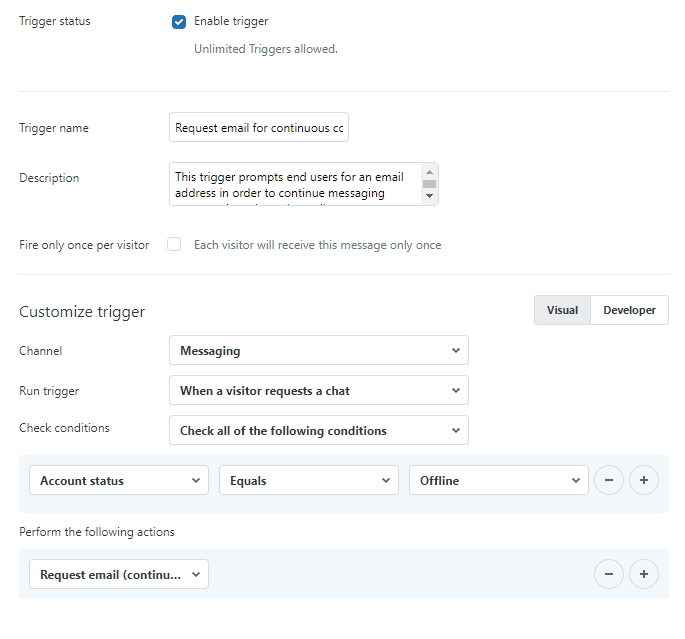
Step 2: configure offline form settings
Once in the Chat dashboard:
- Click Settings in the left sidebar
- Select Widget from the submenu
- Click the Forms tab
- Find the Offline Form section
- Toggle the switch to On
- Click Save Changes at the bottom
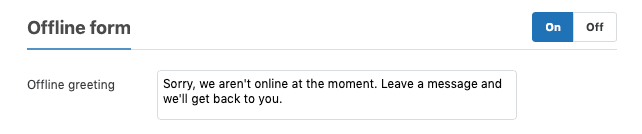
The default message reads: "Sorry, we aren't online at the moment. Leave a message and we'll get back to you." You can customize this in the Offline Greeting field.
Step 3: customize form fields and messaging
In the same Forms tab, you can:
- Edit the offline greeting message
- Add social messaging links (Facebook Messenger, X Direct Messages)
- Configure which fields appear on the form
To add social messaging channels, you'll need your Facebook Page ID or X User ID. These appear as alternative contact options when the widget is offline.
Step 4: set up ticket creation (if using Support)
If you have Zendesk Support integrated with Chat, you can configure offline messages to create tickets automatically. This bridges the gap between the offline form's Chat-based storage and your Support ticket workflows.
Go to Settings > Account > Zendesk in your Chat dashboard and ensure the integration is active. Then configure your ticket creation rules.
Customizing the offline form with the Web Widget API
The basic settings only get you so far. For advanced customization, you'll need to use the Web Widget JavaScript API.
Customizing the greeting message
You can set different greeting messages for different languages:
<script type="text/javascript">
  window.zESettings = {
    webWidget: {
      chat: {
        offlineForm: {
          greeting: {
            '*': "We aren't online right now, please leave a message",
            fr: "Nous ne sommes pas en ligne pour le moment, s'il vous plaît laissez un message"
          }
        }
      }
    }
  };
</script>
Hiding the widget when offline
If you prefer to hide the chat widget entirely when no agents are available:
<script type="text/javascript">
  window.zESettings = {
    webWidget: {
      chat: {
        hideWhenOffline: true
      }
    }
  };
</script>
Department-specific routing
For teams using Chat departments, you can control which departments are available and set defaults:
<script type="text/javascript">
  window.zESettings = {
    webWidget: {
      chat: {
        departments: {
          enabled: ['sales', 'support'],
          select: 'support'
        }
      }
    }
  };
</script>
Important: This code must be placed AFTER the Web Widget script tag on your website. If you place it before, the settings won't take effect.
Common issues and troubleshooting
Even with clear instructions, things don't always work as expected. Here are the most common problems and how to fix them.
The offline form isn't appearing
- Check that at least one agent is set to "away" (not "invisible") or that it's outside business hours
- Verify the offline form toggle is enabled in Settings > Widget > Forms
- Confirm you're using Web Widget (Classic), not Messaging (the offline form isn't available in Messaging)
- Check browser console for JavaScript errors if using custom API code
Messages aren't creating tickets
- Verify your Chat-Support integration is active
- Check that you have the proper triggers set up in Zendesk Support
- Remember: standalone Chat accounts don't create tickets automatically
Custom code isn't working
- Ensure your JavaScript executes AFTER the Web Widget script loads
- Check for syntax errors in your zESettings object
- Verify you're using the correct API syntax for your widget version
Confusion between Classic and Messaging widgets
This is the most common issue. The offline form only works with Web Widget (Classic). If you're using the newer Messaging widget, you won't find offline form settings because Messaging handles offline interactions differently through Flow Builder and bot conversations.
To check which version you're using, look at your Admin Center. If you see "Messaging" settings, you're on the newer platform. If you see "Web Widget (Classic)" settings, you can use the offline form.
Limitations to consider
Before committing to the offline form, understand its constraints:
- No automatic ticket creation in standalone Chat: Messages stay in Chat history unless you manually convert them or have Support integration
- Cannot use both forms: You're forced to choose between offline form and contact form
- Limited UI customization: Most visual changes require API knowledge
- Manual configuration per site: Each website implementation needs separate setup
- Not available in Messaging: Teams using the newer Messaging widget need alternative approaches
These limitations drive many teams to look for alternatives that offer more flexibility.
A simpler alternative: AI-powered support with eesel AI
If the Zendesk web widget offline form feels limiting, you're not alone. Many teams find themselves wanting automatic ticket creation, smarter routing, and 24/7 response capabilities without the configuration complexity.
This is where eesel AI comes in. Instead of just capturing messages when agents are offline, our AI teammate can actually respond to customers autonomously.

Here's how we handle offline inquiries differently:
- Automatic ticket creation and routing: Every interaction creates a properly categorized ticket in your help desk
- No-code customization: Define behavior in plain English instead of writing JavaScript
- 24/7 autonomous responses: Customers get immediate answers, not just a "we'll get back to you" message
- Learns from your existing data: We analyze your past tickets and help center to respond in your voice
- Progressive rollout: Start with AI-drafted replies for review, then expand to full automation as you gain confidence
We integrate directly with Zendesk (and other platforms like Freshdesk and Gorgias), so you don't need to replace your existing setup. Our pricing starts at $299/month for up to 1,000 AI interactions, with no per-agent fees.
Getting started with smarter customer support
The Zendesk web widget offline form is a functional solution for capturing messages when your team is unavailable. It works best for teams already invested in Zendesk Chat who need basic offline message collection.
But if you're finding the limitations frustrating, or if you want to actually resolve customer issues instead of just collecting messages, it might be time to explore AI-powered alternatives.
Whether you stick with Zendesk's offline form or upgrade to an AI teammate like eesel AI, the goal is the same: making sure no customer inquiry falls through the cracks, even when your human agents are offline.