
Triggers are the workhorse of any well-run Zendesk instance. They handle the repetitive tasks that would otherwise bog down your team: sending confirmation emails, routing tickets to the right group, and following up with customers after an issue is resolved.
When a ticket reaches solved or closed status, that's often when triggers matter most. A solved ticket is your opportunity to request feedback, notify stakeholders, or kick off post-resolution workflows. Get it wrong and you either annoy customers with unnecessary emails or miss critical follow-ups entirely.
This guide walks you through creating triggers that fire when tickets are solved or closed. We'll cover the distinction between these statuses (it's more important than it sounds), step-by-step configuration, and common pitfalls that trip up even experienced admins.
Understanding solved vs closed tickets in Zendesk
Before you build any trigger, you need to understand the difference between solved and closed. These aren't just labels. They represent fundamentally different states with different rules about what can happen next.
Solved tickets are resolved but still active. The customer can reply and reopen the ticket. Agents can still update fields, add comments, and change the status. Think of solved as "resolved pending customer confirmation."
Closed tickets are locked. When a ticket closes, it becomes read-only for most purposes. If a customer replies to a closed ticket, Zendesk creates a new follow-up ticket rather than reopening the original. Only admins can modify certain fields on closed tickets, and even then, only through the API or Agent Workspace.
Here's how they compare:
| Aspect | Solved | Closed |
|---|---|---|
| Can agents directly set? | Yes | No (only via trigger or automation) |
| Reopens on customer reply? | Yes | No (creates follow-up ticket) |
| Agent updates allowed? | Full access | Limited (tags, some custom fields only) |
| Auto-transition | To Closed after 4-28 days | To Archived after 120 days |
Source: Zendesk Support
By default, Zendesk includes an automation called "Close ticket 4 days after status is set to solved." This gives customers a window to respond before the ticket locks. You can adjust this anywhere from one hour to 28 days depending on your workflow.
Why does this matter for triggers? Because some actions only make sense for solved tickets (like requesting CSAT feedback) while others work better for closed tickets (like manager notifications or archival processes). Understanding the distinction prevents you from building triggers that fire at the wrong time or fail to work because the ticket is already locked.
What you'll need before creating triggers
Setting up triggers requires some preparation. Here's what you need in place:
Admin access to Zendesk. Triggers are managed in the Admin Center, so you'll need administrator permissions. If you don't have access, you'll need to work with someone who does.
A clear understanding of your ticket workflow. Know when tickets should be considered solved versus closed in your organization. Different teams have different definitions, and your triggers should match your actual process.
A specific goal for each trigger. "Handle post-solve notifications" is too vague. Be specific: "Send CSAT survey to enterprise customers within 24 hours of solve." The more precise your goal, the easier it is to build and test the trigger.
A plan for trigger ordering. Triggers run sequentially from top to bottom. If you have multiple triggers that might fire on the same ticket update, order matters. Plan which triggers should run first.
If all of this sounds like a lot of manual configuration, there's another option. We handle many post-resolution workflows automatically without requiring you to build complex trigger logic. Our AI agent for Zendesk learns from your existing tickets and macros, then handles CSAT surveys, follow-ups, and notifications based on context rather than rigid rules.
How to create a Zendesk trigger when ticket is solved
Let's walk through creating a trigger that fires when a ticket is solved. We'll use a common example: sending a CSAT survey request to the customer.
Step 1: Navigate to the triggers page
Go to Admin Center > Objects and rules > Business rules > Triggers.
You'll see a list of existing triggers. Zendesk includes several default triggers for common scenarios like notifying requesters of updates and assignments.
Step 2: Add a new trigger
Click Add trigger in the top right. Give your trigger a descriptive name that explains what it does. Good names make maintenance easier six months later when you've forgotten what you built.
Examples:
- "Send CSAT survey when solved"
- "Notify manager of urgent ticket resolution"
- "Tag enterprise tickets on solve"
Add a description explaining the trigger's purpose. This helps other admins understand why the trigger exists.
Step 3: Set the conditions
This is where you define when the trigger fires. For a solved ticket trigger, you'll use the Status condition.
Under Meet ALL of the following conditions, add:
- Ticket > Status > Is > Solved
You can add additional conditions to narrow when the trigger fires. Common additions include:
- Ticket > Satisfaction > Is > Unoffered (only ask for CSAT if you haven't already)
- Ticket > Group > Is > [Specific group] (only for certain teams)
- Ticket > Priority > Is > High (only for high-priority tickets)
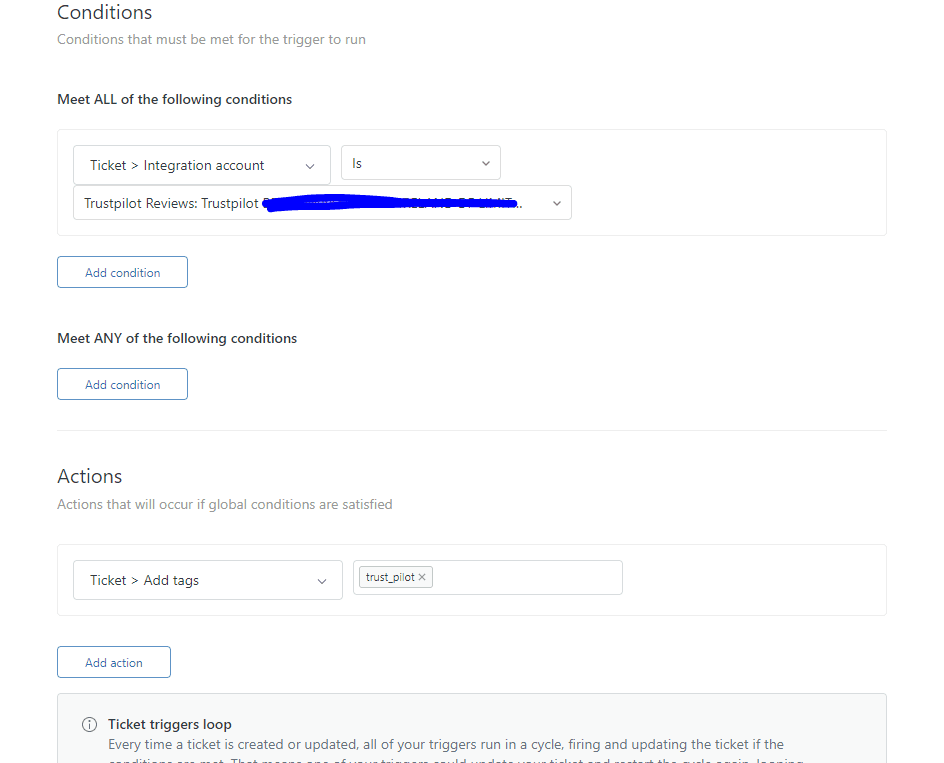
ALL vs ANY conditions: ALL conditions must be true for the trigger to fire. ANY conditions mean at least one must be true. For most solved triggers, you'll use ALL conditions to ensure the trigger only fires in specific circumstances.
Step 4: Configure the actions
Now define what happens when the conditions are met. Under Actions, select what the trigger should do.
Common actions for solved triggers:
- Email user > (requester) - Send an email to the customer
- Add tags - Tag the ticket for reporting or routing
- Email group - Notify a team or manager
- Webhook - Send data to an external system
For our CSAT example, you'd select Email user > (requester) and compose a message asking for feedback. Include the satisfaction rating placeholder so customers can click to rate their experience.
Step 5: Save and test
Click Create to save your trigger. Now test it:
- Create a test ticket
- Solve the ticket
- Verify the trigger fired (check the ticket events)
- Confirm the expected action occurred (email sent, tag added, etc.)
Testing is critical. Triggers that seem correct often have subtle logic errors that only appear in practice.
How to create a trigger when a ticket is closed
Creating triggers for closed tickets follows the same process, but with some important differences in what you can do.
Step 1: Create the trigger
Navigate to Admin Center > Objects and rules > Business rules > Triggers and click Add trigger.
Step 2: Set conditions for closed tickets
Under Meet ALL of the following conditions, add:
- Ticket > Status > Is > Closed
Remember that closed tickets have limited update capabilities. You cannot change most fields on a closed ticket, so your actions are more restricted than with solved tickets.
Step 3: Configure notification actions
Closed ticket triggers work best for notifications rather than ticket updates. Common use cases:
- Manager alerts when high-priority tickets close
- Escalation notifications to external systems
- Webhook calls to update CRM or reporting tools
- Email notifications to the assignee or team
Since you can't modify the ticket itself, focus on actions that send information elsewhere.
Step 4: Position in trigger order
Trigger order matters. Place your closed ticket triggers after your solved ticket triggers in the list. This ensures that solved triggers fire first, making any needed updates before the ticket reaches closed status.
To reorder triggers, drag and drop them in the triggers list. Triggers run from top to bottom, so the order determines which actions happen first.
Common use cases for Zendesk trigger when ticket is solved or closed
Here are practical trigger configurations for common scenarios:
CSAT survey on solve
Conditions:
- Ticket > Status > Is > Solved
- Ticket > Satisfaction > Is > Unoffered
- Ticket > Group > Is not > Internal (optional: exclude internal tickets)
Actions:
- Email user > (requester) with CSAT request message
This sends a satisfaction survey request only when a ticket is solved and the customer hasn't already been asked for feedback.
Auto-close prevention for integrations
Some integrations write data back to tickets after they're solved, which can cause unexpected reopening. This trigger prevents that:
Conditions:
- Ticket > Status > Is > Solved
- Ticket > Tags > Contains at least one of the following > integration_writeback
Actions:
- Remove tags > integration_writeback
- Add tags > writeback_processed
This removes the tag that would cause reopening while preserving a record that the writeback occurred.
Manager notification on high-priority close
Conditions:
- Ticket > Status > Is > Closed
- Ticket > Priority > Is > High (or Urgent)
Actions:
- Email group > Managers with ticket details
This ensures management is aware when significant issues are resolved and closed.
Follow-up ticket tagging
When customers reply to closed tickets, Zendesk creates follow-up tickets. Tag these for tracking:
Conditions:
- Ticket > Status > Is > Closed
- Ticket > Comment > Is > Present
- Ticket > Ticket is > Created (this ensures it only fires on new tickets)
Actions:
- Add tags > follow-up-created
This helps you track how often customers need to reopen issues after closure.
Best practices for trigger management
After years of working with Zendesk implementations, consultants have developed some reliable principles for trigger management.
One trigger, one job. Keep each trigger focused on a single outcome. Don't bundle multiple unrelated actions into one trigger. As one experienced consultant put it: "One trigger does one job. This means you have one trigger with a few or a lot of conditions and a single outcome."
This approach makes triggers easier to understand, test, and modify. When you need to change how CSAT surveys work, you update one trigger rather than hunting through a complex multi-action trigger.
Order matters. Triggers run from top to bottom. Place categorization triggers first, then assignment triggers, then notification triggers. This ensures tickets are properly tagged and routed before notifications go out.
Test thoroughly. Always test triggers with real ticket scenarios before deploying to production. Create test tickets that match your conditions and verify the actions occur as expected.
Document your triggers. Use the description field to explain what each trigger does and why it exists. Future you (and other admins) will thank you.
Monitor performance. Check your trigger usage reports regularly. Unused triggers add complexity without value. High-frequency triggers that fire on every ticket update might indicate overly broad conditions.
Troubleshooting triggers that don't fire
When a trigger doesn't work as expected, check these common issues:
Trigger ordering conflicts. A trigger earlier in the list might be making changes that prevent later triggers from firing. Review the order and consider whether conditions need adjustment.
Condition logic errors. Double-check your ALL vs ANY logic. An ANY condition with multiple items fires if ANY one is true, which might be broader than you intended.
Ticket already closed. Triggers cannot fire on tickets that are already closed. If your trigger needs to modify a ticket, it must fire when the ticket is solved or earlier.
Permissions issues. Ensure the trigger actions are allowed. Some actions require specific permissions or plan levels.
Conflicting automations. Automations run periodically and can change ticket states in ways that interfere with triggers. Check whether an automation is modifying the ticket after your trigger fires.
Timing with system auto-close. Zendesk's default automation closes solved tickets after 4 days. If your trigger needs to act on solved tickets, ensure it fires before the auto-close automation runs.
Automating post-resolution workflows without complex triggers
Building and maintaining Zendesk triggers takes time and expertise. Every new workflow requires creating conditions, testing logic, and monitoring performance. For teams that want to automate post-resolution tasks without the complexity, there's another approach.
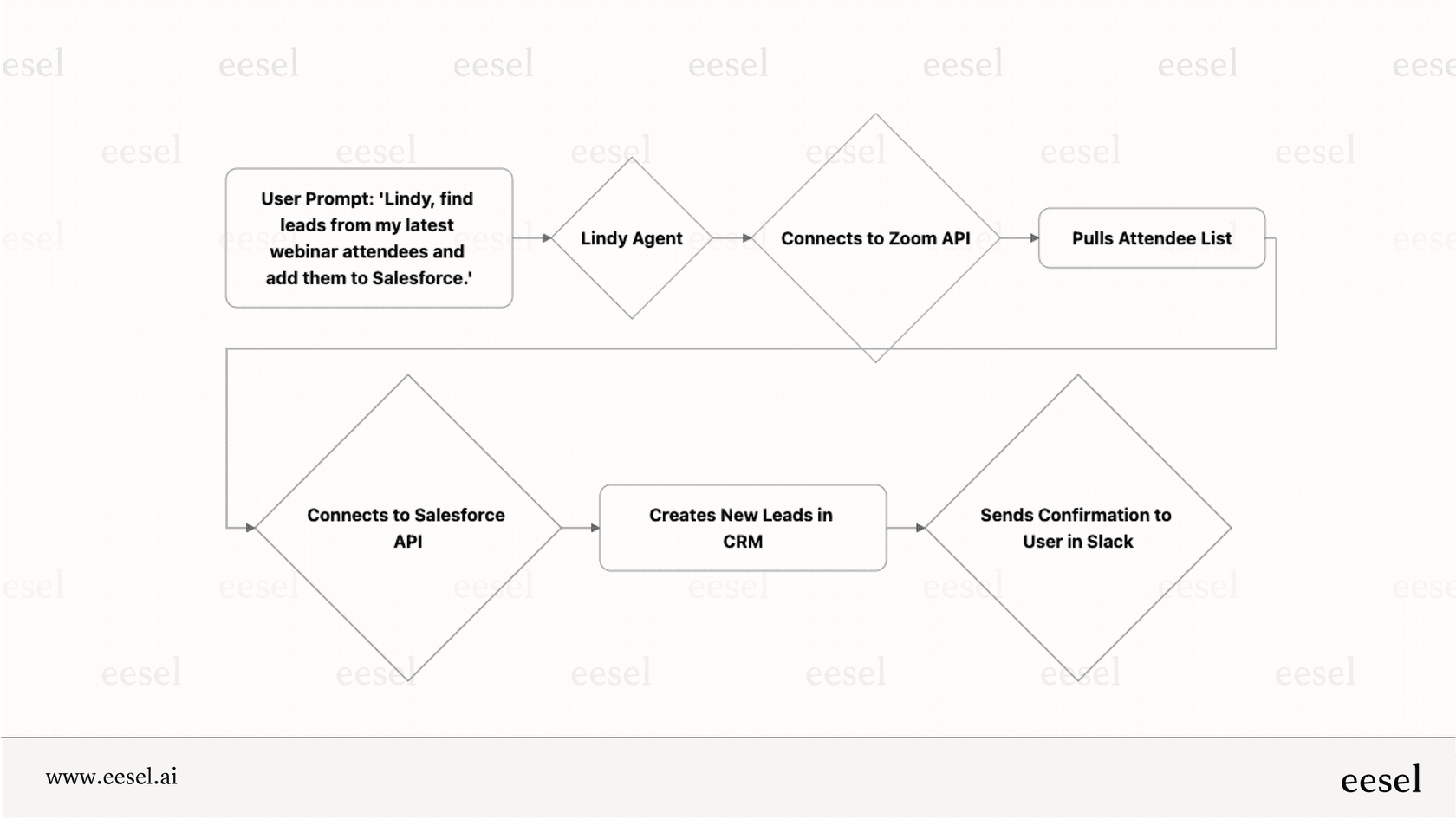
We handle post-resolution workflows differently. Instead of manually configuring triggers with rigid conditions, our AI Agent learns from your existing tickets, macros, and help center content. It understands your business context and handles CSAT surveys, follow-up emails, and notifications based on that understanding rather than hardcoded rules.
Here's how it works:
No manual trigger configuration. You don't build "if status is solved then send email" logic. The AI learns when and how to follow up based on your historical data.
Context-aware responses. Rather than sending the same CSAT survey to everyone, the AI can tailor follow-ups based on ticket content, customer history, and your team's communication style.
Progressive rollout. Start with the AI drafting replies for your team to review. As it proves itself, level up to autonomous handling of post-resolution workflows. You're always in control of the scope.
Works alongside Zendesk. Our Zendesk integration connects directly to your instance. The AI reads your tickets, learns your processes, and handles follow-ups without disrupting your existing workflow.
If you're spending hours configuring triggers, testing conditions, and troubleshooting why notifications aren't sending, it might be worth exploring whether an AI teammate can handle those post-resolution tasks instead. You can see how it works with your actual ticket data and decide if it fits your workflow.
Q1: How do I create a Zendesk trigger when ticket is solved?
A1: Go to Admin Center > Objects and rules > Business rules > Triggers, then click Add trigger. Set the condition "Ticket > Status > Is > Solved" and configure your desired actions like sending emails or adding tags. Test with a sample ticket before deploying.
Q2: What is the difference between solved and closed tickets in Zendesk?
A2: Solved tickets can be reopened by customer replies and allow agent updates. Closed tickets are permanently locked and cannot be reopened. When customers reply to closed tickets, Zendesk creates a new follow-up ticket instead.
Q3: Can I reopen a closed ticket in Zendesk?
A3: No, closed tickets cannot be reopened. Only admins can modify limited fields (tags, some custom fields) through the API or Agent Workspace. If a customer replies to a closed ticket, Zendesk automatically creates a follow-up ticket.
Q4: How long before Zendesk automatically closes solved tickets?
A4: By default, Zendesk closes solved tickets after 4 days using the "Close ticket 4 days after status is set to solved" automation. You can adjust this anywhere from 1 hour to 28 days based on your workflow needs.
Q5: Why isn't my Zendesk trigger firing when tickets are solved?
A5: Common causes include trigger ordering conflicts (earlier triggers affecting the ticket), incorrect ALL/ANY condition logic, the ticket already being closed, permissions issues, or conflicting automations modifying the ticket after your trigger evaluates.
Q6: What actions can I use in a Zendesk trigger when ticket is closed?
A6: Closed tickets have limited update capabilities. Effective actions include sending email notifications to users or groups, calling webhooks, and adding tags (in some cases). You cannot change most ticket fields once a ticket is closed.


