
Unassigned tickets are silent killers in customer support. They sit in your queue, invisible to most agents, until a customer complains or an SLA breach triggers an alert. By then, the damage is done. The customer is frustrated, your metrics take a hit, and your team looks unresponsive.
The good news? You can automate the entire escalation process. With the right Zendesk automation, unassigned tickets get flagged and routed to the right people before they become problems. This guide walks you through setting up that automation from start to finish. Whether you're a Zendesk admin building your first automation or a support manager looking to tighten up your workflow, you'll have a working escalation system by the end.
If you're looking for a more intelligent approach to escalations, one that understands context and business rules in plain English, our AI agent for Zendesk learns your escalation policies and handles them automatically. But for most teams, native Zendesk automations do the job well.

What you'll need
Before you start building, make sure you have the basics covered:
- Zendesk Team plan or higher. Automations are available on Team, Professional, and Enterprise plans. If you're on the Essential plan, you'll need to upgrade.
- Admin access. Only admins can create and manage automations and triggers.
- An escalation plan. Know who should be notified when tickets go unassigned. Is it team leads? A specific escalation group? The assignee's manager?
- Optional: Slack or email groups. If you want notifications to go to a channel or group inbox, set those up first.
That's it. No coding required, no third-party integrations necessary (though they can help).
Understanding triggers vs. automations
Here's the short version: triggers fire immediately when something happens. Automations check conditions every hour and act when those conditions are met. For unassigned ticket escalation, you need both.
Let's break it down.
Triggers are event-based. When a ticket is created or updated, Zendesk checks all your triggers immediately. If conditions match, the trigger fires. Triggers are perfect for instant actions like routing tickets based on keywords or sending auto-replies. But they can't check time-based conditions like "ticket has been unassigned for 4 hours."
Automations run on a schedule. Every hour, Zendesk checks all non-closed tickets against your automations. If conditions match, the automation fires. This makes automations ideal for time-based escalation. You can check "Hours since created" or "Hours since requester update" and act when thresholds are crossed.
The key thing to remember about automations: they need a way to stop running on the same ticket. This is called nullification. Without it, your automation would fire every hour on the same ticket forever. You'll handle this by adding a tag when the automation runs, then excluding tagged tickets from future runs.
Bottom line? Use an automation to catch unassigned tickets after a time threshold. Use a trigger to send the actual notification when the escalation happens.
Step 1: Create the escalation group
First, create a dedicated group for escalated tickets. This gives you a clear visual indicator in ticket views and makes it easy to route notifications to the right people.
Navigate to Admin Center → People → Groups and click "Add group."
Name it something clear like:
- "Escalations - Unassigned"
- "Unassigned Ticket Alerts"
- "Ticket Escalation Team"
Add the people who should handle escalated tickets. This might be team leads, senior agents, or operations staff. You don't need many members. The group's purpose is to flag tickets and enable notifications, not to handle every escalated ticket directly.
Save the group. You'll reference it in your automation and trigger.
Step 2: Set up the automation
Now for the core automation that catches unassigned tickets. This runs every hour and moves tickets to your escalation group when they've been unassigned too long.
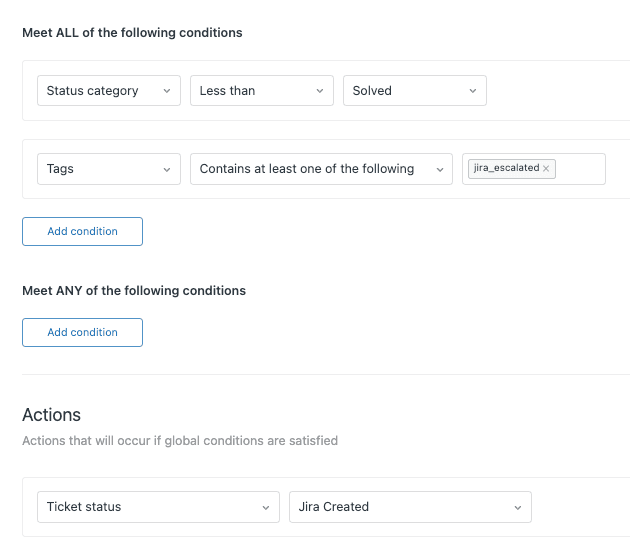
Give it a clear name like "Escalate unassigned tickets after 4 hours."
Set the conditions
Under "Meet ALL of the following conditions," add:
-
Ticket: Assignee → Is → ( )
- The dash means "no assignee." This is how Zendesk represents unassigned tickets.
-
Ticket: Hours since created → (calendar) Is → 4
- Change "4" to whatever threshold makes sense for your team. For urgent tickets, you might use 1-2 hours. For normal priority, 4-8 hours works.
-
Ticket: Status → Less than → Solved
- This ensures the automation only runs on active tickets.
-
Ticket: Tags → Contains none of the following → unassigned_escalated
- This prevents the automation from running on tickets it's already processed.
Set the actions
Under "Perform these actions," add:
-
Ticket: Add tags → unassigned_escalated
- This tag nullifies the condition above, preventing the automation from firing again.
-
Ticket: Group → [Your Escalation Group]
- Select the group you created in Step 1.
-
Ticket: Add internal note → This ticket has been escalated due to being unassigned for 4+ hours.
- This creates an audit trail and alerts agents who view the ticket.
Click "Create automation."
Here's the logic: every hour, Zendesk checks all unsolved tickets. If a ticket has no assignee, was created 4 hours ago, and doesn't have the escalation tag, it gets tagged, moved to the escalation group, and flagged with an internal note. The tag ensures this only happens once per ticket.
Step 3: Create the notification trigger
The automation moves tickets to the escalation group. Now you need a trigger to notify people when that happens.
Navigate to Admin Center → Objects and rules → Business rules → Triggers and click "Add trigger."
Name it something like "Notify on unassigned ticket escalation."
Set the conditions
Under "Meet ALL of the following conditions," add:
-
Ticket: Group → Changed to → [Your Escalation Group]
- This fires when the automation moves a ticket to your escalation group.
-
Ticket: Tags → Contains at least one of the following → unassigned_escalated
- This ensures the trigger only fires for tickets escalated by your automation, not tickets manually moved to the group.
Set the actions
Under "Perform these actions," add:
-
Notifications: Email group → [Your Escalation Group]
- Subject: "Unassigned ticket escalated: {{ticket.title}}"
- Body: Include ticket details, a link to the ticket, and any relevant placeholders like {{ticket.requester.name}} and {{ticket.description}}.
-
Optional: Ticket: Priority → High
- Raises the priority to ensure visibility.
-
Optional: Notifications: Active webhook
- If you use Slack, you can set up a webhook to post to a channel.
Click "Create trigger."
Test the workflow by creating a test ticket, leaving it unassigned, and waiting for the automation to run. You can also manually add the "unassigned_escalated" tag to a test ticket and change its group to trigger the notification immediately.
Advanced scenarios and variations
Once you have the basic automation working, you can adapt it for different situations.
Business hours vs. calendar hours
Zendesk lets you choose between calendar hours (24/7) and business hours (your set schedule). For most teams, calendar hours work fine for the initial escalation. But if you only want to escalate tickets during business hours, change the "Hours since created" condition to use business hours instead.
Keep in mind that business hours only count time within your schedule. A ticket created at 5 PM on Friday won't hit a 4-hour business hours threshold until Monday morning.
VIP customer handling
Create a separate automation for VIP customers with a shorter threshold. Add a condition like:
- Ticket: Organization → Is → [VIP Organization], OR
- Ticket: Tags → Contains at least one of the following → vip
Set the hours threshold to 1 or 2 instead of 4. Route these to a dedicated VIP escalation group with faster response commitments.
Different thresholds by priority
You might want different escalation timelines based on ticket priority. Create multiple automations:
| Priority | Hours Threshold | Escalation Group |
|---|---|---|
| Urgent | 1 hour | Urgent Escalations |
| High | 2 hours | Standard Escalations |
| Normal/Low | 4-8 hours | Standard Escalations |
Each automation checks for its specific priority level and routes to the appropriate group.
Weekend and after-hours handling
If you don't want tickets escalating on weekends, add a condition:
- Ticket: Within business hours? → Yes
Or create separate automations for business hours vs. off-hours with different notification targets. Off-hours escalations might go to on-call staff instead of regular team leads.
Troubleshooting common issues
Even simple automations can have hiccups. Here are the most common problems and how to fix them.
Automation not firing
If tickets aren't escalating, check these things:
-
Verify nullification. Make sure your automation adds a tag (or performs some action) that makes one of the conditions false on the next run. If conditions stay true forever, the automation fires repeatedly but Zendesk limits this to prevent loops.
-
Check all conditions match. The automation only fires if ALL "Meet ALL" conditions are true. If you added an "Organization is X" condition but the ticket is from a different org, it won't fire.
-
Remember the hourly cycle. Automations don't run immediately. They run at some point during each hour. A ticket created at 10:15 AM won't escalate at exactly 2:15 PM. It will escalate during the hourly check after it crosses the 4-hour mark.
Tickets escalating multiple times
If the same ticket keeps escalating:
-
Check the tag condition. Make sure you're using "Contains none of the following" for the escalation tag, not "Contains at least one."
-
Verify the tag is being added. Check a ticket's event log to confirm the automation actually added the tag. If the tag action failed, the condition stays true.
Notifications not sending
If tickets are escalating but nobody's getting notified:
-
Match conditions exactly. The trigger looks for "Group changed to" and the escalation tag. If either condition doesn't match exactly what the automation does, the trigger won't fire.
-
Check spam filters. Zendesk notification emails sometimes end up in spam. Whitelist your Zendesk email domain.
-
Test with a manual update. Manually add the escalation tag and change the group on a test ticket. If the trigger fires manually but not from the automation, check that the automation is actually running.
Measuring success
Once your automation is running, you need to know if it's working. Set up these tracking mechanisms:
Create a view for escalated tickets. Go to Admin Center → Workspaces → Views and create a view filtered by:
- Tags contains unassigned_escalated
- Status less than Closed
This gives you a real-time view of all tickets that have been escalated.
Track escalation volume weekly. Count how many tickets hit your escalation automation each week. If the number is consistently high, you might have an assignment problem upstream.
Monitor time-to-assignment for escalated tickets. How long does it take from escalation to actual assignment? If escalated tickets still sit for hours, your notification targets might be wrong.
Adjust thresholds based on data. If you're escalating 50% of all tickets, your threshold is too aggressive. If you're escalating none, either your team is perfect (unlikely) or your threshold is too lenient. Aim for a small, actionable percentage.
When to consider AI-powered escalation
Native Zendesk automations work well for simple time-based rules. If a ticket is unassigned for X hours, escalate it. That's straightforward and reliable.
But what if your escalation rules are more nuanced?
- "Escalate tickets from Enterprise customers after 2 hours, but only if the issue type is technical"
- "Escalate to the account manager if the customer's sentiment is negative and the ticket is unassigned"
- "Don't escalate during known outages unless the customer is VIP"
These rules get complex fast in Zendesk. You end up with dozens of automations, each handling a specific case. Maintenance becomes a nightmare.
This is where our AI agent takes a different approach. Instead of building complex automation workflows, you define escalation rules in plain English. You tell the AI: "Escalate billing disputes over $1,000 to the Finance team immediately" or "If a VIP customer's ticket hasn't been replied to in 30 minutes, notify the account manager."

The AI learns your business context from your past tickets, help center, and macros. It understands what tickets are about, not just how long they've been sitting. You can simulate the AI on thousands of past tickets before going live to verify it understands your rules correctly.
For teams with simple escalation needs, Zendesk native automations are fine. For teams with complex, context-dependent escalation policies, AI-powered escalation is worth considering.
Set up your unassigned ticket automation today
You now have everything you need to catch unassigned tickets before they become problems. Start simple: one automation, one trigger, one escalation group. Get that working, then iterate.
The basic workflow is:
- Create an escalation group for visibility
- Build an automation that tags and moves unassigned tickets after your chosen threshold
- Add a trigger to notify the right people when escalation happens
- Create a view to track escalated tickets
- Adjust thresholds based on what you learn
Unassigned tickets will always happen. Agents go on break, complex tickets need the right expertise, and sometimes things just get missed. But with automation, those tickets don't sit invisible. They get flagged, routed, and handled.
If you're ready for more intelligent escalation that understands context and learns from your team's patterns, try eesel AI or book a demo to see how it works on your actual ticket history. We also have a complete guide on AI agents for help desks if you want to explore autonomous ticket handling beyond just escalation.


