
Customer feedback is the lifeblood of any support team. But if you're using Zendesk's default settings, you might be missing out on valuable insights. Here's why: out of the box, Zendesk waits 24 hours after a ticket is solved before sending a customer satisfaction survey. By then, your customer has moved on, and response rates suffer.
The good news? You can change this. Setting up a Zendesk trigger to request satisfaction immediately when a ticket is solved takes just a few minutes, and it can significantly boost your CSAT response rates. In this guide, we'll walk through exactly how to configure this, step by step.
If you're looking to go beyond basic surveys and actually analyze that feedback at scale, tools like eesel AI can help you identify patterns in CSAT comments and spot opportunities to improve your support experience.
Understanding Zendesk's default CSAT behavior
Before we change anything, let's understand how Zendesk handles satisfaction surveys by default.
When you enable CSAT in your Zendesk account, the platform automatically creates a system automation called "Request customer satisfaction rating (system automation)." This automation runs on a schedule and sends survey requests 24 hours after a ticket's status changes to "Solved."
Source: Zendesk Help - Workflow Guide
Why the delay? The idea is to give customers time to verify that their issue is actually resolved before asking for feedback. In theory, this prevents premature negative ratings from customers who discover the fix didn't work.
But there's a trade-off. That 24-hour window also means:
- Customers have mentally moved on from the support interaction
- The experience isn't fresh in their minds
- Response rates are typically lower than immediate surveys
Here's the key distinction to understand: Zendesk uses two different tools for automation. Triggers are event-based (they fire immediately when something happens). Automations are time-based (they check conditions periodically and act after time has passed). The default CSAT setup uses an automation. We're going to replace it with a trigger.
What you'll need before getting started
Before diving into the configuration, make sure you have the following:
- A Zendesk Support plan with CSAT enabled. You'll need Professional or Enterprise on the Support plan, or any Suite plan from Growth upward.
- Admin access to your Zendesk account. Only administrators can create triggers and modify automations.
- CSAT enabled in your account. If you haven't turned this on yet, go to Admin Center > Objects and rules > Business rules > Satisfaction and enable it.
- Familiarity with Zendesk placeholders. You'll need to use
{{satisfaction.rating_section}}in your trigger (don't worry, we'll explain this).
One more thing to check: whether your account uses custom ticket statuses. If you have custom statuses enabled, you'll use "Status category" in your trigger conditions. If not, you'll use "Status." We'll note this difference in the steps below.
Step-by-step: Setting up your satisfaction trigger
Let's walk through the complete setup process. The whole thing takes about 10 minutes.

Step 1: Disable the default automation
First, we need to turn off the default 24-hour automation so it doesn't conflict with our new trigger.
- Go to Admin Center > Objects and rules > Business rules > Automations
- Find the automation titled "Request customer satisfaction rating (system automation)"
- Click the three-dot menu button next to it and select Deactivate
This step matters because if you leave the automation active, customers might receive duplicate survey requests (one from the automation and one from your new trigger). Deactivating it ensures only your trigger sends surveys.
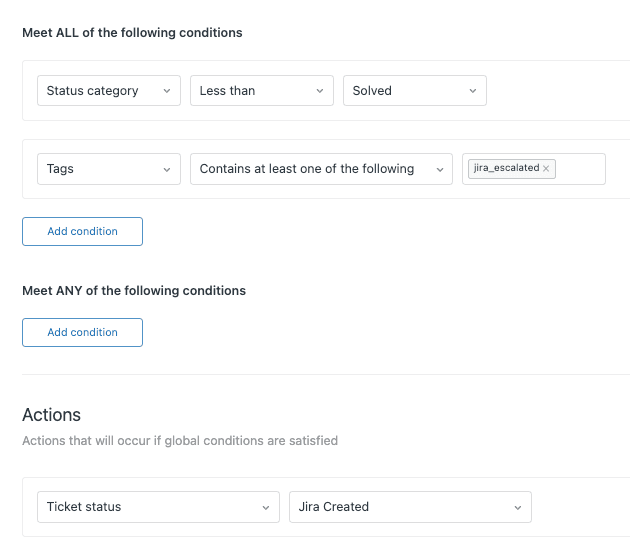
Step 2: Create a new trigger
Now let's build the trigger that will send surveys immediately when tickets are solved.
- Navigate to Admin Center > Objects and rules > Business rules > Triggers
- Click the Add trigger button
- Give your trigger a descriptive name like "Request satisfaction on solve" or "Send CSAT survey immediately"
- Add a description if you want (helpful for other admins who might edit this later)

Step 3: Configure trigger conditions
This is where we define when the trigger fires. Under Meet ALL of the following conditions, add these two conditions:
Condition 1:
- Object: Ticket
- Field: Status category (or Status if custom statuses are disabled)
- Operator: Changed to
- Value: Solved
Condition 2:
- Object: Ticket
- Field: Satisfaction
- Operator: Is
- Value: Unoffered
The "Unoffered" condition is crucial. It ensures the survey is only sent if the customer hasn't already received one for this ticket. Without this, you risk sending duplicate surveys if a ticket is reopened and solved again.
Optional: You can add more conditions to target specific scenarios. For example:
- Only survey tickets with certain tags
- Exclude internal tickets (Organization is not Internal)
- Survey only specific brands or groups
Step 4: Set up trigger actions
Now let's define what happens when the conditions are met. Under Actions, add these:
Action 1:
- Object: Ticket
- Field: Satisfaction
- Value: Offered to requester
This marks the satisfaction survey as "offered" so it won't be sent again for this ticket.
Action 2:
- Notify by: User email
- Ticket: (requester)
Now for the email content. You can copy the subject and body from the automation you deactivated in Step 1, or write your own. The key element is this placeholder:
{{satisfaction.rating_section}}
This placeholder inserts the actual survey question and rating buttons into the email. Without it, customers won't be able to submit their feedback.
Here's a simple template you can use:
Subject: How did we do?
Body:
Hi {{ticket.requester.first_name}},

We recently resolved your support request (#{{ticket.id}}): {{ticket.title}}

We'd love to hear about your experience. Your feedback helps us improve our support.

{{satisfaction.rating_section}}

Thanks,
The Support Team
Source: Zendesk Community
Step 5: Test your trigger
Before rolling this out to all customers, test it thoroughly:
- Create a test ticket in Zendesk (use a personal email address as the requester)
- Solve the ticket
- Check that you receive the satisfaction survey email immediately (within a minute or two)
- Click the survey link and submit a rating to verify it works
- Check that the ticket's satisfaction field updates to "Offered" or the rating you selected
If the trigger doesn't fire:
- Double-check your conditions (especially "Status category" vs "Status")
- Verify the trigger is active (not in draft mode)
- Check that CSAT is enabled in your account settings
- Look at the ticket events to see if the trigger attempted to fire
Advanced trigger configurations
Once you have the basic trigger working, you might want to customize it further. Here are some advanced options.
Adding delays to your trigger
Wait, didn't we just remove the delay? Yes, but sometimes a short delay (2-4 hours) works better than immediate or 24-hour surveys. It gives customers a brief window to verify the fix worked without letting them completely disengage.
To add a delay, you'd actually use an automation instead of a trigger. Set it up with:
- Status is Solved
- Hours since solved is greater than 4
- Satisfaction is Unoffered
This sends the survey 4 hours after resolution instead of immediately.
Conditional satisfaction requests
You don't have to survey every ticket. Consider these conditional approaches:
- Tag-based: Only survey tickets tagged with "survey-eligible" (add this tag manually or via another trigger)
- Organization-based: Exclude internal employees or partners from surveys
- Channel-based: Only survey email tickets, not chat or phone
- Priority-based: Only survey high-priority tickets to focus feedback collection
To implement any of these, simply add the appropriate conditions to your trigger.
The re-evaluation workflow
Here's a creative use case from the Zendesk community: setting up a trigger to let customers change negative ratings after you've resolved their issue.
The workflow works like this:
- Agent solves the ticket and adds a tag like "followup_satisfaction"
- A separate trigger fires when Status is Solved AND Tags contains "followup_satisfaction"
- The trigger emails the customer asking them to reconsider their rating
- The trigger removes the tag so it won't fire again
Source: Zendesk Community
This is particularly useful when you turn an unhappy customer into a satisfied one through follow-up support.
Best practices for Zendesk CSAT triggers
Getting the trigger set up is just the start. Here are some tips to maximize the value of your satisfaction surveys.
Timing matters. Immediate surveys work well for simple issues that are clearly resolved. For complex technical problems, consider a 2-4 hour delay so customers can verify the fix. Test different timings and compare response rates.
Keep it simple. The best CSAT surveys ask one question: "How satisfied were you with the support you received?" Don't add extra questions or steps. The easier it is, the more people will respond.
Personalize the message. Customize the email template to match your brand voice. Use the customer's first name, reference their specific ticket, and explain briefly why their feedback matters.
Train your agents. Encourage agents to mention the survey at the end of positive interactions. A personal nudge from the agent who helped them can significantly boost response rates.
Monitor and iterate. Watch your CSAT response rates in Zendesk's reporting. If they're low (under 15-20%), try adjusting your timing or messaging. If satisfaction scores drop after switching to immediate surveys, you might be surveying too quickly.
Handle multiple tickets carefully. Remember that Zendesk sends one survey per ticket, not per customer. If a customer opens five tickets in a week, they'll get five survey requests. Consider adding conditions to limit survey frequency for frequent submitters.
Troubleshooting common issues
Even with clear instructions, things sometimes don't work as expected. Here's how to fix common problems.
Trigger not firing:
- Check that the trigger is active (not in draft mode)
- Verify you're using "Status category" vs "Status" correctly based on your account settings
- Look at the ticket's events log to see if the trigger attempted to fire and failed
- Ensure the ticket meets ALL conditions (triggers use AND logic, not OR)
Duplicate surveys being sent:
- Verify the "Satisfaction is Unoffered" condition is present
- Check that you deactivated the default automation
- Look for other custom triggers that might also be sending surveys
Survey links not working:
- Confirm the
{{satisfaction.rating_section}}placeholder is spelled correctly - Check that CSAT is enabled in your account settings
- Verify the ticket hasn't been deleted (surveys won't work for deleted tickets)
Custom status conflicts: If your account has custom ticket statuses enabled, use "Status category" in conditions. If custom statuses are disabled, use "Status." Using the wrong one is a common cause of triggers not firing.
Trigger order issues: Zendesk processes triggers in the order they appear in your trigger list. If you have multiple triggers that might conflict, check their positions. You can drag triggers to reorder them.
Analyzing your CSAT data for continuous improvement
Collecting feedback is only valuable if you use it. Here's how to turn CSAT data into actionable insights.
Find your CSAT reports at Reporting > Analytics > Satisfaction. Here you'll see:
- Your overall satisfaction score (percentage of positive ratings)
- Response rate (how many people actually filled out the survey)
- Breakdown of good vs. bad ratings
- Trends over time
Source: Zendesk Help - CSAT User Experience
Don't just look at the score. Read the comments. They're where the real insights live. Look for patterns:
- Are certain agents consistently getting high or low scores?
- Do tickets about specific topics generate more negative feedback?
- Are customers complaining about the same issues repeatedly?
If you're getting hundreds of CSAT responses, reading every comment becomes impractical. This is where AI can help.
eesel AI connects to your Zendesk account and analyzes CSAT comments at scale, automatically identifying recurring themes, sentiment trends, and emerging problems you might otherwise miss.
Close the feedback loop with your team. Share CSAT insights in team meetings, celebrate high scores, and use negative feedback as coaching opportunities rather than criticism.
Start improving your customer feedback workflow
You've now got everything you need to set up immediate satisfaction surveys in Zendesk. Let's recap what we covered:
- Zendesk's default 24-hour automation and why you might want to change it
- The step-by-step process to create a trigger that sends surveys immediately when tickets are solved
- Advanced configurations like conditional surveys and re-evaluation workflows
- Best practices for timing, messaging, and maximizing response rates
- How to troubleshoot common issues
- Using CSAT data to drive continuous improvement
Immediate satisfaction surveys typically see higher response rates than delayed ones because the experience is still fresh in customers' minds. The trade-off is that you might occasionally survey someone before they've fully verified the fix. Test both approaches and see what works best for your audience.
If you want to go beyond collecting feedback and actually understand it at scale, consider how AI can help.

eesel AI integrates with Zendesk to analyze CSAT comments, identify knowledge gaps, and help your team deliver the kind of support that earns consistently high satisfaction scores.
Ready to set up your trigger? Head to your Zendesk Admin Center and give it a try.
Q1: Why would I want to use a Zendesk trigger to request satisfaction on solve instead of the default automation?
A1: Triggers send surveys immediately when a ticket is solved, while the default automation waits 24 hours. Immediate surveys typically get higher response rates because the support experience is still fresh in customers' minds. The trade-off is that customers have less time to verify the fix worked, but many teams find the increased feedback volume worth it.
Q2: What happens if I forget to disable the default automation when setting up a Zendesk trigger to request satisfaction on solve?
A2: Your customers might receive duplicate survey requests (one from the trigger immediately, another from the automation 24 hours later). This creates a poor customer experience and can skew your CSAT data. Always deactivate the default "Request customer satisfaction rating (system automation)" before activating your trigger.
Q3: Can I use a Zendesk trigger to request satisfaction on solve for only certain types of tickets?
A3: Absolutely. You can add conditions to your trigger to target specific scenarios. Common examples include: only surveying tickets with certain tags, excluding internal tickets by organization, surveying only specific channels (email vs. chat), or targeting specific priority levels. Add these conditions under "Meet ALL of the following conditions" in your trigger.
Q4: Why is the "Satisfaction is Unoffered" condition important in a Zendesk trigger to request satisfaction on solve?
A4: This condition prevents duplicate surveys. Once a satisfaction survey is offered for a ticket, Zendesk changes the satisfaction field from "Unoffered" to "Offered" (or the actual rating). Without this condition, if a ticket is reopened and solved again, your trigger would send another survey. With it, the trigger only fires once per ticket.
Q5: What's the difference between using "Status category" and "Status" in my Zendesk trigger conditions for requesting satisfaction on solve?
A5: Use "Status category" if your account has custom ticket statuses enabled. Use "Status" if you're using Zendesk's standard statuses (New, Open, Pending, Solved, Closed). Using the wrong one is a common reason triggers fail to fire. You can check your status settings in Admin Center > Objects and rules > Tickets > Statuses.
Q6: How can I test my Zendesk trigger to request satisfaction on solve before rolling it out to customers?
A6: Create a test ticket using your own email address as the requester, then solve it. You should receive the satisfaction survey email within a minute or two. Click the survey link, submit a rating, and verify the ticket updates correctly. Check the ticket's events log to confirm the trigger fired. If it doesn't work, verify your conditions and that the trigger is active.
Q7: Can I delay my Zendesk trigger to request satisfaction on solve by a few hours instead of sending it immediately?
A7: Triggers fire immediately when conditions are met, so you can't add delays to them directly. For a delayed survey (like 4 hours after solve), use an automation instead. Set the conditions to "Status is Solved" and "Hours since solved is greater than 4" along with "Satisfaction is Unoffered." This gives you more control over timing than the default 24-hour automation.