How to trigger email to requester on first reply in Zendesk

Stevia Putri
Written by

Stevia Putri

Reviewed by

Stanley Nicholas

Last edited February 24, 2026

Expert Verified

Banner image for How to trigger email to requester on first reply in Zendesk

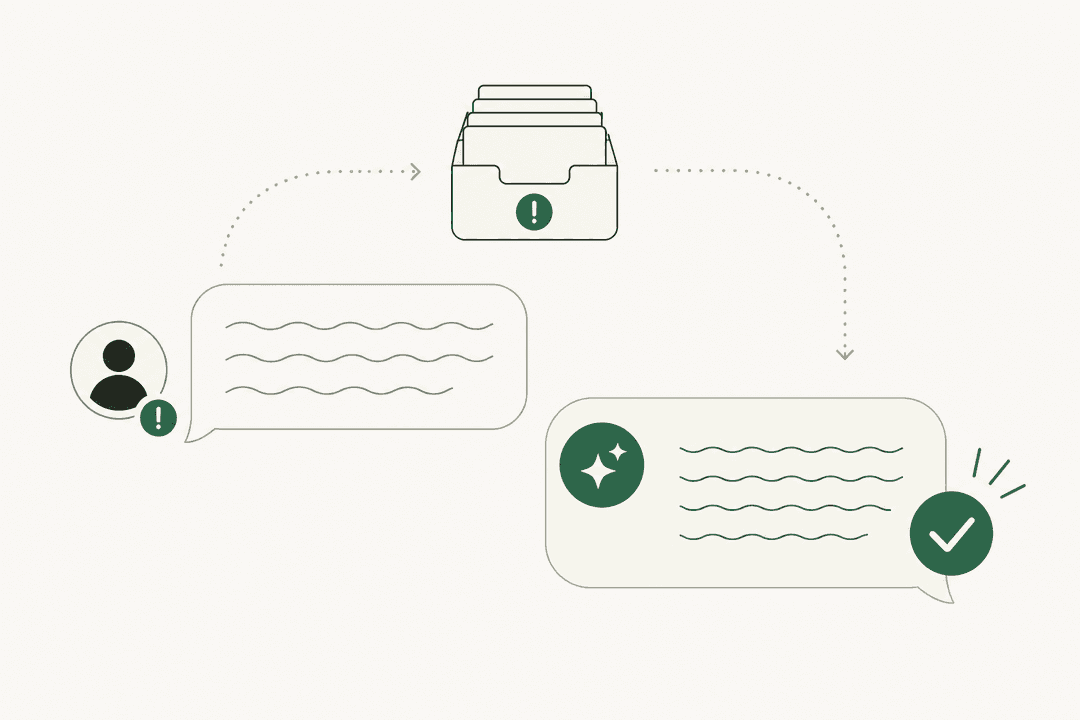
When a customer submits a support ticket, they typically receive an automatic acknowledgment. But what about when an agent actually sends their first reply? That's a different moment entirely, and many support teams want to customize this notification to set proper expectations or provide specific information.

Setting up a Zendesk trigger to email requesters on first reply sounds straightforward, but there's a common point of confusion. Most Zendesk accounts already have a default trigger that sends notifications when tickets are created. What you might actually need is a trigger that fires specifically when an agent sends their first public comment, not when the ticket is submitted.

Let's break down exactly how to configure this.

Distinguishing between ticket creation and first reply triggers

Understanding the difference: Ticket creation vs. first reply

Before diving into the setup, it's important to understand what you're working with. Zendesk comes with a standard trigger called "Notify requester and CCs of received request." This fires immediately when a customer submits a ticket and sends a generic acknowledgment like "Your request has been received and is being reviewed."

The confusion starts when teams want to notify customers when an agent actually responds. This is a fundamentally different event: it's a ticket update (not creation), and it involves a public comment from an agent (not an end user).

Why does this distinction matter? Because the messaging should be different. The auto-acknowledgment is just that: an acknowledgment. A first reply notification might include estimated response times, links to helpful resources, or personalized information based on the ticket content.

Some teams also want to track first reply time as a metric. Having a dedicated trigger for this moment can help with reporting and ensure customers know their issue is actively being worked on.

If you're also working with messaging triggers (for chat conversations), you might find our guide on Zendesk messaging triggers, conditions, and actions helpful for understanding the broader trigger ecosystem.

What you'll need before starting

Before you create your trigger, make sure you have the following:

  • Admin access to Zendesk. Only administrators can create and modify triggers. If you don't have admin rights, you'll need to request this from your Zendesk administrator.
  • A clear understanding of your current trigger order. Triggers run sequentially from top to bottom, and the order matters. Your new trigger should typically fire after routing triggers but before general notification triggers.
  • The exact message you want to send. Draft your subject line and email body before you start configuring. Consider what information would be most helpful to customers at this specific moment.
  • A test plan. You'll want to verify this works correctly before it affects real customers.

One important note: Zendesk already sends email notifications to requesters whenever agents add public comments to tickets. This happens through the default "Notify requester and CCs of comment update" trigger. If you just want to customize the message content, you might only need to edit that existing trigger rather than create a new one. But if you need specific conditions (like different messages for different ticket types), a custom trigger is the way to go.

Step-by-step: Creating the first reply trigger

Here's how to build a trigger that specifically targets first agent replies.

Step 1: Access the Triggers page in Admin Center

Navigate to Admin Center, then click Objects and rules in the sidebar. Select Business rules > Triggers. This will show you a list of all active and inactive triggers in your account.

Take a moment to review your existing triggers. Look for any triggers that handle notifications to requesters. You'll want to understand what notifications are already being sent so you don't create duplicate emails.

Step 2: Create a new trigger

Click Add trigger in the top right corner. Give your trigger a descriptive name that clearly indicates its purpose. Something like "Notify requester of first agent reply" works well. Avoid vague names like "New trigger" or "First reply" that don't explain the specific function.

Zendesk trigger creation interface showing active or inactive options

You can also add a description to help other admins understand what this trigger does. This is especially useful in larger teams where multiple people manage Zendesk settings.

Step 3: Set the trigger conditions

This is where you define exactly when the trigger should fire. For a first reply notification, you'll need these conditions:

Meet ALL of the following conditions:

  • Ticket > Is > Updated (not Created - we want this to fire on replies, not initial submission)
  • Ticket > Comment > Is > Public (ensures we're responding to customer-facing comments, not internal notes)
  • Ticket > Status > Changed from > New (this identifies the transition from an unassigned new ticket to one being worked)
  • Ticket details > Current user > Is > (agent) (ensures the comment is from an agent, not the requester themselves)

Zendesk trigger conditions builder with dropdown menus for automated workflows

The "Changed from New" condition is the key here. It ensures this trigger only fires on the first agent reply, not on subsequent comments. Once a ticket moves from New to Open or Pending, this condition won't be met again.

Step 4: Configure the email action

Now set up what happens when those conditions are met:

Actions:

  • Notify by > User email > (requester)

In the email body, you can use placeholders to personalize the message. Some useful ones include:

  • {{ticket.id}} - The ticket number
  • {{ticket.title}} - The subject line
  • {{ticket.latest_comment}} - The agent's comment that triggered this notification
  • {{ticket.assignee.name}} - The name of the agent handling the ticket

Zendesk action configuration with dynamic content placeholders

Here's a sample message template:

Subject: Re: {{ticket.title}}

Hi {{ticket.requester.first_name}},

Thanks for reaching out. We've received your request and an agent is now reviewing it.

{{ticket.latest_comment}}

You can reply to this email if you have any additional information.

Ticket #{{ticket.id}}

Step 5: Save and position the trigger

Click Save to create your trigger. But you're not done yet. Now you need to position it correctly in your trigger list.

Zendesk trigger editing interface showing conditions and actions

Go back to the triggers list and find your new trigger. Use the drag handles to move it to the appropriate position. Generally, notification triggers should come after routing and categorization triggers but before catch-all notification triggers.

The order matters because triggers can modify tickets, and those modifications can affect whether subsequent triggers fire. If your first reply trigger runs before a routing trigger that assigns the ticket, you might not have an assignee name available in your notification.

Testing your trigger before going live

Never deploy a new trigger to production without testing it first. Here's how to verify everything works:

  1. Create a test ticket. Submit a ticket as an end user (not an agent). You can use a personal email address or a test account.

  2. Add a public comment as an agent. Log in as an agent, open the test ticket, and add a public comment.

  3. Check the notification. Verify that the email is sent to the requester's email address with the correct content.

  4. Verify it doesn't fire again. Add another public comment to the same ticket. The trigger should not send another "first reply" notification.

  5. Check Zendesk's trigger test feature. In the trigger editor, you can use the "Test trigger" button to see which tickets would match your conditions. This helps verify your logic before saving.

If the trigger doesn't fire as expected, check the event log on the ticket. This shows which triggers ran and can help you debug condition issues.

Common mistakes and how to avoid them

Even experienced Zendesk admins run into issues with triggers. Here are the most common problems:

Duplicate notifications. If requesters are getting two emails for the same reply, you likely have overlapping triggers. Check if both your custom trigger and the default "Notify requester and CCs of comment update" are firing. You may need to add exclusion conditions or deactivate the default trigger.

Private comments triggering notifications. If you don't include the "Comment is Public" condition, internal notes can trigger customer emails. Always verify this condition is set correctly.

Trigger order causing issues. If your trigger runs before routing happens, you might not have assignee information available. If it runs too late, other triggers might have already changed the ticket in ways that prevent it from firing.

CC handling. If you want CCs to receive notifications, use "(requester and CCs)" as the email recipient instead of just "(requester)." Be aware that Zendesk has specific suppression rules to prevent duplicate emails to the same person.

The "Current user" condition confusion. Remember that "Current user" in trigger conditions refers to the person who made the update that caused the trigger to evaluate. For a first reply trigger, you want this to be an agent, not the requester.

Advanced variations for specific use cases

Once you have the basic trigger working, you can customize it for different scenarios:

Different messages for different groups. Add a condition like "Group is Billing" and create separate triggers with customized messaging for each team. Billing might include payment links, while Technical Support might include troubleshooting steps.

Business hours logic. Add conditions for "Within business hours?" to send different messages during and after hours. After-hours replies might include a note about response times when the team is back online.

Excluding specific requesters or organizations. Add "Requester is not" or "Organization is not" conditions to prevent certain VIP customers or internal users from receiving automated notifications.

Combining with auto-reply. If you use Zendesk's auto-reply feature (formerly Answer Bot), add a tag condition to exclude tickets that received an auto-reply. This prevents customers from getting two automated messages in quick succession.

Tracking first reply notifications. Add an action to apply a tag like "first_reply_sent" when the trigger fires. This lets you report on which tickets received this notification and when.

When to consider AI-powered alternatives

Rule-based triggers work well for straightforward scenarios, but they have limitations. They can't understand the context or intent of a customer's message. They send the same template regardless of whether the customer is asking about a simple password reset or a complex technical issue.

eesel AI dashboard for configuring the AI agent

This is where AI-powered support tools offer a different approach. Instead of sending static template messages, AI agents can:

  • Analyze the customer's actual question and provide a contextual response
  • Pull information from your knowledge base to give specific answers
  • Personalize the tone and content based on the customer's history
  • Handle common questions automatically while escalating complex issues to humans

We built eesel AI to work alongside (or instead of) traditional triggers. Our Zendesk integration lets you set up AI-powered first responses that learn from your existing help center articles, past tickets, and documentation. You define escalation rules in plain English, and the AI follows them.

For teams managing high ticket volumes, this means less time maintaining trigger logic and more time focusing on complex customer issues. You can start with AI drafting replies for agent review, then level up to fully autonomous responses as the AI proves itself.

Rule-based triggers and AI agents aren't mutually exclusive. Many teams use triggers for basic routing and notifications while letting AI handle the actual customer communication. The right approach depends on your ticket volume, complexity, and how much customization you need.

Getting started with smarter support automation

Setting up a Zendesk trigger to email requesters on first reply is a solid foundation for support automation. It ensures customers know their issue is being handled and gives you control over the messaging at a critical moment in the support journey.

The key is starting simple and iterating. Get the basic trigger working first, test it thoroughly, then add complexity only when you need it. Remember that every condition you add is another point of potential failure, so keep your triggers as simple as possible while still meeting your requirements.

If you're looking to go beyond static triggers and want AI that actually understands your customers, try eesel AI free. It connects to your Zendesk in minutes and learns from your existing help center and past tickets to provide contextual, helpful responses from day one.

Frequently Asked Questions

You need four key conditions: Ticket is Updated (not Created), Comment is Public, Status Changed from New, and Current user is Agent. These ensure the trigger only fires when an agent sends their first public reply to a new ticket.
You're likely overlapping with Zendesk's default 'Notify requester and CCs of comment update' trigger. Either deactivate that trigger or add exclusion conditions to prevent both from firing on the same event.
Yes. Create separate triggers with additional conditions like 'Group is Billing' or 'Form is Technical Support.' Each trigger can have its own customized message template.
Always include the condition 'Ticket > Comment > Is > Public' in your trigger. Without this, private agent comments (internal notes) can trigger customer notifications.
Triggers fire immediately when conditions are met (like when an agent adds a comment). Automations run on a schedule (roughly hourly) and check time-based conditions. For first reply notifications, use triggers, not automations.
Create a test ticket using a personal email address, then add public comments as an agent. Check that the email is sent correctly and that the trigger doesn't fire on subsequent replies. You can also use Zendesk's 'Test trigger' feature to see which tickets match your conditions.

Share this post

Stevia undefined

Article by

Stevia Putri

Stevia Putri is a marketing generalist at eesel AI, where she helps turn powerful AI tools into stories that resonate. She’s driven by curiosity, clarity, and the human side of technology.