
Merging tickets in Zendesk is one of those actions that seems simple until you realize there's no undo button. One wrong merge and you've got customer data in the wrong ticket, agents confused about where to respond, and a mess that takes hours to clean up manually.
Understanding the requirements before you start merging isn't just good practice. It's essential for keeping your support operation running smoothly. This guide covers everything you need to know: what permissions you need, which tickets can be merged, what data transfers (and what doesn't), and how to avoid the most common mistakes.
We'll also look at how our AI Triage can help you prevent duplicates before they ever need merging.
What you need before merging tickets in Zendesk

Before you can merge any tickets, you need to check a few boxes. Let's break down the prerequisites.
Agent permissions. You need to have the appropriate agent role in Zendesk. Most agents with standard permissions can merge tickets, but administrators control which groups have access to bulk actions and merging features.
Access to Agent Workspace. Merging happens in the Zendesk Agent Workspace. You need to be logged into the agent interface, not just viewing tickets in a read-only mode.
Understanding of ticket status rules. Not every ticket can be merged into every other ticket. The target ticket (the one you're merging into) needs to be in the right status. More on this in the next section.
The target ticket number. Before you start a bulk merge, have the ticket number you want to merge everything into ready. You'll need to enter it during the merge process.
Ticket status requirements and limitations
This is where most merge mistakes happen. The rules around ticket status in Zendesk are specific, and getting them wrong means your merge will fail or, worse, merge into the wrong ticket.
Tickets must have a status less than "Solved" to be merge targets. You can only merge into tickets that are New, Open, or Pending. If a ticket is Solved or Closed, it cannot receive merged tickets.
Unsolved tickets can be merged into solved tickets. Here's the exception: while you cannot merge into a closed ticket, you can merge an open or pending ticket into a solved one. The solved ticket will reopen automatically to receive the merged content.
The 100-ticket limit. Zendesk allows you to bulk merge up to 100 tickets at once. If you need to merge more than that, you'll have to do it in batches. This limit applies across all Zendesk Support plans.
AI agent tickets are excluded. Tickets created by AI agents cannot be managed in bulk. This is an important limitation if you're using Zendesk's AI features alongside human agents.
Same brand requirement for merging suggestions. If you're using Zendesk's Copilot merging suggestions feature, the tickets must belong to the same brand. Cross-brand merges require manual merging.
Merges are permanent. Once you click confirm, the merge is final. The secondary tickets are closed and marked as duplicates. You cannot unmerge them. This is why double-checking your target ticket is critical.
Permission and access requirements
Zendesk gives administrators fine-grained control over who can merge tickets and how the feature works.
Agent role requirements. Most standard agent roles can merge tickets, but the exact permissions depend on your Zendesk plan and configuration. Team plan agents have different capabilities than Enterprise plan agents.
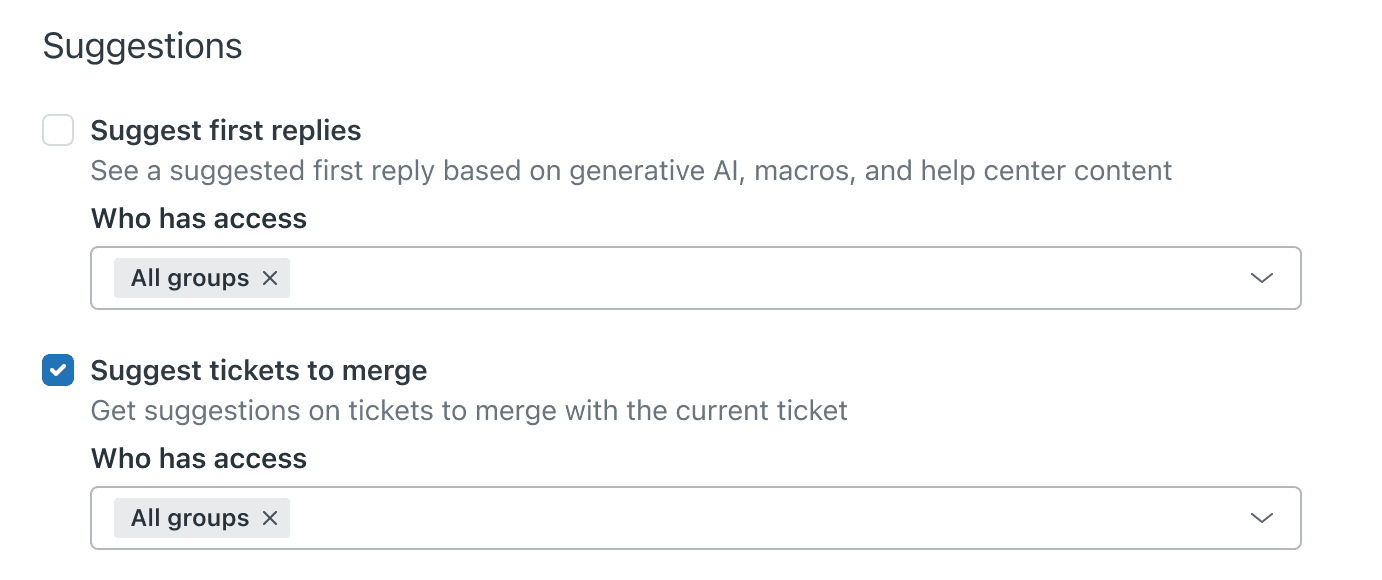
Group access for merging suggestions. If you're using the Copilot merging suggestions feature (the AI-powered duplicate detection), administrators can control which groups have access. By default, all groups can use it, but you can restrict it to specific teams.
Admin Center configuration. Administrators enable or disable merging suggestions in Admin Center > AI > Agent copilot > Suggestions. This is where you control the feature globally and set group permissions.
Cross-organization considerations. When merging tickets across different organizations or brands, Zendesk will show a warning. This is important for data privacy. Make sure you're not unintentionally sharing sensitive information between customers.
Understanding what transfers (and what doesn't)
A common source of confusion is what actually happens to the data when tickets are merged. Not everything carries over.
What transfers:
- Comments from the merged ticket are added to the primary ticket in chronological order
- Attachments come along with their associated comments
- The requester of the merged ticket is added as a CC on the primary ticket
What doesn't transfer:
- Tags do not transfer automatically
- Custom fields are not copied over
- Ticket type, priority, and status from the merged ticket are lost
- Internal notes from the merged ticket may not transfer depending on your settings
Impact on reporting. Because tags and custom fields don't transfer, your reporting might show discrepancies. The merged ticket is closed as a duplicate, but its metadata doesn't join the primary ticket. This is something to consider when building reports or dashboards.
SLA implications. When you merge a ticket, the merged ticket is closed. This can affect SLA calculations depending on how you've configured your metrics. Make sure your team understands how merges impact your reported resolution times.
Third-party solutions when native merging isn't enough
Zendesk's native merge feature works for basic needs, but it has limitations. If you're dealing with high volumes of duplicates or need more sophisticated matching, third-party apps can help.
When to consider apps. If your team spends significant time manually identifying duplicates, if you need to match based on content within ticket comments (not just fields), or if you want fully automated merging, a third-party solution might be worth the investment.
Knots Merge Tickets
Knots Merge Tickets is completely free and offers solid automation for basic use cases.
Key features:
- Matches tickets by requester, subject, ticket ID, or custom fields
- Runs fully automated in the background
- Adds tags and comments for tracking
- Automatically closes secondary tickets
Limitations: Knots only matches based on ticket fields, not the content within ticket comments. If your duplicate information lives in the message body (like an order ID buried in an email), you'll need their separate Ticket Parser app.
With 200+ installs and a 5-star rating from 14 reviews, Knots is a solid choice for teams wanting simple, free automation.
Swifteq Merge Duplicate Tickets
Swifteq offers more advanced automation with pricing starting at €59 per month for up to 15,000 tickets checked.
| Plan | Monthly Price | Tickets Checked |
|---|---|---|
| Starter | €59 | Up to 15,000 |
| Growth | €119 | Up to 30,000 |
| Business | €179 | Up to 60,000 |
| Scale | €249 | Up to 100,000 |
| Pro | €299 | Up to 200,000 |
| Enterprise | Custom | Over 200,000 |
Key features:
- Match by subject, description, custom fields, or text extracted from comments
- Configurable filters to exclude internal users, bots, or specific domains
- Real-time merging via Zendesk triggers and webhooks
- One-time backlog merging service available (starting at €199)
Swifteq is rated 5 stars from 23 reviews and is particularly useful for teams needing flexible matching rules beyond simple field comparisons.
Playlist Ticket Merge
Playlist takes a different approach, focusing on assisted merging rather than full automation. At $4 per agent per month, it's affordable for small teams.
Key features:
- Sidebar widget automatically flags potential duplicates
- Bulk merge multiple tickets without leaving the ticket view
- Restrict merging to matching brands or agent's groups
- Carry over tags, priority, and comments with timestamps
Playlist is ideal for teams that want agent control over merge decisions rather than fully automated merging.
Best practices to avoid merge mistakes
Even with the right tools, merges can go wrong. Here are practices that help you avoid costly mistakes.
Always verify before merging. Take a moment to confirm the tickets are actually duplicates. Merging unrelated tickets creates confusion and can expose sensitive information to the wrong customers.
Double-check the target ticket. The target ticket is the one that survives. Make sure it's the right one before you confirm. Remember: you cannot undo a merge.
Consider making merge comments private. By default, Zendesk adds a public comment when tickets are merged. This can confuse customers who only submitted one request. Consider deselecting "Requester and CCs can see this comment" to keep merges internal.
Train agents on merge policies. Not every similar ticket should be merged. Create clear guidelines for when to merge (same issue, same customer) versus when to keep tickets separate (different issues, escalated complaints).
Document your merge criteria. If you use automation, write down your matching rules and review them quarterly. Business needs change, and your merge logic should evolve with them.
Preventing duplicates with AI Triage

Merging duplicates is necessary, but preventing them is better. This is where our AI Triage comes in.
Instead of reacting to duplicates after they're created, our AI Triage identifies patterns in incoming tickets and handles them intelligently before they require merging.
How it works:
- AI analyzes incoming tickets for similarity to existing open tickets
- Automatically tags potential duplicates for agent review
- Routes related tickets to the same agent to prevent multiple people working the same issue
- Learns from your team's actions to improve accuracy over time
Unlike rules-based merge apps that match specific fields, our AI Triage understands context. It can spot duplicates even when the requester uses different email addresses or describes the issue slightly differently.
We also handle spam detection and auto-close "thank you" messages that clog up your queue. For teams dealing with chronic duplicate problems, combining our AI Triage with Zendesk creates a proactive approach. You spend less time cleaning up duplicates and more time solving customer problems.
For teams looking to reduce duplicate tickets before they need merging, eesel's AI agent for Zendesk can automatically identify and triage similar incoming tickets, keeping your queue cleaner from the start.
Choosing the right approach for your team
The best solution depends on your ticket volume, technical resources, and risk tolerance.
Small teams with occasional duplicates: Stick with Zendesk's native bulk merge. It's free, built-in, and sufficient for infrequent use.
Budget-conscious teams needing automation: Knots Merge Tickets is completely free and handles basic field-based matching well.
Growing teams needing flexibility: Swifteq offers the most configurable criteria, including text extraction from comments, at a reasonable monthly price.
Teams wanting agent control: Playlist Ticket Merge provides an intuitive sidebar interface for assisted merging at $4 per agent.
Teams wanting to prevent duplicates: Consider our AI Triage to catch duplicates before they require merging, reducing your overall duplicate volume.


