
That sinking feeling when you realize you've just deleted an important customer ticket. Maybe it was a complex technical issue with weeks of troubleshooting history, or a high-value account with sensitive information. Whatever the case, understanding how Zendesk handles ticket deletion permanence can mean the difference between a quick recovery and permanent data loss.
Here's the short version: Zendesk uses a two-stage deletion process. When you delete a ticket, it enters a 30-day recovery window where you can restore it with a few clicks. After that 30-day period, the ticket is permanently deleted and unrecoverable. But there's more to the story, especially if you're dealing with compliance requirements or archived tickets.
Let's break down exactly how Zendesk ticket deletion permanence works, how to recover deleted tickets, and what you can do to prevent accidental deletions in the first place.
Understanding Zendesk's ticket deletion timeline
Zendesk's deletion process isn't immediate. When you delete a ticket, it becomes what's called a "shell ticket" and enters a holding pattern. This gives you a safety net, but that net has an expiration date.
The deletion lifecycle
| Stage | Timeframe | What Happens |
|---|---|---|
| Initial deletion | Day 0 | Ticket becomes a shell ticket and moves to the Deleted tickets view |
| Recovery window | Days 1-30 | Ticket is fully recoverable from the Deleted tickets view |
| Auto-permanent deletion | Day 30 | Ticket is automatically and permanently deleted |
| Data scrubbing | Day 90 | Shell ticket removed, original data completely purged |
Source: Zendesk help center
The 30-day recovery window is your opportunity to undo accidental deletions. During this period, the ticket retains all its data: the full conversation history, attachments, custom field values, and metadata. You can restore it to exactly the state it was in before deletion.
The archived ticket exception
There's an important exception to this timeline. If a ticket has been in archived status for more than 120 days since it was marked as solved, deleting it works differently. These tickets skip the Deleted tickets view entirely and go straight to permanent deletion.
This happens because Zendesk's archiving system (which kicks in automatically 120 days after a ticket is closed) moves tickets out of active views to improve performance. If you delete an archived ticket, you won't find it in the recovery view. However, if you know the ticket ID, you can still attempt recovery through the Zendesk API.
How to recover deleted tickets in Zendesk
If you've deleted a ticket and need it back, time is of the essence. Here's exactly how to recover deleted tickets before that 30-day window closes.
Step 1: Access the Deleted tickets view
First, you need to navigate to where deleted tickets live.
- Click the Views icon in the left sidebar of your Zendesk interface
- Look for Deleted tickets in the Views list
- Click to open the Deleted tickets view
Note that you'll need appropriate permissions to see this view. Administrators can access it by default, but agents must be granted permission to view and recover deleted tickets.
Step 2: Locate the ticket to restore
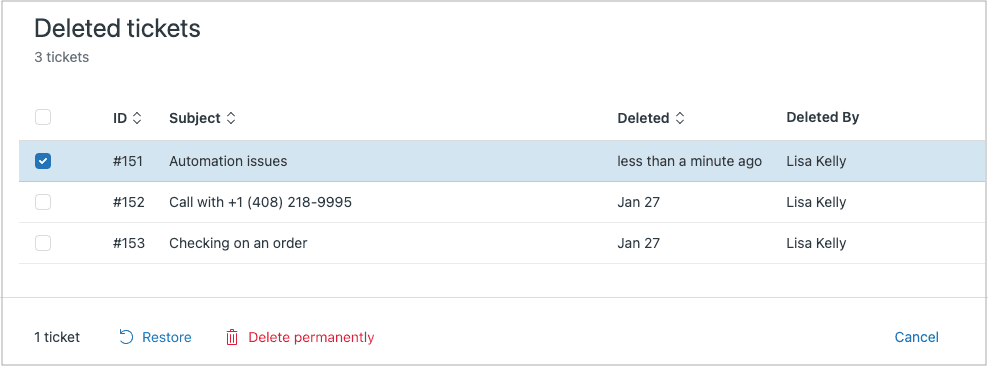
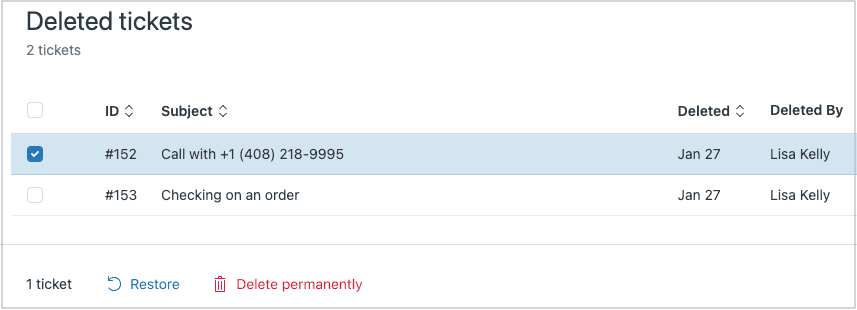
Once you're in the Deleted tickets view, you'll see a list of all tickets deleted within the last 30 days. You can browse the list manually, use search to find specific tickets, or check the deletion date to confirm the ticket is still within the recovery window.
The list shows basic information about each deleted ticket, though you can't open tickets directly from this view to see full details. You'll need to restore the ticket first.
Step 3: Restore the ticket
When you've found the ticket you need:
- Select the ticket (or multiple tickets) by checking the box next to each one
- A toolbar appears at the bottom of the list
- Click Restore
- The ticket is immediately removed from the Deleted tickets view and returned to its original view and status
The restoration is instant. The ticket reappears exactly as it was before deletion, with all conversation history, attachments, and data intact.
Alternative: API recovery for bulk restoration
If you need to restore many tickets at once or you're dealing with archived tickets that don't appear in the Deleted tickets view, the Zendesk API offers bulk restoration options:
PUT /api/v2/deleted_tickets/{id}/restore- Restore a single deleted ticketPUT /api/v2/deleted_tickets/restore_many?ids={ids}- Restore multiple tickets by ID
This approach requires technical expertise but gives you more flexibility for complex recovery scenarios.
Methods for deleting tickets in Zendesk
Understanding your deletion options helps you choose the right approach for your situation. Here's how the different methods compare:
| Method | Best For | Recovery Window | Key Considerations |
|---|---|---|---|
| Manual deletion | Single tickets | 30 days | Time-consuming but precise |
| Bulk deletion | Multiple tickets | 30 days | Select up to 100 tickets at once from views |
| Deletion schedules | Automated compliance | 30 days | Requires ADPP add-on |
| API deletion | Custom workflows | 30 days | For technical teams; 100 ticket limit per call |
Source: Zendesk help documentation
Manual and bulk deletion
For most day-to-day deletion needs, you have two main options. You can delete individual tickets by opening the ticket, clicking the Ticket options menu (three dots), and selecting Delete. For larger cleanup jobs, select multiple tickets from any view and use the bulk delete option.
There's also a quick undo option that appears immediately after deletion (for just a few seconds), which is useful for catching accidental deletions right away.
Deletion schedules for compliance
If you're managing tickets for GDPR compliance or other data retention requirements, manual deletion doesn't scale. Zendesk's Advanced Data Privacy and Protection (ADPP) add-on lets you create automated deletion schedules.
With deletion schedules, you can:
- Delete tickets based on age, brand, organization, tags, or custom fields
- Process up to 200,000 tickets per account per day
- Set schedules to activate within 72 hours of criteria being met
- Create up to 10 schedules (1 active without ADPP, 10 with ADPP)
Source: Zendesk help center
Third-party deletion tools
The Zendesk Marketplace offers additional options for ticket deletion. The Ticket Deleter app by DataFox Labs provides bulk deletion with advanced filtering by status, date range, and tags. There are also GDPR-specific apps like GDPR Compliance and GDPR: Search & Destroy for handling data subject requests.
GDPR compliance and data retention
For organizations subject to GDPR or similar data protection regulations, ticket deletion isn't just about housekeeping. It's a legal requirement.
The right to erasure
GDPR grants individuals the "right to erasure" (sometimes called the "right to be forgotten"). This means that when a customer requests their data be deleted, you need a systematic way to remove their tickets from your system. Zendesk's deletion schedules help automate this process.
Setting up compliant deletion schedules
With the ADPP add-on, you can create deletion schedules that align with your data retention policy:
- By ticket age: Delete tickets older than a specific threshold (e.g., 3 years)
- By organization: Remove all tickets from former clients when contracts end
- By tags: Delete tickets marked with specific compliance tags
- By attachment presence: Target tickets with or without attachments
The key is documenting your retention policy and configuring schedules to enforce it automatically. Deletion schedules start processing within 72 hours of activation and run continuously until deactivated.
Documentation for audits
Compliance isn't just about deletion. It's about proving deletion happened. Keep records of:
- Your data retention policy
- Which deletion schedules are active and their criteria
- Audit logs of manual permanent deletions (automatic deletions after 30 days aren't logged)
- Reports from the Updates history dataset showing deletion events
Source: Zendesk help documentation
Preventing accidental ticket deletion
The best recovery strategy is preventing the need for recovery in the first place. Here are practical steps to reduce accidental deletions:
- Limit delete permissions: Only grant ticket deletion rights to users who absolutely need them. Most agents can work effectively without delete access.
- Use tags instead of deletion: For tickets you don't want to see in active views, consider tagging them as "archived" or "obsolete" rather than deleting.
- Export before bulk operations: If you're planning a major cleanup, export your data first. Zendesk's export capabilities vary by plan, so check what's available in your account.
- Set up backup solutions: Third-party backup apps like Pro Backup can provide an additional safety net beyond Zendesk's 30-day recovery window.
- Train your team: Make sure agents understand the deletion timeline and the difference between closing and deleting tickets.
A proactive approach to ticket management
Here's something worth considering: the less ticket accumulation you have, the less you need to worry about deletion management. At eesel AI, we take a different approach to ticket volume. Instead of focusing on how to delete old tickets, we help teams resolve more tickets automatically from the start.
Our AI Agent handles frontline support autonomously, resolving up to 81% of tickets without human intervention. Fewer tickets created means fewer tickets to manage, archive, or delete later. It's a proactive approach that reduces the operational overhead of ticket lifecycle management.

For more on managing ticket volume in Zendesk, check out our guide on how to automate archiving old tickets in Zendesk.
What to do when recovery is impossible
Sometimes the 30-day window has closed and the ticket is gone. If you find yourself in this situation, here are your options:
-
Check third-party backups: If you've implemented a backup solution, this is when it pays off. Some backup apps retain data beyond Zendesk's 30-day window.
-
Contact Zendesk support: While Zendesk generally cannot recover permanently deleted tickets, it's worth reaching out if the deletion was due to a system error or if you have extenuating circumstances.
-
Reconstruct from other sources: Check your email archives, customer communication logs, or any external documentation you might have. You won't recover the full ticket, but you might salvage key information.
-
Document the loss: For compliance purposes, record what was lost and why. This documentation is important for audit trails.
The bottom line: once 30 days pass, Zendesk ticket deletion permanence is absolute. Prevention and quick action within the recovery window are your only real options.
Managing Zendesk ticket data with eesel AI
If you're spending significant time managing ticket deletion, archiving, and storage limits, there might be a better way. We built eesel AI to help teams reduce ticket volume proactively rather than managing the aftermath.
Here's how we approach ticket lifecycle management differently:
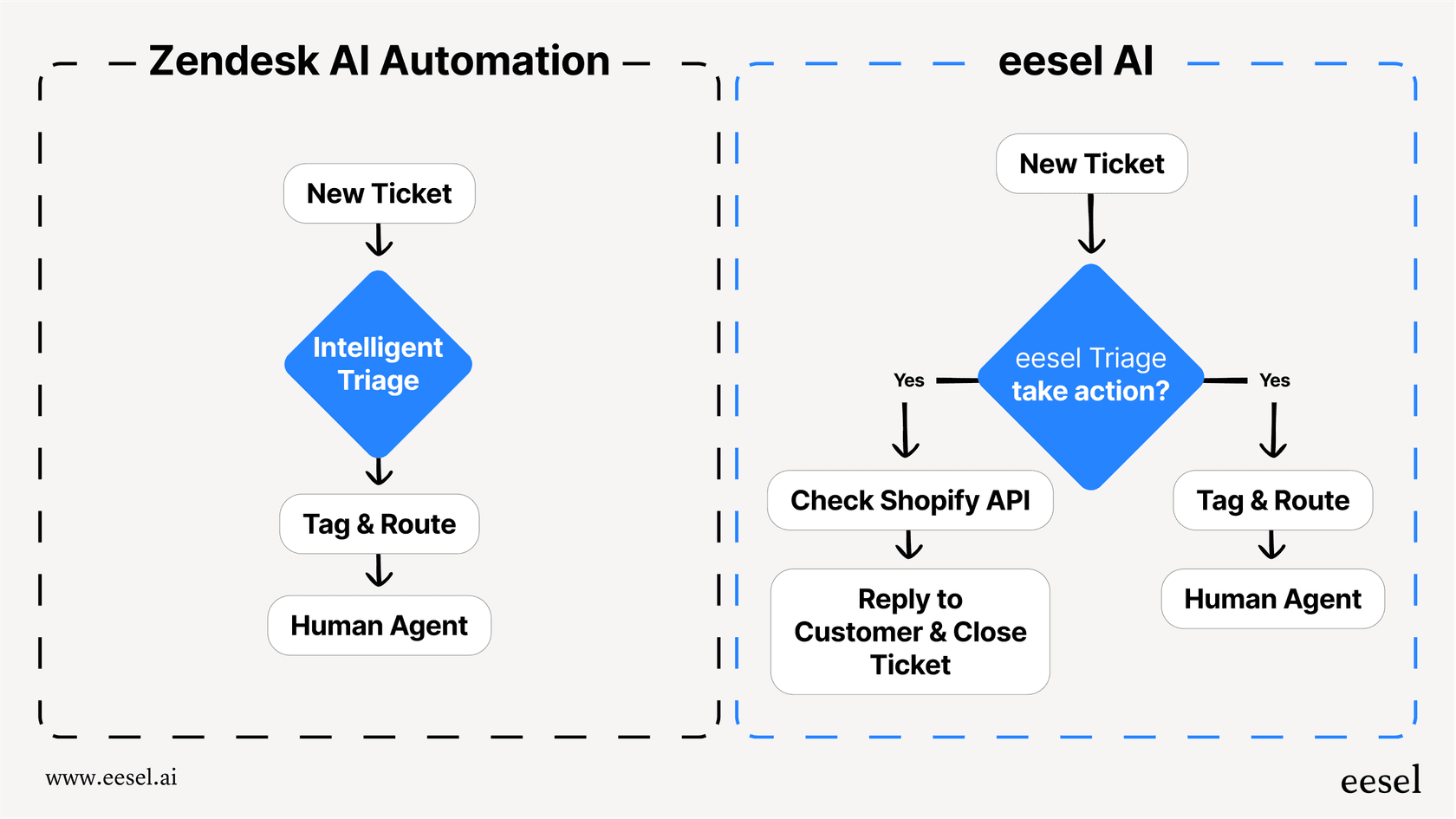
Intelligent resolution before tickets pile up: Our AI Agent learns from your past tickets, help center articles, and macros to handle frontline support autonomously. When tickets are resolved immediately, they never become a storage or deletion problem.
AI Triage for automatic cleanup: Not every ticket needs human attention. Our AI Triage automatically tags, routes, merges duplicates, and closes tickets that don't require agent involvement.
Works with your existing Zendesk setup: You don't need to replace your help desk. Our Zendesk integration adds AI capabilities while keeping your existing workflows intact. Start with AI Copilot drafting replies for review, then graduate to full AI Agent autonomy as the system proves itself.
Plain-English control: Define escalation and handling rules in natural language. "If the refund request is over 30 days, politely decline and offer store credit." No complex configuration required.
If you're curious how this approach might work for your team, you can try eesel AI free or see it in action with a demo. The goal isn't just better ticket management. It's reducing the ticket volume that needs managing in the first place.


