
When customers reach out for support, the form they use shapes their entire experience. A well-designed request form captures the right information upfront, routes tickets to the right team automatically, and reduces back-and-forth that frustrates both customers and agents.
Zendesk offers several ways to customize request forms, but the options vary significantly based on your plan level and technical resources. This guide walks you through every approach from simple admin settings to full API development, so you can choose the right method for your needs.
What are Zendesk request forms?
Zendesk provides three distinct types of forms for collecting customer requests:
-
Ticket forms appear in your help center and let customers submit structured support requests. These are the most common and support up to 300 different forms per account on eligible plans.
-
Pre-chat forms display before a live chat session begins, collecting visitor information like name, email, and department preference. These only work with the Web Widget (Classic), not the newer Messaging widget.
-
Custom API forms are forms you build yourself using the Zendesk Ticketing API, giving you complete control over appearance and behavior.
Each form type serves different use cases, and each has its own customization options. Let's break down what you need before starting.
What you'll need to get started
Before customizing forms, confirm you have:
- A Zendesk account with admin access
- The appropriate plan for your desired features (multiple ticket forms require Suite Growth+ or Support Enterprise)
- For API customization: a development environment with Node.js 16.15.1+ or Python 3.10.11+
- Clear understanding of which form type matches your use case
With prerequisites sorted, let's start with the simplest customization method.
Customizing ticket forms in Zendesk Admin Center
The admin dashboard provides point-and-click customization without any code. This covers most common use cases and works on all plan levels.
Step 1: Access the ticket forms settings
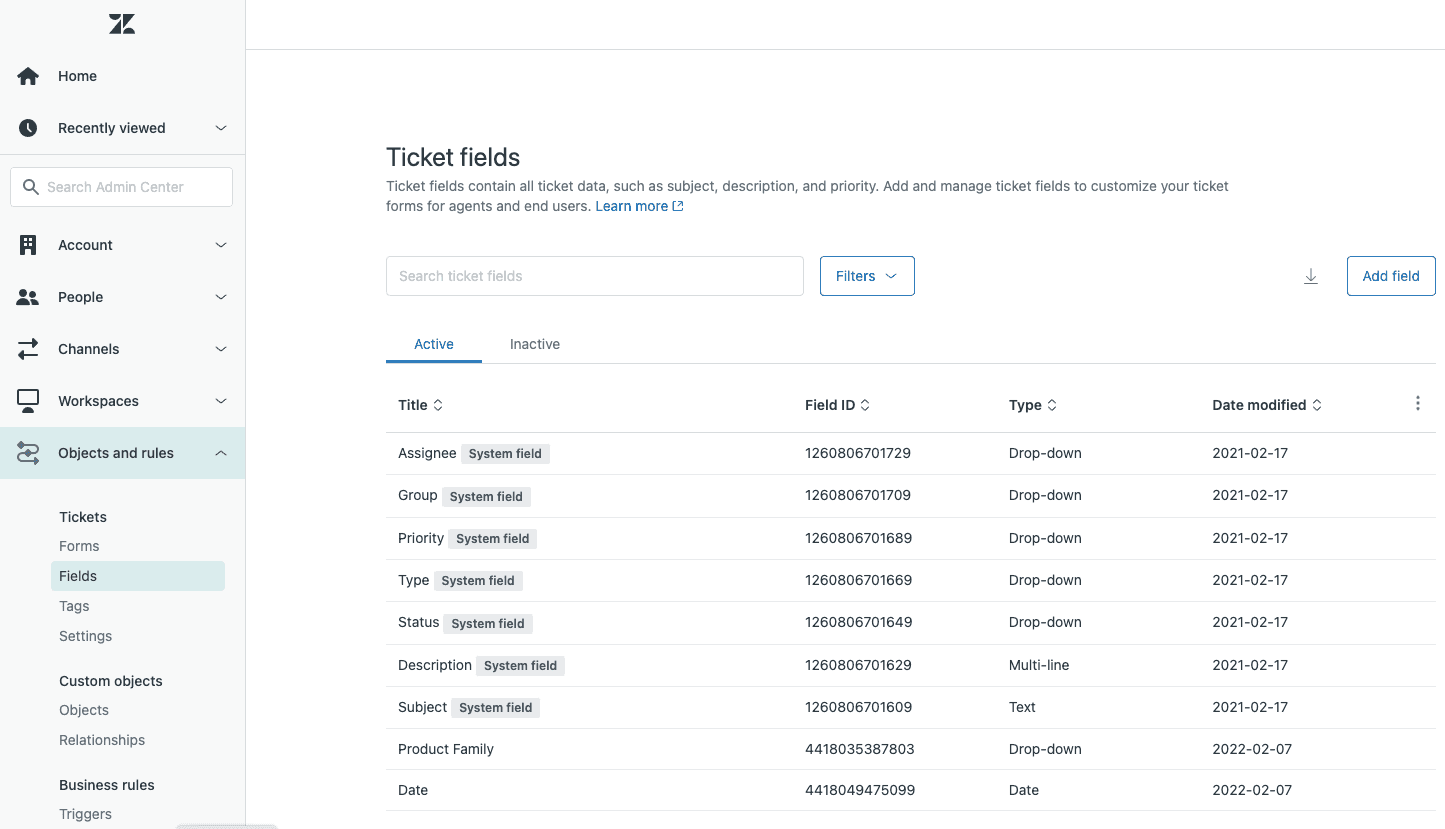
Navigate to Admin Center > Objects and rules > Tickets > Forms.
You'll see a list of existing forms. Click "Add form" to create a new one, or select an existing form to edit it.
Step 2: Create or edit a ticket form
When creating a new form, you'll configure several key settings:
- Form name: This is what agents see in the ticket interface dropdown
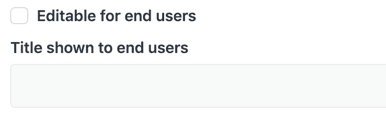
- End-user visibility: Check "Editable for end users" to make the form available in your help center
- End-user name: Optionally display a different name to customers (for example, "Contact Sales" instead of "Sales Request Form")
- Brand restrictions: If you have multiple brands, limit which ones use this form
Step 3: Add and arrange custom fields
The form editor shows available fields on the right and your form layout on the left. Drag fields from the right panel onto your form, then reorder them by dragging within the form area.
Available custom field types include:
- Text (single-line and multi-line)
- Dropdown menus
- Checkboxes
- Date pickers
- Numeric fields (integer and decimal)
- Regular expression validation fields
- Multi-select fields
- Lookup relationship fields
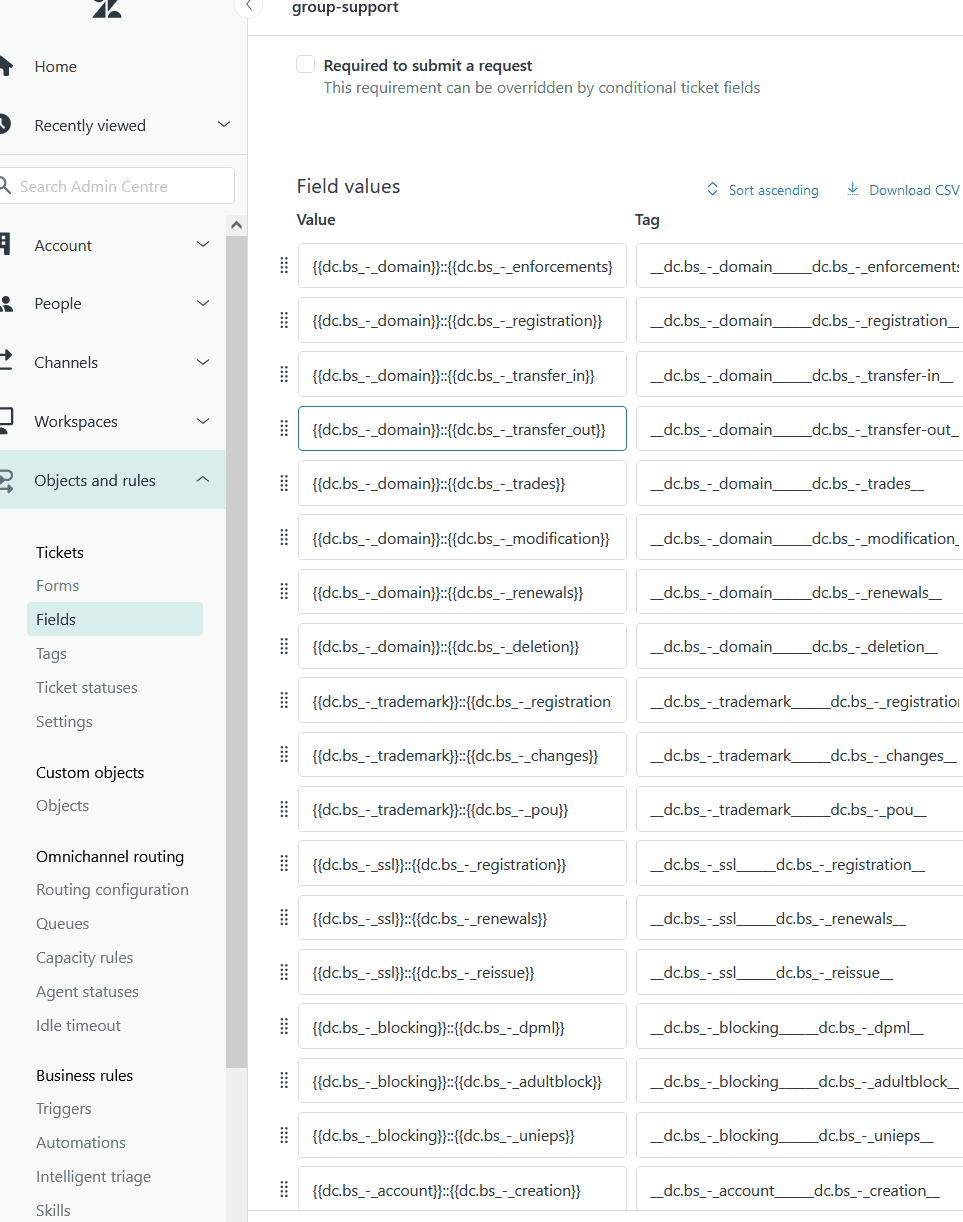
Important limitation: Field properties are set at the field level, not the form level. If you make a field required, it will be required on every form where it appears. You cannot make the same field required on one form but optional on another.
Step 4: Configure conditional fields (optional)
For more dynamic forms, you can show or hide fields based on other selections. This requires the conditional ticket fields feature, available on most plans.
To set this up, create your fields first, then define the conditions in the ticket form editor. For example, you might show a "Product Model" field only when "Product Category" is set to "Hardware."
Customizing the Web Widget contact form
The Web Widget embeds support directly on your website. Here's how to customize its contact form.
Step 1: Access Web Widget settings
Navigate to Admin Center > Channels > Classic > Web Widget.
In the Basics tab:
- Check the "Contact form" checkbox to enable it
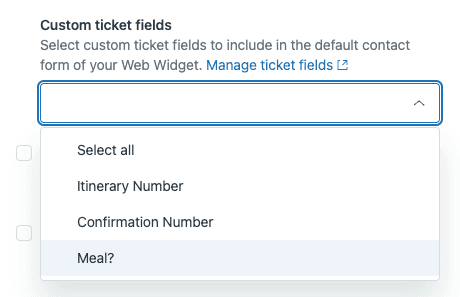
- Select the "Custom ticket fields" dropdown to choose which fields appear
- Enable "Ticket forms" if you want users to select from multiple forms
Key limitations in Web Widget (Classic):
- Regex, Date, and Multi-select fields are not supported
- System fields like Priority do not appear in the widget
- Reordering fields is supported in ticket forms but not the default contact form
Step 2: Enable multiple ticket forms in the widget
If you have multiple ticket forms, check the "Ticket forms" checkbox. When users click "Leave us a message," they'll first select which form matches their needs, then see the relevant fields for that request type.
Advanced customization with JavaScript API
For more control over the widget's behavior, use the JavaScript API. This requires adding code to your website.
Step 1: Set up the zESettings object
The zESettings object configures widget behavior. Critical: Place it BEFORE the Zendesk widget script in your HTML, or settings won't apply.
window.zESettings = {
  webWidget: {
    chat: {
      prechatForm: {
        greeting: { '*': 'Welcome! How can we help today?' },
        departmentLabel: { '*': 'Choose your team' }
      }
    }
  }
};
Step 2: Pre-fill visitor information
For logged-in users, pre-populate form fields with information you already have:
Basic identification (name and email):
zE('webWidget', 'identify', {
  name: 'John Smith',
  email: 'john@example.com'
});
Advanced prefill with read-only fields:
zE('webWidget', 'prefill', {
  name: { value: 'John Smith', readOnly: true },
  email: { value: 'john@example.com', readOnly: true },
  phone: { value: '555-1234', readOnly: false }
});
Setting readOnly: true prevents visitors from editing pre-filled values, useful when you've already verified their identity.
Step 3: Filter departments and customize labels
Control which departments appear in the dropdown:
chat: {
  departments: {
    enabled: ['Sales', 'Technical Support'],
    select: 'Sales'
  }
}
Department names must match exactly (case-sensitive). If a department name doesn't exist, the dropdown may be hidden entirely with no error message.
Step 4: Pre-fill ticket forms via URL parameters
For help center ticket forms, you can pre-fill fields by adding parameters to the URL. This works well when linking from specific help articles.
System field format: tf_{fieldname}={value}
tf_subject=Issue descriptiontf_description=Detailed problemtf_priority=high
Custom field format: tf_{fieldID}={value}
tf_12345=Product Name
Example URL:
https://company.zendesk.com/hc/en-us/requests/new?tf_subject=Faulty charger&tf_description=Need replacement&tf_12345=USA
Requirements for pre-filled forms:
- Guide Professional or Enterprise plan
- Templating API version 2 or higher
- For SSO environments: users must be logged in before accessing pre-filled values
Source: Creating pre-filled ticket forms
Building custom forms with the Zendesk API
When native options don't meet your needs, build completely custom forms using the Ticketing API.
Step 1: Set up your development environment
You'll need:
- A Zendesk account with anonymous requests enabled ("Require authentication for request and uploads APIs" must NOT be selected)
- Node.js 16.15.1+ or Python 3.10.11+
Node.js dependencies:
npm install express body-parser axios express-recaptcha
Python dependencies:
pip3 install flask requests google-recaptcha-flask
Step 2: Create the form HTML
Build a standard HTML form with fields for subject, description, name, and email. Zendesk strongly recommends adding CAPTCHA protection using Google reCAPTCHA, hCaptcha, or Cloudflare Bot Management to prevent spam.
Step 3: Implement the API integration
Use the Request endpoints (not Ticket endpoints) for end-user forms. Requests represent the end-user perspective of tickets.
API endpoint:
POST https://{subdomain}.zendesk.com/api/v2/requests.json
Authentication:
- Username:
{your_email}/token - Password: Your API token
Example request body:
{
  "request": {
    "subject": "Help needed",
    "comment": { "body": "Issue description here" },
    "requester": { "name": "John Smith", "email": "john@example.com" }
  }
}
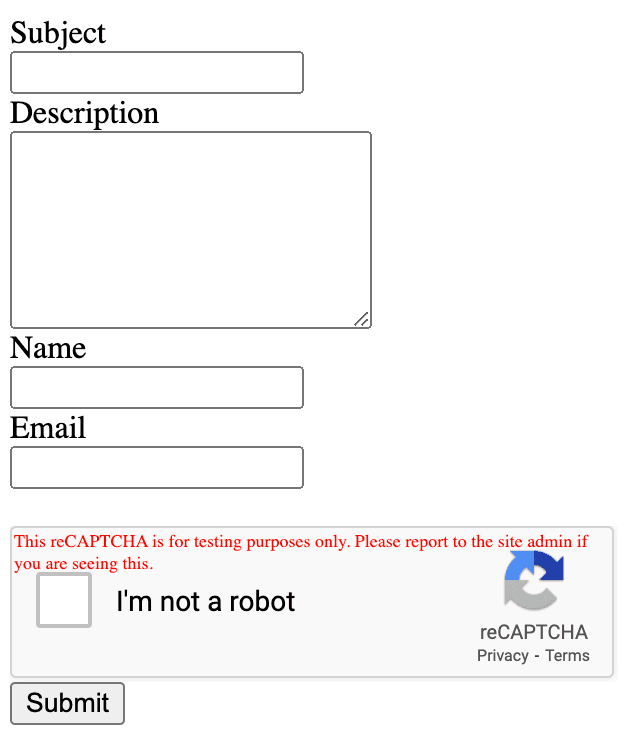
Step 4: Deploy and test
Test your form locally at http://localhost:3000/, then deploy to a production server. Consider using Heroku or AWS Elastic Beanstalk for hosting.
Before going live:
- Replace test CAPTCHA keys with production keys
- Consider using OAuth instead of API tokens for better security
- Store credentials in environment variables
Source: Building a custom ticket form with the Ticketing API
Troubleshooting common issues
Even with correct configuration, several issues commonly arise:
Settings not applying: The most common cause is placing zESettings AFTER the widget script. Your settings object must appear before the Zendesk widget snippet loads.
Department dropdown not showing: This happens when all agents for that department are offline. Ensure at least one agent is online, or use the departments.enabled JavaScript setting with valid department names.
Custom departmentLabel not applying: The property must be INSIDE the prechatForm object, not at the chat level. Check your nesting.
Custom fields not appearing in widget: Remember that Regex, Date, and Multi-select fields are not supported in Web Widget (Classic).
Pre-filled forms not working with SSO: Users must be logged in before accessing pre-filled values. If they access the form before login, pre-filled values are lost after authentication.
When to consider an AI alternative to forms
Configuring Zendesk forms involves navigating admin settings, writing JavaScript, or developing custom applications. For teams without dedicated development resources, this complexity can slow deployment.
eesel's AI agent for Zendesk offers a different approach. Instead of configuring static forms, you deploy an AI agent that:
- Learns from your Zendesk data: Past tickets, macros, help center articles
- Gathers context conversationally: No rigid form fields, just natural conversation
- Routes intelligently: Determines the right department based on conversation content
- Handles tickets autonomously: Resolves common issues without human intervention

The setup takes minutes rather than hours. Connect your Zendesk account, train on your existing knowledge, and deploy. You can start with the AI drafting responses for agents to review, then level up to autonomous handling as confidence grows.
For teams already using Zendesk, eesel AI works alongside your existing setup. You don't need to replace anything, just add an intelligent layer that handles routine conversations.
Choosing the right form customization approach
Here's a quick reference to help you decide:
| Approach | Best For | Technical Level | Plan Requirements |
|---|---|---|---|
| Admin Center | Basic field customization, multiple forms | None | Varies by feature |
| JavaScript API | Pre-filling data, department filtering, localization | Low (copy-paste code) | Any |
| Custom API Forms | Complete control over form design | High (development) | Any |
| Third-party tools (Formcrafts) | Advanced conditional logic, multi-step forms | None | Any + tool cost |
| AI alternative (eesel AI) | Eliminating forms entirely, conversational support | None | Any |
Bottom line: Start with the simplest option that meets your needs. Most teams can accomplish their goals through the Admin Center and basic JavaScript API customizations. Reserve custom API development for unique requirements that native options cannot address.
If you find yourself spending weeks configuring forms and still not achieving the customer experience you want, consider whether a conversational AI approach might better serve your team and customers.