Managing customer data in Zendesk often means dealing with organizational changes. Maybe your company acquired another business. Perhaps a long-time customer went through a merger and now operates under a different name. Or you might simply have duplicate organization records cluttering your database from a bulk import gone wrong.
Whatever the reason, you need to consolidate two organizations into one. Until recently, this meant manual workarounds or custom scripts. But in late 2023, Zendesk finally released native organization merging after years of community requests.
Here's how to use it properly, what to watch out for, and when you might want to consider alternatives.
What is organization merging and when should you use it
Organization merging in Zendesk combines two organization records into one. The "merging organization" (the one you're getting rid of) has all its users, tickets, and domains moved to the "receiving organization" (the one you're keeping). After the merge completes, the merging organization is permanently deleted.
Common scenarios where merging makes sense:
- Company acquisitions A customer you support acquires another company you support, and they want unified billing and support under one organization
- Business restructuring A single company splits or reorganizes, and you need to consolidate multiple org records that represent the same entity
- Data cleanup Duplicate organizations created from imports or automation errors need consolidation
- Domain changes A company rebrands and changes their email domain, leaving you with old and new organization records
The feature launched as an open beta in November 2023 and moved to general availability shortly after. It works similarly to how Zendesk handles ticket and user merging, with a clear "winner" and "loser" organization.
One important distinction: organization merging is different from user merging. The Advanced End User Merge app handles duplicate user profiles, not organizations. Make sure you're solving the right problem before proceeding.
Prerequisites and limitations to understand
Before you start clicking through the merge process, understand what you're getting into. Organization merges are permanent and have some significant constraints.
Size limits
Zendesk imposes hard limits on organization merges. The merging organization must have:
- 10,000 tickets or fewer
- 10,000 users or fewer
If either organization exceeds these limits, the merge will be blocked. For context, some Zendesk customers reported having organizations with over 100,000 tickets and 90,000 members, so these limits do affect real-world scenarios.
Permissions
Only administrators can merge organizations. If you're an agent or have limited admin privileges, you'll need to escalate the request.
Permanent action
Once a merge begins, it cannot be undone, updated, or resubmitted. The merging organization gets deleted upon completion. All changes are recorded in the audit log, and affected tickets show the organization change in their events log, but there's no "undo" button.
Business rule impacts
Merging organizations can break your existing business rules. Review these before merging:
- Triggers Any trigger that checks or sets organization values may behave unexpectedly
- Automations Time-based rules referencing the merging organization will fail
- Macros Macros that populate organization fields may reference deleted data
- Views Views filtered by organization will need updates
- SLAs Service level agreements tied to specific organizations may need reconfiguration
Lookup relationship fields
If you use custom lookup relationship fields that point to organizations, references to the merging organization won't automatically update to the receiving organization. You'll need to handle these manually.
Step-by-step guide to merging organizations
Here's the actual process. Take your time with the confirmation steps, because you can't reverse this.
Step 1: Navigate to the organization you want to merge
In Zendesk Support, click the Organizations icon in the sidebar. Find the organization you want to merge (this will be the "merging organization" that gets deleted) and click its name to open the detail page.
Step 2: Initiate the merge
Click the drop-down icon at the top-right of the organization page and select Merge into another organization.
Step 3: Select the receiving organization
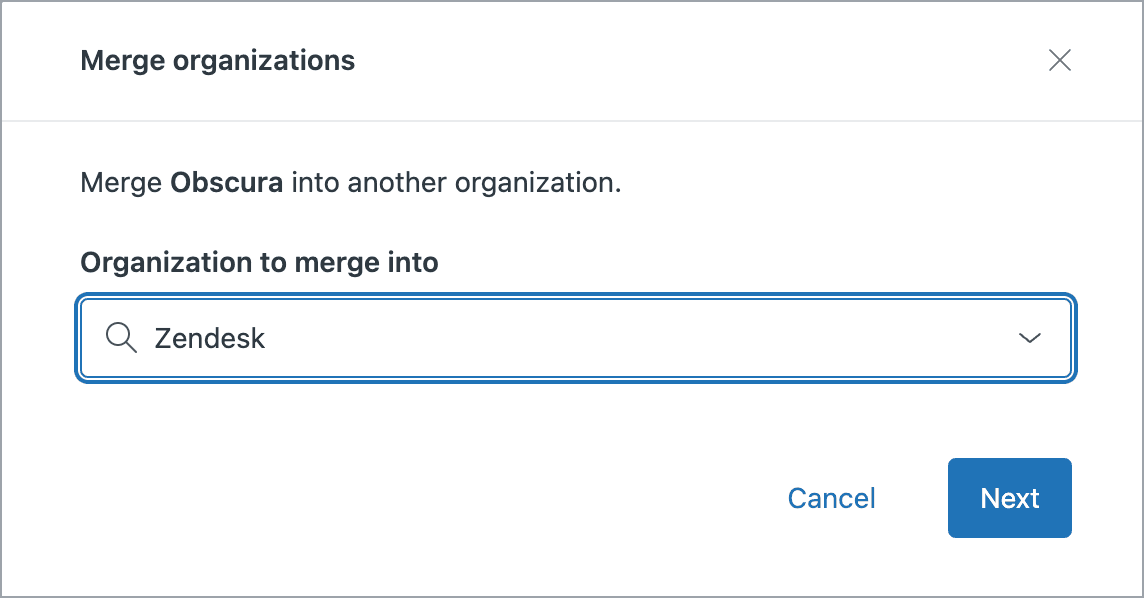
Begin typing the name of the organization you want to keep (the "receiving organization"). Zendesk will display matching organizations as you type. Select the correct one from the list and click Next.
Step 4: Review warnings and confirm
If the two organizations have different group mappings or sharing permissions, you'll see a warning. This is your last chance to catch mistakes. Click Continue merge to proceed past any warnings.
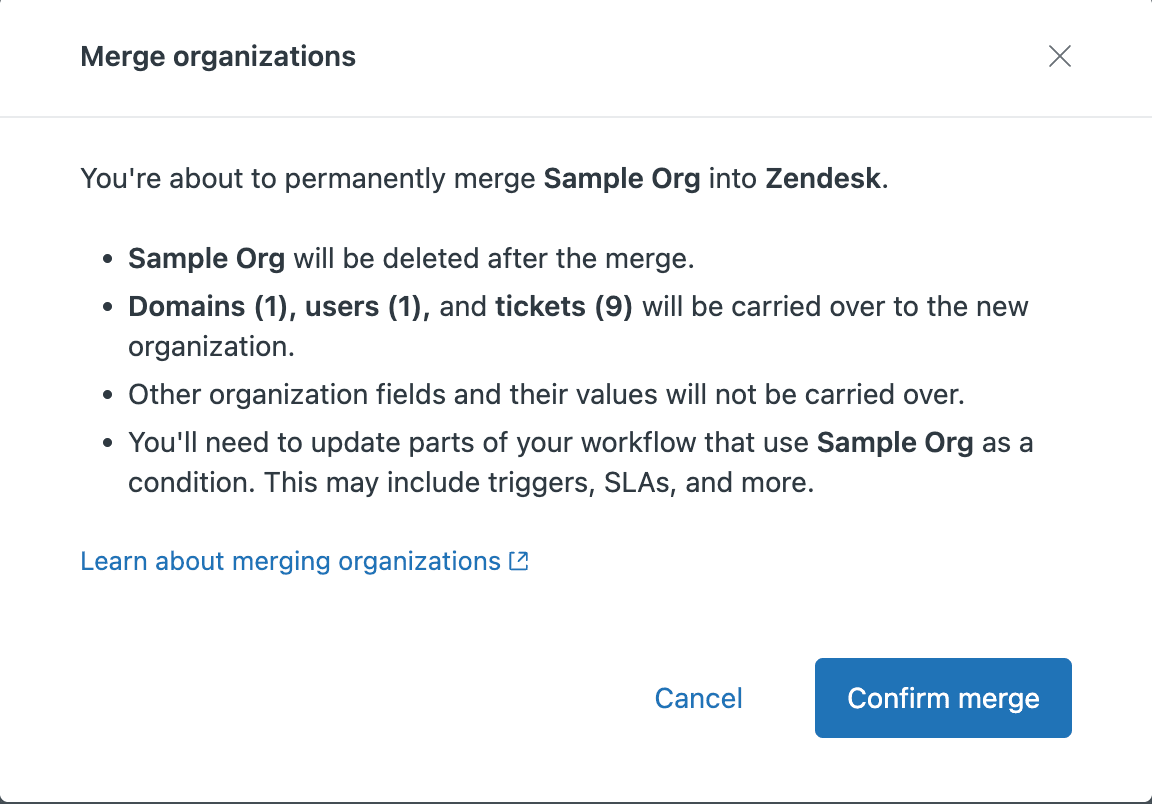
Review the organization merge summary carefully. Zendesk shows you exactly what's about to happen. If the organizations have different ticket access permissions, a warning appears noting that tickets could be exposed to unintended end users if you proceed.
When you're certain everything is correct, click Confirm merge.
The merge typically completes within a few minutes, depending on the amount of data being moved. You won't receive a notification when it finishes. Instead, check the audit log for confirmation.
Understanding what happens to your data
Knowing exactly what transfers and what disappears helps you prepare properly. Here's the breakdown:
| Organization data | What happens |
|---|---|
| Tickets | All tickets (including archived and closed) move to the receiving organization |
| Users | All users transfer to the receiving organization |
| Domains | Appended to the receiving organization's domain list |
| Tags | Lost merging organization's tags disappear |
| Notes | Lost any notes on the merging organization are deleted |
| Details | Lost organization details field is not preserved |
| Custom organization fields | Lost all custom field values are deleted |
| External ID | Lost the merging organization's external ID is removed |
| Group mapping | Lost the merging organization's group assignment rules disappear |
| Shared organization setting | Lost sharing permissions from the merging organization don't transfer |
| Related records | Lost any related records tied to the merging organization are deleted |
Ticket handling details
All tickets from the merging organization, including archived and closed tickets, get reassigned to the receiving organization. The ticket events log for each affected ticket shows that the organization was updated as part of a merge.
User handling details
Users can belong to multiple organizations in Zendesk (on Professional and Enterprise plans), but each user has only one "default" organization. If a user's default organization is the one being merged, their default gets updated to the receiving organization. If the merging organization wasn't their default, their default stays unchanged and only their membership is updated.
Group assignment behavior
Here's a tricky detail: existing tickets keep their current group assignment even after the merge. However, the receiving organization's group mapping applies to any new tickets and to existing tickets the next time they're updated. This can result in tickets being assigned to unexpected groups after the merge.
Audit trail
All changes related to an organization merge are recorded in the audit log. Additionally, tickets that are part of the merge show the organization change in their ticket events log.
Common issues and how to avoid them
Even with a straightforward process, things can go wrong. Here are the problems we see most often:
Group assignment surprises
Because existing tickets don't immediately update their group assignment, you might find tickets assigned to groups that no longer make sense for the receiving organization's workflow. Plan to review and reassign tickets after the merge.
End user visibility changes
End users won't see the merging organization in their profile if they submit a new request, update a request, or look at open requests during an active merge. However, if they were part of an organization that was merged, they'll see the receiving organization's details when they log into their Guide profile. This can confuse users who weren't informed about the change.
Missing notifications
Zendesk doesn't send notifications when an organization merge starts, completes successfully, or fails. You have to proactively check the audit log. If you're coordinating with a customer about a merge, set expectations that you won't get automatic status updates.
Business rule breakage
We mentioned this earlier, but it's worth repeating: triggers, automations, and views that reference organization names or IDs may break or behave unexpectedly. Test your critical business rules after any merge.
User default organization confusion
Users who belonged to the merging organization as their default will have their default changed to the receiving organization. This affects how tickets are created and how users see their organization data. Communicate this change to affected users if they manage their own profiles.
Alternative approaches to consider
Sometimes merging isn't the right solution. Consider these alternatives depending on your situation:
Use organization fields for segmentation
If you're dealing with a company that has multiple divisions or subsidiaries, custom organization fields might work better than merging. You can create fields for "Parent Company," "Division," or "Region" to segment reporting and routing without losing the separate organization records.
Multiple organization membership
On Professional and Enterprise plans, users can belong to up to 300 organizations. Instead of merging, you could add users to both organizations and use business rules to handle routing. This preserves separate billing and reporting while giving users access to both.
API-based management
For complex scenarios or bulk operations, the Zendesk Organizations API gives you programmatic control. You can update organization fields, reassign users, or manage domains without the all-or-nothing approach of merging.
Before Zendesk released native organization merging, some teams used community scripts like this Python tool to move users and tickets between organizations. These workarounds are largely unnecessary now, but the API approach still makes sense for automation at scale.
AI-powered organization management
If you're dealing with organization data quality issues at scale, tools like eesel AI can help. Rather than manually merging after the fact, our AI agent can help prevent duplicate organization creation by intelligently matching incoming tickets to existing organizations, suggesting merges when appropriate, and maintaining data hygiene automatically.

Our AI Agent for Zendesk learns from your past tickets and organization patterns to make smart routing decisions. It can also help identify potential duplicate organizations before they become a cleanup project.
Start managing your Zendesk data more effectively
Organization merging in Zendesk solves a real problem that admins have faced for years. The native feature is straightforward to use, but the permanent nature of the action means you need to plan carefully.
Before you merge, audit your business rules, communicate with affected users, and understand exactly what data will be lost. After the merge, check your audit logs and verify that tickets are routing correctly.
If you find yourself doing frequent organization cleanup or dealing with data quality issues, it might be worth looking at preventive solutions. Tools that help maintain clean organization data from the start can save you from the risks and limitations of merging down the road.
Whether you're handling a one-time acquisition cleanup or ongoing data maintenance, understanding how Zendesk organization merge works gives you one more tool for keeping your customer data organized and accurate.