
If you're managing support for multiple companies, you know how quickly customer data becomes scattered. One team tracks account tiers in a spreadsheet. Another keeps VIP status in their heads. Meanwhile, your agents waste time hunting for context before they can help anyone.
Zendesk organization custom fields solve this by letting you store structured data about each company directly in your help desk. Think of them as custom tags with superpowers. They don't just label organizations. They power automations, drive reporting, and give agents instant context.
This guide walks you through everything you need to know: what these fields are, how to set them up, and how to use them effectively. We'll also look at how our product, eesel AI, can take your organization data further with intelligent automation.
What are Zendesk organization custom fields?
Organization custom fields in Zendesk are additional data fields you attach to company records. While Zendesk comes with default fields like name and domain, custom fields let you capture information that's specific to your business.
Here's how they differ from other field types:
- Ticket fields capture information about individual support requests
- User fields store data about individual people
- Organization fields hold data about the company itself
This distinction matters because organization-level data persists across all tickets from that company. When an agent opens any ticket from Acme Corp, they'll immediately see that Acme is an Enterprise customer with a dedicated account manager and a renewal date next quarter.
Key benefits include:
- Customer segmentation group and filter companies by tier, region, or any criteria you define
- Workflow automation route tickets, set priorities, and trigger actions based on organization attributes
- Personalized support arm agents with context that helps them tailor responses
- Better reporting analyze support metrics by customer type in Zendesk Explore
One important limitation: organization custom fields are visible only to agents and admins. End users can't see or edit them, which makes them ideal for internal data you don't want customers to view or modify.
These fields are available on all Zendesk Support plans starting from Team, so even smaller teams can take advantage of them.
Prerequisites and permissions
Before you start creating fields, make sure you've got the right access. You'll need to log into the Zendesk Admin Center to manage organization fields.
Permission requirements vary by plan:
Team plans and below: Agents with the standard Agent role can edit the Notes field if they've got permission to view all tickets. This is fairly limited compared to higher-tier plans.
Enterprise plans and above: Zendesk splits permissions into two distinct controls:
- Add, update, and delete organizations lets agents edit field values on organization records
- Manage organization fields grants access to the Admin Center pages where you configure custom fields
This separation is useful for larger teams. You might want support managers to edit field values without giving them full admin access to create or delete fields.
To check or assign these permissions, go to Admin Center > People > Configuration > Custom roles. From there you can create custom roles with the specific permissions your team needs. See the Zendesk documentation on managing organization fields for details on permission requirements.

How to create organization custom fields
Setting up a custom field takes just a few minutes. Here's the process:
Step 1: Navigate to Organization Fields
Go to Admin Center > People > Configuration > Organization Fields. This page shows all existing custom fields and their current status.
Step 2: Add a new field
Click the "Add field" button. You'll see a list of available field types. Choose the one that fits your data needs. We'll cover the different types in detail in the next section.
Step 3: Configure field properties
Every field requires a few basic settings:
- Title the display name agents see (example: "Account Tier")
- Field key a unique identifier used in the API and placeholders (example:
account_tier) - Description optional text that helps agents understand what the field is for
- Permissions who can view and edit the field
Pay special attention to the field key. You cannot change it after creation, so choose something descriptive and consistent with your naming conventions. Learn more about field key requirements in the Zendesk API documentation.
Step 4: Set field-specific options
Depending on the field type, you'll configure additional options:
- Drop-down or multi-select: Add your field values and optional tags. Each option needs a display name and can have an associated tag for use in business rules.
- Regex: Enter your validation pattern. For example, a pattern for US phone numbers might be
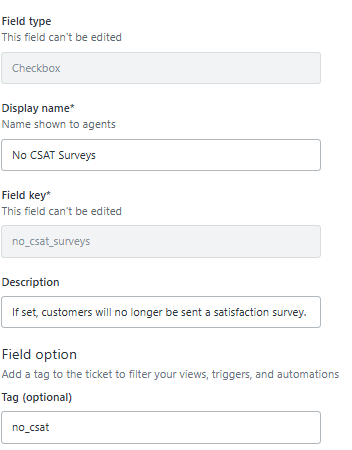
\d{3}-\d{3}-\d{4}. - Checkbox: Specify the tag to add when the box is checked.
Step 5: Save and activate
Click Save to create the field. New fields are active by default and immediately available for use. If you need to hide a field temporarily without losing data, you can deactivate it later from the field list.
Understanding field types and use cases
Zendesk offers ten field types, each suited to different kinds of data. Choosing the right type makes your fields more useful and prevents data quality issues down the road.
| Field Type | Best For | Example Use Case |
|---|---|---|
| Drop-down | Single selection from predefined options | Account tier (Basic, Pro, Enterprise) |
| Multi-select | Multiple selections | Product lines the customer uses |
| Text | Short free-form data | Dedicated account manager name |
| Multi-line | Longer notes | Special handling instructions |
| Checkbox | Boolean yes/no values | VIP customer flag |
| Numeric | Whole numbers | Number of licenses purchased |
| Decimal | Precise values | Annual contract value |
| Date | Deadlines and milestones | Contract renewal date |
| Regex | Validated formats | Customer ID matching a specific pattern |
| Lookup | Relationships | Link to a parent organization or related company |
A few important considerations when choosing field types:
Tag-generating fields: Drop-down, multi-select, and checkbox fields automatically create tags when used. These tags power your triggers, automations, and views. If you need to route tickets based on organization attributes, use one of these field types.
Character limits: Text and multi-line fields support up to 65,536 characters. That's plenty for notes but overkill for most data. Numeric fields for organizations have a 12-digit limit.
Drop-down limits: You can create up to 2,000 values in a single drop-down list, with each value up to 255 characters. For most teams, that's more than enough.
Lookup relationships: These let you link organizations to other records, including tickets, users, and custom objects. They're powerful for complex setups but have some limitations. Lookup fields aren't supported in search or Explore for custom objects.
Using organization fields in workflows
The real power of custom fields comes from integrating them into your support workflows. Here's how to put them to work:
Triggers: Automatically assign tickets to specific groups or agents based on organization field values. For example, route all tickets from Enterprise-tier customers to your premium support team.
Automations: Set up time-based actions using organization data. You might escalate tickets from VIP organizations if they haven't been resolved within a certain timeframe.
Views: Create filtered ticket lists that help agents focus. A view showing "All open tickets from Enterprise customers with renewal dates this month" helps your team prioritize proactively.
Macros: Insert organization data into canned responses using placeholders. The format is {{organization.custom_field_[field_key]}}. This lets you personalize macro responses with details like account tier or dedicated account manager.
Reporting: Track support metrics by organization attributes in Zendesk Explore. Custom fields sync hourly, so there's typically a 1-2 hour delay before new data appears in reports.
Different field types appear in different Explore folders. Drop-down, multi-select, text, and checkbox fields show up as attributes. Numeric and decimal fields appear as metrics you can aggregate. Date fields get their own folders with multiple time dimensions.
Best practices and common pitfalls
After working with hundreds of Zendesk implementations, we've seen what works and what doesn't. Here are the practices that set successful teams apart:
Plan before you build. Field keys cannot be changed after creation. Map out your field structure, naming conventions, and use cases before creating anything. A field naming guide prevents chaos six months down the road.
Document everything. Add descriptions to every field explaining what it's for and how agents should use it. Your future self (and new team members) will appreciate it.
Start small, expand thoughtfully. It's tempting to create fields for every possible data point. Start with the essentials and add fields based on actual needs, not theoretical ones.
Audit regularly. Review your fields quarterly. Deactivate unused ones and update descriptions when processes change.
Common mistakes to avoid:
- Creating duplicate fields with overlapping purposes. This confuses agents and fragments your data.
- Forgetting to link related resources. When mentioning features, always include links to official documentation for readers who want to dive deeper.
- Deleting without deactivating first. If you delete an active field, Explore reports may show the tag instead of the value name. Always deactivate, wait for the sync, then delete if needed.
- Using text fields when drop-down would work. Free-form text leads to inconsistent data. Use drop-downs when you have a defined set of values.
- Skipping agent training. Fields only help if agents actually use them consistently.
- Overloading the interface. Too many fields make the organization page unwieldy. Be selective.
Managing and maintaining organization fields
Fields need ongoing care to stay useful. Here's how to manage them effectively:
Editing existing fields: You can change almost everything about a field after creation: the title, description, permissions, and options. The one exception is the field key, which is locked in permanently.
Deactivating vs. deleting: Deactivation hides a field from the interface while preserving all historical data. The field moves to an Inactive tab where you can reactivate it later. Deletion is permanent and removes the field and its data from all organizations. The only exception is for drop-down and checkbox fields, which preserve data as tags even after deletion.
Organizing field order: Use the position setting to control how fields appear on the organization page. Group related fields together and put the most important ones at the top.
Managing options: For drop-down and multi-select fields, you can add, edit, or remove options as your needs change. Just be careful about removing options that are currently in use, as this can affect historical data in reports.
Scaling beyond Zendesk's native custom fields
Organization custom fields work well for basic data storage and simple workflows. But as your support operation grows, you may hit limitations:
- Manual data entry doesn't scale when you're managing thousands of organizations
- Static fields can't adapt to changing customer contexts automatically
- Limited AI capabilities mean you're relying on agents to interpret and act on organization data
- Reporting delays of 1-2 hours make real-time decision-making difficult
This is where our product, eesel AI's Zendesk AI agent, comes in. Rather than just storing organization data, we actively use it to automate support.
Here's how it works: eesel connects to your Zendesk account and learns from your organization fields, past tickets, and help center content. It then uses that knowledge to handle frontline support automatically. When a ticket comes in from an Enterprise customer, we know to prioritize it. When a VIP organization submits a request, we can route it to your premium support team without manual triage.
The difference is in the approach. Zendesk organization fields give you data storage. eesel AI gives you intelligent action based on that data. You can start with Zendesk's native fields and layer on our AI when you're ready to automate at scale.
If you're curious about how AI can enhance your existing Zendesk setup, our guide to AI for Zendesk covers the possibilities in more detail.