
Custom user fields in Zendesk let you store extra customer details beyond the standard name and email. They're useful for tracking VIP tiers, account managers, subscription levels, or any data that helps your team provide better support. But here's the catch: these fields aren't automatically visible when you're handling messaging conversations. Agents often have to click away from the chat to view user profiles, which slows down response times and breaks the flow of conversation.
This guide walks you through setting up custom user fields in Zendesk and, more importantly, how to actually use that data where your team needs it most: in messaging and chat contexts. We'll also look at how AI tools can leverage this information to personalize responses and automate workflows without requiring agents to hunt through profiles.

What are custom user fields and why do they matter for messaging?
Custom user fields are additional data points you can attach to customer profiles in Zendesk. Think of them as extra columns in your user database that you define yourself. You might use them to track:
- Customer tier or subscription level (VIP, Standard, Free)
- Assigned account manager
- Department or team
- Product plan or license type
- Custom identifiers like membership numbers
These fields are visible only to agents and admins. End users cannot see or edit them, which makes them ideal for internal categorization and workflow automation.
The challenge with messaging support is that agents work primarily within the conversation interface. The Customer Context Panel shows basic user info, but custom fields are tucked away in the full user profile. When an agent needs to check a customer's VIP status or look up an account manager, they have to open a separate panel. In fast-paced chat environments, those extra clicks add up.
This is where your setup choices matter. By configuring Zendesk properly and integrating with the right tools, you can surface custom field data exactly where agents need it, or better yet, let AI handle the personalization automatically.
Setting up custom user fields in Zendesk
Creating custom user fields requires administrator access and a Zendesk Team plan or higher. The process is straightforward, but there are some important constraints to understand before you start.
Creating your first custom user field
To add a custom user field:
- Navigate to Admin Center, then People, then Configuration, then User fields
- Click "Add field"
- Select a field type based on your needs
- Enter a display name that agents will see
- Verify the field key (this auto-populates from your display name)
- Configure field-specific options
- Save
Understanding field keys
The field key is critical. It's how you reference this field in placeholders, API calls, and integrations. Zendesk auto-generates it from your display name, but you can edit it. Here are the rules:
- Field keys can only contain letters, numbers, and underscores
- They cannot be only numbers
- You cannot change the field key after creation
- Avoid reserved names: "id", "name", "tags", "details", "role", "notes", "channel"
Because you cannot change the key later, plan your naming convention upfront. Use consistent prefixes if you have many fields, like "tier_vip" or "acct_manager_name".
Field types and when to use them
Zendesk offers several field types, each suited to different data:
| Field Type | Best For | Limitations |
|---|---|---|
| Drop-down | Single selection from a list (tiers, regions) | Up to 2,000 values |
| Multi-select | Multiple selections (product interests) | Up to 2,000 values |
| Text | Short free-form data (IDs, short names) | 65,536 character limit |
| Multi-line | Longer notes or descriptions | 65,536 character limit |
| Checkbox | Boolean flags (opted_in, is_vip) | Generates a tag when checked |
| Numeric | Whole numbers (scores, counts) | Max 12 digits for user fields |
| Decimal | Numbers with decimals (prices, ratings) | None specified |
| Date | Calendar selections (renewal dates) | Stored as YYYY-MM-DD |
| Regex | Validated formats (phone numbers, IDs) | Pattern max 255 characters |
| Lookup | Links to other records (tickets, orgs) | Not supported in search/Explore |
Drop-down, multi-select, and checkbox fields automatically generate tags when values are selected. This is important for automation, as we'll see later.
Accessing custom user fields in messaging conversations
Here's the problem most teams hit: you've invested time setting up custom fields, but your agents still can't see them easily during chat conversations. Let's look at the solutions.
The native limitation
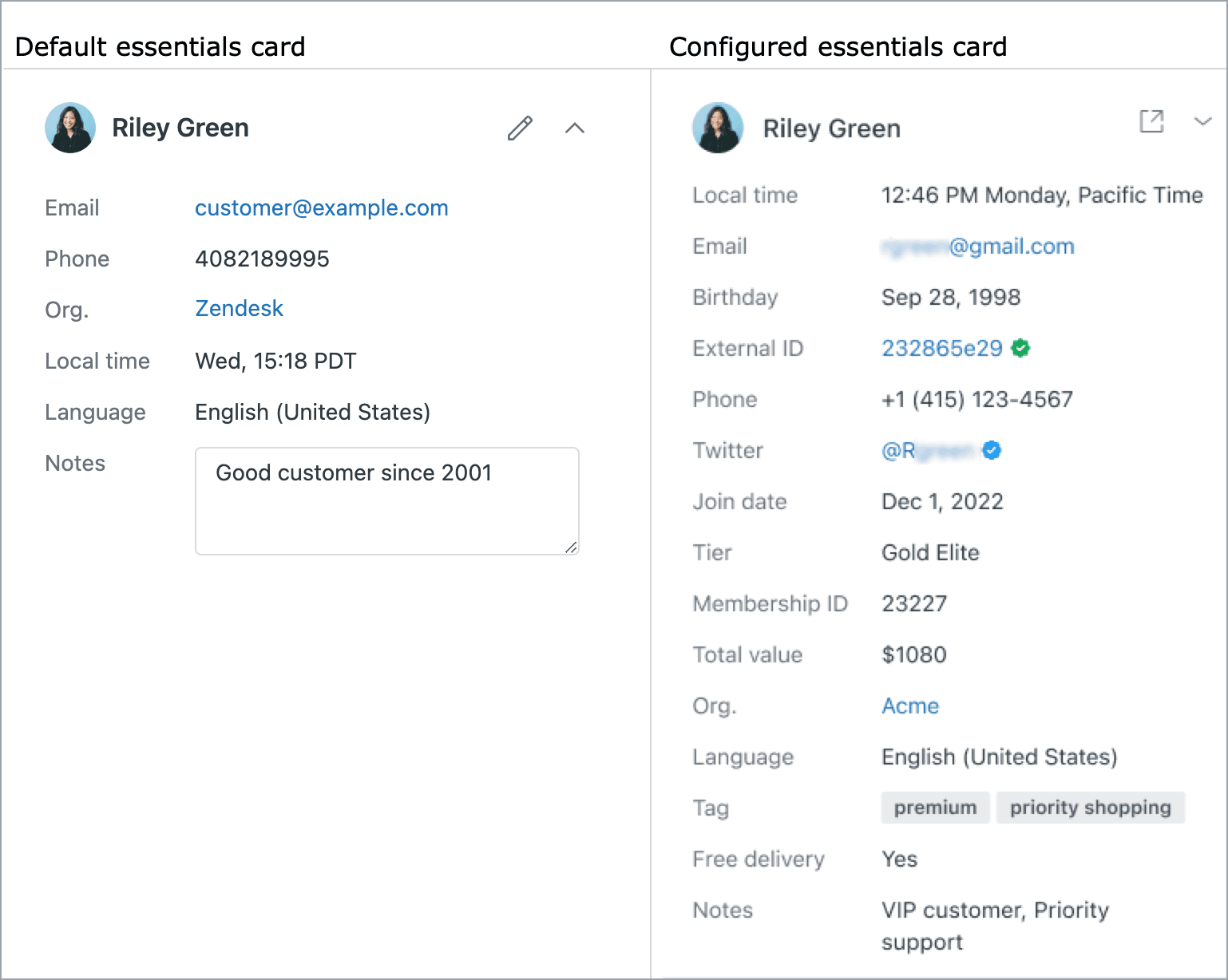
By default, Zendesk's Customer Context Panel in Agent Workspace shows basic user information: name, email, external ID. Custom user fields live in the full user profile, which requires clicking away from the conversation. This creates friction, especially when you need that data to inform your response.
Option 1: Configure Cards (Professional plans and higher)
If you're on a Professional or Enterprise plan, you can create custom Cards that display user field data directly in the Customer Context Panel.
To set this up:
- Go to Admin Center, then Workspaces, then Agent tools, then Cards
- Create a new card
- Select the user fields you want to display
- Configure the layout
- Add the card to your workspace
Now when agents view a conversation, they see the custom fields without leaving the chat interface.
Option 2: Use the User Data app
For teams on lower-tier plans, the User Data app from the Zendesk Marketplace offers a workaround. This app displays additional user information in the ticket sidebar, including custom fields. It's not as integrated as Cards, but it keeps the data visible without requiring profile clicks.
Option 3: API integration for custom setups
If you have developer resources, you can build custom solutions:
- Use the Zendesk User Fields API to fetch field values
- Display them in a custom agent interface
- Build widgets that surface context automatically
The API endpoint is GET /api/v2/user_fields to list all fields, and user data includes custom field values in the user_fields object.
Working with tags as a bridge
Remember that drop-down, multi-select, and checkbox fields generate tags? You can use this to your advantage. Since tags appear directly on tickets, agents see them in the conversation context without any special configuration. This is a useful workaround for teams that need quick visual indicators.
For example, a VIP tier field that applies the "vip_customer" tag makes it immediately obvious to agents that they're handling a high-value customer.
Using custom fields to power automated workflows
Custom user fields become most valuable when you use them to drive automation. Here's how to leverage them across different Zendesk features.
In Views (using tags)
Zendesk Views cannot directly filter by custom user fields. However, since drop-down and checkbox fields generate tags, you can create views based on those tags.
For example, to create a VIP customer view:
- Clone your existing open tickets view
- Add a condition: Tags contains at least one of the following: "vip"
- Save as "VIP Customer Tickets"
For your standard view, add the opposite condition (Tags contains none of the following: "vip") to exclude VIP tickets from the general queue.
In Triggers (direct field access)
Unlike views, triggers can directly reference custom user fields. This gives you cleaner automation without relying on tag workarounds.
Example: Automatically prioritize VIP tickets
- Create a trigger that fires on ticket creation
- Add condition: User tier is VIP
- Add action: Set priority to High
This is more reliable than tag-based triggers because it checks the actual field value, not a derived tag.
In Macros (dynamic content)
Macros can pull custom field data into responses using placeholders. This saves agents time and ensures accuracy.
The basic placeholder syntax is:
{{ticket.requester.custom_fields.FIELD_KEY}}
For example, if you have a field with key "membership_expiry", you can create a macro that says:
"Your membership is set to expire on {{ticket.requester.custom_fields.membership_expiry}}."
For date fields, you can format the output using Ruby date formatting:
{{ticket.requester.custom_fields.membership_expiry | date: "%-d %B %Y"}}
This displays as: "15 March 2026" instead of the raw timestamp.
Leveraging custom fields with AI agents and automation
Once you have custom fields set up and accessible, AI support tools can use that data to personalize responses and automate decisions.
How AI can use custom field data
Modern AI support tools can:
- Greet customers by name and reference their tier ("Welcome back, Sarah. As a VIP member...")
- Route conversations to specialized teams based on customer segments
- Access order history, account status, and other linked data through API integrations
- Adjust tone and response style based on customer type
- Skip repetitive verification steps for recognized customers
Setting up AI to access user data
To enable AI tools to use your custom fields, you typically need:
- Authentication: JWT tokens or API keys that grant secure access
- API Integration: Connections that fetch complete user profiles when conversations start
- Custom Parameters: Configuration that passes relevant field data to the AI context
The exact setup varies by platform. Some AI tools require you to build custom integrations using the Zendesk API. Others handle this automatically once you connect your account.
How eesel AI leverages custom field data
At eesel AI, we've built our platform to work seamlessly with your existing Zendesk setup, including custom user fields. When you connect eesel AI to your Zendesk account, our AI automatically learns from your user data structure. It can access custom fields to personalize responses without requiring complex configuration or API development on your end.
For example, if you have a "Customer Tier" field with values like "VIP", "Standard", and "Basic", eesel AI recognizes these tiers and can:
- Adjust response priority and tone based on tier
- Route VIP customers to specialized queues automatically
- Include tier-appropriate language in responses
- Look up relevant account information without agent intervention
The AI learns your business context from your past tickets, help center articles, macros, and user data. This means it understands not just what the fields are called, but how they relate to your specific support workflows.
Our customers typically see up to 81% autonomous resolution for frontline tickets once the AI is trained on their data. The payback period is usually under two months.
You can start with eesel AI as a copilot that drafts replies for agent review, then gradually increase autonomy as the AI proves itself. This progressive rollout approach lets you verify quality before expanding scope.
Our pricing starts at $299 per month for the Team plan, which includes up to 3 bots and 1,000 interactions. The Business plan at $799 per month adds AI Agent capabilities, unlimited bots, and 3,000 interactions. All plans include a 7-day free trial.
Best practices and common pitfalls
After working with hundreds of support teams on their Zendesk configurations, we've seen what works and what causes headaches. Here are our recommendations.
Naming conventions
Establish a consistent naming pattern for field keys upfront. Consider:
- Prefixes for categorization ("tier_", "acct_", "pref_")
- Consistent casing (snake_case is most reliable)
- Descriptive but concise names
Good examples: "customer_tier", "account_manager_id", "subscription_plan" Poor examples: "field1", "Tier", "theVIPstatus"
Field key immutability
Remember: you cannot change field keys after creation. If you make a mistake, your only option is to create a new field and migrate data. For high-volume accounts, this is painful. Plan carefully before creating fields you'll rely on heavily.
Tag management
Since drop-down and checkbox fields generate tags, be mindful of tag uniqueness. Don't reuse the same tag across different fields. If a tag appears on a record from multiple fields, those fields become uneditable until the duplication is resolved.
Data consistency
Use drop-down fields instead of free text whenever possible. This ensures data consistency and makes automation more reliable. If agents can type anything into a field, you end up with variations like "VIP", "vip", "V.I.P.", and "Premium" that break your triggers and views.
Regular audits
Review your custom fields quarterly. Remove unused fields to reduce clutter. Document what each field is for and who maintains it. Nothing confuses new agents faster than mysterious fields with unclear purposes.
Common mistakes to avoid
- Creating agent-only fields when end users need visibility: Remember, custom user fields are always agent-visible only. If customers need to see or edit the data, you need ticket fields instead.
- Overlooking tag generation: Teams often miss that their drop-down fields are creating tags, leading to confusion when tags appear unexpectedly.
- Not considering API usage: If you plan to integrate with external tools, think about how field keys will work in API calls. Spaces and special characters in keys cause problems.
- Building fields without automation plans: A field that no one uses in triggers, views, or macros is just clutter. Have a clear use case before creating new fields.
Start personalizing your support experience
Custom user fields are one of Zendesk's most powerful features for organizing customer data and driving intelligent workflows. The key is making that data accessible where your team actually works: in messaging conversations and automated systems.
Take time to audit your current setup. Identify what customer context would help your agents respond faster and more personally. Create fields that capture that data, then build the views, triggers, and integrations that put the information to work.
If you're ready to take the next step, consider how AI can amplify the value of your custom fields. Rather than just displaying data to agents, AI can use it to personalize responses, route conversations intelligently, and handle routine requests automatically.
At eesel AI, we've built our platform to integrate seamlessly with Zendesk and leverage your existing custom field structure. Our AI learns your business context and customer data, then uses it to deliver personalized support at scale. You can try eesel AI free for 7 days and see how it works with your Zendesk setup, or book a demo to discuss your specific requirements.


