
Setting up service level agreements for messaging conversations in Zendesk requires understanding how messaging differs from traditional live chat. While both channels let customers reach you in real-time, they work differently under the hood, and that affects how you configure your SLAs.
Zendesk now supports First Reply Time and Next Reply Time SLAs for messaging conversations, something that wasn't possible until recently. In this guide, we'll walk through exactly how to set up Zendesk messaging SLA for conversations, what prerequisites you need, and some best practices we've learned from the community.
If you're looking to improve your response times, tools like eesel AI can help automate common inquiries alongside your Zendesk setup.

Understanding messaging vs live chat SLAs in Zendesk
Before diving into setup, you need to understand the fundamental difference between these two conversation types. Live chat is session-based. When a customer starts a chat, they expect an immediate back-and-forth conversation that ends when they close the chat window. Messaging, on the other hand, is persistent. A customer can start a conversation, close their browser, and pick it up hours later on their phone.
This persistence changes how SLAs work. For live chat, reply time SLAs are actually turned off by default. You have to manually enable them in your Chat Dashboard under Settings > Account > SLAs. When enabled, every agent response in the chat counts toward your reply time targets.
For messaging, First Reply Time and Next Reply Time SLAs are now fully supported. This wasn't always the case. According to Zendesk product team communications, messaging SLA support was added in early 2023 after significant community feedback.
The key distinction: live chat requires immediate attention and ends when the session closes. Messaging can be asynchronous. A customer might send a message at 9 AM, see your reply at noon, and respond at 3 PM. Your SLAs need to account for this different rhythm.
Prerequisites for setting up messaging SLAs
Before you start creating policies, make sure you've got the right foundation in place.
Required Zendesk plan
SLA policies start at the Suite Professional level, which costs $115 per agent per month when billed annually ($149 monthly). If you want Group SLAs for tracking internal team handoffs, you'll need Suite Enterprise at custom pricing (Talk to Sales).
The Support Team plan ($19/agent/month) and Suite Team plan ($55/agent/month) do not include SLA functionality. You'll need to upgrade to use these features.
Agent Workspace requirement
For live chat specifically, you need the Agent Workspace enabled to use reply time SLAs. This is the modern Zendesk interface that unified chat and ticketing. If you're still using the legacy Chat interface, you'll need to migrate.
Business hours and priorities
Every SLA policy is built on four elements:
- Priority: Low, normal, high, or urgent
- Business schedule: Working hours vs. 24/7
- Measurement type: First reply, next reply, update time, or resolution time
- Conditions: Which tickets the policy applies to
You need to have business hours configured and a system for setting ticket priorities before your SLAs will work properly. Most teams use triggers to automatically set priority based on factors like customer type, request category, or keywords in the subject line.
Creating your first Zendesk messaging SLA policy
Let's walk through the actual setup process step by step.
Step 1: Navigate to SLA settings
Go to Admin Center > Objects and rules > Business rules > Service level agreements.

Step 2: Create a new policy
Click Create policy and give it a descriptive name. Good naming conventions help when you have multiple policies. Try something like "Messaging - Support Team" or "WhatsApp - Priority Customers." The name should tell you at a glance which channel and team the policy applies to.
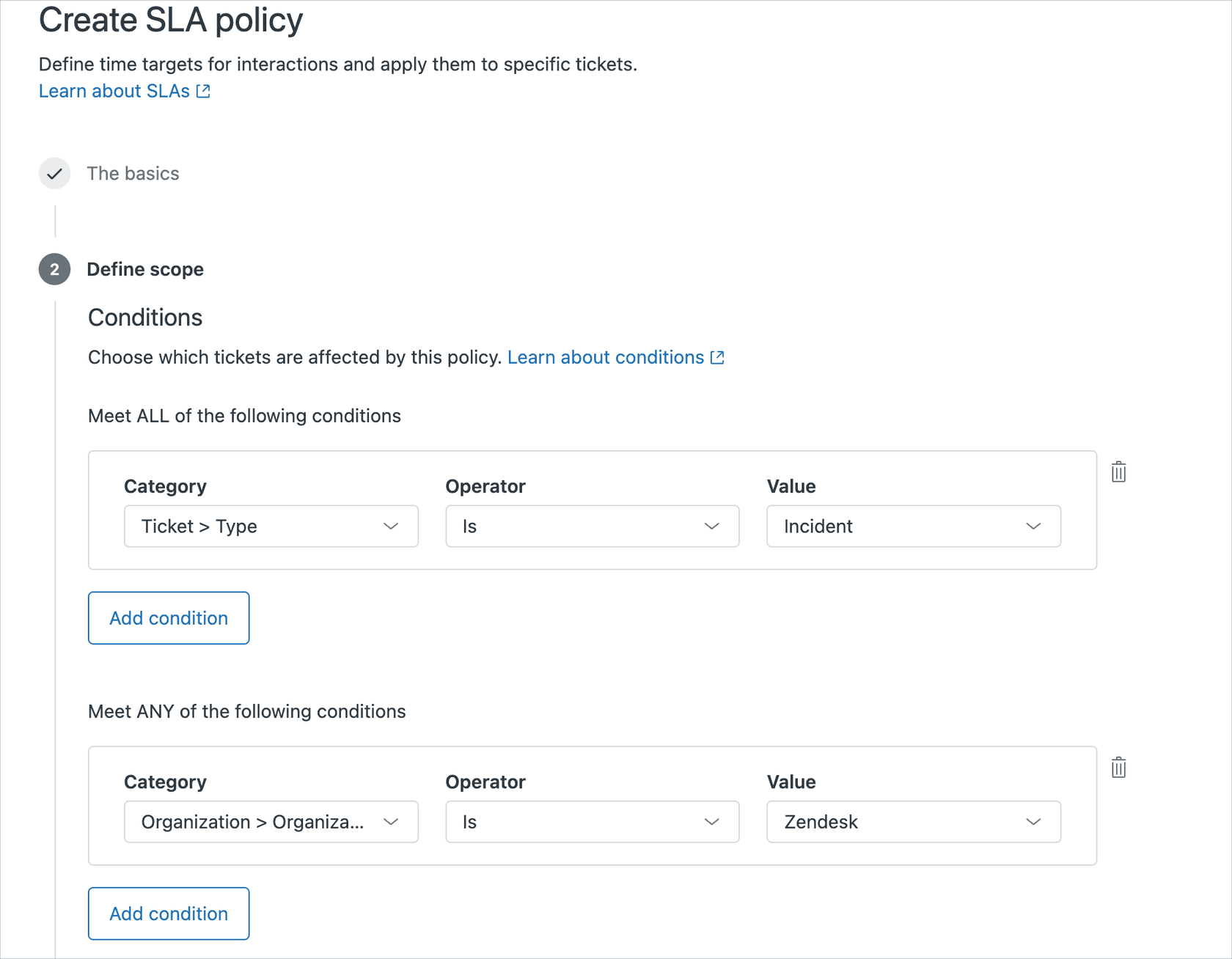
Step 3: Set your conditions
Here's where you define which conversations this SLA applies to. For a messaging SLA, you'll want at least these conditions:
- Channel is Messaging: This ensures the policy only applies to messaging conversations, not emails or tickets created through other channels
- Group is [Your Team]: Optional, but recommended if different teams handle different conversation types
Step 4: Choose your hours of operation
Decide whether to measure targets in business hours or calendar hours. For most teams, business hours makes more sense. You don't want your SLA clock ticking when your agents are offline. However, if you have customers worldwide and commitments to respond within specific timeframes regardless of when the message arrives, calendar hours might be appropriate.
Step 5: Configure First Reply Time targets
This is how quickly you'll respond to new conversations. Set different targets for each priority level. A common approach is the 2-4-8-16 rule:
| Priority | First Reply Time |
|---|---|
| Urgent | 2 hours |
| High | 4 hours |
| Normal | 8 hours |
| Low | 16 hours |
Remember, these are business hours, so 16 hours means two business days, not sixteen hours of actual time.
Step 6: Configure Next Reply Time targets
Next Reply Time measures how quickly you respond to customer follow-ups. Set these slightly longer than First Reply Time since agents need time to investigate. Many teams use 4 hours for high/urgent and 8 hours for normal/low.
Step 7: Save and order your policies
SLA policies apply from top to bottom, with the first matching policy being the one that takes effect. Put your most specific policies at the top and your catch-all policies at the bottom. If you have a special SLA for VIP customers, that should appear before your general messaging SLA.
Recommended SLA metrics for messaging conversations
Not all metrics make sense for messaging. Here's what works best:
First Reply Time
This is your "we've got your message" metric. For messaging, aim for faster targets than email but don't kill your team. Thirty seconds might work for live chat, but it's unrealistic for messaging where customers don't expect instant replies. One to two hours for urgent messages is reasonable.
Next Reply Time
This keeps conversations moving. If a customer replies to your agent, how quickly should that agent respond? This metric prevents conversations from stalling. The key difference from live chat is that customers don't expect immediate responses in messaging, so you can set slightly longer targets.
Periodic Update
If you can't resolve an issue quickly, Periodic Update ensures the customer hears from you regularly. This metric measures the time between each public agent comment. It's especially useful for complex issues where you need to keep the customer informed of progress.
What to avoid
Resolution time metrics (Requester Wait Time, Agent Work Time, Total Resolution Time) can be tricky for messaging because conversations can span days or weeks. A customer might send a message, get a resolution, then reply three days later with a "thanks." Does that restart your resolution clock? For this reason, many teams stick to reply-based metrics for messaging.
Best practices for messaging SLA management
Separate policies for different channels
Don't use the same SLA for email and messaging. Customers have different expectations. An email customer might be happy with a four-hour response. A messaging customer expects faster replies. Create separate policies and use the Channel condition to route tickets appropriately.
Use triggers to auto-set priority
Your SLAs depend on priorities being set correctly. Don't rely on agents to manually set priority on every ticket. Create triggers that set priority based on:
- Customer organization (VIP customers get High priority)
- Subject line keywords ("urgent," "down," "broken")
- Request type (refunds vs. general questions)
- Ticket form used
This ensures your SLAs apply consistently without adding manual work for agents.
Create SLA-based views
Add the "Next SLA breach" column to your agent views. Sort tickets by this column in ascending order so agents always see the tickets closest to breaching first. This turns a long list of tickets into a clear, prioritized to-do list.
Handle channel switches gracefully
Sometimes a messaging conversation needs to move to email. Maybe the issue is too complex for chat, or you need to send attachments that don't work well in messaging. When this happens, use a trigger to add a tag like "switched_to_email" and create a separate SLA policy that applies to tickets with that tag.
Common issues and workarounds
SLAs not applying to tickets
If your SLAs aren't showing up on tickets, check these common causes:
- No priority set: Tickets must have a priority for SLAs to apply. Check that your triggers are setting priority correctly.
- Conditions don't match: Double-check that your policy conditions actually match the tickets you expect. Use the "View matching tickets" option in the SLA policy editor to verify.
- Policy order: A more general policy above your specific one might be catching the tickets first. Reorder your policies.
Messaging to email transitions
When a messaging conversation switches to email, the SLA behavior can get confusing. The best approach is to use the workaround mentioned earlier: tag the ticket when it switches channels and have separate policies for each channel type.
Understanding historical limitations
If you see old forum posts saying messaging doesn't support reply time SLAs, those are outdated. Zendesk added this support in early 2023. However, you still need to enable reply time SLAs for live chat separately in your Chat settings.
Improving Zendesk messaging SLA performance with AI automation
Meeting SLA targets consistently can be challenging, especially during peak periods. This is where AI automation can help.
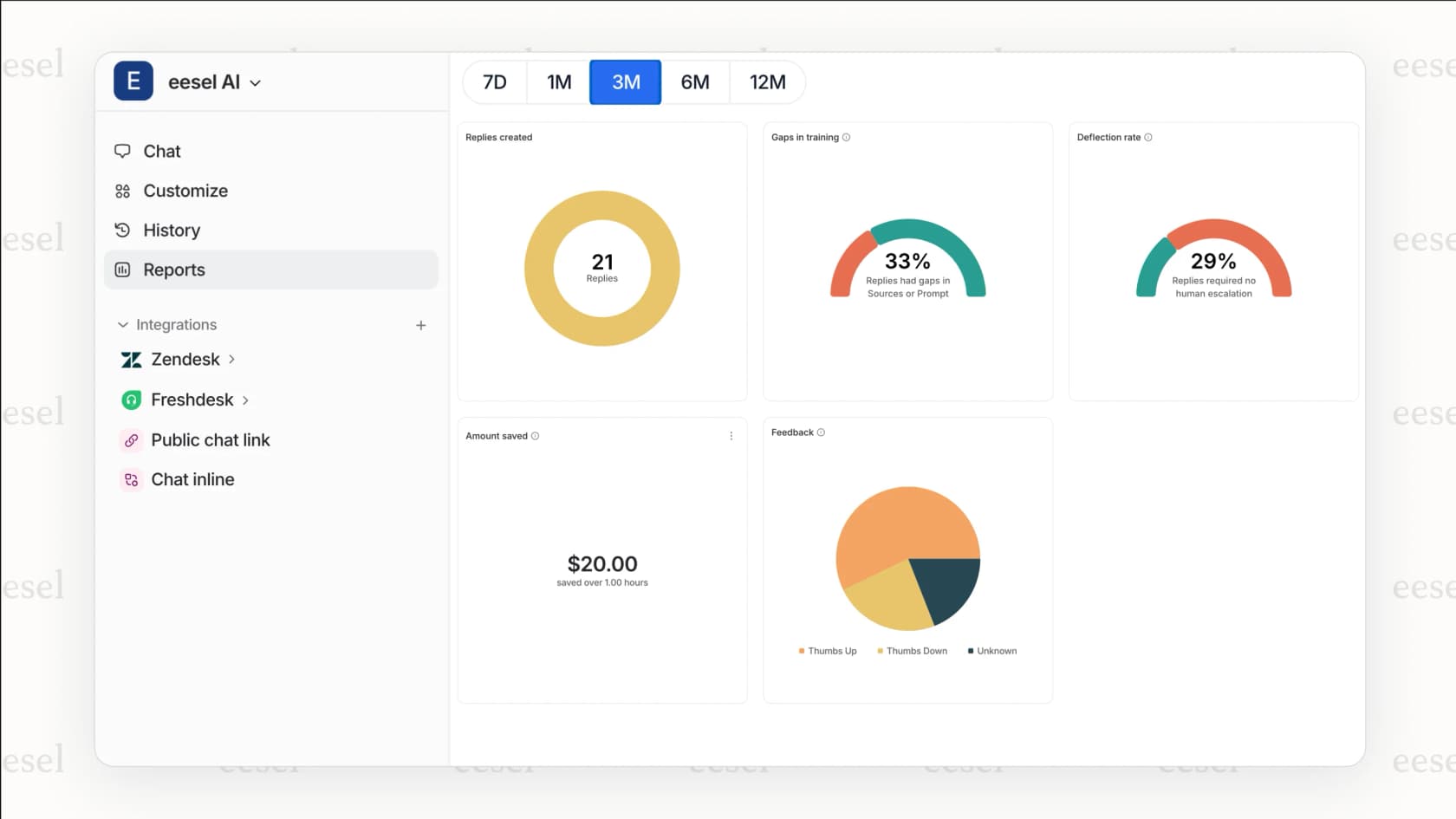
AI teammates like eesel AI connect to your support ecosystem and handle common, repetitive questions instantly. When a customer asks about order status, password resets, or shipping information, the AI can respond immediately. This improves your First Reply Time metrics without adding agent workload.
For more complex issues that need a human touch, AI copilots can draft responses by pulling information from your knowledge base, past tickets, and connected documentation. Agents review and send these drafts rather than writing from scratch, which improves your Next Reply Time.
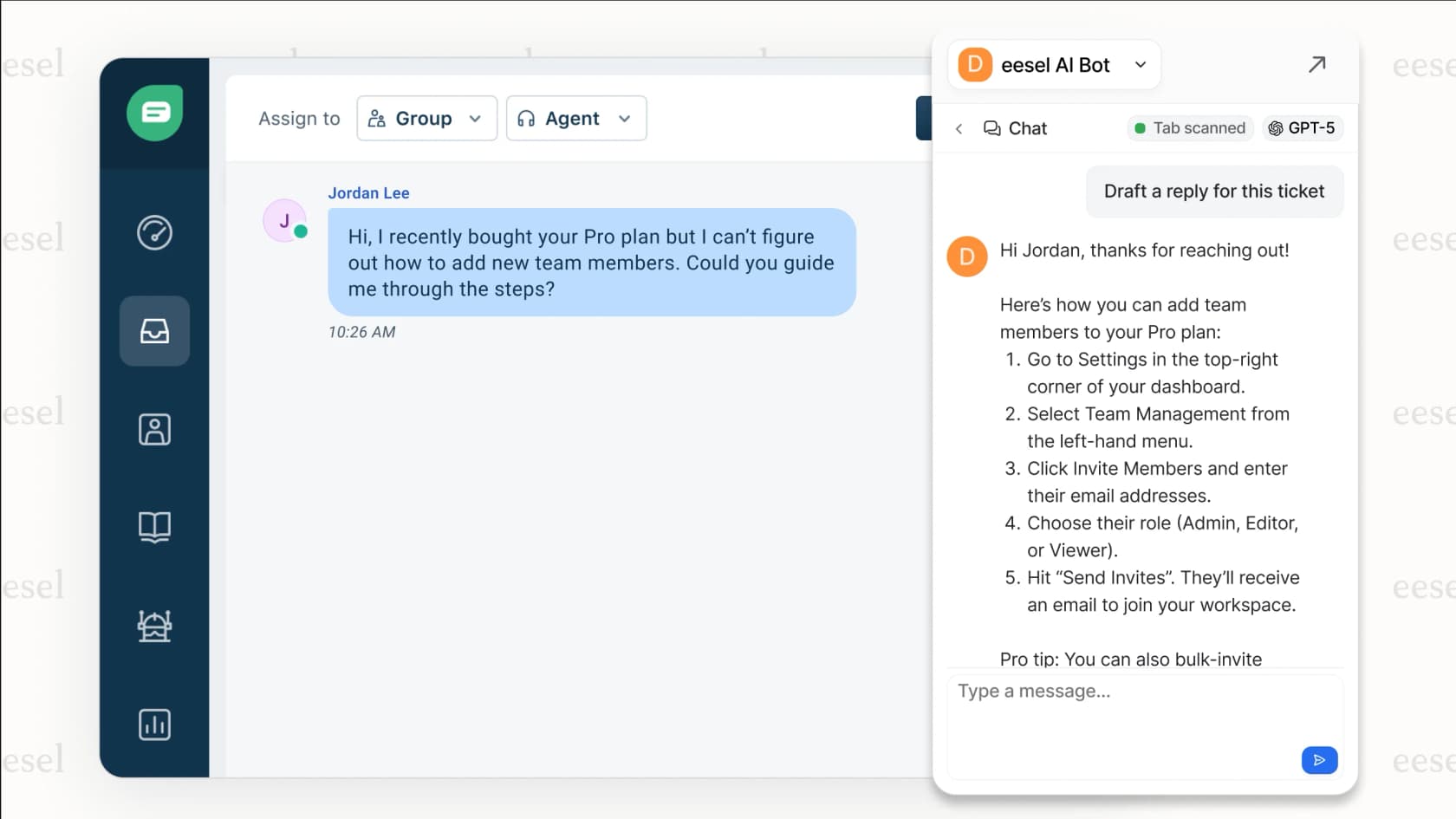
The key benefit is consistency. AI doesn't get overwhelmed during busy periods or forget to check for new messages. It maintains the same response speed whether you have ten conversations or a thousand.
Start optimizing your Zendesk messaging SLAs today
Setting up SLAs for messaging conversations doesn't have to be complicated. The key things to remember:
- Use Suite Professional or higher to access SLA features
- Enable reply time SLAs for live chat separately in your Chat settings
- Create separate policies for messaging and email
- Use triggers to automatically set priorities
- Order your policies correctly with specific ones at the top
Once your SLAs are configured, monitor them in Zendesk Explore to see how your team performs. If you're consistently missing targets, you might need more staff, better training, or automation to handle routine inquiries faster.
Ready to take your SLA performance to the next level? Consider how AI automation could help your team respond faster to common questions while letting humans focus on complex issues that require empathy and judgment.