How to set up Zendesk Instagram messaging in 2026

Stevia Putri
Written by

Stevia Putri

Reviewed by

Stanley Nicholas

Last edited February 20, 2026

Expert Verified

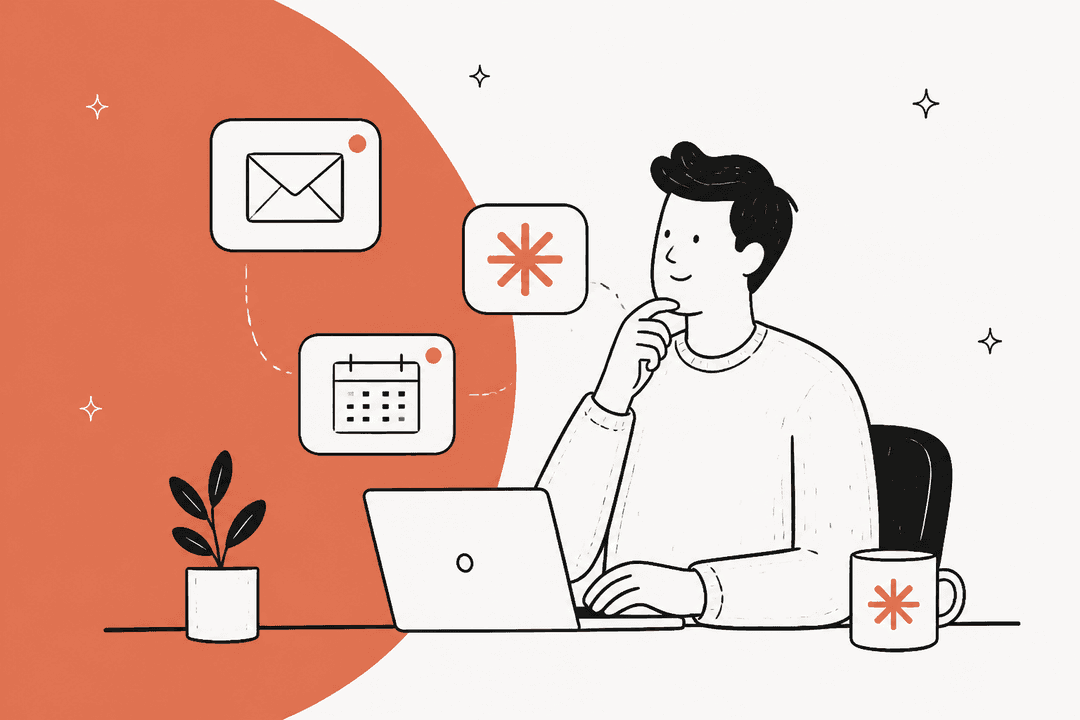
Banner image for How to set up Zendesk Instagram messaging in 2026

More than 2 billion people use Instagram every month, and a growing number of them expect to reach brands through direct messages. For support teams, this creates a challenge: how do you manage Instagram DMs alongside emails, chats, and phone calls without drowning in context switching?

This is where the Zendesk Instagram integration comes in. By connecting Instagram Direct Messages to your Zendesk workspace, you can turn social conversations into trackable tickets, respond from the same interface you use for every other channel, and maintain consistent service quality across touchpoints.

At eesel AI, we work with teams that have scaled their Instagram support operations significantly after integrating with Zendesk. The key is setting it up correctly from the start, which is what this guide will walk you through.

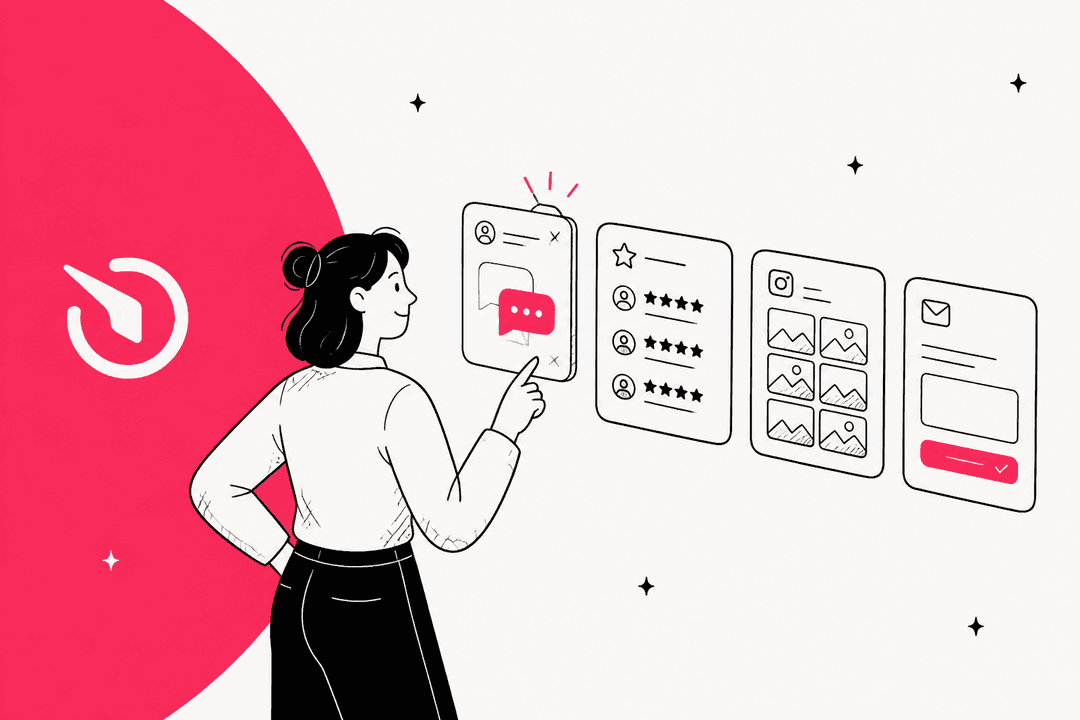
This workflow shows how Instagram DMs become trackable Zendesk tickets to ensure every customer inquiry is captured and resolved.

What you'll need before you start

Before diving into the setup, make sure you have the following in place:

An Instagram Professional (Business) Account. Personal Instagram accounts cannot be connected to Zendesk. If you currently have a personal account, you'll need to switch to a professional account through Instagram's settings.

A Facebook Business Page linked to your Instagram account. This is required because Instagram's messaging infrastructure runs through Meta's business platform. Your Facebook page must be connected as the "parent" of your Instagram business account.

Admin access to your Zendesk account. You need administrator privileges to add and configure messaging channels.

Zendesk Suite or Support with the Social Messaging add-on. The Instagram Direct integration is available on all Zendesk Suite plans (Team at $55/agent/month annually, Professional at $115/agent/month, Enterprise at $169/agent/month). If you're on a Support Team plan, you'll need to add the Social Messaging add-on separately.

Zendesk's channel setup interface showing the 'Add Instagram Direct' workflow, including steps to link an Instagram account and select a profile.

It's also worth noting that some configuration steps must be done through the Instagram mobile app. You can't complete the entire setup via desktop, so have your mobile device handy.

Step 1: Enable message access in Instagram

The first step happens inside the Instagram app itself. This is a security measure Meta requires to allow third-party platforms like Zendesk to access your messages.

  1. Open the Instagram app on your mobile device
  2. Go to Settings > Privacy > Messages and story replies
  3. Tap Message controls
  4. Find Connected tools
  5. Toggle on Allow access to messages

This setting grants Zendesk permission to read and respond to your Instagram DMs. Without this enabled, the integration will fail to connect even if everything else is configured correctly.

Step 2: Add Instagram Direct channel in Zendesk

Once Instagram is configured to allow external access, you can add the channel in your Zendesk Admin Center.

  1. Sign in to Zendesk as an administrator
  2. Navigate to Admin Center > Channels > Messaging and social > Messaging
  3. Click Add channel
  4. Select Instagram Direct from the dropdown menu

You will see a button labeled Continue with Instagram that opens the authentication flow. This flow connects your Instagram and Facebook accounts to Zendesk.

Zendesk Admin Center showing the process to add an Instagram Direct channel and select an Instagram profile.

After selecting Instagram Direct, you'll be prompted to authenticate with your Facebook account to establish the connection between Zendesk and your Instagram Business account.

Zendesk landing page showing the main interface for account management.

Step 3: Authenticate with Facebook

Zendesk uses Facebook's authentication system to connect to Instagram because Instagram's business messaging infrastructure runs through Meta's platform.

The setup flow will guide you through:

Authenticating to your Facebook profile. You'll need to sign in with the Facebook account that has admin access to your company's Facebook Business Manager. If you're already signed into Facebook, you can continue with the existing profile or switch accounts.

Granting permissions for your Instagram Account. Zendesk needs permission to access your Instagram Professional Business Account to send and receive messages.

Granting permissions for your Facebook Page(s). Select the Facebook Page that is linked to your Instagram account. If you manage multiple pages, select all of them (you can choose which one to use in the next step).

Accepting the selected permissions. Review and accept the permissions Zendesk requires for message access.

A product's setup wizard for adding an Instagram Direct channel, showing steps to link an Instagram account and select a profile.

Step 4: Select and configure your Instagram account

After authentication, you'll complete the channel configuration:

  1. Select the Instagram Business account you want to connect from the dropdown
  2. Assign a descriptive name for this channel in Zendesk (for example, "Instagram - Customer Support" or "@yourbrand DMs")
  3. Click Add channel to finalize the connection

Once added, incoming Instagram Direct Messages will automatically create tickets in your Zendesk workspace. Your agents can view and respond to these tickets just like any other support request.

The platform's channel configuration screen, showing the selection of an Instagram account ('Hygge (testroomy_2.0)') for a new Instagram Direct channel and the upcoming step for channel naming.

Understanding response windows and limitations

Instagram has specific rules about how businesses can message users. Understanding these limitations helps you set appropriate expectations and avoid frustrated customers.

The 7-day response window. Once a customer sends you a message, you have 7 days to respond before the messaging window closes. After this window closes, you can't send new messages to that customer until they message you again. Zendesk will block the composer when the window is closed to prevent messages from being sent but not delivered.

The 24-hour initial response requirement. Instagram requires businesses to respond to a customer's initial message within 24 hours. This can be done either by an agent manually or through an automated message using Zendesk's auto-responder or a chatbot.

Important limitation: no comment support. Zendesk's native Instagram integration only handles Direct Messages and Story replies. It doesn't create tickets for comments on posts, Reels, or other Instagram content. If you need to manage comments as tickets, you'll need a third-party solution like Instagramer Suite.

Understanding these strict response windows is critical for maintaining active communication and avoiding blocked replies on the Instagram platform.

Setting up messaging triggers for automation

In January 2026, Zendesk added support for messaging triggers on social channels, including Instagram. This means you can automate workflows based on Instagram activity.

Common automation use cases include:

  • Auto-tagging Instagram tickets by topic, sentiment, or intent
  • Routing social tickets to specialized agents or queues
  • Auto-responding with acknowledgment messages
  • Escalating VIP customer inquiries

To set up triggers, go to Admin Center > Objects and rules > Triggers and create messaging triggers that specify Instagram Direct as the channel condition.

For teams looking to go further with automation, we offer AI-powered Instagram support through our Zendesk integration. Our AI agents can handle routine Instagram inquiries autonomously while escalating complex issues to your human team.

Zendesk's trigger condition builder showing a rule for customer service status.

Best practices for Instagram support

Managing Instagram support effectively requires some channel-specific considerations:

Respond quickly to maintain the messaging window. The 7-day limit means you can't let Instagram tickets sit indefinitely. Set up SLAs specifically for social channels to ensure timely responses.

Use consistent brand voice. Instagram users expect a more casual, conversational tone than email customers. Train your agents on appropriate social media etiquette while maintaining professionalism.

Leverage macros for common inquiries. If you receive repetitive Instagram questions (shipping status, return policies, store hours), create macros that agents can customize quickly.

Set business hours and after-hours messaging. Use Zendesk's auto-responder to set expectations when customers message outside business hours.

Monitor response times and CSAT specifically for Instagram. Social channels often have different satisfaction patterns than traditional support channels. Track these separately to optimize your approach.

These best practices help support teams transition from reactive messaging to a scalable and high-quality social customer service operation.

Troubleshooting common issues

Even with proper setup, you may encounter issues. Here is how to resolve the most common problems:

"Allow access to messages" toggle not appearing. Make sure you're using the Instagram mobile app, not the web version. Also verify that your account is actually a Professional/Business account (check Settings > Account type).

Facebook authentication errors. Ensure you're signing in with a Facebook profile that has admin access to the Business Manager associated with your Instagram account. Personal Facebook profiles without business permissions won't work.

Instagram account not showing in dropdown. Confirm that your Instagram Business account is properly linked to a Facebook Page. You can verify this in Instagram's settings under "Linked Accounts."

Messages not creating tickets. Check that you haven't exceeded the message volume limits for your plan. Also verify that the Instagram account is still active and hasn't been disconnected due to password changes or security updates.

Permissions revoked. If you change your Facebook password or remove Zendesk's permissions, you'll need to reconnect the channel. Go to Admin Center > Channels > Messaging and social > [Your Instagram channel] > Reconnect.

Taking Instagram support further with AI

Once your Instagram integration is running smoothly, the next question is how to scale it efficiently. As your Instagram presence grows, manually responding to every DM becomes unsustainable.

This is where AI automation can help. At eesel AI, we've built an AI agent that works within Zendesk to handle Instagram support at scale.

Here is what our AI can do for your Instagram channel:

Autonomous resolution. Our AI agents can resolve common Instagram inquiries (order status, return policies, product questions) without human intervention. Mature deployments achieve up to 81% autonomous resolution.

Smart routing. When an inquiry requires human attention, the AI ensures it reaches the right agent with full context.

Unified knowledge. The AI draws from your help center, past tickets, and internal documentation to provide consistent, accurate responses across all channels, including Instagram.

Simulation mode. Before going live, you can test the AI on past Instagram tickets to see exactly how it would perform. This eliminates the risk of deploying untested automation.

Screenshot-eesel-AI-blog-writer-Generated-blog-screen_-the-tool-used-to-create-the-blogs-and-the-generated-example - eesel AI product screenshot.

The AI learns your brand voice from existing tickets and documentation, so responses sound like they came from your team, not a generic bot.

A screenshot of eesel AI's integration dashboard, specifically highlighting Zendesk and the AI Agent section, showing different settings.

Start managing Instagram support in Zendesk today

Setting up the Zendesk Instagram messaging channel takes about 15-20 minutes if you have all prerequisites in place. The integration gives you a centralized view of Instagram conversations alongside all your other support channels, making it easier to deliver consistent service quality.

If you're looking to automate Instagram support and reduce the manual workload on your team, consider how eesel AI can help. Our AI agents integrate directly with Zendesk to handle routine Instagram inquiries autonomously while escalating complex issues to your human agents.

Try eesel AI for free and see how AI can transform your Instagram support operations, or book a demo to discuss your specific requirements.

Frequently Asked Questions

No, Zendesk only integrates with Instagram Professional (Business) accounts. Personal accounts cannot be connected. You also need a Facebook Business Page linked to your Instagram account for the integration to work.
No, Zendesk's native Instagram integration only handles Direct Messages and Story replies. Post comments and Reels comments are not supported. If you need comment management, you will need a third-party app like Instagramer Suite from the Zendesk Marketplace.
Instagram requires businesses to respond to initial messages within 24 hours. If you miss this window, you can still respond within the 7-day messaging window, but the conversation may be deprioritized by Instagram's algorithm. Set up auto-responders in Zendesk to ensure customers receive acknowledgment within 24 hours.
Yes, you can set up auto-responders in Zendesk to send automatic acknowledgments when customers message you. For more advanced automation, including AI-powered responses that can resolve common inquiries, you can integrate an AI agent like eesel AI with your Zendesk Instagram channel.
Instagram Direct is included with all Zendesk Suite plans (Team at $55/agent/month annually, Professional at $115/agent/month, Enterprise at $169/agent/month). If you are on a Support Team plan, you will need the Social Messaging add-on, which is sold separately.
Yes, you can add multiple Instagram Direct channels to your Zendesk account. Each channel can be associated with a different Instagram Business account, and you can route tickets from different accounts to different agent groups if needed.

Share this post

Stevia undefined

Article by

Stevia Putri

Stevia Putri is a marketing generalist at eesel AI, where she helps turn powerful AI tools into stories that resonate. She’s driven by curiosity, clarity, and the human side of technology.