
If you're handling dozens of customer conversations daily, typing the same responses over and over isn't just tedious. It's a recipe for inconsistent messaging, longer wait times, and burned-out agents. Canned responses solve this problem.
Zendesk messaging canned responses (also called macros) are pre-written message templates that agents can insert with a few clicks. When used well, they cut response times dramatically while keeping your brand voice consistent across every interaction.
In this guide, I'll walk you through everything you need to know about creating, organizing, and using canned responses in Zendesk Messaging. You'll get 50+ ready-to-use templates and practical tips for making them work for your team.
What are canned responses in Zendesk Messaging?
Canned responses are pre-written replies to common customer questions. In Zendesk, you might hear them called "macros" (when they include actions like changing ticket status) or "saved replies" (when they're just text blocks).
Here's the difference between email/ticket macros and messaging-specific templates:
- Traditional macros: Work across email and tickets, primarily text-based with optional actions
- Messaging templates: Built for conversational channels like chat and WhatsApp, supporting rich elements like carousels, quick replies, and forms through the Template Messages API
Agents access macros directly in the ticket composer. A quick search pulls up relevant templates, which they can customize before sending. It's faster than typing from scratch but still allows for that personal touch customers expect.
Why agents need Zendesk messaging canned responses
Here's a breakdown of the concrete benefits for your support team:
Improved productivity: Agents handle more conversations in less time when they're not typing the same greetings, apologies, and troubleshooting steps repeatedly. Teams report significant response time decreases just by implementing well-organized macros.
Consistent quality: Pre-approved messaging ensures every customer gets accurate information in your brand voice. No more worrying about a new agent giving outdated refund policies or using the wrong tone.
Faster first response times: In live chat, customers expect near-instant replies. Canned responses let you acknowledge issues immediately while you research the solution.
Reduced cognitive load: Less mental energy spent on repetitive typing means agents can focus on actually solving problems.
Training benefits: New hires learn your company's voice and policies by using approved templates, producing quality responses from day one.
While traditional canned responses work well as a baseline, modern AI tools like eesel AI Copilot can take this further by drafting context-aware responses that learn from your best past interactions. More on that later.
How to create canned responses in Zendesk
Step 1: Access the macros settings
Navigate to Admin Center > Workspaces > Agent tools > Macros. You'll need administrator permissions to create macros that the whole team can use. For detailed instructions, see the Zendesk macro documentation.
Step 2: Create a new macro
Click "Add macro" and fill in the basics:
- Name: Use a clear naming convention like "Category Purpose Audience" (e.g., "Technical Password Reset All Customers")
- Availability: Choose who can see this macro (all agents, specific groups, or just yourself)
- Description: Optional but helpful for other admins
Step 3: Add macro actions
This is where you define what the macro actually does:
- Comment mode: Choose "Public" for customer-facing replies or "Internal" for agent notes
- Comment/description: Write your canned response text here
You can add multiple actions. For example, a single macro could add a public reply, change the ticket status to "Pending," and add a tag for tracking.
Step 4: Use placeholders for personalization
Zendesk uses Liquid markup for dynamic content. Key placeholders include:
{{ticket.requester.name}}Customer's name{{ticket.id}}Ticket number{{ticket.description}}Original customer message{{ticket.created_at}}When the ticket was created
Always include at least the customer's name. Nothing screams "canned response" louder than a generic "Hello valued customer."
Step 5: Apply macros in tickets
When viewing a ticket, agents can:
- Click "Apply macro" in the ticket interface
- Search for the macro by name
- Click to insert the response
- Personalize as needed before sending
50+ canned response templates for every situation
Here are ready-to-use templates organized by category. Customize them to match your brand voice. You can find more examples in Zendesk's guide to live chat canned responses.
Greetings and welcomes
-
"Hello {{ticket.requester.name}}, thanks for contacting us. I'm {{current_user.name}}. How can I help you today?"
-
"Hi {{ticket.requester.name}}. Thanks for reaching out to {{account.name}}. What can I assist you with?"
-
"Welcome back, {{ticket.requester.name}}. How can I help you today?"
-
"Hi there. Our support team is here to help. What brings you in today?"
-
"Hello {{ticket.requester.name}}. I see you recently contacted us about {{ticket.previous_ticket.custom_field}}. Are you following up on that?"
-
"Thanks for chatting with us today. I'm {{current_user.name}} from the {{current_user.organization}} team."
Acknowledgment and holding responses
-
"Thanks for your message about {{ticket.description | truncate: 50}}. I'm looking into this for you."
-
"I understand this is frustrating. Let me check on this and get back to you within 15 minutes."
-
"Thanks for your patience. I'm reviewing your account details now."
-
"That's a great question. I want to make sure I give you accurate information, so I'm checking with our team. One moment please."
-
"I've received your inquiry and will be with you shortly. Is there anything else I can gather in the meantime?"
Clarifying questions
-
"Hi {{ticket.requester.name}}. I'd be happy to help. Can you tell me more about the issue you're experiencing?"
-
"To better assist you, could you share your order number or the email address associated with your account?"
-
"Thanks for reaching out. Can you describe what you were doing when this issue occurred?"
-
"I'd like to help resolve this. What troubleshooting steps have you tried so far?"
-
"That sounds frustrating. Could you tell me which device and browser you're using?"
Technical support
-
"Let's try a quick fix. Could you clear your browser cache and try again? Here's how: [link to help article]"
-
"I see what's happening. This is a known issue we're actively fixing. Here's a workaround that should help: [solution]"
-
"Thanks for reporting this. Our development team is investigating. I'll update you as soon as I have more information."
-
"This appears to be more complex than initially thought. I'm escalating this to our technical team and you'll hear back within 24 hours."
-
"To provide the most focused support, I'm going to connect you with our {{ticket.group.name}} specialists. They can address this more effectively."
-
"That error typically means [explanation]. Here's how to resolve it: [steps]. Let me know if you need clarification on any step."
-
"I'm going to transfer you to {{agent.name}}, who specializes in this area. The wait time is typically around {{ticket.group.estimated_wait_time}}."
-
"We have a scheduled update to {{ticket.organization.name}} on {{date}} that should resolve this. Would you like me to notify you when it's live?"
Apologies and empathy
-
"I'm so sorry about {{ticket.description | truncate: 30}}, {{ticket.requester.name}}. We take full responsibility and I want to make this right."
-
"I completely understand your frustration, {{ticket.requester.name}}. If I were in your position, I'd feel the same way. Let me fix this."
-
"I sincerely apologize for the inconvenience. Here's what I can do to resolve this: [solution]. Does that work for you?"
-
"Thank you for your patience while we work through this. I know this isn't the experience you expected from us."
-
"I'm sorry this has been such a hassle. I'm personally making sure this gets resolved today."
-
"You shouldn't have to deal with this. I apologize and I'm escalating this to ensure it doesn't happen again."
Order and billing support
-
"I'd be happy to help with your order. Can you provide the order number or email used for the purchase?"
-
"I've located your order #{{ticket.custom_field_order_number}}. The status is currently {{ticket.custom_field_order_status}} with an estimated delivery of {{ticket.custom_field_delivery_date}}."
-
"I can help you process that return. Our policy allows returns within 30 days. Can you tell me more about the item?"
-
"Your refund of {{ticket.custom_field_refund_amount}} has been processed and should appear in your account within 5-7 business days."
-
"I see the charge you're referring to. This is actually [explanation]. Would you like me to send a detailed breakdown?"
-
"We offer several pricing plans. To recommend the best option, can you tell me a bit about your needs?"
Out-of-hours responses
-
"Thanks for reaching out. Our live chat hours are currently over, but we will respond as soon as possible during business hours (9 AM - 6 PM EST)."
-
"Hi {{ticket.requester.name}}. Our support team is offline until {{date}} at {{time}}. Leave your message here and we'll respond first thing."
-
"You've reached us after hours. For urgent issues, please call {{account.phone}}. Otherwise, we'll reply when we're back online."
-
"Thanks for your message. While you wait, our help center has answers to common questions: [help center link]"
Closing and feedback
-
"I'm glad we could resolve {{ticket.description | truncate: 30}} for you today. Is there anything else I can help with?"
-
"You're all set, {{ticket.requester.name}}. We've successfully resolved your issue. If you need anything else, just reply to this message."
-
"Thanks for chatting with us today. To help us improve, would you mind rating your experience? [feedback link]"
-
"It was great helping you today, {{ticket.requester.name}}. Don't hesitate to reach out if you need anything else."
-
"Issue resolved. Here's a summary of what we fixed: [summary]. Feel free to save this for your records."
Escalation and transfer
-
"This requires specialized assistance. I'm connecting you with our {{ticket.group.name}} team who can help you right away."
-
"I want to make sure you get the best help possible. Let me transfer you to {{agent.name}}, who's an expert in this area."
-
"I understand this is urgent. I can transfer you to our priority support line at {{account.priority_phone}} or stay in chat with a specialist. Which would you prefer?"
-
"This is outside my area of expertise, but I know exactly who can help. One moment while I connect you."
-
"Before I transfer you, let me brief the specialist on your situation so you don't have to repeat yourself."
Best practices for organizing canned responses
Creating macros is just the start. Keeping them organized is what separates effective teams from chaotic ones.
Naming conventions matter. Use a consistent format like "Category Purpose Audience Version":
- Technical Password Reset All Customers v2
- Billing Refund Request VIP v1
- General Escalation Technical Team v3
This makes searching intuitive. Agents can type "billing" and see all billing-related macros instantly.
Use categories and permissions wisely. Don't clutter every agent's view with macros they don't need. Restrict technical troubleshooting macros to the technical team, billing macros to the billing team, and so on.
Keep chat responses short. Aim for 15-30 words. Chat is conversational. Walls of text kill the flow. If you need more detail, link to a help article.
Audit regularly. Schedule quarterly reviews to:
- Remove duplicates (you'd be surprised how many "thanks for contacting us" macros teams accumulate)
- Update outdated information (broken links, changed policies)
- Retire unused templates
- Check that placeholders still work correctly
Train agents on when NOT to use macros. Some situations demand entirely custom responses:
- When a customer is clearly upset and needs genuine empathy
- When the issue is unique and no template fits
- When the customer has already received the same canned response once
Advanced: Template messages for Zendesk Messaging
For teams ready to go beyond basic text macros, Zendesk Messaging supports structured template messages through the API.
While traditional macros are plain text, template messages can include:
- Carousels: Showcase multiple products or options with images
- Quick replies: Present customers with clickable response buttons
- Forms: Collect structured information within the chat
- Rich text formatting: Bold, links, and emojis that render properly
The shorthand syntax is simple: %((template:template_name))%
One important limitation to know: images in messaging macros appear as attachments only, not inline. This is a known limitation Zendesk has on their backlog but hasn't resolved yet. For now, if you need to share screenshots, you'll need to send them separately.

Taking canned responses further with AI
Static templates have limitations. They can't adapt to context, they require manual updates, and agents still need to search for the right one.
This is where AI-powered alternatives come in.
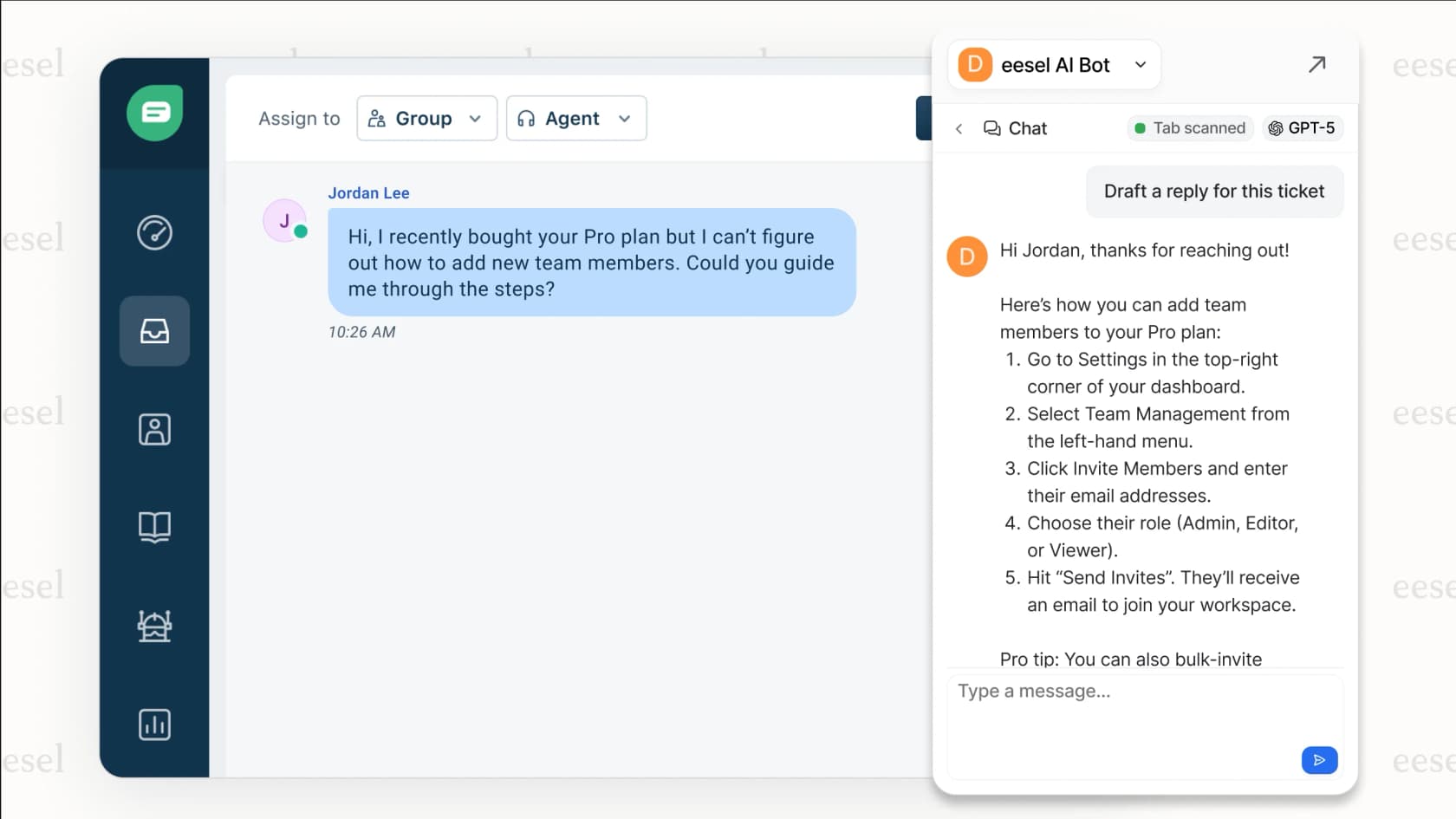
Tools like eesel AI Copilot work inside your Zendesk environment to draft personalized responses based on:
- The customer's specific issue and conversation history
- Your knowledge base articles
- Past successful resolutions
- Your brand voice and tone
Instead of searching through 50 macros to find the closest match, agents get a context-aware draft they can review and send. It learns from every edit, getting better over time.
When should you stick with traditional macros versus adding AI?
Use traditional macros when:
- You have a small, predictable set of common questions
- Your team is comfortable with the current workflow
- Budget is tight (macros are included with Zendesk)
Consider AI when:
- Your product or service has nuanced variations
- Agents spend significant time searching for the right template
- You want to maintain consistency while reducing the template maintenance burden
Many teams use both: macros for the truly routine (password resets, business hours) and AI for everything else that needs contextual understanding.
Start improving your response times today
You now have everything you need to implement or upgrade your canned response strategy:
- Audit your top 10 most common inquiries this week
- Create macros for those high-volume scenarios using the templates above
- Establish a naming convention your whole team will follow
- Schedule quarterly reviews to keep your library fresh
- Train agents on personalization (always use the customer's name, add context-specific details)
Canned responses won't solve every support challenge. But they will free up your agents' mental energy for the conversations that actually need human creativity and empathy.
If you're looking to go beyond static templates, eesel AI integrates directly with Zendesk to draft context-aware responses that learn from your best past interactions. It's the natural next step for teams that have mastered macros and want to scale their quality without scaling their headcount.