How to secure your Zendesk Guide: SSL and security best practices

Stevia Putri
Last edited February 25, 2026
When customers visit your help center, they're trusting you with their questions, personal information, and sometimes sensitive data. That trust depends on the security of your Zendesk Guide. Whether you're running a simple FAQ page or a complex knowledge base, implementing proper SSL encryption and security controls isn't optional it's essential.
This guide walks you through everything you need to know about securing your Zendesk Guide. We'll cover SSL certificate setup, authentication options, access controls, and the security features you might not know exist. By the end, you'll have a clear action plan for protecting your help center and the people who use it. For teams looking to add AI-powered security on top of Zendesk, eesel AI offers additional protection layers we'll discuss later.
Understanding SSL for Zendesk Guide
What is host mapping and why you need SSL
By default, your Zendesk Guide lives at a subdomain like company.zendesk.com. But most businesses prefer a custom domain such as support.yourcompany.com. This is called host mapping, and it requires an SSL certificate to encrypt data between your visitors and Zendesk's servers.
Without SSL, data travels in plain text. That means passwords, form submissions, and any information exchanged between users and your help center could be intercepted. Google also flags non-HTTPS sites as "not secure," which erodes customer trust before they read your first article.
Zendesk gives you two options for SSL on host-mapped domains:
- Free Let's Encrypt certificates: Zendesk automatically provisions and renews these for you. This is the simplest option and works well for most teams.
- Upload your own certificate: If your organization requires a specific certificate authority or you need an extended validation (EV) certificate, you can upload your own.
Let's break down when each makes sense. If you just want HTTPS working without thinking about it, go with Let's Encrypt. If your security team has specific compliance requirements or you need a wildcard certificate for multiple subdomains, uploading your own is the better path. You can learn more about Zendesk AI alternatives if you're evaluating different approaches to help desk security.
SSL certificate requirements
Before you upload a certificate, make sure it meets Zendesk's technical requirements. Not all certificates work, and getting this wrong means your help center stays inaccessible until it's fixed.
Here's what you need:
- SNI-based certificates only: Zendesk does not support IP-based SSL. Most modern certificates are SNI-based, but verify this with your certificate authority.
- Supported signature algorithms: ECDSAWithSHA256 or SHA256WithRSA. SHA1WithRSA is technically supported but not recommended due to security weaknesses.
- PEM format: Your certificate and private key must be in PEM format (Base64-encoded ASCII).
- Unencrypted private key: The private key cannot be password protected.
- Complete certificate chain: Include intermediate certificates in your bundle to avoid "certificate not trusted" errors.
One common mistake is uploading only the primary certificate without the intermediate chain. Browsers might still trust it if they've got the intermediate cached, but mobile apps and some corporate networks will reject the connection. Always bundle your primary certificate, intermediate certificates, and root certificate (if provided) into a single PEM file.
Setting up SSL for your Zendesk Guide
Step 1: Prepare your certificate files
If you're uploading your own certificate, start by gathering the files from your certificate authority. You'll typically receive:
- Your primary server certificate (usually a .crt or .pem file)
- One or more intermediate certificates
- Optionally, a root certificate
- Your private key (generated when you created the certificate signing request)
To create a certificate bundle, open each file in a text editor and combine them in this exact order:
- Primary server certificate
- Intermediate certificate(s)
- Root certificate (if you have one)
Each certificate should start with -----BEGIN CERTIFICATE----- and end with -----END CERTIFICATE-----. Don't leave blank lines between certificates. Save the combined file with a .pem extension.
If you generated your certificate signing request (CSR) outside of Zendesk, you'll also need your private key file. If Zendesk generated the CSR for you, skip the key file they already have it.
Step 2: Upload your SSL certificate
With your files ready, head to the Admin Center to upload everything.
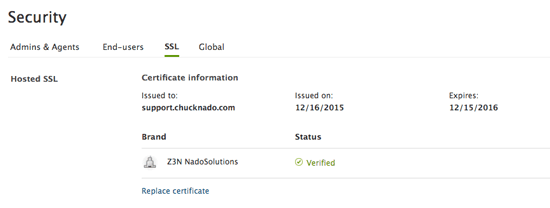
- Navigate to Admin Center > Account > Security > SSL
- Select your host-mapped domain from the dropdown
- Upload your certificate bundle (the .pem file you created)
- Upload your private key file (only if you generated the CSR externally)
- Click Save
Zendesk will validate your certificate and install it. This process usually takes a few minutes. You'll see a confirmation message once it's active. If you're looking for additional security automation beyond Zendesk's native features, eesel AI's AI Triage can help monitor and manage security-related tickets automatically.
If you encounter errors, double-check these common issues:
- Certificate and key don't match (generated from different CSRs)
- Private key is encrypted or password protected
- Certificate chain is incomplete
- Certificate has expired or isn't valid yet
Step 3: Verify SSL installation
After installation, test your HTTPS connection immediately:
- Visit your help center URL with
https://prepended - Look for the lock icon in your browser's address bar
- Click the lock and verify the certificate details match what you uploaded
- Test on multiple browsers and devices
Set a calendar reminder for certificate renewal. Even if you use Let's Encrypt, it's worth checking annually that auto-renewal is working. For uploaded certificates, mark the expiration date and start the renewal process at least two weeks in advance.
Securing user access to your Zendesk Guide
Authentication options
SSL protects data in transit, but authentication controls who can access your help center in the first place. Zendesk offers several authentication methods, each with different security implications. Choosing the right method depends on your team's needs and compliance requirements.
Native Zendesk authentication: Users create accounts with email and password. This gives you full control over password policies and two-factor authentication, but you're responsible for managing credentials securely.
Social media SSO: Google, Microsoft, Facebook, and other social logins. These are convenient for end-users but depend on the security of those external accounts. Consider disabling social logins you don't need to reduce attack surface.
Enterprise SSO (SAML, JWT, OIDC): Connects to your corporate identity provider like Okta, Azure AD, or OneLogin. This is the most secure option for internal teams because you control authentication centrally. When someone leaves your organization, their Zendesk access is automatically revoked.
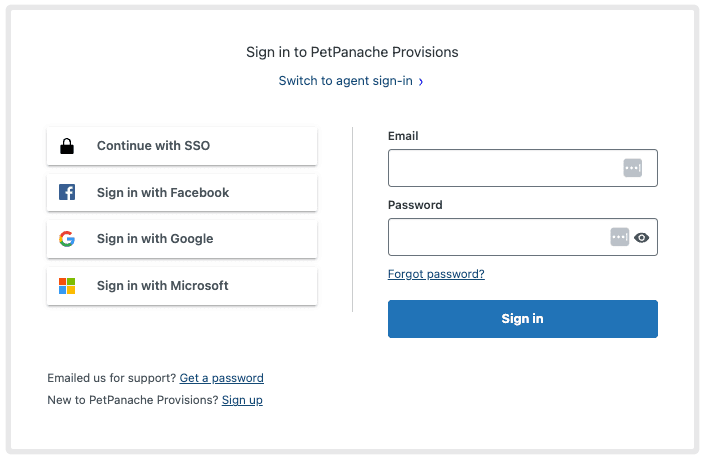
You can use different methods for agents and end-users. Many teams configure strict SSO for agents while keeping simple social login for customers this balances security with convenience.
Password policies and two-factor authentication
If you use native Zendesk authentication, configure strong password policies. Zendesk offers four security levels:
| Level | Requirements | Best For |
|---|---|---|
| Low | Minimum 5 characters | Testing environments only |
| Medium | Minimum 8 characters, mixed case | Low-risk scenarios |
| High | Minimum 10 characters, mixed case, numbers | Standard production use |
| Recommended | Minimum 12 characters, checks against breached passwords | Maximum security |
Zendesk recommends the "Recommended" level for both agents and end-users. This checks passwords against known breached credentials, which prevents users from recycling compromised passwords. Strong authentication is especially important if you're handling sensitive customer data.
Two-factor authentication (2FA) adds another layer of protection. When enabled, users need both their password and a time-based code from an authenticator app like Google Authenticator or 1Password.
To require 2FA for your team:
- Go to Admin Center > Account > Security > Advanced
- Under Two-factor authentication, select Required
- Choose whether to allow SMS or restrict to authenticator apps only
- Save your changes
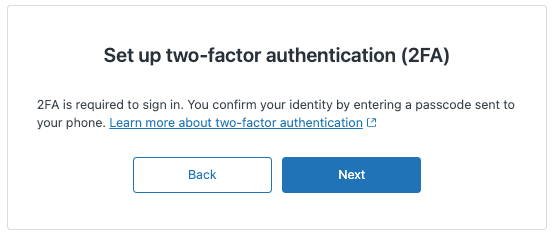
Authenticator apps are more secure than SMS because phone numbers can be ported or SIM-swapped. If your threat model includes targeted attacks, restrict 2FA to authenticator apps only. For additional security monitoring, consider how AI-powered tools can help detect unusual access patterns.
Using the Security Overview dashboard
Zendesk's Security Overview dashboard gives you a centralized view of your security posture. Think of it as a health check for your account.
To access it, go to Admin Center > Account > Security > Security Overview. You'll see a score based on enabled security features and recommendations for improvements.
The dashboard highlights:
- Critical security settings that need attention
- Recommended features you haven't enabled yet
- Healthy configurations already in place
Each recommendation includes an explanation of what it does and why it matters. Some changes, like enforcing 2FA, have immediate impact on how users sign in. Others, like enabling audit logging, work in the background.
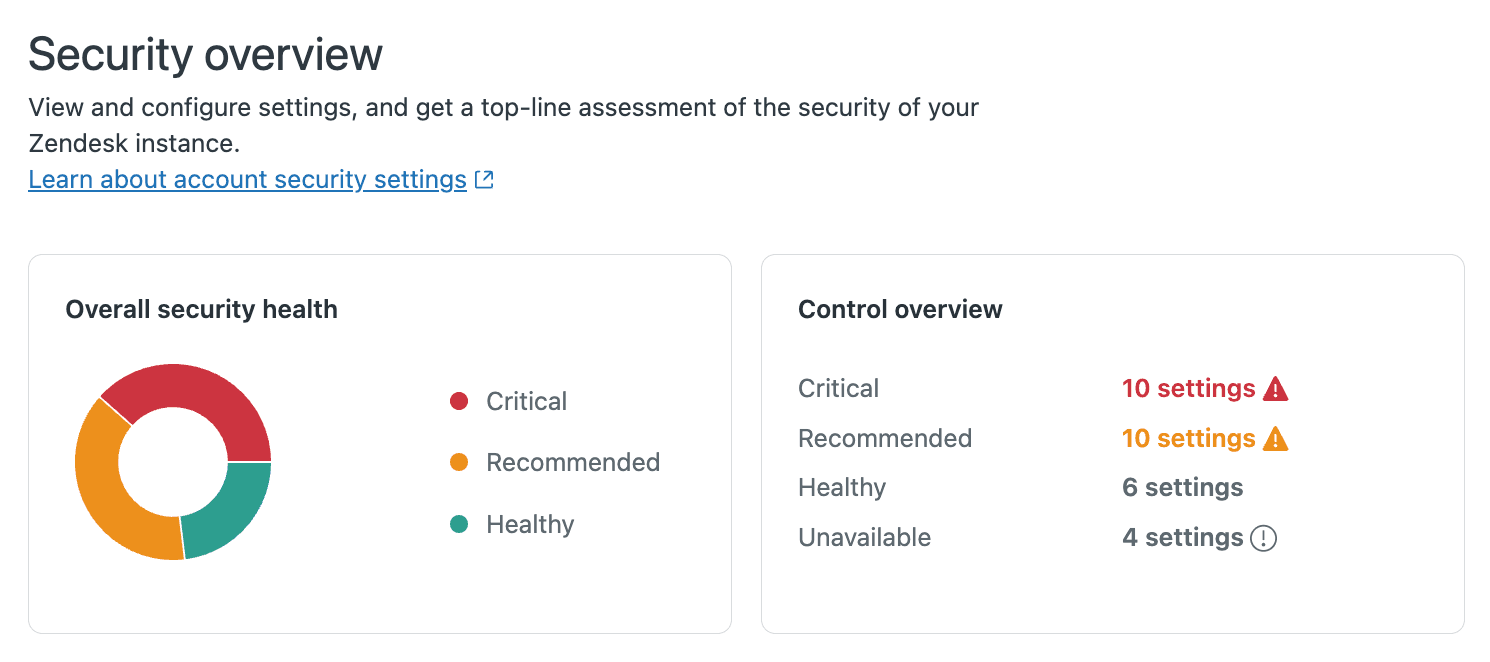
Review this dashboard monthly. Security isn't a one-time setup as Zendesk releases new features and your team grows, your security needs evolve. The dashboard helps you stay current without becoming a security expert.
Advanced security features
IP restrictions and access controls
For additional control, restrict help center access to specific IP address ranges. This ensures users can only sign in from approved locations like your office network or VPN.
To set this up:
- Go to Admin Center > Account > Security > Advanced
- Under IP restrictions, enter your allowed IP ranges
- Choose whether to apply restrictions to agents only or everyone
- Save your changes
On Enterprise plans, you can create private ticket groups that restrict sensitive tickets to specific agents. This is useful for handling security incidents, HR issues, or anything requiring confidentiality. For teams managing complex security workflows, eesel AI's automation capabilities can help streamline incident response.
Data protection and redaction
Sometimes sensitive information ends up in tickets accidentally a customer might paste their full credit card number, or an agent might collect personal data that's no longer needed after resolution.
Zendesk offers two types of redaction:
Automatic redaction: Enable this to automatically detect and mask credit card numbers in tickets and call recordings. The numbers are replaced with blank boxes and removed from logs.
Manual redaction: Agents can redact specific text or attachments from tickets when they spot sensitive information. Once redacted, the data is permanently removed and cannot be recovered.
Private attachments add another layer of protection. When enabled, users must sign in to view attachments, preventing accidental exposure if a ticket link is forwarded.
API security considerations
If you use the Zendesk API for integrations, pay attention to authentication changes. Zendesk is phasing out password-based API authentication. Starting December 2025, the API will no longer accept passwords.
Migrate to API tokens or OAuth tokens instead. API tokens are managed in Admin Center > Apps and integrations > APIs > Zendesk API. You can have up to 256 active tokens, and each can be revoked independently if compromised.
The Zendesk API requires TLS 1.2 or higher. If you're using an older integration, verify it supports modern TLS versions. Connections using TLS 1.0 or 1.1 will fail.
Security best practices checklist
Use this checklist to audit your Zendesk Guide security:
SSL and domain:
- SSL certificate installed and verified
- Certificate expiration date tracked
- HTTPS enforced for all help center pages
- Host-mapped domain properly configured
Authentication:
- Password policy set to "Recommended" level
- Two-factor authentication required for agents
- SSO configured for enterprise access (if applicable)
- Unused authentication methods disabled
Access control:
- IP restrictions configured (if needed)
- Admin access limited to essential personnel
- Private groups created for sensitive tickets
- Audit logging enabled (Enterprise plans)
Data protection:
- Automatic credit card redaction enabled
- Private attachments configured
- Deletion schedules set up for old data
- Data retention policies documented
API and integrations:
- Password authentication migrated to tokens
- Unused API tokens deleted
- OAuth apps reviewed and authorized
- Third-party integrations audited
Securing your help center with eesel AI
While Zendesk provides solid security foundations, some teams need additional layers of protection and intelligence. That's where eesel AI comes in we built it to complement platforms like Zendesk with AI-powered security features.
Our approach treats security as an ongoing process, not a one-time configuration. The eesel AI platform connects to your existing help desk and continuously learns your security patterns. It can identify unusual access patterns, flag potentially sensitive information before it spreads, and help enforce consistent security policies across large teams.
For teams handling regulated data or working in industries with strict compliance requirements, we offer advanced data privacy controls including custom retention policies and enhanced encryption options. If you're evaluating your current security posture or planning an upgrade, book a demo and we can help you assess what's right for your specific situation.


Frequently Asked Questions
Share this article

Article by
Stevia Putri
Stevia Putri is a marketing generalist at eesel AI, where she helps turn powerful AI tools into stories that resonate. She’s driven by curiosity, clarity, and the human side of technology.