Zendesk Guide community topics vs posts: a complete guide

Stevia Putri
Last edited February 25, 2026
If you're setting up a community forum in Zendesk Guide, you'll quickly encounter two key concepts: topics and posts. Understanding how they work together (and where they differ) is essential for building an organized, useful community space.
Here's what each one does, how they relate to each other, and some practical tips for getting your community structure right.
What are community topics in Zendesk Guide?
Topics are the containers that organize your community content. Think of them as folders or categories where related discussions live.
In Zendesk Gather (the community forum feature within Zendesk Guide), topics sit at the top of your content hierarchy. You can create as many topics as you need, and they can represent anything: different products you support, major feature areas, user types, or general discussion areas.
For example, if you support multiple products, you might create a topic for each one. If you have one product with lots of functionality, you might organize topics by feature area. You could also have a "General Discussion" topic for conversations that don't fit neatly elsewhere.
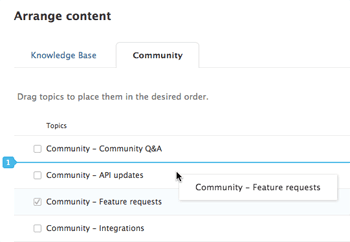
Who can manage topics?
Only Knowledge admins can add, edit, delete, and manually arrange topics. Agents and moderators don't have these permissions by default. This keeps your community structure controlled and intentional.
When you create a topic, you can also set:
- User segments to control who can see the topic (all users, signed-in users only, or specific organizations/groups)
- Management permissions to determine whether only managers or both agents and managers can add and edit posts within that topic
What are community posts in Zendesk Guide?
If topics are the folders, posts are the actual conversations inside them. Posts are where your community members ask questions, share ideas, report problems, or give praise.
Each post lives within a specific topic and can receive comments from other community members. Posts have several features that help manage the conversation:
- Voting community members can upvote or downvote posts
- Status tracking posts can be marked as "Planned," "Not Planned," "Completed," or "Answered"
- Comments threaded discussions under the main post
- Content tags labels that group related content across topics
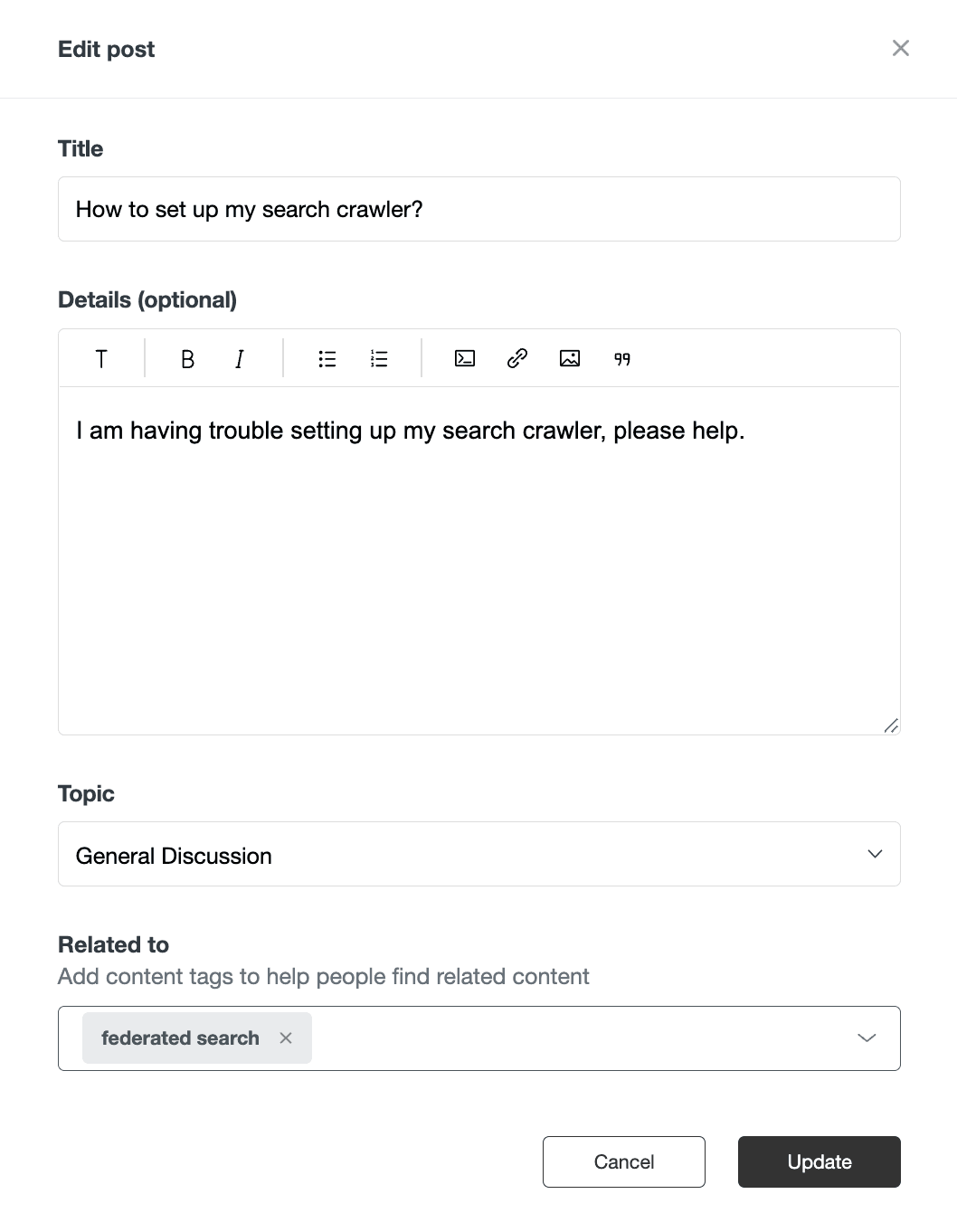
Who can manage posts?
Knowledge admins have full permissions to manage community posts. Users with moderator rights can perform limited actions depending on their group permissions. Regular agents who aren't part of a moderator group can't take actions on community posts.
As an admin or moderator, you can:
- Edit or delete posts and comments
- Move posts between topics
- Close posts for comments
- Pin or feature posts
- Mark comments as "official"
- Create tickets from posts
Key differences between topics and posts
Here's a quick comparison to clarify how topics and posts differ:
| Aspect | Topics | Posts |
|---|---|---|
| Function | Organize and contain content | Contain actual conversations |
| Hierarchy | Top-level containers | Live inside topics |
| Who creates | Knowledge admins | Any signed-in user (by default) |
| Who manages | Knowledge admins only | Knowledge admins and moderators |
| Lifecycle | Persistent structure | Can be closed, archived, or deleted |
| Visibility control | User segment restrictions | Inherits from topic |
The relationship is straightforward: topics provide the structure, and posts provide the content. You need both working together for a functional community.
Best practices for organizing your community
Getting your topic structure right from the start makes a big difference. Here are some practical guidelines:
Start small
When launching a new community, stick to 2-3 topics. More than that spreads your users too thin, especially when you're still building participation. You can always add more topics as your community grows.
Look at your support tickets
A good way to decide on initial topics is to review the support tickets you already receive. What areas come up most often? Create topics around those themes so users can find peer discussions about the issues they care about.
Write clear descriptions
Every topic should have a description that explains what belongs there. This helps users understand where to post and keeps your community organized.
Create pinned welcome posts
In addition to topic descriptions, write a pinned post in each topic explaining how to use the space. If you want users to follow a specific format or include certain information, spell it out here.
Set up moderation early
Before you launch, configure content moderation filters. You can moderate all posts (everything goes to a queue for approval) or just posts containing specific keywords. The keyword approach is less restrictive but requires some trial and error to get right.
We also recommend exploring how AI-powered triage can help automate content moderation. Instead of manually reviewing every post, an AI teammate can flag inappropriate content, route posts to the right team, and even handle routine responses.
Limitations and workarounds
One common frustration with Zendesk Gather is the flat structure. Unlike the knowledge base (which has Categories > Sections > Articles), the community only has Topics > Posts. There's no sub-topic level.
Users have requested this feature for years. One community member put it clearly: "For Knowledge articles, Zendesk offers the structure of Categories>Sections>Articles... But the content structure in Gather/Community is even flatter- Topics>Posts, which makes it more difficult to organize posts effectively."
Until Zendesk adds more hierarchy, here are some workarounds:
- Use descriptive topic names instead of "Product A," try "Product A Installation & Setup"
- Leverage content tags apply tags to posts to create cross-cutting groupings
- Create more specific topics rather than one broad topic, split into narrower ones
- Consider third-party add-ons tools like Lotus Themes Hot Posts add functionality like displaying popular posts without duplication
Managing your community with AI
As your community grows, manual moderation becomes time-consuming. This is where AI can help.
At eesel AI, we've built an AI teammate that integrates directly with Zendesk. It can:
- Monitor community posts and flag content that needs attention
- Draft responses to common questions based on your knowledge base
- Route complex issues to human agents
- Identify knowledge gaps by analyzing what users are asking about

The key difference from Zendesk's built-in features is that eesel learns from your existing content past tickets, help center articles, and community discussions so responses sound like they came from your team, not a generic bot.
Getting the most from your Zendesk community
Understanding the difference between topics and posts is the foundation of a well-organized community. Topics give you structure; posts give you engagement. Get the structure right, and the engagement follows.
A few final tips:
- Revisit your topic structure every few months as your community evolves
- Use analytics to see which topics are most active
- Turn popular community discussions into knowledge base articles
- Consider how AI tools can reduce the manual work of community management
If you're looking to enhance your Zendesk community with AI-powered support, try eesel AI. It works alongside your existing Zendesk setup to help you respond faster and keep your community healthy.


Frequently Asked Questions
Share this article

Article by
Stevia Putri
Stevia Putri is a marketing generalist at eesel AI, where she helps turn powerful AI tools into stories that resonate. She’s driven by curiosity, clarity, and the human side of technology.



