
A well-organized help center can be the difference between customers finding answers on their own and flooding your support queue. If you're using Zendesk Guide, the order of your categories plays a bigger role than you might think. It determines what customers see first when they land on your knowledge base, and ultimately, how quickly they can solve their own problems.
In this guide, we'll walk through exactly how to change your Zendesk Guide category order, from the basic hierarchy you need to understand to the step-by-step process of rearranging your content. We'll also cover some best practices we've learned from working with support teams, and show you how eesel AI can help when manual organization isn't enough.
What you need to get started
Before you start dragging and dropping, make sure you've got the basics covered:
- Guide Professional or Enterprise plan - The content arrangement features require one of these plans. If you're on a lower tier, you'll need to upgrade first.
- Knowledge admin permissions - Only users with the Knowledge admin role can rearrange categories, sections, and articles.
- A clear picture of your content structure - It helps to know how your categories, sections, and articles are currently organized before you start moving things around.
If you're not sure which plan you have, check your Zendesk subscription settings or contact your account manager.
Understanding Zendesk Guide's content hierarchy
Think of your Zendesk Guide help center like a filing cabinet. The structure has three levels, and understanding how they work together is the key to organizing effectively.
Categories are the top-level containers. These are the broad buckets that customers see first when they visit your help center. Common examples include "Getting Started," "Billing," or "Troubleshooting." Your help center must have at least one category, but most teams use three to five.
Sections live inside categories. They group related articles together. Under a "Billing" category, you might have sections for "Payment Methods," "Refunds," and "Invoices."
Articles are the actual content pieces that answer specific questions. Each article belongs to exactly one section (though you can display articles in multiple sections if needed).
Here is something important to know: if you only have one category in your help center, Zendesk automatically hides it from end users. Customers will see the sections directly instead. This is why category order only becomes relevant once you have two or more categories.
How to manually reorder categories in Zendesk Guide
Now let's get to the actual reordering process. Zendesk makes this fairly straightforward with a drag-and-drop interface.
Step 1: Access the Arrange content interface
Start by navigating to Knowledge admin in your Zendesk admin panel. In the sidebar, click on Arrange content. This opens the content management view where you can see your entire help center structure.
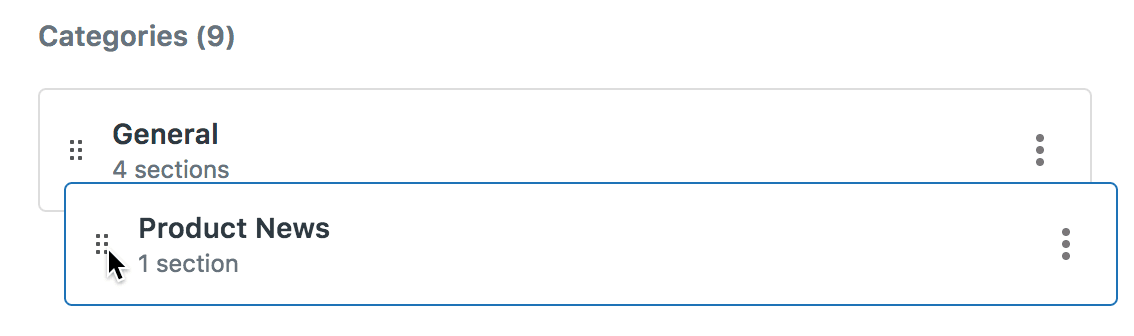
The interface displays your categories in the order they currently appear to customers. You'll see a tree structure that you can expand to drill down into sections and articles.
Step 2: Select the category level
To reorder categories specifically, make sure you're viewing at the category level. You should see your top-level categories listed. If you've drilled down into a specific category, click the back arrow or select the help center name to return to the top level.
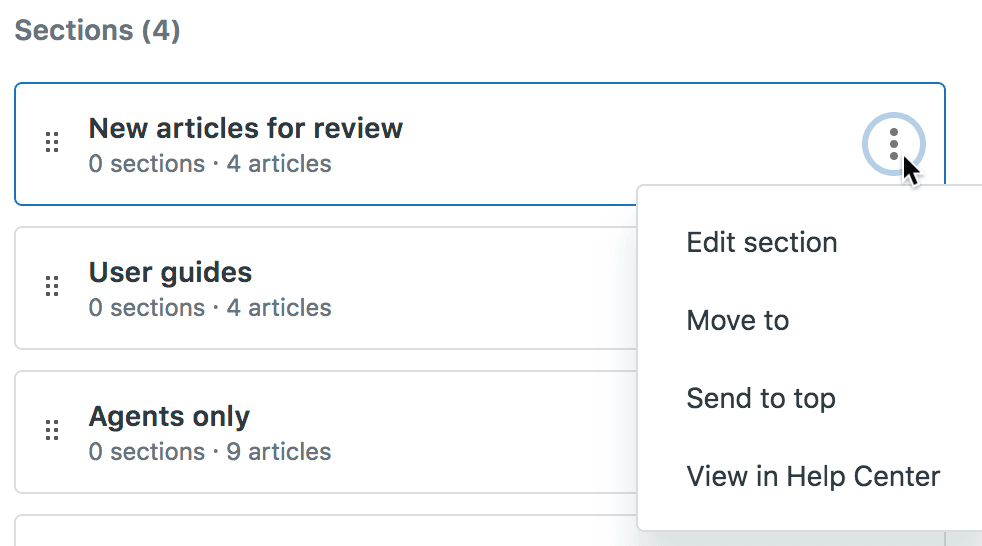
Each category will have a grabber handle (usually on the right side) that you can use to drag it to a new position.
Step 3: Drag and drop to reorder
Position your cursor over the grabber handle at the end of the category you want to move. Click and hold, then drag the category to its new position in the list. The other categories will shift to make room as you drag.
Release the mouse button to drop the category in its new position. The changes save automatically, and your help center will immediately reflect the new order for all visitors.
One thing to keep in mind: you can't reorder articles within sections that have automatic sorting enabled. More on that in a moment.
How to reorder sections within categories
The same drag-and-drop method works for sections. Here's how to do it:
Click on a category name to drill down and see the sections inside it. You'll see the sections listed in their current order. Use the grabber handles to drag sections into your preferred sequence.
If you need to move a section to a completely different category, you have two options. You can either drag it to the new category in the Arrange content view, or you can edit the section directly and change its parent category in the settings.
Moving sections between categories is useful when your content structure evolves. Maybe you started with a general "Support" category but now you've got enough content to split it into "Technical Support" and "Account Support."
How to reorder articles within sections
Articles can be arranged in two ways: manually or automatically.
Manual ordering works just like categories and sections. Navigate to the section containing the articles you want to reorder, then use the grabber handles to drag articles into position.
Automatic sorting lets you set a rule that determines article order. You can sort by:
- Creation date (newest or oldest first)
- Alphabetical order (A to Z or Z to A)
To set automatic sorting, edit the section and look for the Order articles by dropdown. Select your preferred sorting method and save.
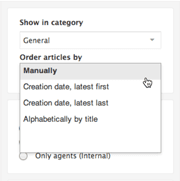
Here's the catch: once you enable automatic sorting for a section, you can't manually reorder articles within that section. The sorting rule takes over completely. If you want manual control back, you'll need to change the section setting back to "Manual."
Automatic sorting works well for sections where chronology matters, like release notes or changelog entries. Manual ordering is better when you want to guide customers through content in a specific sequence, like a getting started guide.
Best practices for Zendesk Guide category order
Getting the technical steps right is only half the battle. Here are some strategies we've seen work well for organizing help center content:
Put your most-used categories first. Look at your help center analytics to see which categories get the most traffic. If 60% of your visitors are looking for billing help, make "Billing" the first category they see.
Consider the customer journey. Think about where customers are in their relationship with your product when they visit your help center. New customers need getting started content. Long-term users might need advanced features or troubleshooting. Order your categories to match this progression.
Keep category names clear and descriptive. Avoid internal jargon or clever names that don't immediately communicate what's inside. "Account Settings" is better than "My Space."
Limit top-level categories. Three to five categories is the sweet spot. More than that, and customers get overwhelmed trying to choose where to look. If you've got more than five, consider whether some categories could be combined or moved to section level.
Align category order with common support topics. If your team spends most of their time answering questions about orders and shipping, those categories should be prominent. Less common topics can go toward the end.
Review and adjust based on data. Check your help center analytics regularly. If customers are searching for topics that should be in a particular category but aren't finding them, that category might need to move up in the order, or its contents might need reorganization.
Common issues when changing Zendesk Guide category order
Even with a straightforward process, you might run into a few snags:
Changes not appearing immediately. Sometimes there's a short delay between when you save changes in the admin panel and when they appear on the customer-facing help center. If you don't see changes after a few minutes, try clearing your browser cache or checking in an incognito window.
Permission errors. If you can't access the Arrange content section, double-check that you've got the Knowledge admin role. Regular agents and even some admin roles don't have permission to reorganize help center content.
Cannot manually reorder articles. If the drag handles are missing for articles, check whether the section has automatic sorting enabled. You'll need to disable automatic sorting to regain manual control.
Single category is hidden. Remember that if you've only got one category, Zendesk hides it automatically. Customers see sections directly. This is normal behavior, not an error.
When manual organization is not enough
Reordering categories is a great start, but it's got limitations. As your knowledge base grows, you might find that static organization isn't enough to help customers find what they need.

This is where we come in. At eesel AI, we've built an AI teammate that works alongside your Zendesk Guide knowledge base. Instead of hoping customers navigate to the right category, our AI Chatbot understands what they are asking and finds the answer directly.
Here's how it works: you connect eesel AI to your Zendesk Guide, and it learns from your existing articles. When customers ask questions, they get instant, accurate answers pulled from your knowledge base, complete with citations linking back to the source articles. No more browsing through categories hoping to stumble upon the right article.
Our Zendesk integration takes minutes to set up. You don't need to reorganize your content or change your existing structure. The AI works with what you have, making your knowledge base instantly more accessible.
For teams ready to go further, our AI Agent can handle entire support conversations autonomously, resolving tickets directly from your help center content. It learns your tone and policies from day one, escalating only the issues that truly need a human touch.

The transition is gradual. Many teams start with the AI Chatbot to deflect common questions, then expand to full automation as they see the results. You can check our pricing to find a plan that fits your team size.


