
Adding video to your knowledge base articles can dramatically improve customer understanding. A 90-second tutorial often communicates what would take five paragraphs of text. If you're using Zendesk Guide (now Zendesk Knowledge) for your help center, you have two main options for embedding video content: the native method for supported platforms, or custom HTML for everything else.
This guide walks you through both approaches. We'll cover which method to choose based on your video hosting platform, the exact steps for each approach, and how to handle common issues that pop up along the way. We'll also look at how modern alternatives like eesel AI handle multimedia content differently.

What you'll need before you start
Before diving in, make sure you've got the following ready:
- A Zendesk Knowledge account (Team plan or higher)
- Your video hosted on a supported platform, or the embed code from your video host
- Admin access to Guide settings if you plan to use the custom HTML method
- A clear idea of which embedding method applies to your situation
The native embedding method works with: YouTube, Vimeo, Wistia, Loom, Figma/Jam, Synthesia, JWPlayer, Brightcove, and Vidyard. If your video is hosted elsewhere, you will need the custom HTML approach.
Method 1: Native video embedding
This is the easiest approach. You paste a URL, and Zendesk handles the rest. No code required, no security settings to change. It's also the most secure option since you don't need to enable unsafe HTML.
Step 1: Copy your video URL
Start by getting the shareable link from your video platform. For YouTube, click the Share button below the video and copy the link. For other platforms, look for a Share or Copy Link option.
One important note: YouTube Shorts are not currently supported through the native embedding method. If you need to embed a Short, you'll have to use the custom HTML method instead.
Step 2: Open the article editor
Navigate to your Zendesk Knowledge admin panel. Click Articles in the left sidebar, then either create a new article or open an existing one for editing.
Place your cursor where you want the video to appear in the article body. This is important because the video'll insert at your cursor position.
Step 3: Insert the video
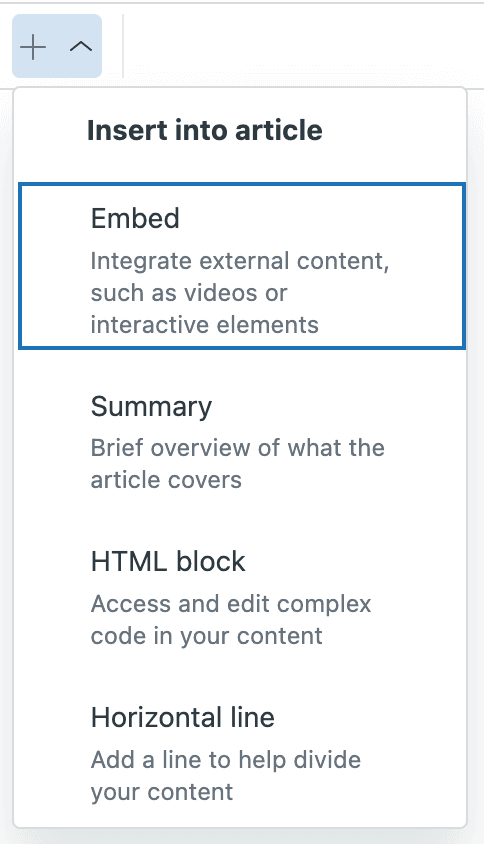
Look for the Add video button in the editor toolbar. In the legacy editor, it's a straightforward toolbar button. In the newer article editor, click the Article components button and select Embed from the dropdown.
A dialog box will appear asking for your video URL. Paste the link you copied in Step 1. Zendesk will automatically generate a preview of the video so you can confirm it's the right one.
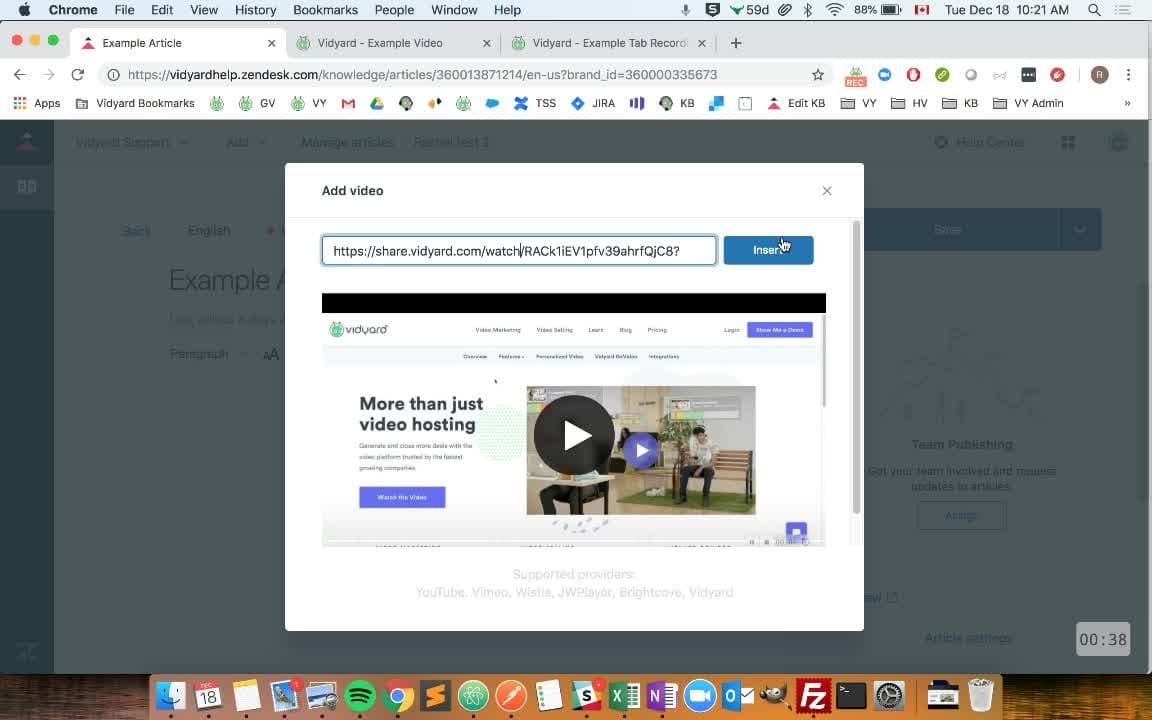
Click Insert to add the video to your article, then click Save. The video's now embedded and will display inline with your article content.
Method 2: Custom HTML embedding
Sometimes the native method isn't an option. Maybe your video is hosted on a platform Zendesk doesn't support natively, like Viostream. Or perhaps you need to track video views for analytics, which some platforms only support through manual embed codes. This method gives you more control but requires a few extra steps.
Step 1: Enable unsafe content in Guide settings
By default, Zendesk blocks third-party scripts and certain HTML tags to protect your help center from malicious code. To use custom embed codes, you need to disable this protection.
Navigate to Guide in your Zendesk admin, then click the Settings icon. Scroll down to the Security section and check the box labeled Display unsafe content. Click Update to save your changes.
Important security note: Only enable this setting if you trust the sources of content being added to your knowledge base. The "unsafe" label refers to the technical capability of the HTML, not the content itself. If you are embedding code from reputable video hosting platforms, the risk is minimal. But be cautious about embedding code from unknown sources.
Step 2: Get your embed code
Go to your video platform and locate the embed option. This is usually found under a Share button, then an Embed tab. Copy the iframe code provided.
The embed code will look something like this:
<iframe src="https://player.vimeo.com/video/123456789" width="640" height="360" frameborder="0" allowfullscreen></iframe>
Some platforms offer customization options for the embed code, such as player size, autoplay settings, or hiding controls. Configure these to your preference before copying.
Step 3: Add embed code to article
Back in your Zendesk article editor, click the Source code button to switch to HTML view. This button is usually represented by angle brackets (<>) in the toolbar.
Find the location in the HTML where you want the video to appear. Paste your embed code there. If you want the video centered or wrapped in a container, add the appropriate HTML around the iframe.
Click Add or Update to return to the visual editor. You should see a placeholder where the video will appear. Save your article and preview it to confirm the video displays correctly.
Using custom video players
For teams that want more control over the video player appearance, custom players like Video.js or Plyr offer additional customization options.
Video.js is an open-source HTML5 video player that is free to use and works across all browsers. The Zendesk community has tutorials for implementing Video.js in your help center by adding CSS and JavaScript references to your document_head.hbs template file.
Plyr is another customizable option that some Zendesk themes (like Zenplates) include by default. Plyr lets you match the video player styling to your brand colors and controls which elements of the player are visible.
Both options require editing your theme code, so they are best suited for teams with developer resources or those using themes that include these players out of the box.
Troubleshooting common Zendesk Guide article video embed issues
Even with clear instructions, things do not always go smoothly. Here is how to handle the most common problems.
Video not displaying at all If you are using custom HTML embedding, the most likely culprit is the Display unsafe content setting. Double-check that it is enabled in your Guide settings. If it is already on, try clearing your browser cache or checking in an incognito window.
"Unable to embed" error
This usually means the URL format is not recognized. For native embedding, make sure you are using a standard share URL, not an embed URL or a shortened link. For Vidyard specifically, the URL needs to be in the format https://share.vidyard.com/watch/[UUID] rather than the embed format.
Video looks wrong on mobile Standard iframe embeds often have fixed dimensions that break on smaller screens. Use responsive embed codes when available, or wrap your iframe in a container with CSS that maintains aspect ratio. The 16:9 ratio is standard for most video content.
Video not playing in the Web Widget If you are using Zendesk's Web Widget (Classic) to display help content on your website, videos must be publicly available and hosted on one of the natively supported platforms. Custom HTML embeds may not work in the widget even if they work in the full help center.
Best practices for video in knowledge bases
Embedding video is straightforward, but doing it well requires some thought.
Keep videos concise Help center videos should get to the point quickly. Aim for under three minutes. If your topic needs more time, consider breaking it into a series of shorter videos rather than one long tutorial.
Add captions and transcripts Accessibility matters. Captions help viewers who are deaf or hard of hearing, and they are useful for anyone watching without sound. Transcripts provide an alternative for people who prefer reading or need to quickly scan for specific information.
Consider page performance Videos can slow down page load times, especially if you have multiple embeds on one page. Use lazy loading when possible so videos only load when the user scrolls to them. Also, be mindful of autoplay settings. Autoplaying video with sound creates a poor user experience.
Test on mobile A significant portion of your users will view your help center on their phones. Always test how embedded videos display and perform on mobile devices before publishing.
A modern alternative: eesel AI for Zendesk
Zendesk Knowledge handles video embedding well for basic use cases. But some teams need more flexibility in how they manage and deliver multimedia content to customers.
At eesel AI for Zendesk, we approach knowledge management differently. Rather than treating video as a static embed, our AI learns from your video content alongside your help center articles, documentation, and past support conversations. When customers ask questions, the AI can reference information from your videos without requiring them to watch the entire thing.
You don't need to enable unsafe content settings or worry about iframe embeds. We process and serve media securely as part of our integrated platform. If you're already using Zendesk for ticketing, our Zendesk AI integration works alongside your existing setup to add AI-powered responses that draw from your full knowledge base, including video content.
For teams looking to reduce support volume while improving the customer experience, this approach can complement or replace traditional video embedding entirely. Learn more about how eesel AI works with Zendesk to enhance your support workflow.