Search for "Zendesk for new teams" and you'll find something interesting. The results are almost entirely about the Zendesk for Microsoft Teams integration, not about getting started with Zendesk as a new user. It's a classic case of keyword collision: two completely different meanings sharing the same search query.
This guide covers both angles. Whether you're a team new to Zendesk looking for setup guidance, or you're specifically interested in the Microsoft Teams integration, you'll find what you need here. We'll walk through getting started with Zendesk, then dive into how the Teams integration works and whether it makes sense for your situation.
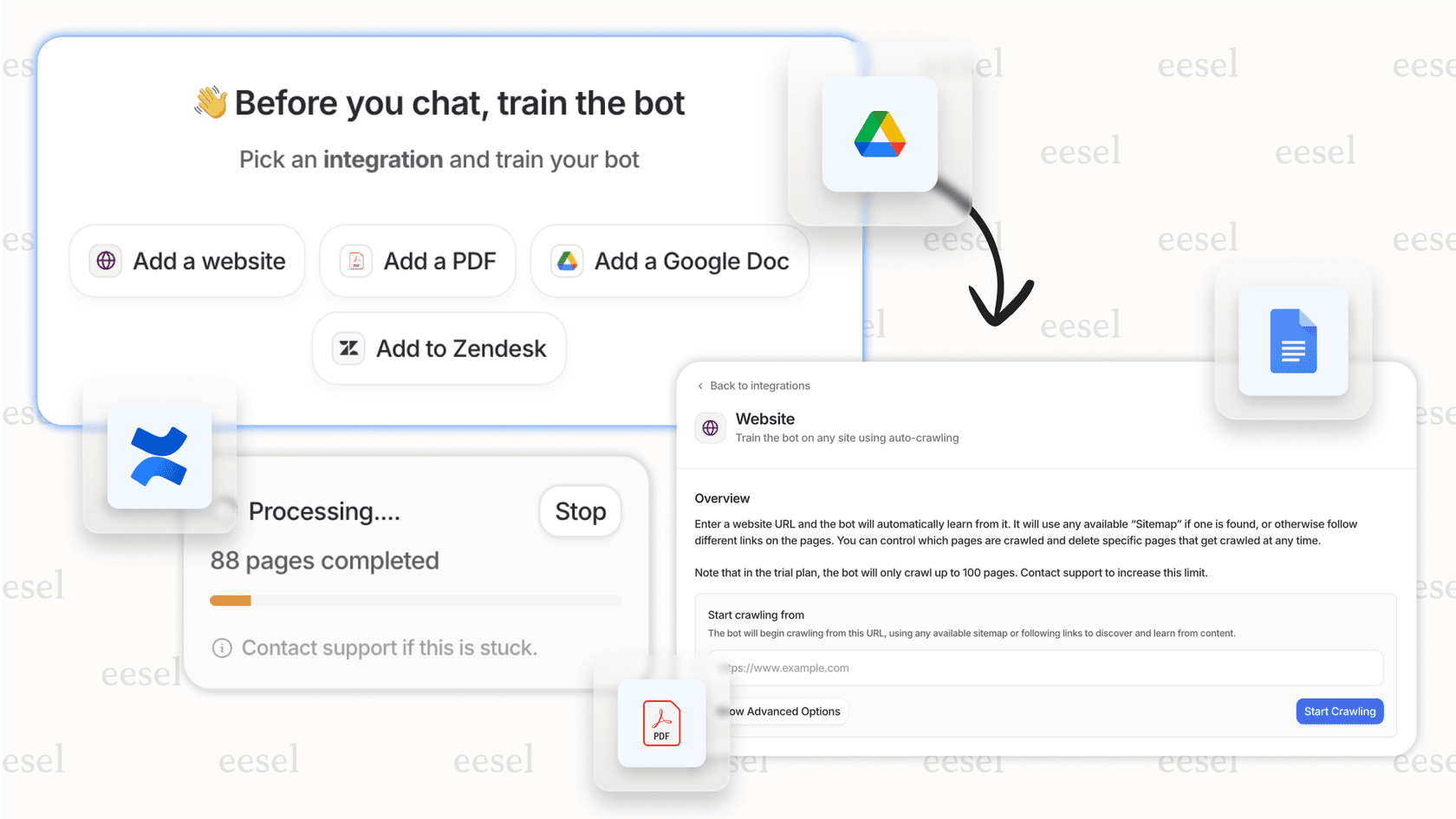
If you're exploring alternatives for AI-powered support, we offer a different approach at eesel AI. Our AI teammate learns from your existing knowledge and handles requests autonomously, working directly in Microsoft Teams without the complexity of traditional integrations. But let's focus on Zendesk first.

What "Zendesk for new teams" actually means
The confusion is understandable. "Zendesk for new teams" could mean:
- Teams that are new to Zendesk you're just getting started with the platform and need onboarding guidance
- The Zendesk for Microsoft Teams integration connecting Zendesk to your Teams workspace for collaboration
Most search results assume you mean the second option. Google sees "teams" and immediately thinks "Microsoft Teams." But if you're actually looking for help setting up Zendesk for the first time, those results aren't very useful.
Here's the short version: if you're new to Zendesk, start with the basics (plans, setup, configuration). The Teams integration comes later, once you're comfortable with the core platform. If you already use Zendesk and want to add Teams integration, skip ahead to that section.
Getting started with Zendesk as a new team
What is Zendesk?
Zendesk is a customer service platform used by over 100,000 companies including Uber, Lush, and Khan Academy. At its core, it's a ticketing system that helps teams track, prioritize, and resolve customer conversations across multiple channels: email, chat, phone, social media, and more.
For new teams, Zendesk offers a centralized place to manage all customer interactions. Instead of scattered emails and spreadsheets, you get a structured workflow with ticket assignment, automation rules, reporting dashboards, and self-service options through knowledge bases.
Choosing the right Zendesk plan for new teams
Zendesk's pricing can be confusing at first glance. They offer two main product lines: Support plans (email-focused) and Suite plans (omnichannel). For most new teams, the decision comes down to which channels you need to support.
| Plan | Annual Price | Monthly Price | Best For |
|---|---|---|---|
| Support Team | $19/agent/month | $25/agent/month | Small teams starting with email support only |
| Suite Team | $55/agent/month | $69/agent/month | Teams needing messaging, chat, and phone |
| Suite Professional | $115/agent/month | $149/agent/month | Growing teams with complex workflows |
| Suite Enterprise | $169/agent/month | $219/agent/month | Large organizations with advanced needs |
Key point for new teams: The Microsoft Teams integration requires at least the Support Team plan ($19/month) or any Suite plan. If you're considering the integration, factor this into your decision.
The Support Team plan covers the basics: email ticketing, Facebook and X integration, macros for common responses, basic automation, and standard reporting. It's genuinely sufficient for small teams handling straightforward support via email.
Suite Team adds AI agents, messaging with live chat, a help center, phone support, and social messaging across Instagram, WhatsApp, and Slack. This is where most growing teams end up, and it's the minimum tier if you want the full feature set.
Initial setup steps for new teams
Setting up Zendesk for the first time involves several key steps. Here's what to expect:
-
Create your account and subdomain Your Zendesk URL will be
yourcompany.zendesk.com. Choose something recognizable but professional; customers may see this URL. -
Configure basic settings Set your business hours, time zone, and default language. These affect SLA calculations and automated responses.
-
Set up your email channel Connect your support email address (like support@yourcompany.com) to Zendesk. All emails to that address become tickets automatically.
-
Create ticket fields and forms Customize what information you collect from customers. Common fields include issue type, priority, and product category.
-
Invite your team Add agents with appropriate roles. Remember: you're paying per agent, so only invite people who will actively handle tickets.
The initial setup takes a few hours, not days. Zendesk provides on-demand training and digital onboarding resources to help new teams get oriented. Most teams can start handling real tickets within a day of signing up.
Understanding the Zendesk Microsoft Teams integration
What the integration does
The Zendesk for Microsoft Teams integration brings ticket management into your Teams workspace. Instead of switching between Zendesk and Teams throughout the day, agents can create, view, and update tickets directly from Teams channels and chats.
Built by SoftServe in collaboration with Zendesk, the integration has seen over 10,000 active users since its release. It's particularly popular with internal support teams (IT, HR, Finance) where employees already live in Teams for daily communication.
Key features
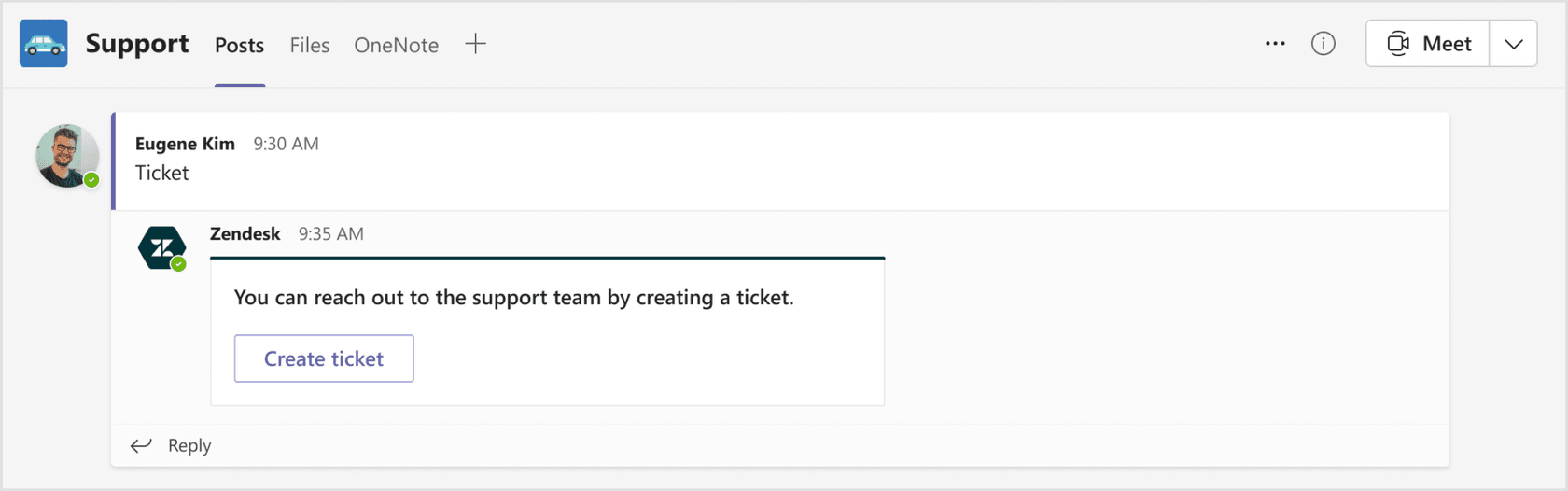
Ticket management in Teams Create tickets from Teams conversations, view existing tickets with full context, and update fields without leaving the chat. Agents can add internal notes for team collaboration or post public replies to customers. You can also attach files directly from Teams.
Real-time notifications The integration pushes ticket updates into Teams through customizable alerts. Set notifications for specific channels or direct messages based on ticket status, priority, type, or field changes. High-priority tickets can trigger immediate alerts to an #urgent-support channel while routine updates only notify assigned agents.
Answer Bot for self-service Zendesk's Answer Bot brings AI-powered article recommendations directly into Teams. When someone asks a common question, the bot suggests relevant help center articles before the issue becomes a ticket. This works in both personal chats and team channels.
Ticket visibility and views Pre-installed views show open and closed tickets for all users. Agents can import their Zendesk ticket views as tabs in Teams, organizing tickets by priority, status, or assignee. Managers get visibility into queue health without logging into Zendesk.
Who benefits most
The integration makes the most sense for:
- Internal support teams IT, HR, and Finance teams where employees already ask questions in Teams channels
- Cross-functional collaboration Complex issues requiring input from multiple departments
- Teams heavily invested in Microsoft 365 Organizations already using Teams as their primary communication hub
For customer-facing support, the integration is less critical. Your customers aren't in your Teams workspace, so the collaboration benefits don't apply. Most customer support teams stick with the standard Zendesk interface.
Limitations to know
Before committing, understand these constraints:
- Single instance only You can only connect one Zendesk instance per Teams tenant. Multi-brand organizations with separate Zendesk accounts face limitations.
- Admin-dependent setup End users cannot self-install. You need admin permissions in both Microsoft 365 and Zendesk.
- Plan restrictions The integration only works on Team plans and above. Essential plans are excluded.
- Answer Bot activation AI recommendations don't work out of the box. You need to activate Answer Bot separately in Zendesk Admin Center.
- Settings limitations Some configuration options are admin-only. Agents and end users see placeholders for unavailable features.
Setting up the Zendesk Teams integration
Prerequisites
Before starting, confirm you have:
- Admin access to Microsoft 365 and Zendesk
- A qualifying Zendesk plan (Support Team, Suite Team, or higher)
- Azure Active Directory for authentication
- Approximately 10-15 minutes for setup
Installation steps
Step 1: Install from Teams App Store In Microsoft Teams, go to the Apps tab in the bottom-left corner. Search for "Zendesk" and click Add to install.
Step 2: Grant permissions Click "Grant permissions" in the welcome message. You'll be redirected to Azure AD to accept the consent request. This gives the integration access to Teams data.
Step 3: Connect your subdomain Enter your Zendesk subdomain (the part before .zendesk.com in your URL). Click Connect to link the accounts.
Step 4: Sign in Enter your Zendesk admin credentials to authenticate. If successful, you'll see a "Let's create a ticket together" confirmation message.
Step 5: Configure channels and notifications Add the app to relevant teams and channels. Set up notification preferences and configure Answer Bot if desired.
Configuration options
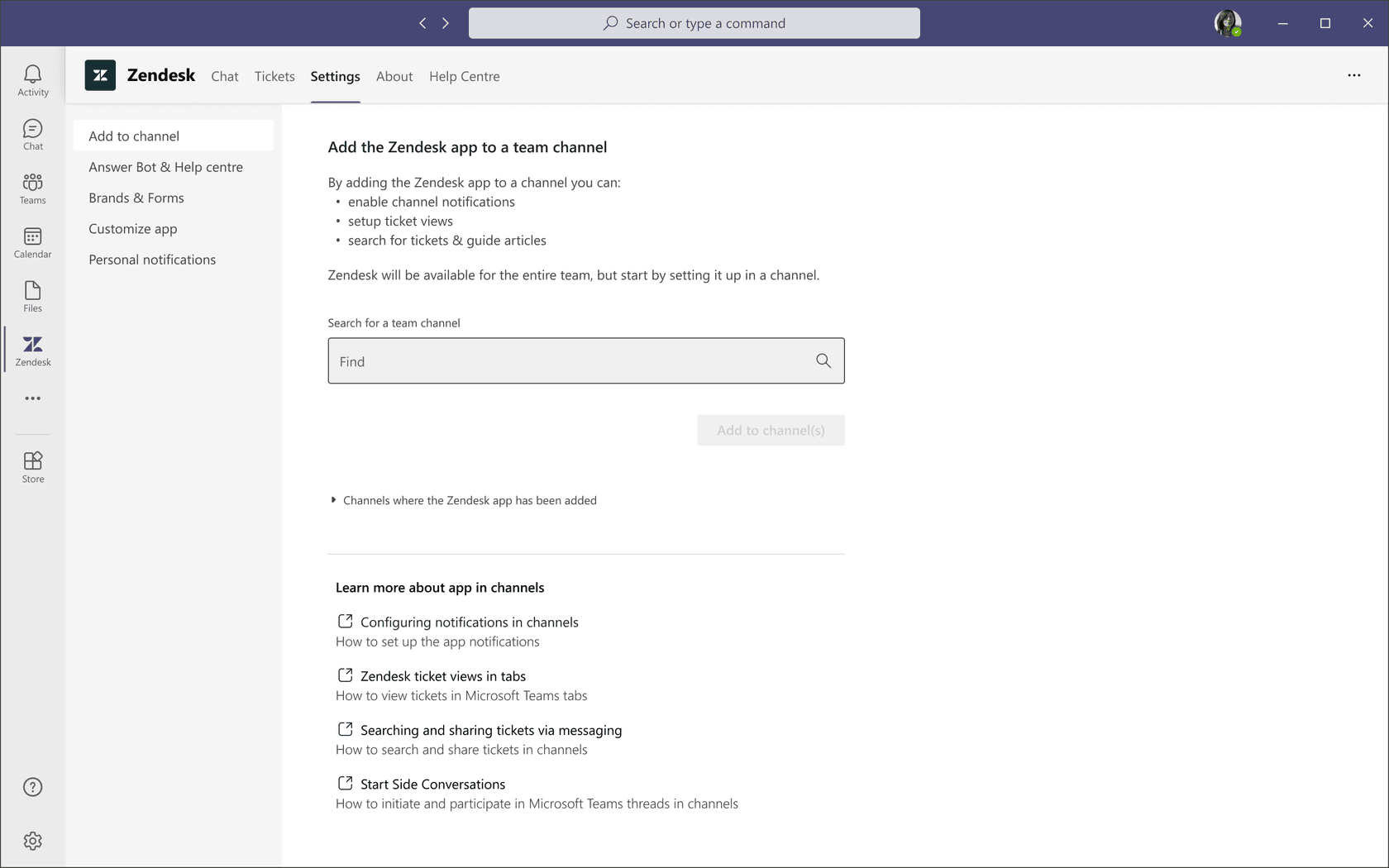
Once installed, admins can configure several options through the Settings tab:
- Channel setup Add the app to specific teams and channels where support conversations happen
- Answer Bot Enable article recommendations and select which help center to pull from
- Brands and forms Control which ticket forms and brands are visible to end users
- Notifications Set personal preferences for ticket alerts
- Customization Teams admins can modify the app's appearance (name, description, colors) through the Teams Admin Center
Note that some Settings tab features are currently admin-only. Agents and end users see placeholders for certain configuration options.
Pricing breakdown for new teams
Zendesk pricing with Teams integration access
The integration itself is free to install from the Microsoft Teams App Store. However, you need a qualifying Zendesk plan to use it.
| Plan | Annual Price | Integration Access | Best For |
|---|---|---|---|
| Support Team | $19/agent/month | Yes | Small teams starting with email |
| Suite Team | $55/agent/month | Yes | Teams needing omnichannel support |
| Suite Professional | $115/agent/month | Yes | Growing teams with workflows |
| Suite Enterprise | $169/agent/month | Yes | Large organizations |
Additional costs to consider
Beyond Zendesk, factor in:
- Microsoft 365 subscription Required for Teams access (typically $6-22/user/month depending on plan)
- Zapier If you need custom automations beyond the native integration ($19.99+/month for multi-step workflows)
- Add-ons Advanced AI agents, Copilot, Quality Assurance, and Workforce Management are all extra
Is it worth it for new teams?
Here's the honest assessment: the integration is free but requires qualifying plans that start at $19/agent/month for Zendesk plus your Microsoft 365 costs. For a team of five, you're looking at roughly $95/month minimum for Zendesk alone.
The integration makes sense if:
- Your team already lives in Teams for daily communication
- You handle significant internal support (IT, HR, Finance)
- You want to reduce context switching between tools
It may be overkill if:
- You're primarily doing customer-facing support
- Your team is small and rarely collaborates on tickets
- Budget is tight and you need to minimize per-seat costs
Alternatives for teams seeking simpler solutions
When to consider alternatives
Not every team needs the full Zendesk + Teams stack. You might look elsewhere if:
- The pricing feels steep for your current volume
- Setup complexity is a barrier
- You want AI-powered resolution rather than ticket management
- Per-seat pricing doesn't fit your budget model
eesel AI as a modern alternative
We built eesel AI for teams that want AI-powered support without the complexity of traditional integrations. Our approach differs in a few key ways:
Progressive rollout Start with the AI drafting replies for your team to review. As it proves itself, level up to full autonomous resolution. You're not flipping a switch and hoping for the best.
Works directly in Teams We integrate with Microsoft Teams so your team can get answers without switching contexts. The AI learns from your help center, past tickets, and connected documentation.
Plain-English configuration Tell the AI how to handle requests in natural language. No workflow builders, decision trees, or complex setup. "If the refund request is over 30 days, politely decline and offer store credit."
Pre-go-live testing Run simulations on past tickets to verify quality before the AI touches real customers. See exactly how it performs.
Different pricing model Starting at $299/month for 1,000 AI interactions, with no per-seat fees. For teams handling high volumes of repetitive requests, this can be more cost-effective than scaling human agents.
You can explore how we compare to traditional help desk approaches in our guide to AI for customer service.
Making the right choice for your team
Choosing between Zendesk, the Teams integration, and alternatives comes down to your specific situation:
Choose Zendesk with Teams integration if:
- You're already invested in both Zendesk and Microsoft 365
- Internal support (IT, HR, Finance) is a significant part of your workload
- Your team collaborates frequently on complex tickets
- You have the budget for per-seat pricing
Consider alternatives like eesel AI if:
- You want to reduce ticket volume through AI resolution, not just manage tickets better
- Per-seat pricing doesn't fit your budget model
- You prefer a teammate-like AI that learns and improves over time
- You want to start small and expand gradually
Start simple if:
- You're new to help desk software entirely
- Your volume is low and processes are straightforward
- You want to prove value before investing in integrations
The key is matching the tool to your actual needs rather than defaulting to the most popular option. A complex integration that sits unused helps no one.