Managing customer support across multiple social media platforms can feel like juggling flaming torches. Comments on Instagram posts, direct messages on Facebook, WhatsApp inquiries, and Twitter mentions all demand attention, but switching between native apps makes it nearly impossible to maintain context or respond promptly.
This is where the Zendesk social inbox comes in. Instead of treating social media as a separate silo, Zendesk integrates these channels directly into your existing support workflow. Your agents can handle social conversations alongside email and chat tickets, all from one unified interface.

Let's break down what the Zendesk social inbox actually is, which channels it supports, and how to set it up for your team.
What is the Zendesk social inbox?
First, let's clear up a common point of confusion. "Zendesk social inbox" is not a separate product you can buy. It refers to the social messaging capabilities built into Zendesk Suite and Zendesk Support with the messaging add-on.
When customers reach out via Facebook, Instagram, WhatsApp, or other supported platforms, their messages automatically become tickets in your Zendesk instance. Agents respond from the same Agent Workspace they use for email and chat, and their replies sync back to the original social platform.
This differs from standalone social media management tools like Hootsuite or Sprout Social, which focus on publishing content and monitoring brand mentions. Zendesk's approach treats social channels as support channels first, integrating them into your existing ticketing workflow rather than creating a separate queue.
The value is straightforward: centralized social support alongside your other channels. No more switching between apps, no lost context when a customer moves from a Facebook comment to a direct message, and no gaps in conversation history.
Social channels Zendesk supports
Zendesk's social messaging coverage is extensive, though the specific channels available depend on your plan tier.
Facebook and Instagram
Zendesk's integration with Meta platforms is particularly robust. Through the Facebook channel, you can capture:
- Public comments on your Facebook page posts
- Private messages via Facebook Messenger
- Comments on sponsored posts and ads
The Instagram Direct integration handles:
- Direct messages from customers
- Story replies and mentions
- Comments on your posts
Both require a Facebook Business Manager account and an Instagram Professional (Business or Creator) account linked to that Facebook page. Personal accounts won't work.
WhatsApp Business
The WhatsApp integration connects through the WhatsApp Business API, enabling:
- Two-way messaging with customers
- Template messages for proactive outreach (order updates, appointment reminders)
- Rich media support (images, documents, voice messages)
Setup requires Meta Business verification and phone number registration. Note that WhatsApp has strict rules about proactive messaging: you can freely reply to incoming messages within a 24-hour window, but sending messages outside that window requires pre-approved templates.
X (Twitter) and other platforms
Beyond the Meta ecosystem, Zendesk supports:
- X (Twitter): Direct Messages and public mentions through the X channel
- LINE: Popular messaging app in Japan and Southeast Asia
- WeChat: China's dominant messaging platform
- Slack: Direct Messages channel for internal support or specific use cases
- Apple Messages for Business: For customers using Apple devices
Third-party apps in the Zendesk Marketplace can extend this further to platforms like YouTube comments, though these may require additional subscription fees.
How the Zendesk social inbox works
Understanding the mechanics helps you set up workflows that actually work for your team.
From social post to ticket
When a customer interacts with your brand on a connected social channel, Zendesk creates a ticket automatically. Here's what happens:
- A customer comments on your Instagram post or sends a Facebook DM
- Zendesk generates a ticket with the full message content
- The ticket includes metadata about the channel, customer profile, and conversation context
- Agents see this ticket in their queue alongside email and chat tickets
When an agent replies, their response flows back to the original platform. The customer sees it as a native reply on Facebook, Instagram, or WhatsApp. The entire conversation thread stays synchronized.
Unified Agent Workspace
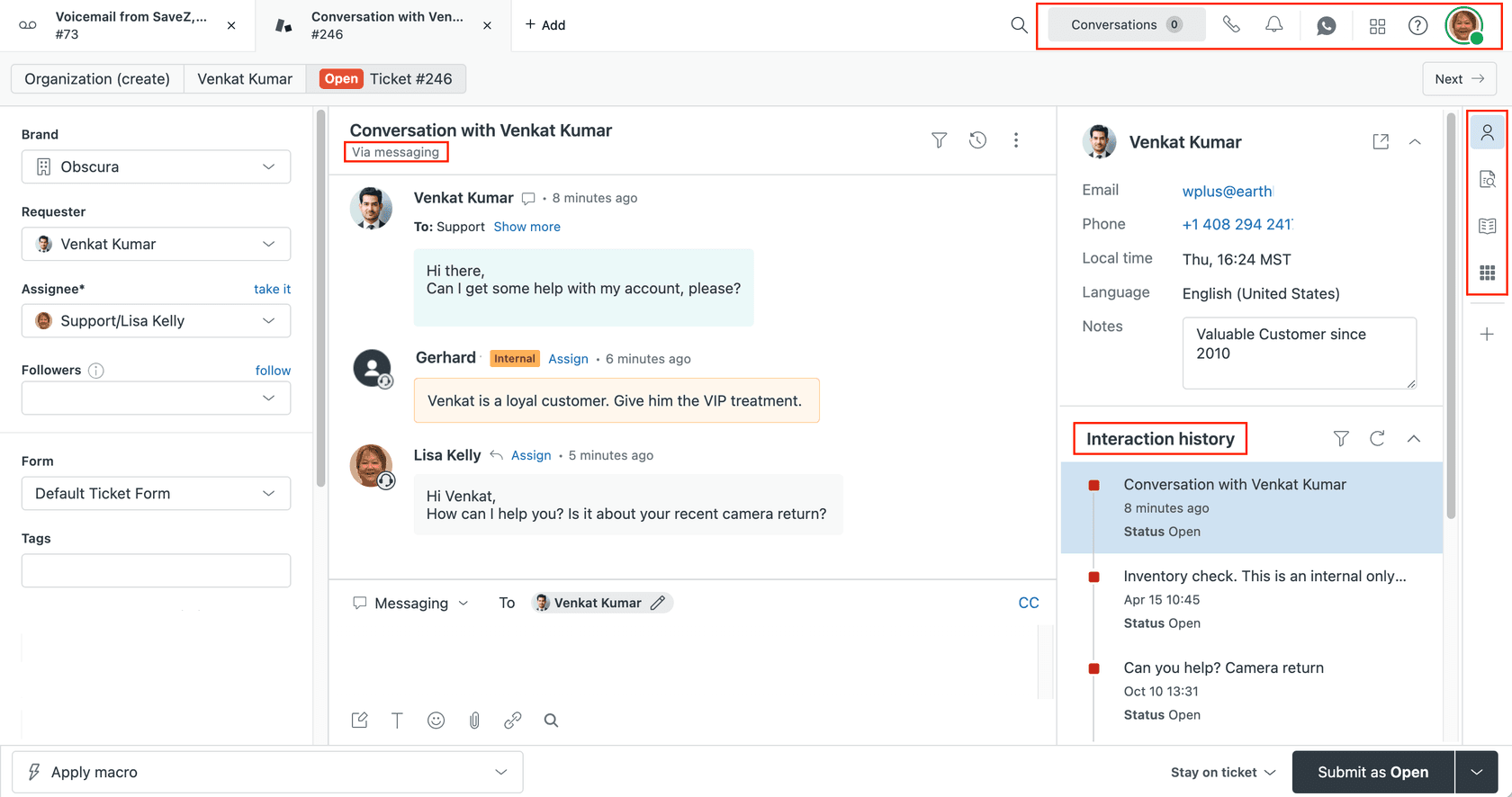
Social tickets appear in the Agent Workspace just like any other ticket. This means your agents can:
- Use the same macros and canned responses they use for email
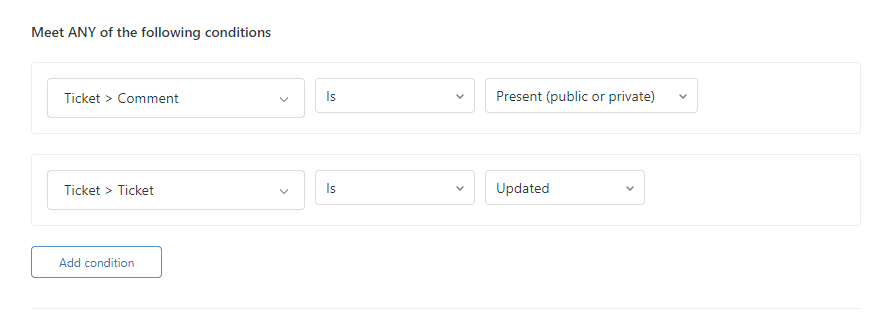
- Apply triggers and automations to social tickets
- Add internal notes for team collaboration
- Access customer history across all channels
- Transfer conversations between agents without losing context
The workspace displays conversation history from oldest to newest (with the newest at the bottom), which differs from traditional email ticketing but creates a more natural chat-like flow for messaging channels.
Customer context and history
One significant advantage is unified customer profiles. When someone contacts you via Instagram and later switches to email, Zendesk can link those interactions to the same customer record. Agents see the complete interaction history regardless of channel.
However, there's a known limitation: social media contacts sometimes create duplicate user profiles if the customer's social profile information doesn't match their email records. This is manageable but something to watch for during setup.
Setting up social messaging in Zendesk
Getting social channels connected requires some preparation and a methodical approach.
Prerequisites and requirements
Before you start, confirm you have:
- Zendesk Suite or Zendesk Support with Social Messaging add-on (Support Team plan only includes Facebook and X)
- Agent Workspace enabled (required for messaging channels)
- Admin privileges in both Zendesk and your social platforms
- Business accounts on all social platforms (personal accounts won't work)
- Facebook Business Manager account for Instagram and WhatsApp connections
Step-by-step channel configuration
The general setup flow follows this pattern:
- Navigate to Admin Center → Channels → Messaging and social → Add channel
- Select your desired platform (Facebook, Instagram, WhatsApp, etc.)
- Authenticate with your business account credentials
- Configure specific settings for that channel
- Test the connection with a sample message
For Facebook and Instagram specifically, you'll need to:
- Connect your Facebook Business Manager account
- Grant Zendesk permissions to access your pages
- Select which specific pages to monitor
- Configure whether to capture comments, messages, or both
For WhatsApp, the process involves:
- Registering a phone number with WhatsApp Business API
- Completing Meta Business verification
- Setting up message templates for proactive outreach
Routing and workflow setup
Once channels are connected, configure how social tickets flow through your system:
- Triggers: Create automated rules for social tickets (e.g., "If ticket source is Instagram and contains 'refund,' assign to Billing team")
- Business hours: Set when social channels are actively monitored
- Auto-responses: Configure immediate acknowledgments for social messages
- AI agents: Deploy automated responses for common questions on messaging channels
The key is treating social tickets with the same workflow discipline as email, while respecting the faster response expectations customers have for social platforms.
Common challenges and solutions
Social support has unique wrinkles that email doesn't. Here's what to watch for.
Integration issues
Facebook and Instagram connections occasionally disconnect, often due to token expiration or permission changes. When this happens:
- Reauthorize the connection in Admin Center
- Verify your Facebook Business Manager permissions are current
- Check that your Instagram account remains linked to your Facebook page
WhatsApp template messages require Meta approval, which can take 24-48 hours. Plan ahead for campaigns requiring proactive outreach.
Volume and staffing considerations
Social media volume can spike unpredictably. A viral post might generate hundreds of comments in hours. Consider:
- Setting clear SLAs for social channels (typically faster than email)
- Using automated triage to separate urgent issues from general comments
- Creating specific views or queues for social tickets
- Training agents on the different tone expectations for public vs. private social interactions
The seven-day Facebook Messenger rule is particularly important: you cannot respond to Messenger conversations after seven days of inactivity. Plan your workflows accordingly.
Platform limitations
Meta Business Manager adds complexity to Facebook and Instagram setups. The platform's permission structure can be confusing, and changes on Meta's side sometimes break integrations without warning.
Duplicate user profiles remain a persistent issue. When a customer contacts you via Instagram using one email address, then emails from a different address, Zendesk may not automatically merge those records.
Enhancing Zendesk social inbox with AI
For teams dealing with high social volume, AI can extend what Zendesk's native features offer.
AI-powered triage can automatically categorize incoming social tickets by urgency, sentiment, and topic. This helps agents prioritize effectively when facing a flood of mentions after a product launch or during a service outage.
Sentiment analysis adds another layer, flagging frustrated customers for immediate attention while routing routine questions to automated workflows.
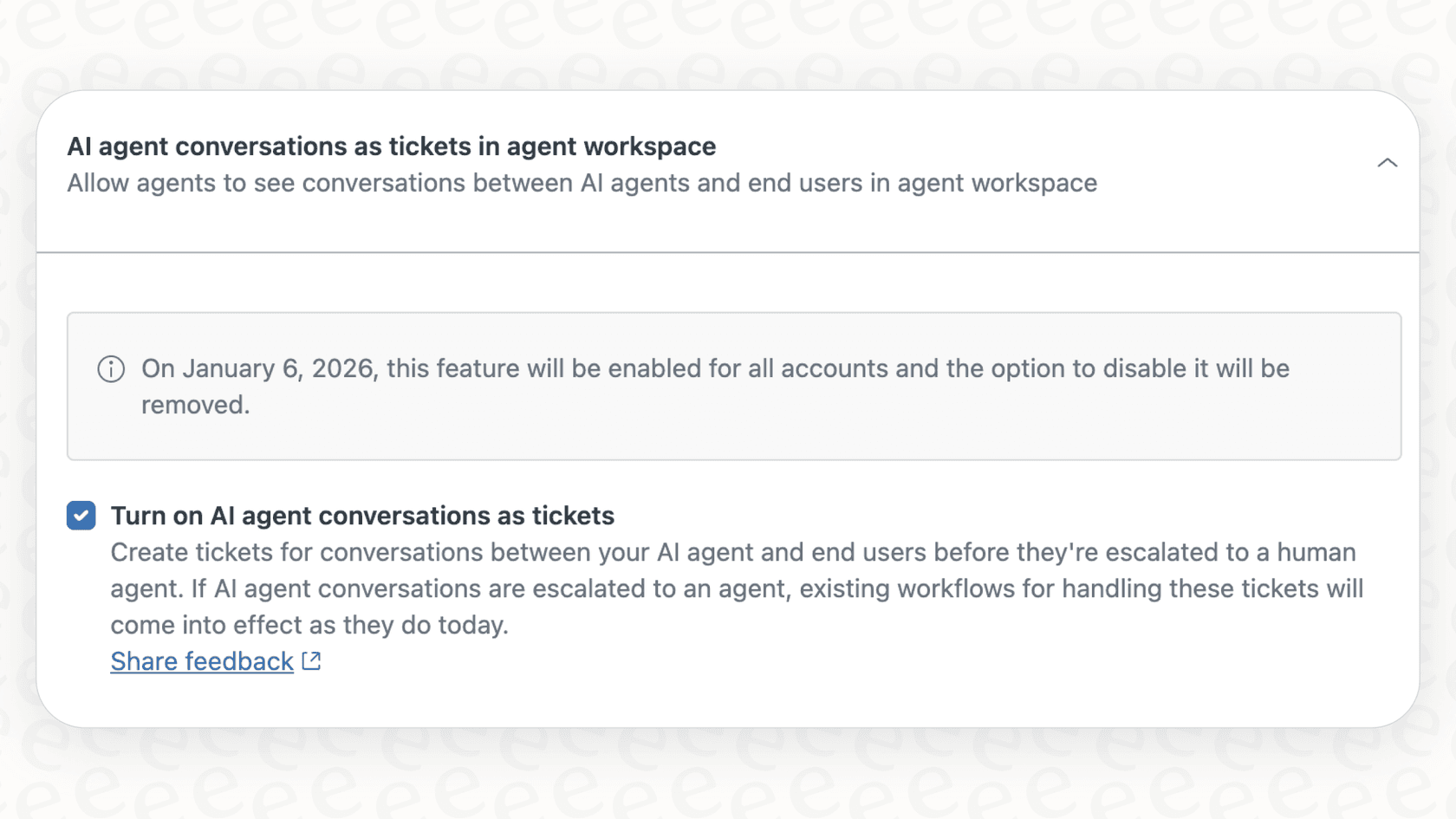
At eesel AI, we work with teams looking to add an AI layer on top of their existing Zendesk setup. Our approach connects to your Zendesk instance and trains on your past tickets, help center articles, and conversation history. This means the AI understands your specific products, policies, and brand voice from day one.
For social support specifically, this can mean autonomous handling of common questions ("What's your return policy?" "Where's my order?") while seamlessly escalating complex issues to human agents. The AI drafts responses in your brand voice, and agents review before sending until you're confident in full automation.
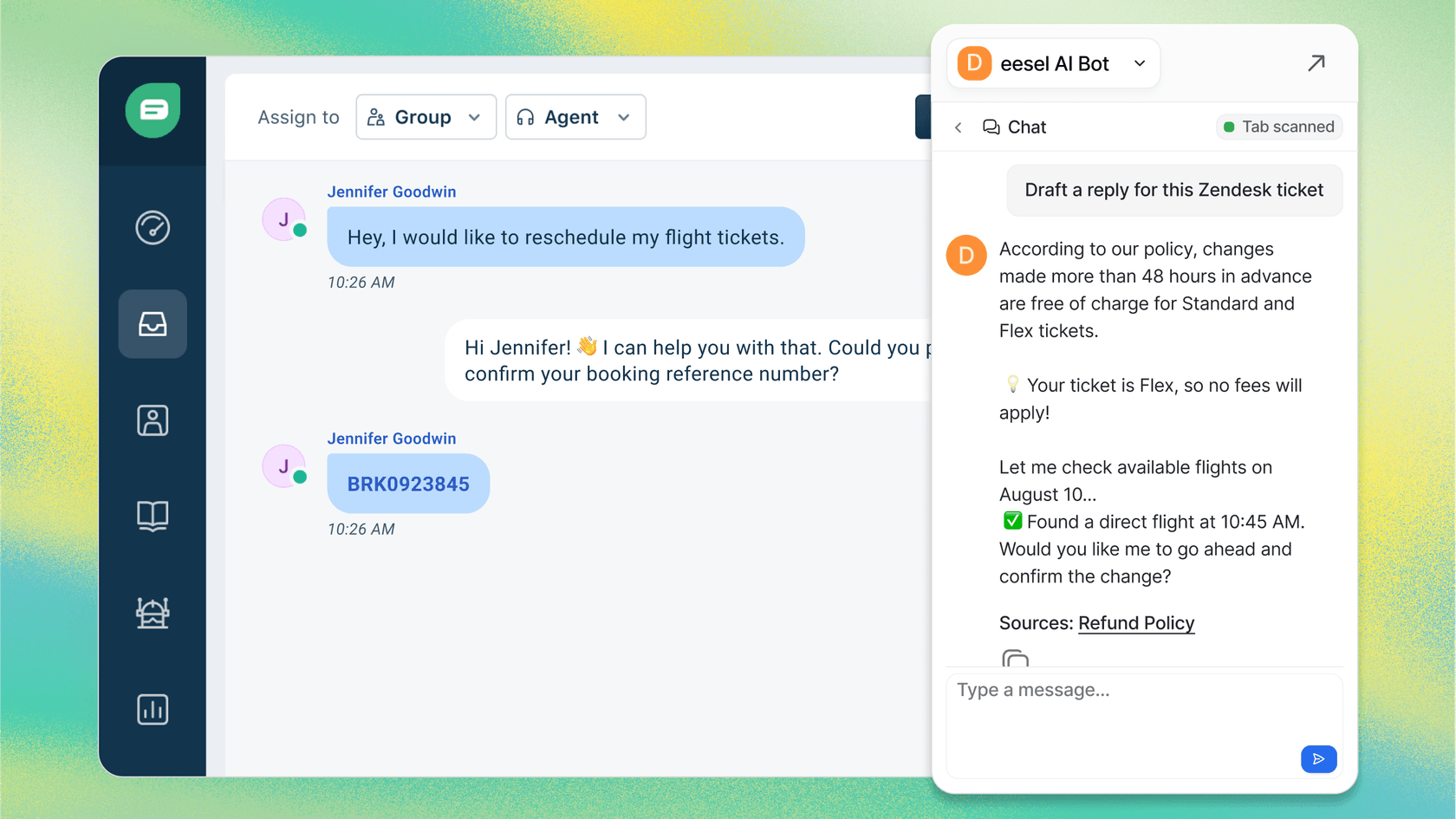
The key difference from Zendesk's native AI agents is flexibility. Where Zendesk's AI works within their structured framework, tools like eesel AI can pull from knowledge sources beyond Zendesk (Confluence, Notion, Google Docs) and handle more nuanced escalation rules in plain English.
Is Zendesk social inbox right for your team?
Zendesk's social messaging capabilities make the most sense for teams already invested in the Zendesk ecosystem. If you're using Zendesk for email and chat support, adding social channels creates a genuinely unified workflow.
The native features work best when:
- Your social volume is moderate and manageable within your existing team structure
- You primarily need Facebook, Instagram, and WhatsApp coverage
- You want social tickets treated exactly like other support tickets
- Your team is comfortable working within Zendesk's interface
You might need dedicated social media management tools instead if:
- Social media is primarily a marketing function with light support needs
- You need sophisticated publishing, scheduling, and analytics capabilities
- Your social volume is extremely high (thousands of mentions daily)
- You need deep competitive monitoring and brand sentiment analysis
For teams in the middle, integrations exist. Hootsuite and Sprout Social both connect to Zendesk, allowing social teams to create support tickets when issues arise without leaving their preferred tools.
Getting started with social support in Zendesk
If you're ready to unify your social support, start with a single channel. Facebook Messenger or Instagram Direct are good starting points, they have the most mature Zendesk integrations and the clearest use cases.
Set up the connection, test with internal accounts, and establish your routing rules before announcing the channel to customers. Monitor volume closely for the first few weeks and adjust your workflows as patterns emerge.
Social support moves faster than email, and customers expect quicker responses. Make sure your team is prepared for the pace before opening the floodgates.