When you're setting up Zendesk for your support team, one of the most important configurations is getting your email flowing correctly. Customers expect to reach you at a professional address like support@yourcompany.com, but you want those messages to become tickets in Zendesk where your team can manage them efficiently.
That's where email forwarding comes in. It lets you keep your branded email address while routing everything through Zendesk's ticketing system. This guide walks you through the complete setup process, from planning your address structure to troubleshooting common issues.
If you're looking to enhance your Zendesk setup further, we integrate with Zendesk to add AI-powered ticket handling on top of your existing email workflows.

What you'll need
Before you start, make sure you have:
- A Zendesk account with admin access
- An external email address you want to forward from (like support@yourcompany.com)
- Access to your email provider's forwarding settings
- DNS management access for your domain (to add SPF and DKIM records)
Step 1: Plan your support address structure
When you first create a Zendesk account, you get a default support address that looks like this: support@yoursubdomain.zendesk.com. This works fine for testing, but most companies want to use their own branded domain.
You have two options for handling this:
Use the default Zendesk address if you're just starting out or have low volume. It's simpler to set up and maintain.
Forward from an external address if you want customers to see your branded domain in all communications. This is what most established companies choose.
If you receive support requests at multiple addresses (like billing@, help@, and sales@), Zendesk recommends creating a separate Zendesk support address for each one. This 1:1 mapping makes it easier to route tickets to the right teams based on which address received the email.
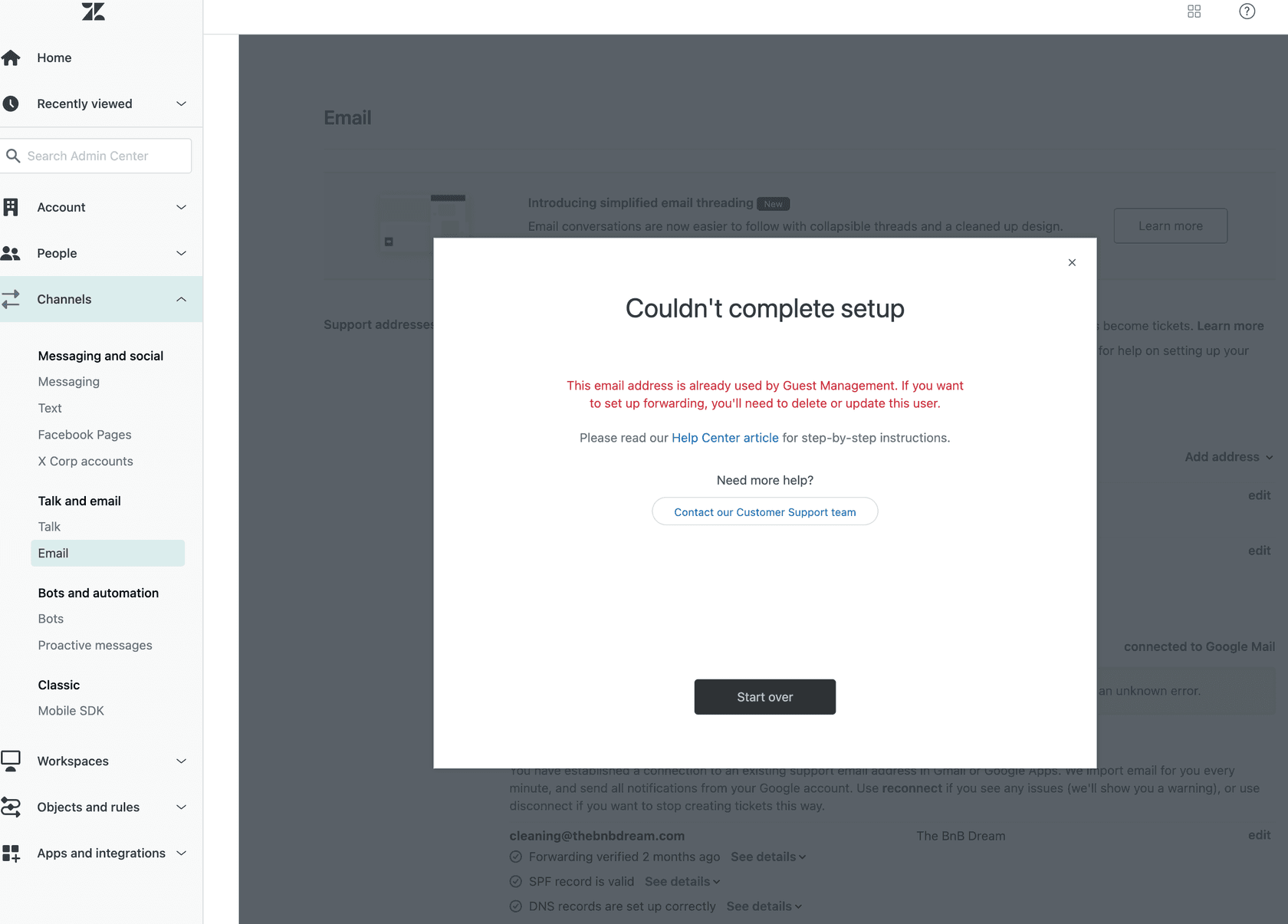
Step 2: Add your external support address in Zendesk
Start by adding your external address to Zendesk so the system can verify it and use it for outbound email.
- In Admin Center, click Channels in the sidebar, then select Talk and email > Email
- Click Manage support addresses
- Click Add address, then select Connect external address
- Choose Email forwarding and click Next
- Enter your existing support email address (like support@yourcompany.com)
A few important notes here. Don't use a distribution group or email alias as your external support address. These can cause routing issues and make troubleshooting difficult. Stick with a dedicated forwarding address.
Also, if the Zendesk support address you're forwarding to doesn't exist yet, create it first. You can use your default address or create a new one specifically for this external address.
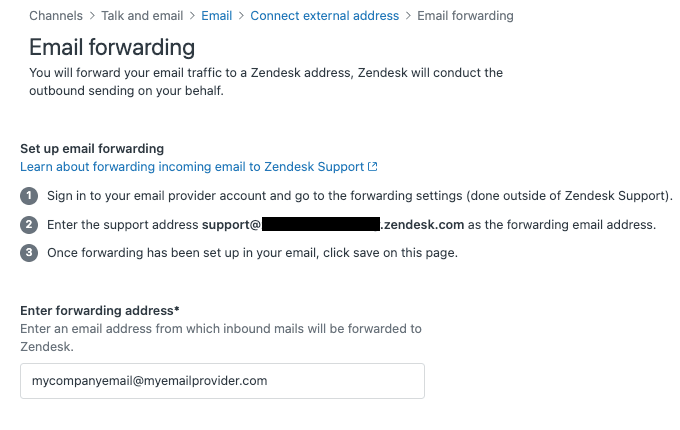
Step 3: Configure forwarding on your mail server
Now you need to set up automatic forwarding from your external email address to your Zendesk support address. This happens at the server level, not in your email client.
Here's why that matters. If you manually forward emails from Outlook or Mac Mail, Zendesk will see you as the sender instead of the original customer. This creates tickets with you listed as the requester, which defeats the purpose. Server-level forwarding preserves the original sender information.
The exact steps depend on your email provider:
- Microsoft 365: Go to Exchange admin center, select the mailbox, and set up forwarding under mailbox features. You may need to allow forwarding in Manage Remote Domains first.
- Gmail/Google Workspace: Use the forwarding settings in Gmail or set up routing rules in the Google Admin console.
- Other providers: Check your provider's documentation for automatic forwarding or email routing options.
Once forwarding is configured, Zendesk will send a verification email to your external address. This creates a ticket in Zendesk that you'll need to find and approve to confirm the setup is working.
Step 4: Add SPF and DKIM records for security
After forwarding is working, you need to configure email authentication so your replies don't end up in spam folders.
SPF (Sender Policy Framework) tells email providers which servers are allowed to send email on behalf of your domain. Without it, emails sent from Zendesk on your behalf might be flagged as suspicious.
Add this to your domain's SPF record:
include:mail.zendesk.com
DKIM (DomainKeys Identified Mail) adds a digital signature to your emails that proves they actually came from your organization. Zendesk requires two CNAME records:
zendesk1._domainkey.yourdomain.com → zendesk1._domainkey.zendesk.com
zendesk2._domainkey.yourdomain.com → zendesk2._domainkey.zendesk.com
Replace "yourdomain.com" with your actual domain. These records go in your DNS settings, usually managed through your domain registrar or DNS provider.
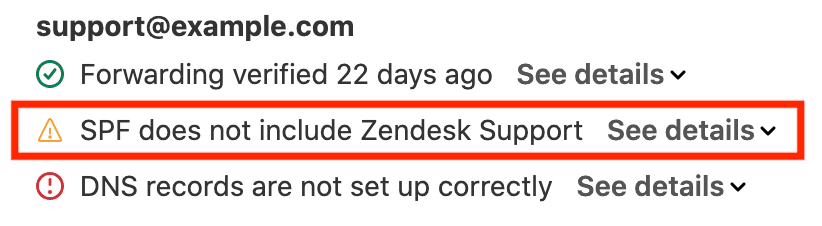
Troubleshooting common Zendesk email forwarding issues
Even with careful setup, you might run into a few common problems.
"SPF does not include Zendesk Support" error
This means your SPF record is missing the Zendesk include. Check your DNS settings and make sure include:mail.zendesk.com is present. Note that SPF changes can take up to 48 hours to propagate.
Verification emails not arriving If the verification email doesn't show up in your unsolved tickets, check your Suspended tickets view. Sometimes verification emails get caught there. You may also need to add your email provider to your allowlist in Zendesk.
Emails creating suspended tickets This usually happens when forwarding is set up at the email client level instead of the server level. Double-check that you're using automatic forwarding rules in your email provider's admin panel, not just hitting "forward" in Outlook.
Multi-forwarding problems Zendesk doesn't support forwarding chains where email goes through multiple addresses before reaching Zendesk. Set up direct forwarding from your external address straight to your Zendesk address.
If you're dealing with high email volumes and complex routing issues, our AI Triage can help automatically categorize and route incoming email tickets based on their content, reducing manual sorting work.

Best practices for managing Zendesk email workflows
Once your forwarding is set up, a few practices will help you get the most out of it.
Timing matters. Connect your email as one of the last steps before going live. Once forwarding is active, new tickets will start coming in, so make sure your team is ready to handle them.
Set up routing rules. Use triggers in Zendesk to automatically assign or tag tickets based on which support address received them. This helps route billing questions to your finance team and technical issues to your product team.
Monitor your volume. Keep an eye on how many emails are coming through each address. If one address is getting overwhelmed, you might need to adjust your routing or staffing.
Consider AI assistance. As your email volume grows, manually sorting and responding to every message becomes unsustainable. We offer AI-powered tools that work within Zendesk to draft responses, route tickets, and handle common inquiries automatically.
Enhancing Zendesk email with AI
Email-based support has been around for decades, but modern AI can transform how you handle it. Instead of agents manually reading and responding to every email, AI can take on much of the routine work.
Here's how it works. When an email comes into Zendesk, AI reads the content, understands the issue, and either drafts a response or routes it to the right person. For common questions like "What's my order status?" or "How do I reset my password?", the AI can respond directly. For complex issues, it prepares everything the agent needs so they can focus on solving the problem rather than gathering information.
The key advantage is progressive rollout. You don't have to turn everything over to AI at once. Start by having it draft responses for agents to review. Once you're confident in the quality, let it send simple responses automatically. Eventually, it can handle full conversations while escalating only the edge cases you define.
This approach works particularly well with email because there's already a natural delay in the conversation. Unlike chat where customers expect instant responses, email gives the AI time to analyze the issue thoroughly and craft a helpful reply.
If you're interested in adding AI to your Zendesk email workflow, you can see how we integrate with Zendesk and try it out on your existing tickets before going live.