
Tracking ticket trends is one of those things every support team knows they should do, but getting started feels overwhelming. You're staring at Zendesk Explore, wondering which dataset to use, which metrics matter, and whether the numbers you're seeing actually mean what you think they mean.
Here's the short version: if you want to track how your ticket volume changes over time, you need the Updates history dataset, the Tickets created and Tickets solved metrics, and a column chart. Everything else is just details.
This guide walks you through building your first ticket trend report step by step. We'll cover the common mistakes that trip up even experienced admins, and show you how to interpret what your data is actually telling you. For teams that want these insights without building reports manually, we also offer AI-powered analytics that work alongside your existing Zendesk setup.
What you'll need
Before you start building reports, make sure you have:
- Zendesk Explore Professional or Enterprise the basic Explore plan doesn't include custom report building
- Editor or Admin permissions in Explore agents can't create or modify reports
- Ticket data in your Zendesk Support account you'll need at least a few weeks of data for meaningful trends
- Basic familiarity with the Explore interface knowing how to navigate to the Reports library and open the report builder
If you're on a lower-tier plan, you can still view pre-built reports, but you won't be able to create the custom trend reports described here.
Step 1: Choose the right dataset for Zendesk Explore ticket trend over time
This is where most people go wrong. Zendesk Explore has multiple datasets, and choosing the wrong one will give you confusing or misleading results.
For tracking ticket trends over time, you almost always want the Updates history dataset. Here's why:
Updates history dataset: Records every change made to tickets. It's event-based, tracking what happened and when. This is what you need for trend analysis because it captures the historical flow of tickets through your system.
Tickets dataset: Shows the current state of tickets only. It's a snapshot, not a history. If you try to build a "created vs solved by date" report using this dataset, your numbers won't match reality because it doesn't track when things happened, only how they are right now.
Backlog history dataset: Shows how many unsolved tickets existed on any given date. Useful for backlog analysis, but not for the created vs solved trends most teams need.
Quick decision framework:
- Tracking trends or measuring performance over time? → Updates history
- Need a current snapshot of solved workload? → Tickets dataset
- Analyzing backlog growth or reduction? → Backlog history
Step 2: Add your metrics
Once you've selected the Updates history dataset, it's time to add the metrics that tell the story.
In the Metrics panel, click Add and select:
- Tickets created shows volume coming into your queue
- Tickets solved shows volume being resolved
Why both together? Tickets created shows what's coming in. Tickets solved shows what's going out. When solved consistently exceeds created, you're reducing backlog. When created exceeds solved, your queue is growing.
Important distinction: Make sure you're selecting "Tickets solved" (the historical metric from Updates history), not "Solved tickets" (the snapshot metric from the Tickets dataset). They sound similar but measure completely different things. We cover this more in the common mistakes section.
For the aggregator, use COUNT for both metrics. This gives you the raw number of tickets rather than unique counts.
Step 3: Configure date filtering
Now you need to tell Explore which time period to analyze. In the Filters panel, click Add and choose Time - Ticket update attributes.
You have two approaches for date ranges:
Simple ranges: "This year," "Last 30 days," "This week" good for standard reporting
Advanced ranges: "12 weeks in the past to 1 week in the past" useful when you want to exclude partial current periods
Pro tip for weekly analysis: Always use full weeks of data. Partial weeks can skew your results because weekdays have different ticket volumes than weekends. If you're reporting on "this week" on a Wednesday, you're comparing three days against full seven-day weeks.
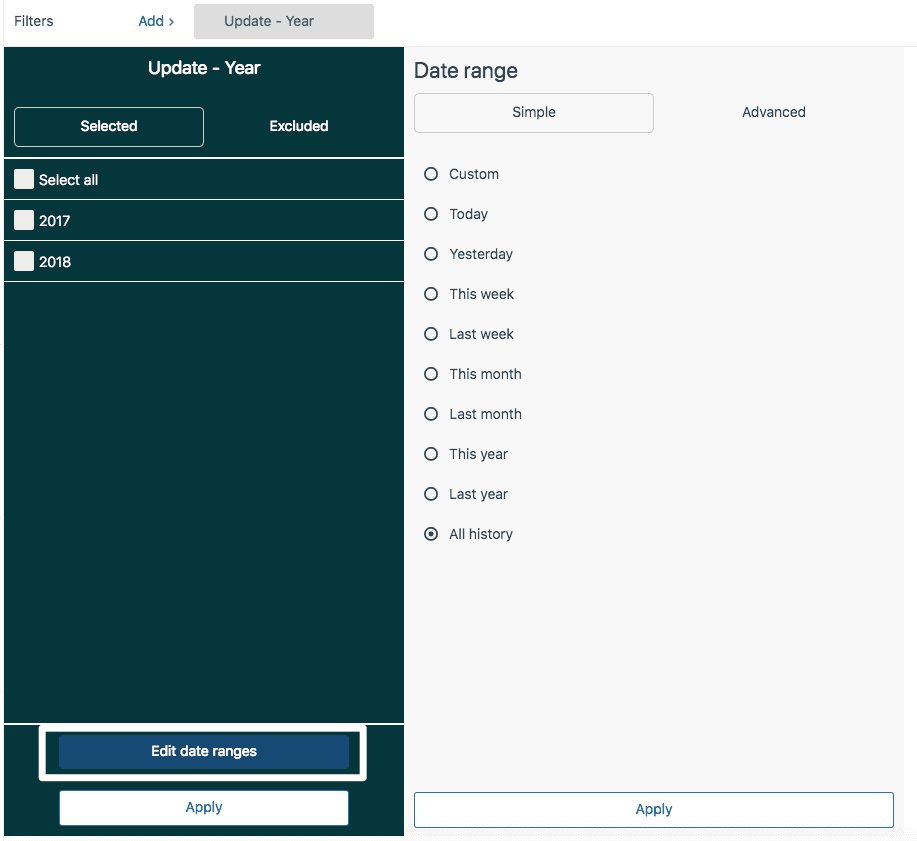
You can also add multiple time attributes for more granular filtering. For example, add Update - Year to the Filters panel and Update - Week to the Columns panel to see weekly trends within a specific year.
Step 4: Set up columns and visualization
With your metrics and filters in place, it's time to structure how the data displays.
In the Columns panel, click Add and choose a time attribute:
- Update - Date for daily granularity
- Update - Week for weekly trends
- Update - Month for monthly overviews
Now select your chart type. For Zendesk Explore ticket trend over time analysis, these work best:
Line charts: Best for detailed time series, especially when you want to add trend lines. Good for spotting patterns over longer periods.
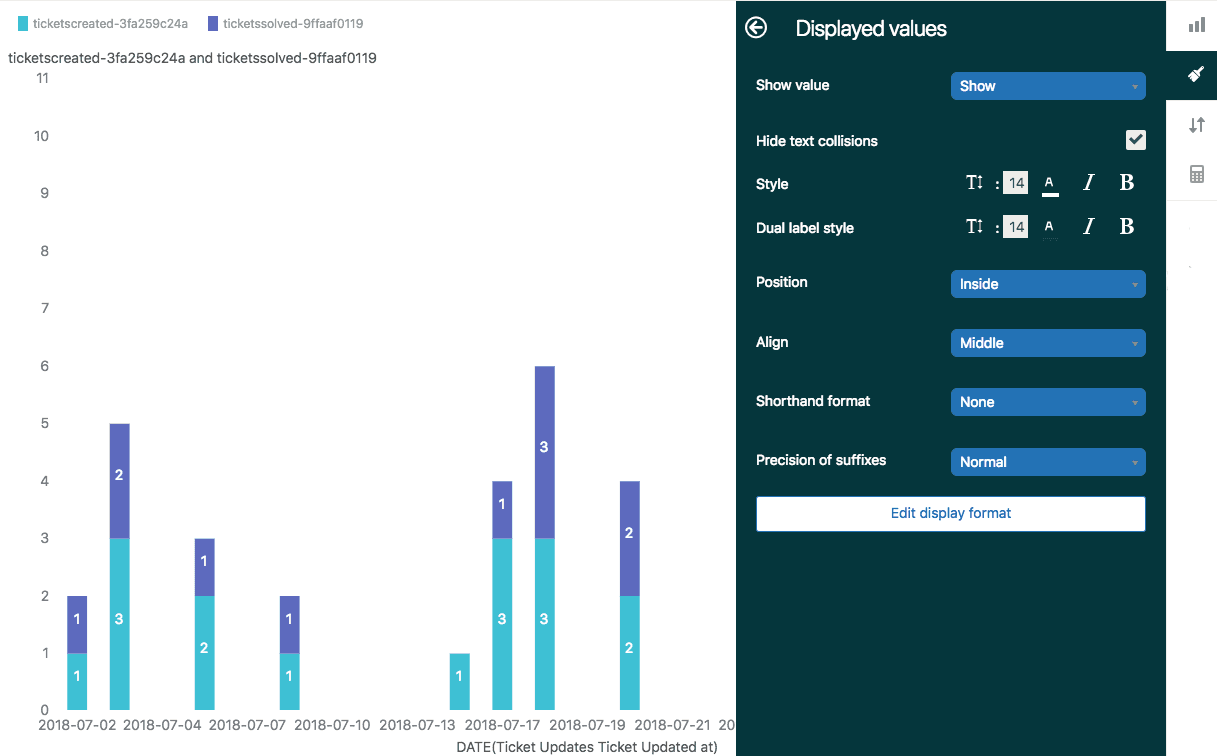
Column charts: Better when your time series doesn't have too many data points. Enable the Stacked option to view Tickets created and Tickets solved in the same column for easy comparison.
Area charts: Similar to line charts but with shading under the line to emphasize volume.
From the Chart configuration menu, you can customize colors, grid lines, and whether to show values inside columns. For trend reports, showing the actual numbers on the chart often makes the data more actionable.
Click Save to store your report. You can now add it to a dashboard or return to it from the Reports library.
Common mistakes to avoid
Even experienced admins make these errors. Here's what to watch for:
Using the Tickets dataset for trend analysis: The Tickets dataset shows current status, not historical events. If your "created vs solved" report shows impossible numbers, check which dataset you're using.
Confusing "solved tickets" vs "tickets solved": "Solved tickets" is a snapshot of tickets currently in solved status. "Tickets solved" counts tickets that reached solved status historically. If tickets get reopened, they leave "solved tickets" but still count in "tickets solved." For historical reporting, you want "Tickets solved" from the Updates history dataset.
Ignoring business hours vs calendar hours: Zendesk tracks both. If your SLA is based on business hours but you're looking at calendar hours in your report, you'll get misleading results. Check which time metric you're using:
- Calendar hours: "Full resolution time (min)"
- Business hours: "Full resolution time - Business hours (min)"
Not accounting for data sync delays: Explore data syncs every 1-4 hours. If you solved a ticket 30 minutes ago, it might not appear in your report yet. For real-time operational decisions, know that your Explore data is slightly behind.
Double-counting solved-to-closed transitions: The "Tickets solved" metric in Updates history already excludes solved-to-closed transitions. But if you're building custom formulas, make sure you don't count these as separate resolutions.
For more on getting accurate metrics, see our guide on how to use the Zendesk Explore tickets solved metric.
Advanced: Adding trend lines and calculations
Once you have basic trend reports working, you can add more sophisticated analysis.
Trend lines: In the Chart configuration menu, select Trend line and choose a type (linear, polynomial, etc.). This overlays a trend direction on your data, making it easier to see whether things are improving or deteriorating over time.
Date range calculated metrics: Want to compare this month to last month? Or this year to last year? Create calculated metrics that pull data from specific time periods, then display them side by side.
Result metric calculations: Calculate percentage change between periods. For example, show the percentage increase or decrease in tickets solved week-over-week.
Sparkline charts: These display a simplified representation highlighting key values like the last value, lowest value, and highest value. Useful for dashboard summaries where you want trend context without full detail.
Interpreting your ticket trend data
Building the report is only half the battle. Knowing what the data means is what drives decisions.
Created vs solved patterns:
- Solved consistently higher than created: You're reducing backlog, team is keeping up
- Created consistently higher than solved: Backlog is growing, you need more capacity
- Both trending up: Volume is increasing, but team is scaling with it
- Both trending down: Volume is decreasing (seasonal, product improvements, or fewer customers)
Backlog indicators: If your created line stays flat but solved drops, your backlog is growing even though incoming volume hasn't changed. This often indicates team capacity issues rather than demand issues.
Seasonal patterns: Look for repeating cycles. Many support teams see higher volume on Mondays, after product launches, or during specific seasons. Recognizing these patterns helps with staffing decisions.
Anomalies: Sudden spikes or drops usually indicate something specific happened. A product bug, a marketing campaign, a holiday, or a process change. When you see anomalies, drill down by adding attributes like Ticket group or Channel to find the cause.
Going beyond Explore with AI-powered insights
Zendesk Explore is powerful, but it requires manual report building, dataset knowledge, and formula writing. Every time you want a new insight, you're back in the report builder configuring filters and calculations.
For teams that want resolution insights without the complexity, there's another option.
Our AI agent integrates directly with Zendesk and provides autonomous resolution tracking. Instead of building reports, you get:
- Real-time resolution insights without custom formulas
- Natural language queries ask "how many tickets did we solve this week?" instead of navigating datasets
- Automated tracking of resolution rates, SLA compliance, and agent performance
- No manual report maintenance insights update automatically as tickets flow through your system
We work alongside your existing Zendesk setup, learning from your past tickets, help center, and macros to provide insights that match your specific business context. If you're spending more time building reports than acting on insights, it might be time to consider an approach that handles the analytics automatically.
Start tracking your support trends today
You now have everything you need to build ticket trend reports in Zendesk Explore. The key steps are simple: choose the Updates history dataset, add Tickets created and Tickets solved metrics, filter by your desired time period, and visualize with columns or lines.
Start with a basic created vs solved report for the last 30 days. Once that's working, expand to weekly views, add trend lines, or create calculated metrics for deeper analysis.
If you're finding that manual report building is taking time away from actually improving your support operations, try eesel AI for automated resolution tracking and natural language insights. We integrate with Zendesk to give you the analytics you need without the report-building overhead.


