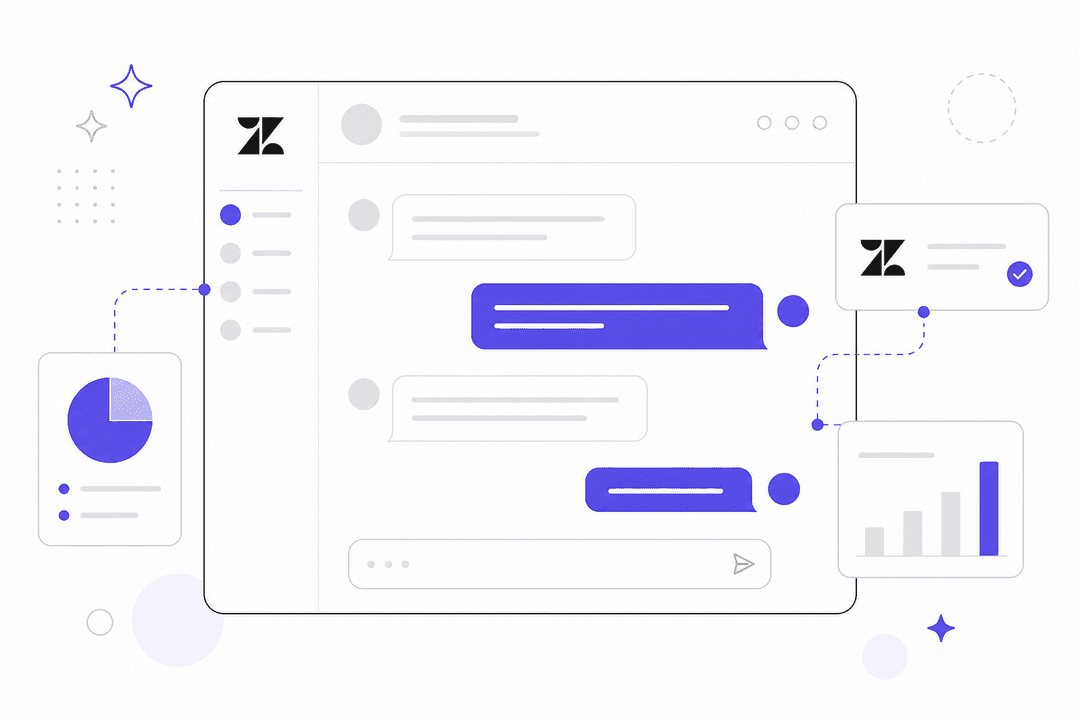
Zendesk Explore gives you powerful analytics capabilities, but the real value comes when you can share those insights with the right people in the right format. Dashboard filters let viewers customize what they see without editing underlying reports. Audience sharing controls who can access what data. Together, they determine whether your analytics drive action or sit unused.
This guide covers everything you need to know about configuring filters and sharing dashboards in Zendesk Explore. We'll also touch on what's changing with the new Dashboard Builder (the legacy version sunsets in Q4 2025) and how tools like eesel AI can help you act on the insights you uncover.
What you'll need
Before diving in, make sure you've got the right setup:
- Zendesk Explore Professional or Enterprise dashboard filters require at least Professional; external sharing and advanced scheduling need Enterprise
- Admin or Editor permissions viewers can't create or modify filters
- Existing reports you'll need at least one report to add to a dashboard before you can apply filters
- Familiarity with datasets understanding which dataset your reports use (Support - Tickets, Updates history, etc.) helps when configuring filters
If you're still using the legacy Dashboard Builder, note that Zendesk is sunsetting it in Q4 2025. The new builder works differently in some key ways we'll cover later.
Understanding dashboard filter types
Zendesk Explore offers three main filter types, each serving a different purpose. Think of them as different ways to let dashboard viewers ask questions of your data.
Time filters
Time filters let viewers select date ranges dynamically. Instead of creating separate reports for "last week," "last month," and "this quarter," you create one report and let users choose their timeframe.
You get two options when configuring time filters:
- Simple ranges preset options like today, this week, last week, this month, last month
- Advanced rolling ranges custom periods like "20 days in the past" or repeating patterns for business reporting
The key thing to remember: time filters apply across all reports on a dashboard that use the same dataset. If your dashboard mixes Support and Chat datasets, you'll need separate time filters for each. Learn more about dashboard filter fundamentals in Zendesk's documentation.

Data filters
Data filters let viewers narrow results by specific attributes. Want to let your team leads see only their group's tickets? Add a data filter for "Ticket group." Need to filter by channel? Add a "Ticket channel" filter.
Key capabilities include:
- Multi-select viewers can choose multiple values (e.g., both "Email" and "Chat" channels)
- Search for attributes with 15+ values, a search bar appears automatically
- Value limits only the first 100 values display by default, but you can expand or search for specific values
Data filters work best when you know viewers will want to slice the same report different ways. Instead of building 12 versions of a report (one per group), you build one report with a group filter. See Zendesk's guide on filtering reports for more details.

Change attributes
Change attributes are the most powerful and least understood filter type. They let viewers switch the dimension being analyzed without editing the underlying report.
Here's how it works: you create a report showing tickets by month. You add a change attribute that includes "Month," "Week," and "Date." Now viewers can toggle between seeing monthly trends, weekly breakdowns, or daily numbers all from the same report.
This is especially useful for self-service analytics where different stakeholders prefer different levels of granularity. Check out Zendesk's advanced filter recipes for more ideas.

Step-by-step: Adding filters to your dashboard
Let's walk through the actual process of building a filtered dashboard. We'll use a common scenario: a support manager who wants to track team performance with filters for time period and assignee.
Step 1: Create your base report
Start by building the report you want to filter. For our example:
- In Explore, click the reports icon, then New report
- Select Support > Support - Tickets dataset
- In the Metrics panel, add Tickets and Solved tickets
- In the Rows panel, add Assignee name
- Click Save > Add to dashboard, then create a new dashboard called "Team Performance"
For detailed instructions on creating reports, see Zendesk's report creation guide.
The report will show all agents and their ticket counts. Don't worry about filtering yet we'll add that at the dashboard level.

Step 2: Add a time filter
Now let's let viewers choose their date range:
- Open your "Team Performance" dashboard and click Edit
- Click the + icon, then select Time filter
- In the Time filters panel, select Ticket solved (this determines which date field the filter applies to)
- Click Add
The time filter appears on your dashboard. Click it to test you'll see options ranging from "Today" to custom date ranges. When you select a range, the report updates automatically.

Step 3: Add a data filter
Next, add the assignee filter:
- Click the + icon again, then select Add data filter
- Choose Assignee name from the attribute list
- Select which agent names to display (or leave all selected)
- Click Add
Now viewers can filter to specific agents or groups of agents. The search bar appears automatically if you have more than 15 assignees.

Step 4: Test and publish
Before sharing, preview your dashboard:
- Click Preview to exit edit mode and see the viewer experience
- Try different filter combinations select last week, then filter to specific agents
- Verify the report updates correctly for each combination
- Click Save to finalize
Your filtered dashboard is now ready to share.
Sharing dashboards with the right audience
Creating a great dashboard is only half the battle. You also need to get it to the right people with appropriate access controls.
Internal sharing and permissions
Zendesk Explore uses role-based permissions that determine who can do what:
| Role | What they can do |
|---|---|
| Admin | Full access including dataset management and sharing controls |
| Editor | Create and edit reports and dashboards |
| Viewer | View shared dashboards only |
| Limited Viewer | View dashboards with restricted data access |
Beyond roles, you can apply dashboard restrictions to limit what data viewers see. For example, you might create a single "Team Performance" dashboard but restrict it so each team lead only sees their own group's data.
The new Dashboard Builder also supports dynamic filtering based on viewer similar to dynamic views in Zendesk Support. You can configure a dashboard to automatically filter to "tickets where current user is the assignee," giving every agent a personalized view from the same dashboard. Read more about configuring dashboard sharing permissions in Zendesk's documentation.

External sharing with public links
Sometimes you need to share dashboards with people who don't have Zendesk accounts executives, external stakeholders, or teams viewing metrics on a TV display. Geckoboard's analysis of the new Dashboard Builder offers additional migration tips.
To enable external sharing:
- In Explore, click Settings (gear icon) > Sharing tab
- Turn on Public links to dashboards
- Click Save
Now when you open a dashboard, you can click Share > Get link to create a public URL. For complete security guidelines, refer to Zendesk's documentation on sharing dashboards outside Zendesk. Security considerations to keep in mind:
- Password protection is strongly recommended passwords must be at least 10 characters with uppercase, lowercase, number, and symbol
- IP restrictions apply if your Zendesk instance has IP restrictions, public links only work from approved IP ranges
- All dashboard data is visible unlike internal sharing, public links don't respect Limited Viewer permissions
- 5 failed attempts locks the dashboard for 5 minutes, no one can access it
Always review dashboard content before creating public links. If the dashboard contains sensitive customer data, external sharing might not be appropriate.

Scheduled dashboard deliveries
For stakeholders who need regular updates but don't need interactive access, scheduled deliveries work well. You can email dashboards daily, weekly, or monthly.
Plan limitations to note:
- Enterprise plans: Can schedule deliveries to end users outside Zendesk
- Professional plans: Limited to agents and light agents only
To set up a scheduled delivery, open a dashboard, click Share > Schedule, and configure your delivery settings. You can apply filters before scheduling for example, sending a weekly report that always shows last week's data.
What's changed in the 2025 Dashboard Builder
If you've been using Zendesk Explore for a while, you need to know about the Dashboard Builder changes happening in 2025.
The legacy Dashboard Builder sunsets in Q4 2025. Zendesk is forcing migration to the new builder, which works differently in several important ways:
Filtered Views replace hidden bookmarks
In the legacy builder, you could create "hidden bookmarks" preset filter combinations that applied automatically without showing the filter controls. This was useful for filtering out internal notes or setting default time ranges without cluttering the dashboard.
In the new builder, hidden bookmarks are gone. You have two alternatives:
- Dashboard Restrictions for filters that never change (like "Assignee role = Agent/Admin"). These apply silently in the background.
- Filtered Views for preset filter combinations viewers can switch between. The catch: the filters must remain visible on the dashboard.
This change has frustrated some power users because visible filters take up space and can confuse occasional viewers who shouldn't touch certain controls.
Export functionality changed
The legacy builder let you hover over any report and export it as CSV, image, or PDF. The new builder removed this feature. Now you can only export entire dashboard tabs as ZIP files containing all reports.
If you regularly export specific reports, the workaround is to put those reports on their own tab, or access them directly from the Reports section where individual export still works. Salto's guide on building Zendesk reports provides additional step-by-step implementation guidance.
Migration process
Migrating is straightforward but not perfect:
- Go to the dashboard library and click Start migration next to any legacy dashboard
- Review the list of features that won't migrate (hidden elements, certain filter types)
- Click Migrate most dashboards look nearly identical after migration
Default Zendesk dashboards (like "Zendesk Support") can't be migrated directly. Clone them first, then migrate the clone.
Best practices for filters and audience sharing
After working with dozens of Zendesk Explore implementations, here are patterns that consistently work well. Premium Plus's guide on Zendesk reporting also covers real user questions that come up frequently:
Use Dashboard Restrictions for static filters
If a filter never changes like filtering to only Agent and Admin roles use Dashboard Restrictions instead of visible filters. This keeps your dashboard clean and prevents viewers from accidentally changing something they shouldn't.
Limit visible filters to what viewers actually need
It's tempting to add filters for every possible attribute. Resist. Each visible filter takes up space and adds cognitive load. Ask: "Will viewers regularly need to filter by this?" If not, leave it out.
Always password-protect external links
Yes, it's an extra step for viewers. But public links without passwords are a data breach waiting to happen. The password requirements (10+ characters, mixed case, number, symbol) exist for good reason.
Review before sharing externally
Before creating a public link, scan every report on the dashboard for sensitive data. Remember that public links bypass Limited Viewer permissions viewers see everything.
Consider AI for acting on insights
Dashboards show you what's happening, but they don't fix problems automatically. That's where eesel AI fits in. Our AI agents for Zendesk can monitor your data, identify patterns, and take actions like routing tickets, drafting responses, or escalating issues turning insights into outcomes without manual intervention.

Troubleshooting common filter issues
Even with proper setup, filters sometimes behave unexpectedly. Here's how to fix the most common problems:
Filters not applying to reports
If you set a dashboard filter but the report doesn't change, check whether the report has its own filters configured. Report-level filters are overwritten by dashboard filters, but only if the dashboard filter applies to the same dataset. If your report uses the Updates history dataset but your dashboard filter uses the Tickets dataset, they won't interact.
Missing filter values
If an attribute doesn't appear in a data filter's dropdown, it's usually because there are no records with that attribute value in your current time range. Try expanding the time filter to "All time" temporarily to see all possible values.
Slow dashboard performance
Too many filters, or filters on high-cardinality attributes (like Ticket ID), can slow dashboard load times. If performance degrades, try removing unnecessary filters or simplifying filter combinations.
External link not working
If a public link fails, check three things: Is external sharing still enabled in Settings? Are IP restrictions blocking the viewer? Has the link been deleted or regenerated (which invalidates the old URL)?
Getting more from your Zendesk data
Mastering Zendesk Explore filters and audience sharing helps you deliver the right insights to the right people. But viewing data is just the starting point.
The real value comes from acting on what you learn. When your dashboard shows ticket volume spiking, someone needs to investigate. When CSAT drops for a specific group, a manager needs to follow up. When resolution times trend upward, processes need adjustment.
eesel AI bridges the gap between insight and action. Our AI agents integrate directly with Zendesk to monitor your data continuously, identify patterns that matter, and take appropriate actions automatically. Instead of just knowing that ticket volume is high, you can have an AI agent that routes urgent tickets, drafts responses for common issues, and escalates complex problems to the right specialists.

If you're investing time in building great dashboards, consider what happens next. The best analytics programs don't just inform decisions they automate the routine ones so your team can focus on what requires human judgment.
Frequently Asked Questions
Share this post

Article by
Stevia Putri
Stevia Putri is a marketing generalist at eesel AI, where she helps turn powerful AI tools into stories that resonate. She’s driven by curiosity, clarity, and the human side of technology.