
If you're staring at your Zendesk Explore dashboard wondering why the numbers haven't updated, you're not alone. Unlike your email inbox or Slack channels, Zendesk Explore doesn't refresh automatically. That ticket count from three hours ago? Still showing. The agent status from this morning? Unchanged.
This guide walks you through why Zendesk Explore behaves this way and what you can do about it. We'll cover official workarounds, third-party solutions, and a fundamentally different approach that might make the whole refresh problem irrelevant.
Why Zendesk Explore dashboards don't auto-refresh
Here's the short version: Zendesk Explore uses a data sync architecture that updates on a schedule, not in real time. When you open a dashboard, you're looking at a snapshot from the last sync, not live data.
The refresh interval depends entirely on your plan:
| Plan | Refresh Interval | Data Type |
|---|---|---|
| Explore Lite | Daily at midnight | Historical |
| Explore Professional | Hourly (starting one hour after last sync) | Historical |
| Explore Enterprise | Hourly, with live dashboard option | Historical + Live |
Source: Zendesk Help Center - Data refresh intervals
Live dashboards (available on Enterprise plans) update every 5-10 seconds, but they come with significant limitations. On Professional plans, the prebuilt live dashboard is read-only. You can't share it, clone it, export it, or drill into the data. Only Enterprise customers can build custom live dashboards.
For support managers, this isn't just an inconvenience. It's a workflow problem. You need current metrics to make decisions about staffing, identify emerging issues, and respond to volume spikes. Waiting an hour (or a day) for data to refresh means you're always operating with a delay.
How to add a last refresh timestamp to your dashboard
Zendesk offers an official workaround: creating a calculated metric that displays when the data was last updated. This doesn't solve the refresh problem, but it at least tells your viewers how stale the data is.
Here's how to set it up:
Step 1: Create the calculated metric
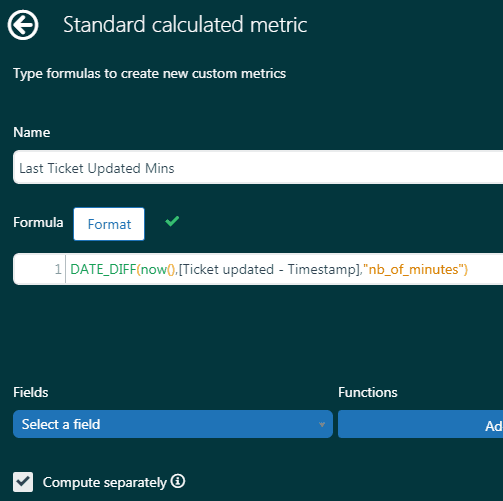
In Zendesk Explore, start a new report using the Support - Tickets dataset. Go to the Calculations menu and select Standard calculated metric. Enter this formula:
DATE_DIFF(now(),[Ticket updated - Timestamp],"nb_of_minutes")
Name it "Last Ticket Updated Mins" and save.
Step 2: Configure the metric display
Add the metric to your report, then click it to edit the settings. Under Options, select Edit aggregators and keep only MIN (minimum). This ensures you see the most recent ticket update time.
Next, edit the display format. Choose Custom and add " Minutes ago" (with a leading space) as the suffix. This transforms the raw number into something readable like "23 Minutes ago."
Step 3: Create the timestamp attribute
Create a Standard calculated attribute with this formula:
DATE_LAST([Ticket updated - Timestamp])
Name it "Last Sync Timestamp" and add it to your Rows panel. This displays the actual timestamp of the last data sync.
Step 4: Add to your dashboard
Save the report and add it to your dashboard as a small text widget. Position it prominently so viewers immediately understand the data's freshness.
Source: Zendesk Help Center - Creating a last refresh timestamp
This approach helps with transparency, but it doesn't solve the underlying issue. Your data is still delayed. For teams that need real-time visibility, you'll need to look beyond Zendesk's native tools.
Using browser extensions for auto-refresh
The most popular workaround is a free browser extension called Zendesk View Auto Refresh by DeclanE47. With over 2,500 users across Chrome, Firefox, and Edge, it's become the go-to solution for agents tired of manual refreshes.
Installation
For Chrome:
- Visit the Chrome Web Store listing
- Click "Add to Chrome"
- Grant permissions for zendesk.com domains
For Firefox:
- Visit the Firefox Add-ons page
- Click "Add to Firefox"
For Edge:
- Visit the Edge Add-ons page
- Click "Get"
Configuration
Once installed, click the extension icon in your toolbar. You'll see:
- A toggle switch to enable/disable auto-refresh
- Refresh interval options from 5 seconds to 10 minutes (plus a custom field)
- A countdown timer showing time until the next refresh
- A dark mode toggle for night shifts
Set your interval based on ticket volume. Five to ten seconds works for high-volume queues. One to two minutes is fine for lower-priority views.

Security considerations
Enterprise teams often worry about third-party extensions accessing Zendesk data. Here's what you should know:
- The extension is open-source (MIT License) and available on GitHub for code review
- It only requests access to zendesk.com domains
- The developer explicitly states no data is collected or sold
- It has a 5.0/5 rating on the Chrome Web Store
That said, some organizations have policies against browser extensions. If that's your situation, the next option may work better.
Third-party dashboard alternatives
If browser extensions aren't an option, or if you need more than just auto-refresh, dedicated dashboard tools offer a different approach.
Geckoboard
Geckoboard is a KPI dashboard platform that connects to Zendesk and refreshes data significantly faster than native Explore:
| Zendesk Product | Geckoboard Refresh Rate |
|---|---|
| Zendesk Support | Every 10 minutes |
| Zendesk Sell | Every 10 minutes |
| Zendesk Chat | Every 1 minute |
| Zendesk Talk | Every 30 seconds |
Source: Geckoboard Blog - Auto-refresh Zendesk reports
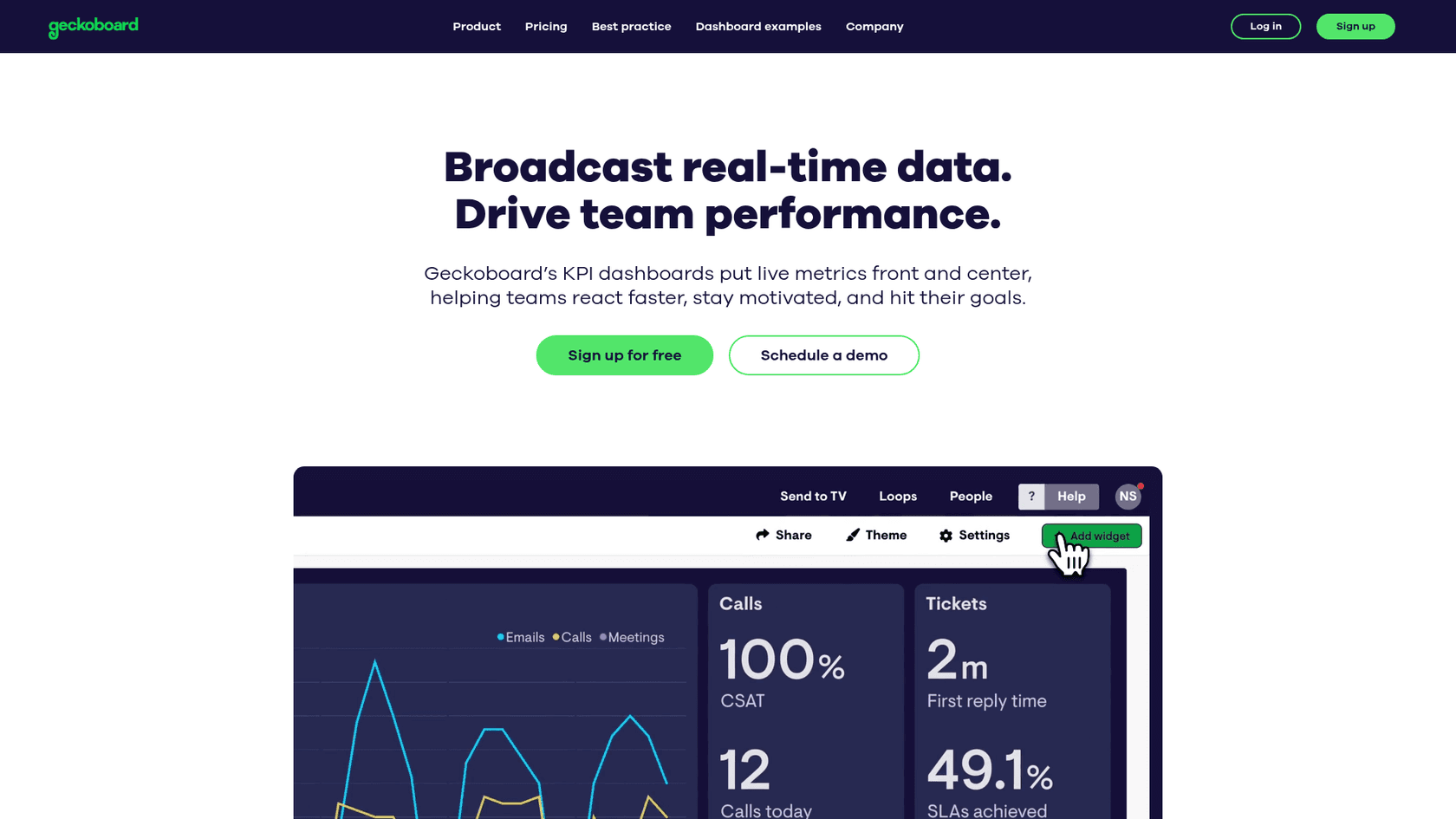
Geckoboard pricing starts at $49/month for the Essential plan (1 dashboard), $99/month for Professional (5 dashboards), and $249/month for Team (15 dashboards). They offer a 14-day free trial.
The trade-off is cost versus convenience. You're paying for faster refresh rates and better visualization, but you're adding another tool to your stack.
Lovely Views
Lovely Views by Lovestock & Leaf takes a different approach. Instead of a separate dashboard, it enhances Zendesk's native views with:
- Unlimited views (bypassing Zendesk's 30-view limit)
- Folder and sub-folder organization
- Auto-refresh capability built-in
- Advanced filtering
- Bulk actions
Lovestock & Leaf is a Zendesk Advanced Partner with 14+ years of experience. Their apps are used by Netflix, Uber, Slack, Microsoft, and Shopify. Pricing isn't publicly listed, but given their enterprise customer base, expect a paid solution.
Reducing your dependency on dashboard refreshes with eesel AI
Here's a different way to think about the problem. What if you didn't need to watch dashboards at all?
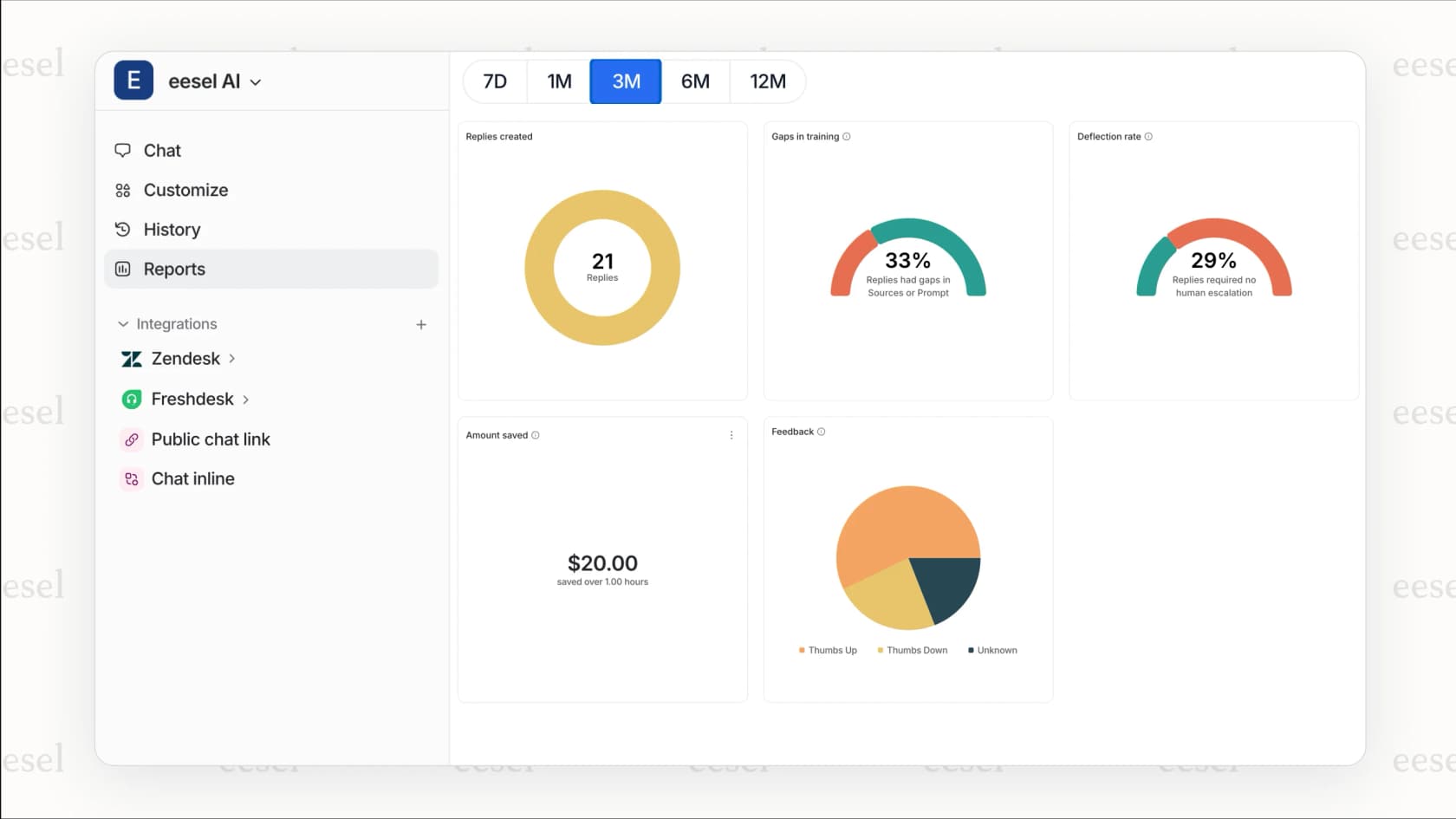
At eesel AI for Zendesk, we approach support differently. Instead of agents constantly monitoring views for new tickets, our AI teammate handles the triage automatically. You describe what matters in plain English, and the AI ensures those tickets get the right attention without anyone staring at a refresh button.
How it works
Intelligent triage. Our AI Triage processes every incoming ticket, reads the content, and routes it based on your business rules written in natural language. No complex view conditions required.
Automatic prioritization. The AI learns from your past tickets to understand what matters most. Urgent issues from enterprise customers get flagged immediately. Routine questions get routed to our AI Agent for autonomous resolution.
Plain English control. Instead of building complex view filters, you simply tell the AI: "Escalate billing disputes to the finance team" or "Prioritize tickets from customers with premium subscriptions." The AI handles the rest.
Continuous learning. When you correct an AI response, it learns from that correction. Over time, the system gets better at identifying what needs human attention versus what it can handle itself.
The result
Teams using eesel AI see up to 81% autonomous resolution rates for frontline support. That means most tickets never need an agent to refresh a view at all. They're resolved automatically, and agents only handle the complex cases that truly need human judgment.
Our pricing starts at $299/month for 500 credits, where 1 credit covers one ticket or chat. For teams handling high ticket volumes, 2,500 credits is $999/month, and every plan includes unlimited agents and seats.
When eesel AI makes sense
Consider our approach if:
- Your team spends more time organizing tickets than resolving them
- You want to reduce the manual work of triage and routing
- You're looking for a solution that scales without adding headcount
- You prefer natural language instructions over complex configuration
We integrate directly with Zendesk and learn from your existing tickets, help center, and macros. Setup takes minutes, not weeks.
Choosing the right approach for your team
Each solution has its place depending on your needs, budget, and constraints:
| Approach | Cost | Best For | Limitations |
|---|---|---|---|
| Last refresh timestamp | Free | Transparency about data age | Doesn't solve refresh problem |
| Browser extension | Free | Individual agents, immediate relief | Browser-only, IT policy restrictions |
| Geckoboard | $49-599/month | Teams needing real-time dashboards | Separate tool, additional cost |
| Lovely Views | Contact for pricing | Organizations blocking extensions | Zendesk-only, paid solution |
| eesel AI | From $299/mo (500 credits) | Teams wanting to eliminate manual triage | Requires workflow change |
For small teams or individual agents: Start with the browser extension. It's free, effective, and takes two minutes to install.
For teams with strict IT policies: Consider Lovely Views. It works within Zendesk itself, so there are no extension permissions to worry about.
For support operations teams: Geckoboard gives you professional dashboards with faster refresh rates, though at an additional cost.
For teams ready to transform their workflow: eesel AI eliminates the need to constantly monitor views by handling triage automatically. Instead of refreshing to find tickets, your agents focus on resolving them.
The right choice depends on whether you want to solve the refresh problem (extensions, third-party dashboards) or eliminate the need to refresh altogether (AI triage). Both approaches work. The question is which fits your team's workflow and goals.