
Getting your team access to the right data at the right time is one of those tasks that sounds simple until you actually try to do it. You want your support managers to see team performance, but maybe not your entire company's ticket history. You want to share a dashboard with executives, but they don't have Zendesk accounts. And you definitely don't want sensitive metrics leaking outside your organization.
This is where understanding Zendesk Explore dashboard permissions becomes essential. Whether you're setting up a new team or tightening security on existing reports, this guide walks you through everything you need to know.

Understanding Zendesk Explore permission levels
Zendesk Explore uses a three-tier permission system that determines what users can see and do within your analytics environment.
Viewer is the most restricted role. Viewers can only see dashboards that've been explicitly shared with them. They can't create reports, modify existing dashboards, or access any settings. This role works well for executives or stakeholders who need occasional access to specific metrics but don't need to dig into the data themselves.
Editor gives users the ability to create and customize dashboards and reports. They can edit content shared with them, share dashboards with other Zendesk users or groups, and set up delivery schedules. Editors can't access admin settings or view dashboards they haven't been given permission to see.
Admin has full control. Admins can do everything Editors can, plus manage dataset permissions, change default chart colors, edit Excel export settings, and view or edit any dashboard across the account regardless of who created it.
Your Zendesk plan determines how these roles work:
| Plan | Explore Access | Permission Control |
|---|---|---|
| Suite Team | Read-only prebuilt dashboards | No custom roles |
| Suite Professional | Viewer, Editor, Admin roles | Standard roles only |
| Suite Enterprise | All roles + custom roles | Granular brand/group permissions |
On Professional plans, Light agents automatically get Viewer access, while Staff and Contributors need manual permission grants. Enterprise plans let you create custom roles with precise data restrictions.
Setting up user access to Explore
Before you start, you'll need Admin rights in Zendesk Support and at least a Professional plan to assign custom roles. Enterprise plans unlock the full permission customization features.
Here's how to give someone access:
Step 1: Navigate to Admin Center
Open Admin Center from the main Zendesk menu, then click People in the sidebar and select Team > Team members.
Step 2: Enable Analytics access
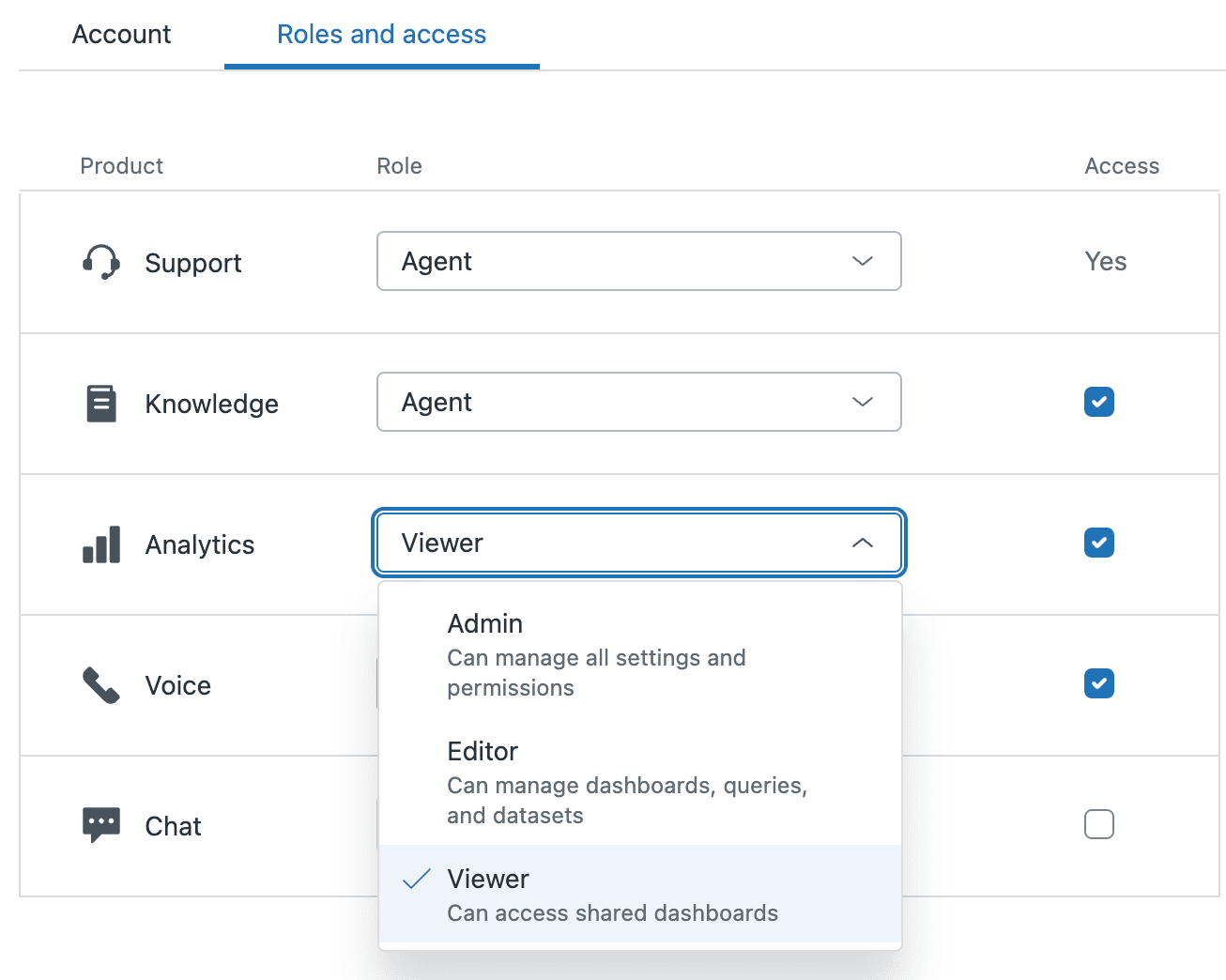
Search for and select the user you want to configure. On the Roles and access tab, check the Access checkbox next to Analytics. Without this enabled, the user can't access Explore at all, regardless of any other settings.
Step 3: Assign the appropriate role
In the Role dropdown, select Viewer, Editor, or Admin based on what the user needs to accomplish. If you're on Enterprise using custom roles, you'll see those options here too.
Step 4: Configure data restrictions (Enterprise only)
For Enterprise plans, you can further restrict what data the user sees. Options include:
- Data from groups they belong to (Limited access)
- Data from selected groups you specify
- All data (Full access)
Click Save when you're finished. The user will have immediate access based on their new permissions.
To verify everything is working, ask the user to check their data access by clicking their profile icon in Explore and selecting Data access. This shows exactly which ticket groups and datasets they can view.
Configuring dashboard sharing permissions
Once users have access to Explore, you need to control how dashboards can be shared both internally and externally.
Internal sharing is straightforward: any Editor or Admin can share dashboards with specific Zendesk users or groups. Viewers can only receive shares, not create them.
External sharing (sharing with people who don't have Zendesk accounts) requires Enterprise plans and comes with additional security considerations.
Here's how to configure sharing permissions:
Step 1: Access sharing settings
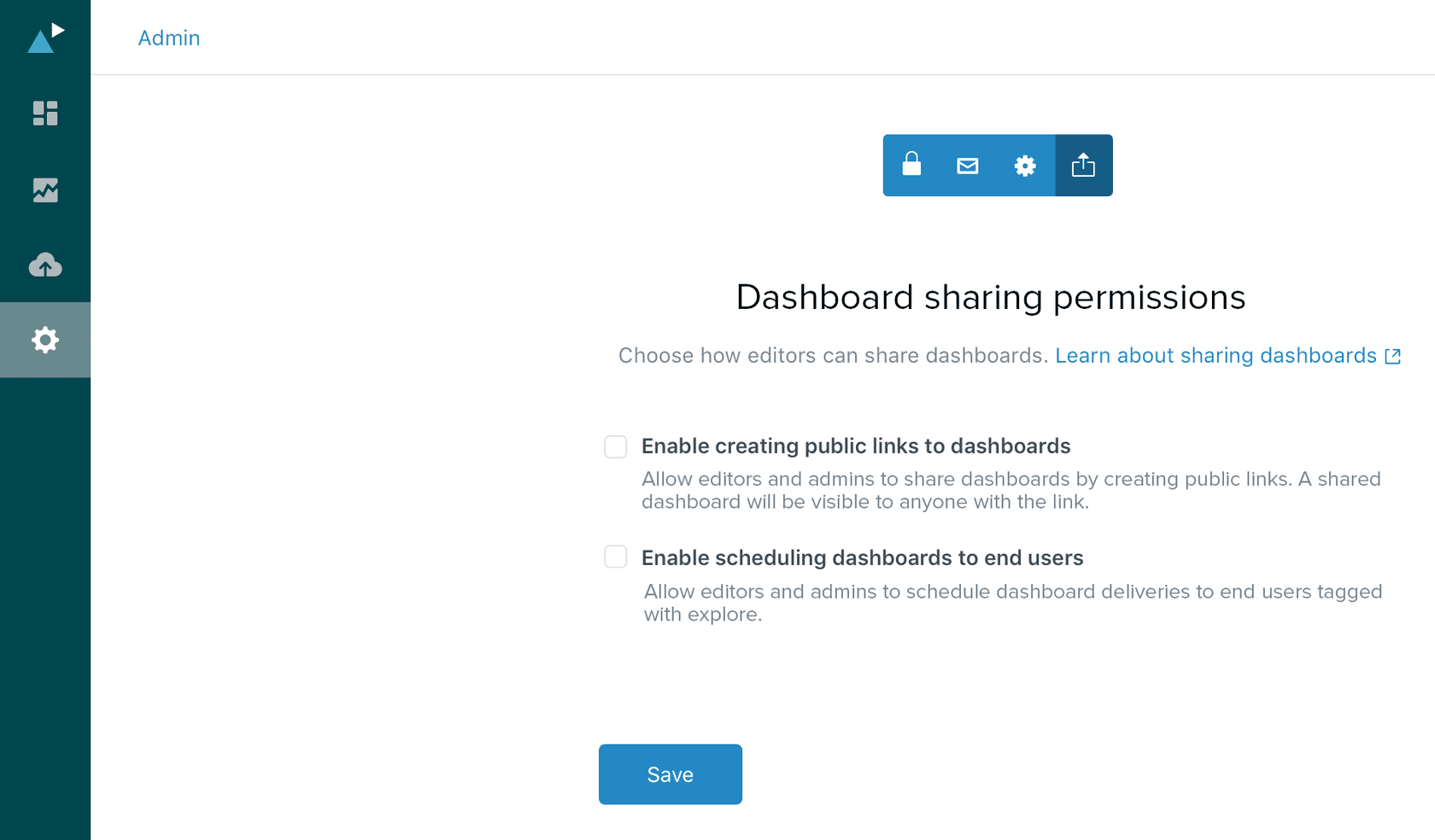
In Explore, open the Admin menu on the left panel and select Dashboard sharing permissions.
Step 2: Enable public links
Toggle Enable creating public links to dashboards on or off. When enabled, Editors and Admins can generate shareable URLs that work without a Zendesk login.
Step 3: Enable scheduled deliveries
Toggle Enable scheduling dashboards to end users to allow automated email delivery of dashboards to people outside your Zendesk account.
When creating a public link, Zendesk requires password protection with at least 10 characters, including uppercase, lowercase, numbers, and symbols. The password can't be retrieved after creation, so store it securely. After 5 failed password attempts, the dashboard locks for 5 minutes for all users.
Important security note: When you share a dashboard externally, all data returned by that dashboard is visible to viewers. Dashboard restrictions still apply, but users with Limited viewer permissions may see data outside their normal permissions. Always review dashboard content before creating external links.
Using brand and group permissions (Enterprise)
For organizations managing multiple brands or needing strict data separation, Enterprise plans offer brand-based permissions that went live in January 2026.
Brand permissions let you restrict data access based on which brands a user is assigned to. This differs from group permissions, which restrict based on ticket group membership. Brand permissions are particularly useful for:
- Multi-brand support teams where agents should only see their brand's data
- Outsourced support providers who handle specific brands
- Regional restrictions where certain teams only support certain markets
Here's how to set them up:
Step 1: Enable brand permissions in custom roles
In Admin Center, go to People > Roles and edit the custom role you want to configure. Scroll to the Reporting and analytics section.
Step 2: Assign brands to users
When configuring the role, select whether users can access:
- Data from brands and groups they belong to
- Data from selected brands and groups you specify
- All data (no restrictions)
Step 3: Configure dashboard restrictions
Dashboard restrictions now support dynamic attributes including brand, email, and locale. You can create up to 500 restrictions per dashboard on Enterprise plans (increased from the previous 100 limit).
Once enabled, agents can access all default datasets but only see data for brands they have permission to view. This happens automatically without requiring changes to existing dashboards.
Security best practices for dashboard sharing
Sharing dashboards outside your organization requires careful thought. Here are the practices we recommend:
Use password protection for every external link. Yes, it adds friction, but it prevents accidental data exposure if someone forwards the link inappropriately.
Understand that IP restrictions configured in your Zendesk instance apply to external shared links. If you've restricted Zendesk access to specific IP ranges, external viewers must also connect from those ranges.
Remember the distinction between dashboard restrictions and data permissions. Dashboard restrictions filter what appears on the dashboard itself. Data permissions control what underlying data the user can access. A Limited viewer with an external link might see data they normally couldn't access through Explore directly.
Audit access regularly. Review who has been given Editor or Admin rights. Check what public links are active. Zendesk doesn't provide a single report for this, so you'll need to document shares as you create them.
Disable external sharing when you suspect inappropriate access. Turning off public links in the Admin menu immediately disables all existing external links. If you re-enable sharing later, you'll need to create new links.
Troubleshooting common permission issues
Even with proper setup, permission issues can arise. Here's how to handle the most common ones:
User cannot see a shared dashboard
First, verify they have Analytics access enabled in their user profile. Then confirm the dashboard was actually shared with them (not just with a group they're supposed to be in). Finally, check if the dashboard has restrictions that exclude their user or group.
External link not working or showing wrong data
Check that external sharing is still enabled in Admin settings. Verify the user is entering the correct password. If the data looks wrong, the dashboard restrictions might not be configured as expected, or the user's IP might not match your instance restrictions.
Limited viewer seeing data outside their group
This typically happens with external shares. Remember that dashboard restrictions apply differently to external viewers. Review the dashboard's restriction settings and consider whether external sharing is appropriate for that particular dashboard.
Scheduled deliveries failing
Ensure scheduled deliveries to end users are enabled in sharing permissions. Verify the recipient email addresses are correct. Check that the dashboard owner still has appropriate permissions.
Permission changes not taking effect
Most permission changes are immediate, but some may require the user to refresh their browser or log out and back in. If issues persist, check that the user's role assignment was properly saved.
Getting more from your Zendesk analytics
While Zendesk Explore provides solid reporting capabilities, many teams find they need additional insights to truly optimize their support operations. That's where complementary tools can help. Our AI agent for Zendesk connects to your Zendesk instance and surfaces actionable insights on top of the data Explore already collects.
At eesel AI, we've built an AI teammate that works alongside Zendesk to surface insights you might miss in standard reports. Our platform analyzes your support history to identify knowledge gaps, simulate how new automation would perform, and flag trends that deserve attention.
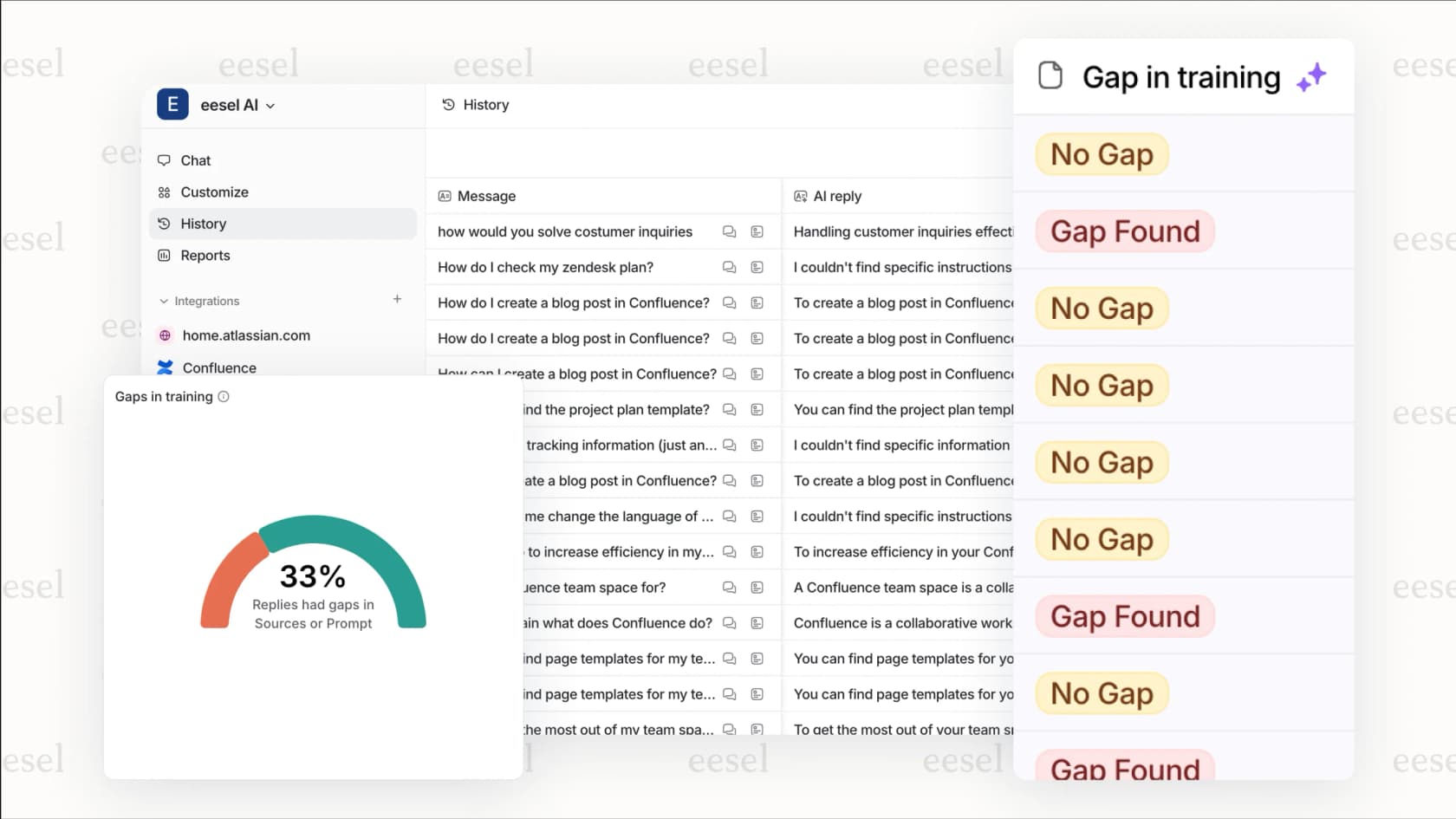
For example, while Explore might show you that bot escalation rates increased last week, we can tell you exactly which questions are causing those escalations and what help center articles would address them. This kind of diagnostic insight helps you take action rather than just observing metrics.
If you're looking to get more strategic with your support data, check out our guide to Zendesk analytics dashboards or learn how our AI agent can help automate routine inquiries while providing detailed performance insights. You might also find our AI Copilot useful for drafting replies faster while maintaining quality.