
You created a custom field in Zendesk Support an hour ago, and it still isn't showing up in Explore. Your manager needs that report by end of day. What gives?
The answer lies in how Zendesk Explore's data synchronization actually works. While documentation mentions "hourly sync," the reality's more nuanced. That one-hour window has a random start time, and several other factors determine when your custom fields actually become available for reporting.
Let's break down exactly how the Zendesk Explore custom field sync hourly process works, why delays happen, and what you can do about them.
Understanding Zendesk Explore's hourly sync schedule
Here's the short version: on Explore Professional and Enterprise plans, data syncs begin one hour after the most recent sync ends. But the critical detail most people miss is that the start time is randomized within that hour window.
This means if your last sync finished at 2:00 PM, the next one starts sometime between 3:00 PM and 4:00 PM. Not exactly at 3:00 PM. Not predictably at 3:30 PM. Randomly. Plus, the sync itself can take 1-2 hours depending on your data volume. That's just how the system's designed.
So in a worst-case scenario:
- Your last sync ends at 2:00 PM
- The next sync randomly starts at 3:45 PM
- That sync takes 2 hours to complete
- Your data doesn't appear until 5:45 PM
That's nearly four hours from when you might have expected it. And if you created a custom field at 2:05 PM hoping to report on it by 3:00 PM, you're going to be disappointed.
Plan differences matter here too. Explore Lite (included with some Zendesk plans) only syncs daily at midnight in your account timezone. Professional and Enterprise plans get the hourly sync we're discussing. Enterprise plans also have access to live dashboards that update in near real-time, which we'll cover later.
Bottom line? When Zendesk says "hourly sync," they mean "starts randomly within an hour after the last sync finished, then takes time to complete." Plan accordingly.
How custom fields synchronize with Explore
Not all custom field data is created equal in Explore. Understanding how different field types map to the reporting interface will save you a lot of confusion.
First, the basics. Explore synchronizes ticket, user, and organization custom fields from Support. But a field only appears in Explore after two conditions are met:
- A sync has run since the field was created
- The field has been used in at least one ticket (or user/organization record)
That second point trips people up constantly. You can create the perfect drop-down field with all the right options, but if no agent's actually selected a value in a ticket yet, it won't appear in Explore.
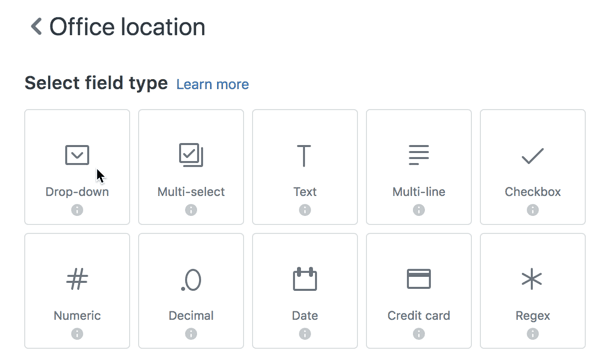
Here's where different field types end up, based on Zendesk's documentation on custom fields in Explore:
| Field Type | Where It Appears | Object Type |
|---|---|---|
| Drop-down, Multi-select, Text, Checkbox | Ticket custom fields folder | Attribute |
| Numeric, Decimal | Numeric custom fields folder | Metric |
| Date | Individual time dimension folders | Attribute |
| Lookup relationships | Ticket custom fields (with "- id" or "- name" suffix) | Attribute |
The distinction between attributes and metrics matters. Attributes're what you group and filter by (rows and columns). Metrics're what you calculate (sums, averages, counts). So if you create a numeric field called "Customer Satisfaction Score," you won't find it in the Ticket custom fields folder. It's in Numeric custom fields because it's designed for calculations.
One more limitation to know: the Support - Backlog history and Support - Group SLAs datasets don't contain custom fields at all. If you need custom field reporting, stick with the Support: Tickets dataset.
For more details on Zendesk's data sync behavior, see the official Zendesk documentation on data sync.
Common custom field sync issues and solutions
Let's walk through the problems you're most likely to encounter and how to fix 'em.
New custom field not appearing in Explore
You created a field, waited an hour, and it's not there. Before panicking, check these things:
First, verify the field has actually been used in a ticket. Create a test ticket and populate the field. This is the most common cause of "missing" fields.
Second, check your sync status in Explore admin settings. You'll see when the last sync completed and whether one is currently running.
Third, remember the random start time. If your last sync ended 45 minutes ago, you might still be waiting for the next one to even start.
Workaround: If you need data immediately, report on the tags that custom fields generate. Drop-down, multi-select, and checkbox fields all create tags you can filter by while waiting for the field itself to appear. Learn more about reporting with tags in Zendesk Explore.
Custom field shows no data
The field exists in Explore but displays empty. This almost always means no tickets actually have data in that field yet. Check a few recent tickets to confirm agents are populating it. If they aren't, you've got a process issue, not a sync issue.
Deleted field values showing as tags
If you delete a field value without deactivating it first, Explore shows the raw tag instead of the readable name. So "VIP Plan" becomes "vip_plan" in your reports. Unfortunately, this historical data cannot be fixed after the fact. The prevention is simple: always deactivate field values before deleting them.
Numeric fields appearing in wrong location
This confuses almost everyone at first. Numeric and decimal fields're stored as metrics, not attributes, by design. This lets you perform calculations like sums and averages. If you need to group by numeric values, you'll need to create a calculated attribute or bucket the values. Check out Zendesk's guide on custom metrics and custom attributes for step-by-step instructions.
Working within Zendesk Explore custom field sync hourly limitations: Best practices
Since you can't make the sync run faster, you'll need to work within its constraints. Here's how experienced Zendesk admins handle it:
Plan your field creation ahead of when you need reports. If you know you'll need data for next month's board meeting, create the fields now, not the day before.
Use consistent naming conventions. Decide on a format like "Category: Field Name" and stick to it. This keeps fields organized alphabetically and makes them easier to find in Explore's folder structure.
Always start reports with date filters. Without them, Explore tries to calculate results for all time, which can timeout if you have a lot of tickets. Start with a day or week, verify the data looks right, then expand.
Use tables first to verify your data, then switch to charts. Tables show you the actual values. Charts hide details that might reveal problems.
Document your fields and their purposes. Create an internal reference explaining what each field means and when to use it. This is especially important for drop-down options.
Train agents on consistent field population. Fields only work if agents fill them out consistently. Explain why the data matters and how it's used.
Consider live dashboards if you're on an Enterprise plan. These update in near real-time and can bridge the gap when hourly sync isn't fast enough.
When hourly sync isn't enough: Alternatives to consider
Sometimes you genuinely need data faster than hourly sync allows. Here are your options:
Live dashboards and widgets (Enterprise plan)
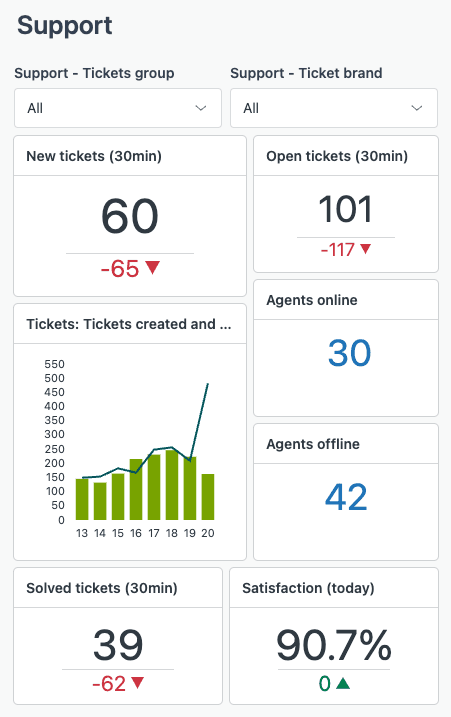
If you're on Enterprise, live dashboards update in near real-time. They're limited to specific metrics and visualizations, but for monitoring current ticket volume or agent activity, they work well.
Tag-based reporting
While waiting for custom fields to sync, you can often report on the tags those fields generate. Drop-down and checkbox fields create tags automatically. It's not as clean as reporting on the field values directly, but it works immediately.
Third-party BI tools
Tools like Power BI and Tableau can connect directly to Zendesk via connectors from providers like Alpha Serve. These pull data on their own schedules, which you can configure. The trade-off is cost and complexity, but for teams doing serious analytics, it's worth considering.
API access
For real-time data needs, the Zendesk API gives you immediate access to ticket fields. This requires development work, but if you're building a custom dashboard or integration, it's the most reliable way to get current data.
eesel AI for real-time field automation
Here's something worth considering: while Explore has sync delays, your AI agents don't have to. At eesel AI, we've built AI agents for Zendesk that read custom field values directly from Zendesk in real-time, no waiting for Explore sync required.
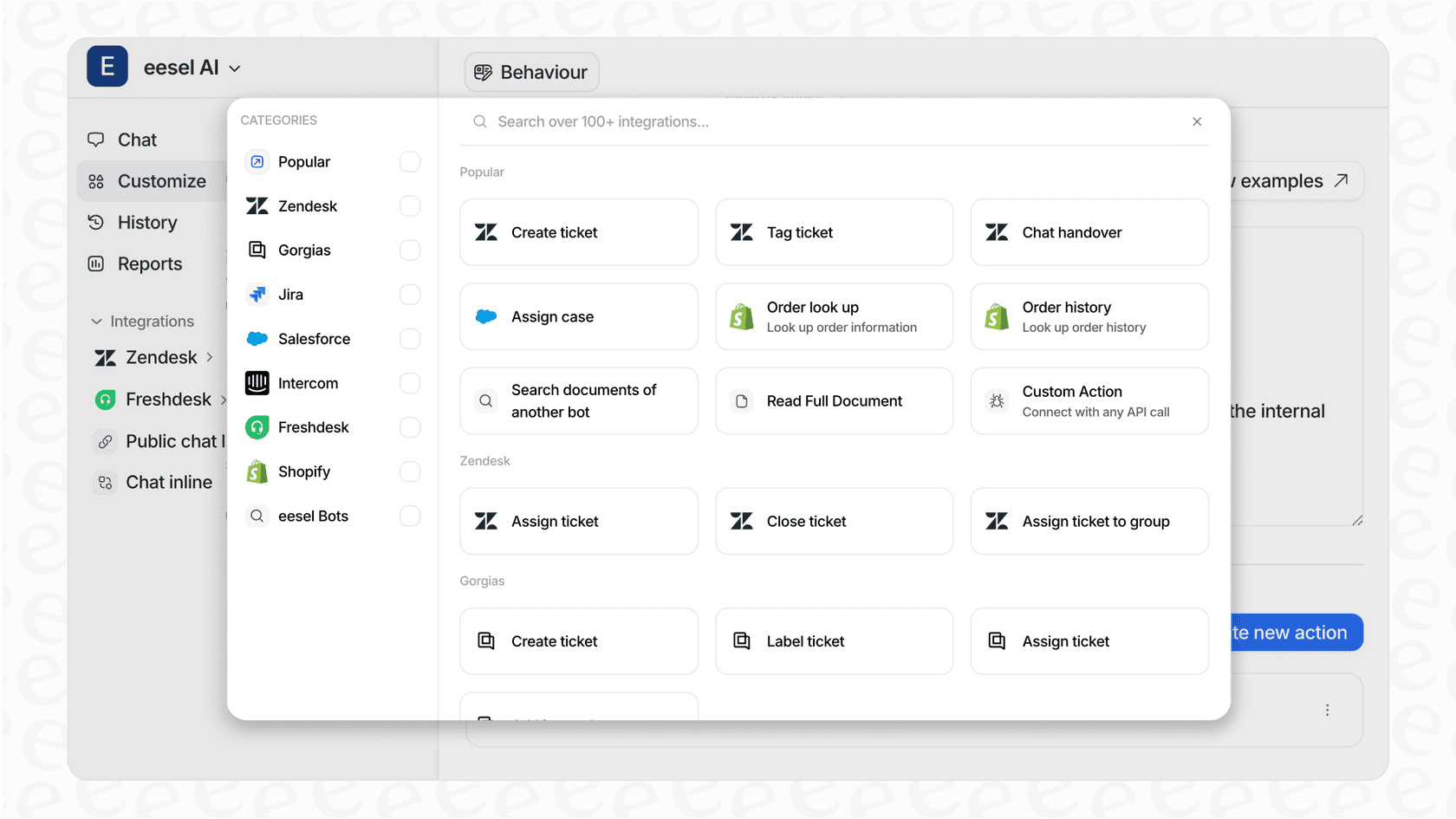
Our AI Agent can:
- Read any custom field value to personalize responses immediately
- Update fields based on conversation context without sync delays
- Use field data to make intelligent routing decisions in real-time
- Generate reports showing resolution rates by field value
You can also use our AI Copilot to draft replies based on custom field data, or set up AI Triage to automatically route tickets using real-time field values.
This means your custom fields become inputs for intelligent automation that works at the speed of conversation, not at the speed of Explore's sync cycle. If you're building automated workflows around custom field data, this approach eliminates the hourly delay entirely.
Start optimizing your Zendesk reporting workflow
Understanding the Zendesk Explore custom field sync hourly process helps you set realistic expectations and plan accordingly. The key takeaways:
- Sync starts randomly within an hour after the last sync ends, not exactly on the hour
- Custom fields need both a sync cycle AND actual ticket data before they appear
- Different field types map to different locations in Explore (attributes vs metrics)
- Planning ahead prevents the frustration of waiting for data you need immediately
If you're spending too much time working around sync limitations, it might be time to consider alternatives. Real-time automation that leverages your custom field data without waiting for Explore sync could change how your team operates. Learn more about eesel AI's Zendesk integration and how it complements your existing setup.
Want to see how AI agents can work with your Zendesk custom fields in real-time? Try eesel AI free or book a demo to learn how we help teams automate using the data they already have.


