How to create a Zendesk Explore channel breakdown report

Stevia Putri
Last edited February 26, 2026
Understanding where your support tickets come from is fundamental to running an efficient operation. Are most customers reaching out via email? Is chat volume spiking? Are social media requests getting lost in the shuffle? A Zendesk Explore channel breakdown report answers these questions by categorizing every ticket by how it entered your system.
This guide walks you through everything you need to know about creating and using channel breakdown reports. You'll learn how to build basic reports, create more advanced visualizations, and extract meaningful insights from your channel data. Whether you're new to Explore or looking to deepen your reporting capabilities, these steps will help you turn raw ticket counts into actionable intelligence.
While Zendesk Explore requires manual report building, tools like eesel AI offer an alternative approach. Instead of configuring attributes and metrics, you simply ask questions in plain English and get instant insights. But let's start with the fundamentals of Zendesk's native tooling.
What is a channel breakdown report in Zendesk Explore?
A channel breakdown report is a visualization that shows how your support tickets are distributed across different communication channels. Think of it as a snapshot that answers: "How are customers contacting us, and in what proportions?"
Channel analysis matters because different channels have different characteristics. Email tickets might have longer resolution times but allow for detailed explanations. Chat tickets demand immediate attention but often resolve quickly. Voice tickets require dedicated agents and specific skills. Understanding these patterns helps you staff appropriately, set realistic expectations, and identify where to invest in self-service.
The insights from channel reports go beyond simple volume counting. You can identify which channels drive the most complex issues, spot trends in customer behavior, and measure the effectiveness of channel-specific initiatives. For example, if you launch a new chat widget, a channel report shows whether customers are actually adopting it or still defaulting to email.
What you'll need to get started
Before building channel reports in Zendesk Explore, make sure you have:
- Zendesk Explore Professional or Enterprise - this attribute isn't available in Lite
- Editor or Admin permissions in Explore
- Active tickets in Zendesk Support - you need data to analyze
- Basic familiarity with the Explore report builder - knowing how to add metrics and attributes
If you are missing Explore access, your Zendesk admin can add you to Explore with appropriate permissions.
Step-by-step: Creating your first Zendesk Explore channel breakdown report
Step 1: Open a new report in Explore
Navigate to the Explore product from your Zendesk admin menu. Click the reports icon, then select New report from the Reports library. On the dataset selection page, choose Support > Support - Tickets, then click Start report.
The report builder opens with an empty canvas. You see panels for Metrics, Columns, Rows, and Explosions on the left side.
Step 2: Add the Tickets metric
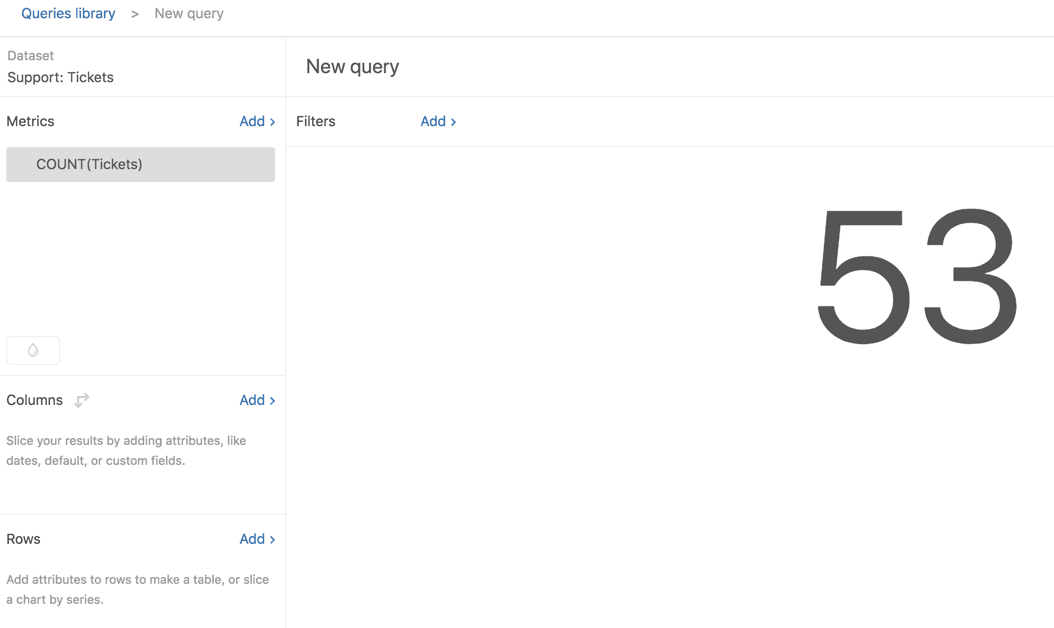
Every report needs at least one metric (what you're measuring). In the Metrics panel, click Add. From the list of available metrics, navigate to Tickets > Tickets, then click Apply.
You'll see COUNT(Tickets) appear in the Metrics panel. Explore automatically displays the total count of tickets in your account in the main visualization area.

Step 3: Add the Ticket channel attribute
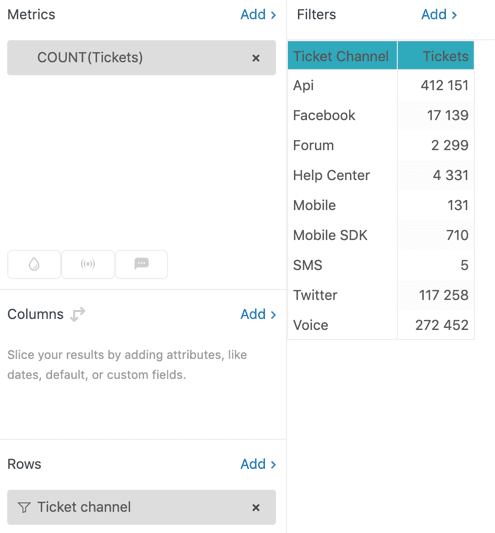
Now add the dimension that breaks down your data. In the Rows panel, click Add. Navigate to Ticket > Ticket channel, then click Apply.
Explore displays a table showing your ticket count broken down by each channel. You might see values like Email, Web, Chat, API, and Voice depending on your configuration.
Step 4: Customize your visualization
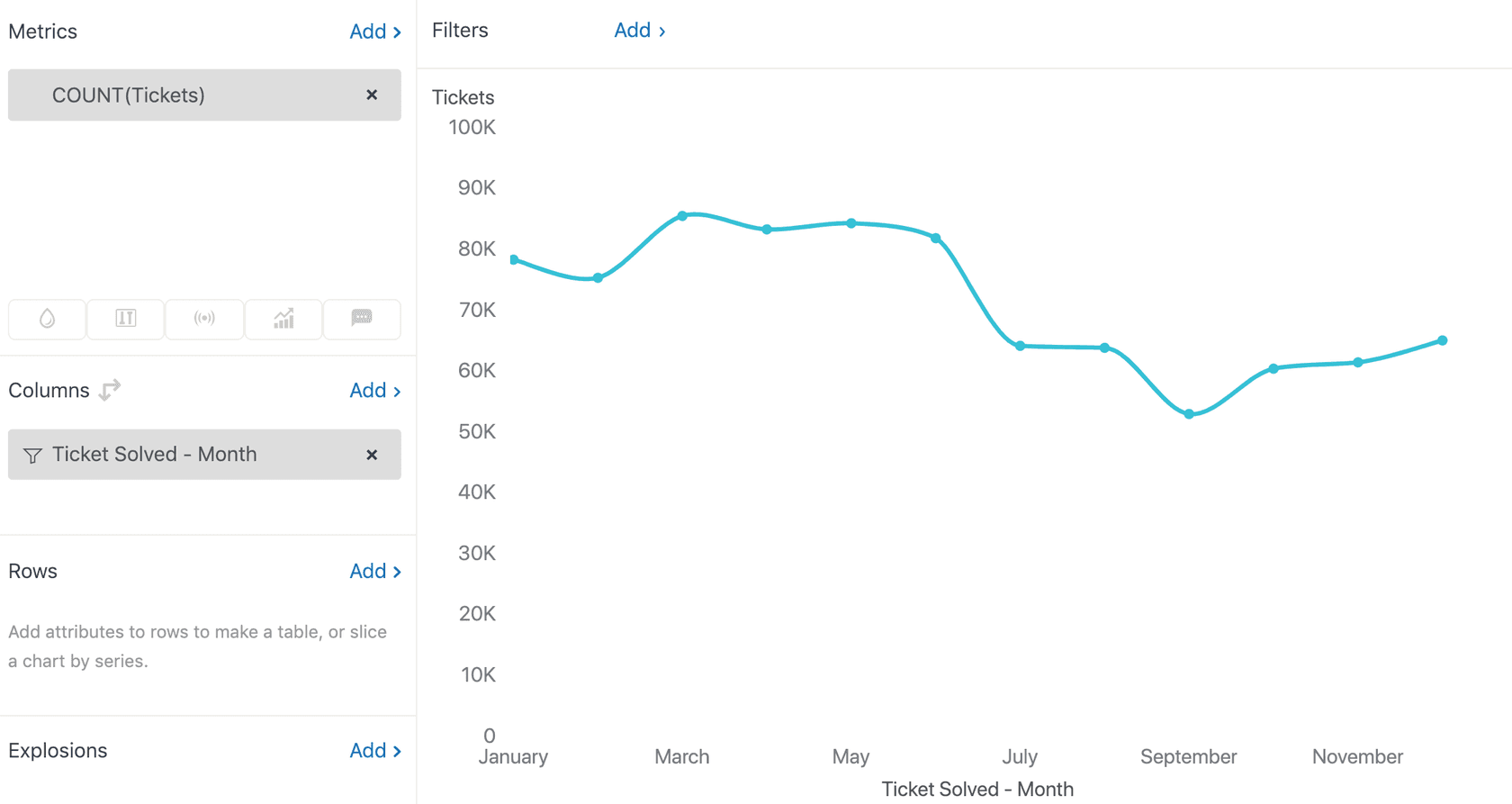
By default, Explore selects a visualization type it thinks works best. For channel breakdowns, a column or bar chart often works better than a table. Click the visualization type icon and experiment with different options.
You can also add date filters to focus on specific time periods. Click the filter icon to add date ranges or other filters to your report. Once you're satisfied, click Save and give your report a descriptive name like "Ticket Volume by Channel."
Understanding channel values in your Zendesk Explore channel breakdown report
Here's a complete reference for how different entry points appear in Explore:
| Channel | Displayed As | Description |
|---|---|---|
| Tickets originating from email requests | ||
| Web form / Web Widget | Web | Tickets from web forms, widgets, or agent-created tickets |
| Chat | Chat | Zendesk Chat sessions |
| API / Web service | Api | API calls, integrations, rules, automations |
| Phone / Voicemail | Voice | Call-related tickets |
| Messaging | Messaging | Web messaging conversations |
| Social messaging | WhatsApp, LINE, etc. | Individual social channels (requires Agent Workspace) |
| X/Twitter | Social media mentions/DMs | |
| Mobile SDK | Mobile SDK | Custom mobile app tickets |
| Help Center | Help center | Community posts, article comments |
| System | System | Zendesk-created tickets |
| Closed ticket | Closed ticket | Follow-up tickets (Update channel only) |
| Side conversation | Side conversation | Side conversation child tickets |
There's an important distinction to understand: the Ticket channel attribute shows where a ticket was originally created, while the Update channel attribute (available in the Updates history dataset) shows where each individual update came from. A follow-up ticket might show as "Web" in Ticket channel but "Closed ticket" in Update channel.
Follow-up tickets (replies to closed tickets) always show as "Web" in the Ticket channel attribute. This is by design. If you need to track the original channel for follow-ups, use the Update channel attribute instead.
Advanced channel analysis techniques
Creating an agent workload by channel report
Now let's build something more advanced: a report that shows which agents handle tickets from which channels. This helps you understand workload distribution and identify channel expertise.
Create a new report using the Support - Tickets dataset as before. Add the Tickets metric.
This report uses two attributes: one for columns and one for rows. In the Columns panel, click Add. Navigate to Assignee > Assignee name, then click Apply.
In the Rows panel, click Add. Navigate to Ticket > Ticket channel, then click Apply.
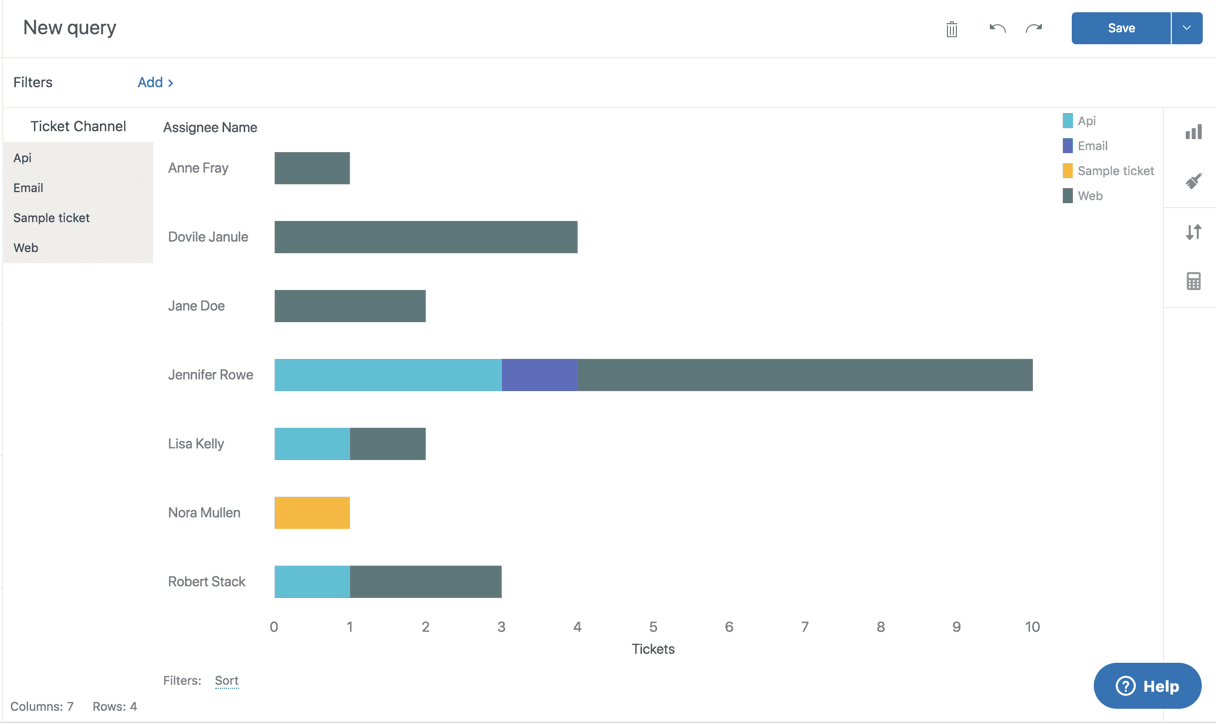
You see a matrix showing agents across the top and channels down the side, with ticket counts in each cell. The default visualization might be hard to read with many agents. Click the visualization type icon and select Bar. Then click the chart configuration icon, select Chart, and enable the Stacked setting.
This creates a stacked bar chart where each agent has one bar, divided into colored segments representing their ticket volume by channel. It's an effective way to spot patterns, like which agents specialize in chat versus email.
Using calculated attributes for channel grouping
Standard reports are useful, but sometimes you need something more specific. Standard calculated attributes let you create custom logic using the Ticket channel field.
Calculated attributes use formulas to return custom values based on conditions. The most common structure uses IF/THEN/ENDIF logic:
IF [condition] THEN [value_if_true] ELSE [value_if_false] ENDIF
This lets you group channels, filter for specific values, or create entirely new categorizations. For example, you might want to categorize channels as "Digital" (email, web, chat) versus "Voice" (phone calls). Create a standard calculated attribute, name it "Channel Category," and enter a formula that groups your channels accordingly.
Filtering and drilling down
You can use the Ticket channel attribute as a data filter in any report. Add it to the Filters panel, then select specific channels to include or exclude. This is useful for creating channel-specific dashboards or focusing your analysis on particular entry points.
Decompositions let you break down your data by additional dimensions. For example, you could decompose your channel breakdown by ticket priority to see which channels generate the most urgent requests.
Common use cases for channel breakdown reports
Channel reports aren't just about counting tickets. They're about understanding customer behavior and optimizing your support operation. For teams looking to go beyond manual reporting, AI-powered analytics can automate insights. Here are practical ways teams use these reports:
- Staffing decisions: Identify which channels need more agents during peak times
- Channel performance: Compare resolution times across channels to spot inefficiencies
- Customer behavior trends: Track how channel adoption changes after launching new support options
- Resource allocation: Determine where to invest in self-service based on channel volume
- SLA monitoring: Ensure response times meet targets for each channel type
Tips and troubleshooting
API tickets with multiple origins
The "Api" channel groups several entry points: API calls, web services, ticket sharing, group changes, linked problems, rules, user changes, and merged tickets. If you need to distinguish between these, you'll need to use additional attributes or tags.
Using Ticket channel as a filter
You can use the Ticket channel attribute as a data filter in any report. Add it to the Filters panel, then select specific channels to include or exclude. This is useful for creating channel-specific dashboards.
Best practices for channel reporting
- Review channel distribution monthly to spot trends
- Compare resolution times across channels (some channels may require faster response)
- Track channel adoption after launching new support options
- Use channel data to inform staffing decisions
Get channel insights without manual reporting
Building reports in Zendesk Explore gives you flexibility, but it requires time and expertise. Every question means creating a new report, configuring attributes, and setting up visualizations.
eesel AI approaches analytics differently. Instead of manual report building, you connect your help desk and ask questions in plain English. "Show me ticket volume by channel for the last 30 days" or "Which agents handle the most chat tickets?" The AI generates answers instantly, complete with visualizations.
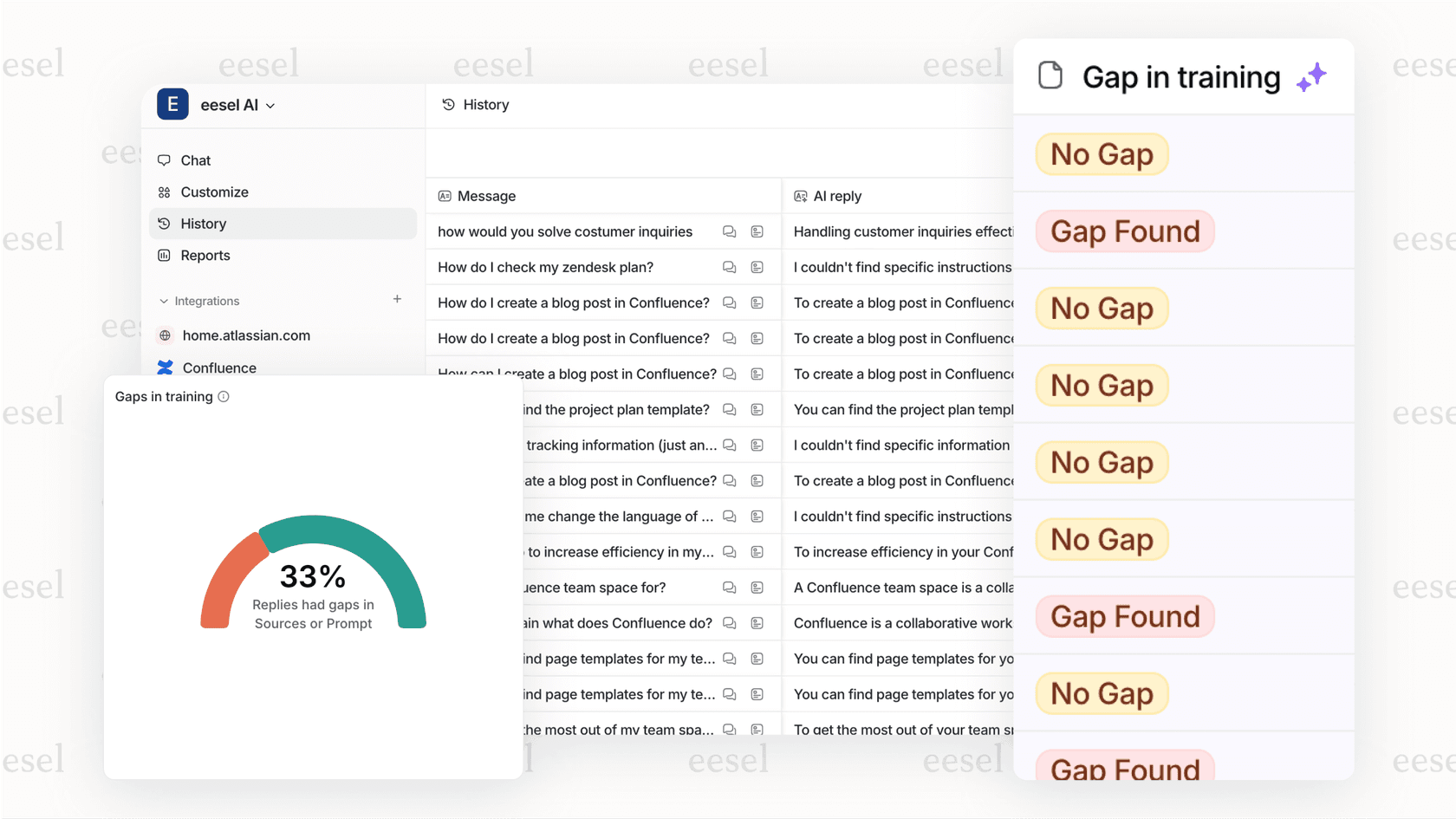
This is particularly useful for teams that need insights quickly without investing hours in report configuration. eesel AI also identifies trends automatically, flagging unusual channel spikes or shifts in volume that might indicate a product issue or marketing campaign impact.
If you find yourself spending more time building reports than analyzing them, it's worth considering whether an AI-powered approach fits your workflow better.


Frequently Asked Questions
Share this article

Article by
Stevia Putri
Stevia Putri is a marketing generalist at eesel AI, where she helps turn powerful AI tools into stories that resonate. She’s driven by curiosity, clarity, and the human side of technology.



