Every email your support team sends is a touchpoint with your brand. A professional email signature does more than share contact information. It reinforces trust, shows attention to detail, and creates consistency across every customer interaction.
Setting up email signatures in Zendesk isn't always straightforward. You have simple text signatures, HTML options, multi-brand setups, and email template branding to consider. Each approach has its place depending on your team's needs and your Zendesk plan.
This guide walks you through everything you need to know about Zendesk email signature and branding. We'll cover basic setup, advanced customization, and multi-brand configurations. By the end, you'll know exactly how to create professional signatures that match your brand.
If you're looking for a way to go beyond signatures and ensure every response (automated or human) stays on-brand, eesel AI can help. But first, let's get your Zendesk signatures sorted.

What you'll need
Before diving in, make sure you have the following:
- A Zendesk Support account on Team plan or higher (signatures aren't available on the Lite plan)
- Admin access if you're setting up global signatures for your team
- For HTML signatures: basic HTML/CSS knowledge or an HTML signature generator tool
- Publicly hosted image URLs if you plan to include logos (Zendesk doesn't host signature images)
- For multi-brand signatures: Suite Growth+ or Support Enterprise plan
Step 1: Set up a basic agent signature
Let's start with the foundation. A basic agent signature in Zendesk includes text and placeholders that automatically populate with agent information.
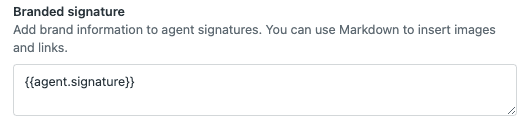
Navigate to the signature settings. In Admin Center, click Workspaces in the sidebar, then select Agent tools > Agent interface. You'll see a Signature text box where you can enter your common signature.
Add your signature content. Here's where you define what appears on every agent's outgoing messages. You can include static text like your company name and tagline, plus dynamic placeholders that pull in agent data.
The most common placeholders are:
{{agent.name}}displays the agent's full name{{agent.email}}displays the agent's email address{{agent.signature}}allows agents to add personal signature content
A typical common signature might look like this:
{{agent.signature}}
Best regards,
The Support Team
www.yourcompany.com
Enable personal signatures. If you include the {{agent.signature}} placeholder, agents can customize their own signatures in their profile settings. Remove this placeholder if you want a standardized signature for everyone.
Test before rolling out. Create a test ticket and add a public comment to see how your signature appears. Check that placeholders populate correctly and the formatting looks good.
Step 2: Add logos and images to your signature
Images make signatures more professional and visually engaging. But Zendesk has specific requirements for image handling.
Host your images externally. Zendesk doesn't store signature images. You need to host them on a publicly accessible server (your company website, a CDN, or image hosting service). The image URL must be accessible without authentication.
Get your image URL. If your logo is on your company website, right-click it and select "Copy Image Address." For Zendesk Sell users, you can also copy image links from the Calendar Accounts page under Integrations > Calendars.
Add images to simple signatures. In the signature editor, click the image icon in the toolbar and paste your image URL. The editor will insert the image into your signature.
Follow sizing best practices. Keep logos around 200x50 pixels for optimal display. Larger images can break email layouts, while smaller ones might look pixelated on high-resolution displays.
Test across email clients. Email clients render images differently. Send test emails to Gmail, Outlook, and Apple Mail to verify your images display correctly everywhere.
Step 3: Create HTML signatures for advanced branding
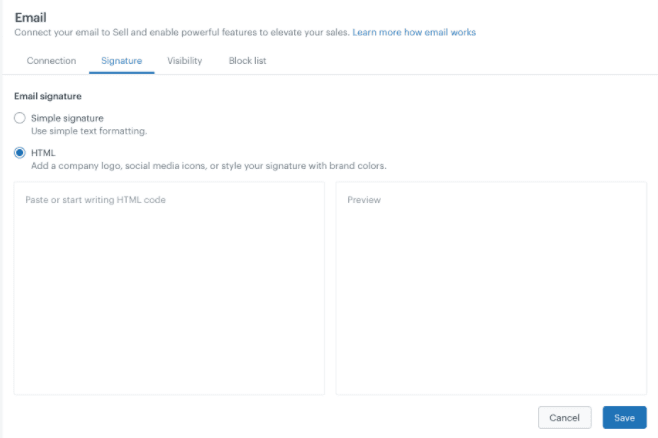
Want more control over your signature design? HTML signatures let you create multi-column layouts, styled text, and sophisticated formatting. Note: full HTML signatures are only available in Zendesk Sell, not Zendesk Support.
Choose between simple and HTML. Simple signatures work for basic text and single images. HTML signatures are worth the extra effort when you need:
- Two-column layouts (contact info on one side, logo on the other)
- Styled text with custom fonts and colors
- Multiple images arranged precisely
- Social media icons with links
Create your HTML. You have two options: write the HTML yourself or use an HTML signature generator. Generators like HubSpot's Email Signature Generator or MySignature let you design visually and export clean HTML code.
Paste correctly. When pasting HTML into Zendesk Sell's signature editor, use Command+Shift+V (Mac) or Ctrl+Shift+V (Windows). This pastes without formatting, preventing hidden characters that could break your signature.
Preview before saving. Zendesk shows a live preview of your HTML signature. Check that everything renders correctly, links work, and the layout holds together.
Know the trade-offs. Once you switch to an HTML signature in Sell, going back to simple mode deletes your HTML. Save a backup of your HTML code somewhere safe.
Step 4: Configure multi-brand signatures
If your company operates multiple brands, you probably want different signatures for each one. This requires Suite Growth+ or Support Enterprise plan.
Check your plan. Multi-brand signatures aren't available on lower-tier plans. You'll need to upgrade if this feature is essential.
Set up brand-specific signatures. Navigate to Admin Center > Account > Brand management > Brands. Click on each brand name to configure its signature. The branded signature appears alongside agent signatures when agents work on tickets for that brand.
Use Liquid markup for advanced control. For even more flexibility, you can use Liquid markup to show different signatures based on ticket group or other conditions. This requires cloning your email triggers and adding conditional logic.
Here's an example of Liquid markup for group-based signatures:
{% case ticket.group.name %}
{% when 'Sales' %}
Best regards,
The Sales Team
sales@yourcompany.com
{% when 'Support' %}
Best regards,
The Support Team
support@yourcompany.com
{% else %}
Best regards,
{{agent.name}}
{% endcase %}
Clone triggers carefully. When setting up multi-brand signatures with Liquid, you'll need to clone your standard triggers (like "Notify requester of received request") for each brand. Add brand conditions to each cloned trigger, then deactivate the originals.
Test thoroughly. Create test tickets for each brand and verify the correct signature appears. Check that agents see the right signature when they switch between brands.
Step 5: Customize your email template branding
Agent signatures appear in ticket comments. But the overall email template (headers, footers, styling) is controlled separately. This is where you add company-wide branding to all customer emails.
Understand the difference. Agent signatures = what agents add to their comments. Email templates = the wrapper around all outgoing emails including headers, footers, and styling.
Access email template settings. Go to Admin Center > Channels > Email and look for email template or branding options. The exact location varies by plan.
Add your branding elements. Most Zendesk plans let you:
- Upload a company logo for email headers
- Set brand colors for headers and footers
- Add custom text to headers and footers
- Include links to your website, help center, or social media
Consider professional services. If you want fully custom email templates beyond Zendesk's built-in options, services like Lotus Themes offer professional email branding starting at $249. They'll create responsive, branded templates that match your style guide.
Verify responsive design. Your branded emails should look good on desktop, tablet, and mobile. Send test emails to different devices or use email testing tools.
Common mistakes and troubleshooting
Even with clear instructions, things can go wrong. Here are the most common issues and how to fix them.
Images not displaying. This usually means your image URL isn't publicly accessible. Check that the URL loads in an incognito browser window. If it requires login or returns an error, rehost the image on a public server.
Formatting looks wrong. If your signature formatting breaks, check for copy-paste issues. Sometimes copying from Word or Google Docs brings hidden formatting. Try pasting into a plain text editor first, then copy into Zendesk.
Signatures not appearing in email notifications. Agent signatures only appear when agents respond from the Zendesk interface. They don't appear in automated trigger emails or when agents reply by email. For trigger emails, you need to add signature content directly to the trigger's email body.
Placeholder typos. Double-check your placeholder syntax. {{agent.name}} works. {agent.name} or {{agent.name} won't. The double curly braces and exact spelling matter.
Email client quirks. Outlook, Gmail, and Apple Mail all render HTML slightly differently. What looks perfect in one might look off in another. Keep signatures simple to minimize compatibility issues.
Signatures that are too long. Long signatures annoy customers and can trigger spam filters. Keep it under 8-10 lines including contact info and any required legal disclaimers.
Taking your support branding further with eesel AI
Signatures are just the start of consistent customer communication. Every response your team sends should sound like it came from the same company, whether it's a quick acknowledgment or a detailed technical explanation.
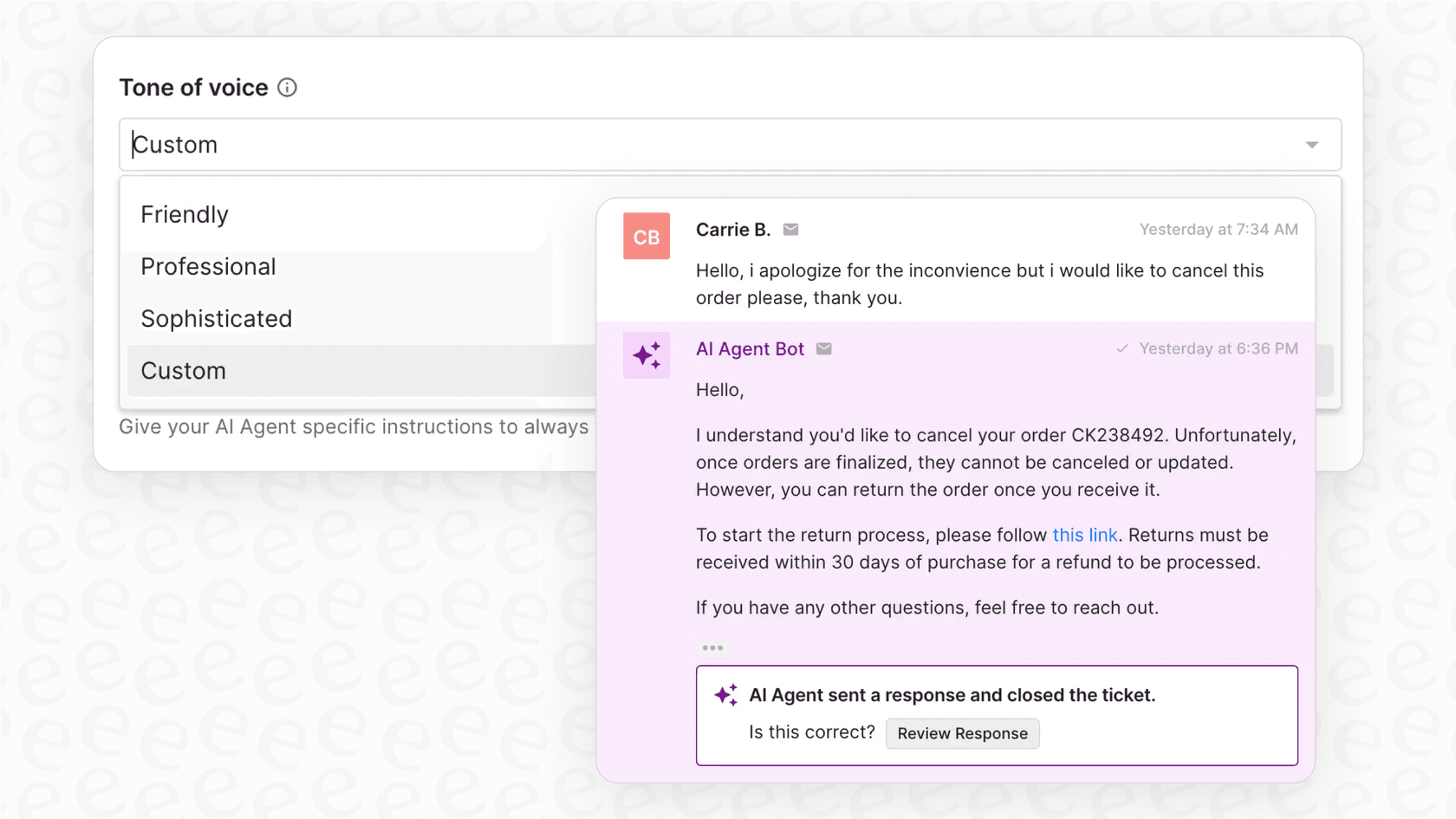
eesel's AI for Zendesk learns your brand voice from past tickets, help center articles, and existing macros. Instead of just adding a signature to the bottom of emails, we help ensure the entire response matches your tone and style.

Our AI can draft responses that sound like your best agents, handle routine inquiries automatically, and escalate complex issues to humans when needed. For teams managing multiple brands, we automatically detect which brand's voice to use based on the ticket.
If you're spending time worrying about signature consistency, you might be ready for a solution that handles the bigger picture. See how eesel AI works or try it free.