Your agents open dozens of tickets every day and type variations of the same responses. "Thanks for reaching out." "Let me look into that." "Here's how to reset your password." It's necessary work, but it's repetitive. And every minute spent on these opening lines is a minute not spent solving harder problems.
That's where Zendesk Copilot's suggested first replies come in. This feature uses AI to draft initial responses based on your existing macros and help center articles. Agents get a head start, customers get faster replies, and your team can focus on the issues that actually need human judgment.

But here's the catch: the feature only works well if you set it up right. Poorly organized macros or sparse help center content means generic suggestions that agents ignore. This guide walks you through everything you need to know to get it working properly, from prerequisites and setup to optimization and troubleshooting.
What you'll need before starting
Suggested first replies isn't a standalone product. It's part of the Zendesk AI Copilot add-on, which means you'll need a few things in place first.
Required:
- A Zendesk Suite Professional or Enterprise plan (Suite Team doesn't include Copilot)
- The Copilot add-on, which costs $50 per agent per month on top of your base plan
- Agent Workspace enabled for your account
- Admin Center access to configure the feature
Also important:
- Your account must be on the improved messaging backend (most accounts already are)
- You need suggested macros eligibility (this depends on having enough macro usage data)
- Quality macros and help center articles (the AI can only work with what you give it)
If you're on Suite Professional, you get 5 Copilot writing tool uses per agent per month included. But for unlimited suggested first replies, you need the full Copilot add-on.
How Zendesk Copilot suggested first replies work
The feature scans incoming tickets and compares them against your existing content. It looks at the ticket subject and first comment (for email and web form tickets) or the bot conversation history (for messaging tickets). Then it generates a suggested response.
Here's the hierarchy it follows:
-
Suggested macros first. If the AI finds a macro that matches the ticket intent with high confidence, it uses that exact content. This is ideal because it's your pre-approved, vetted language.
-
Help center articles second. If no macro matches well enough, the AI pulls from your help center and generates a response based on that content.
-
LLM generation for messaging. On messaging channels, if neither macros nor help center articles match, the AI can generate a response using its general knowledge (not based on your content).
The suggestion only appears for the first agent reply. Once an agent sends that initial response, Copilot won't suggest follow-ups for that ticket. Agents can accept the suggestion as-is, edit it, or ignore it and write their own reply.
When an agent accepts a suggestion, Zendesk adds the tag accepted_suggested_first_reply to the ticket. This lets you track usage and measure impact.
Step 1: Enable suggested first replies in Admin Center
Once you have the prerequisites sorted, turning on the feature takes just a few clicks.
-
Navigate to Admin Center. Click the gear icon in Zendesk, then select AI in the left sidebar.
-
Go to Agent Copilot > Suggestions. This is where you control all Copilot suggestion features.
-
Select "Suggest first replies." Toggle this option on.
-
Configure group access. By default, all agent groups can see suggested first replies. You can limit this to specific groups if you want to roll it out gradually. Search for and select the groups that should have access.
-
Save your settings.
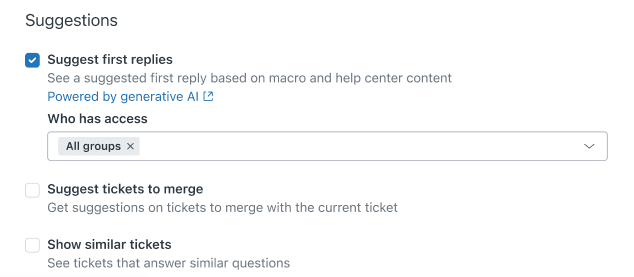
That's it for the basic setup. Agents in the selected groups will now see suggested replies when they open qualifying tickets. But getting the feature turned on is just the start. The real work is making sure those suggestions are actually useful.
Step 2: Optimize your macros and help center content
The quality of suggested first replies depends entirely on the quality of your source content. If your macros are outdated or your help center is sparse, the AI will struggle to generate relevant suggestions.
For macros:
- Write clear, specific macros for common intents. A macro titled "Password Reset" with step-by-step instructions works better than a generic "Technical Issue" macro.
- Keep macro titles descriptive. The AI uses these to understand when to apply each macro.
- Organize macros by category so agents (and the AI) can find them easily.
- Review and update macros regularly. Outdated content leads to bad suggestions.
For help center articles:
- Structure articles with clear headings and concise paragraphs. The AI extracts better information from well-organized content.
- Include specific instructions, not just general explanations. "Click Settings > Account > Password" is more useful than "Go to your account settings."
- Cover common troubleshooting steps. The AI can't suggest solutions you haven't documented.
- Keep articles up to date. Product changes should be reflected in your help center immediately.
Testing before go-live:
Here's the challenge: Zendesk doesn't offer a simulation mode for suggested first replies. You can't test how the AI will perform on your historical tickets before enabling it for live conversations. This means your first real test is with actual customers.
To minimize risk, start with a pilot group of experienced agents who can provide feedback on suggestion quality. Monitor the accepted_suggested_first_reply tag closely during the first few weeks. If acceptance rates are low, your content probably needs work.
Step 3: Monitor performance and measure success
You need to know if this feature is actually helping. Zendesk gives you a few ways to track this.
Basic tracking:
The accepted_suggested_first_reply tag is your primary metric. When agents accept a suggestion, this tag gets added to the ticket. You can create views or reports filtered by this tag to see how often suggestions are being used.
Building reports in Explore:
For more detailed analysis, you'll need Zendesk Explore (available on Professional and Enterprise plans).
-
Create a standard calculated attribute called "Suggested reply accepted" with this formula:
IF (INCLUDES_ANY([Ticket tags], "accepted_suggested_first_reply")) THEN "Yes" ELSE "No" ENDIF -
Build a report comparing first reply times between tickets with and without accepted suggestions. This shows you the efficiency gain.
-
Track solved ticket volume by suggestion acceptance to see if the feature correlates with faster resolution.
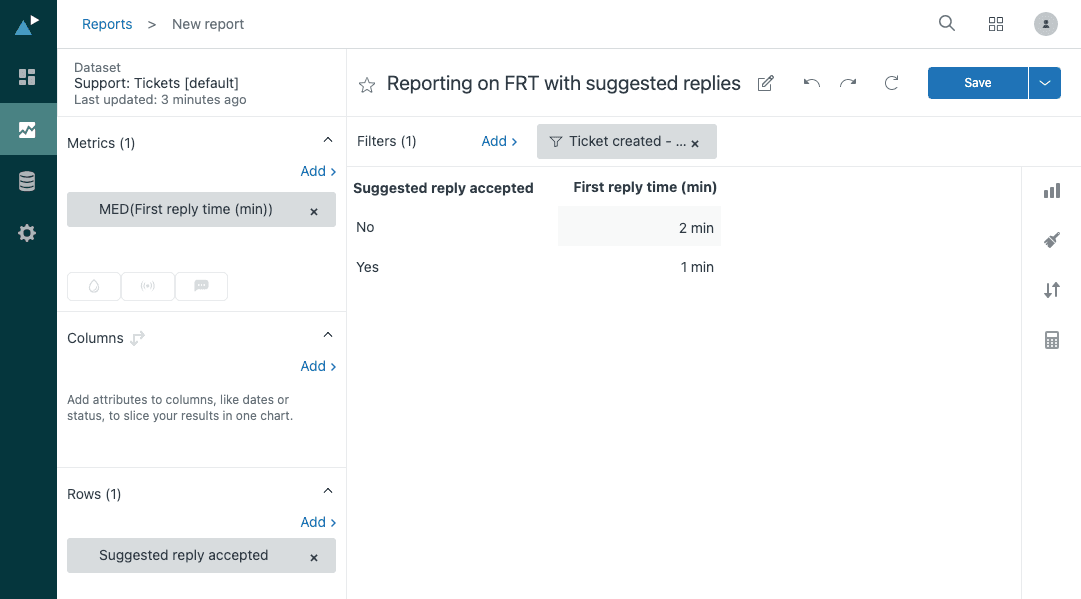
What good looks like:
There's no universal benchmark, but you want to see:
- Acceptance rates above 50% (meaning agents find the suggestions useful more often than not)
- Shorter first reply times on tickets with accepted suggestions
- Positive agent feedback about suggestion relevance
If acceptance rates are low, review your macros and help center content. If first reply times aren't improving, agents might be spending too much time editing suggestions.
Troubleshooting when Zendesk Copilot suggested first replies aren't working
Sometimes the feature doesn't behave as expected. Here are the most common issues and how to fix them.
Suggestions not appearing at all:
- Check that Auto Assist isn't enabled for the same tickets. When both features are on, Auto Assist takes precedence and suggested first replies won't show. Temporarily turn off Auto Assist to test.
- Verify the agent is in an enabled group and has the right permissions.
- Confirm the ticket is via email, web form, or messaging (the supported channels).
- Make sure it's actually the first agent reply. Suggestions only appear once per ticket.
Suggestions are too generic:
- Improve your macro quality. Write specific macros for specific intents rather than catch-all responses.
- Expand your help center coverage. The AI can't suggest what isn't documented.
- Review macro titles and content. Clear, descriptive language helps the AI match tickets correctly.
Low acceptance rates:
- Survey your agents. Are suggestions irrelevant, poorly written, or just not useful for their workflow?
- Check that suggestions match your brand voice. Agents won't use suggestions that sound wrong.
- Consider whether your ticket types are a good fit. Complex, unique issues don't lend themselves to templated first replies.
Account eligibility issues:
- Confirm you have the Copilot add-on and it's active on your account.
- Check that you're on the improved messaging backend (look for the Messaging triggers page in Admin Center).
- Verify suggested macros eligibility. This requires sufficient macro usage history.
Important limitations to understand
Suggested first replies can save time, but it's not a magic solution. Know these limitations before you commit.
No learning from past tickets. Unlike some AI tools, Zendesk Copilot doesn't analyze your historical ticket resolutions to improve suggestions. It only uses your explicitly created macros and help center articles. If your team has built up tribal knowledge in ticket comments, that doesn't get captured.
First reply only. The feature only suggests the opening response. For back-and-forth conversations, agents are on their own after that initial reply.
Requires curated content. You can't just turn this on and expect it to work. You need well-maintained macros and a comprehensive help center. If your documentation is lacking, the suggestions will be too.
No safe testing environment. You can't simulate how the feature will perform on your tickets before going live. Your testing happens with real customer conversations.
Costs add up. At $50 per agent per month on top of your base Zendesk plan, a team of 20 agents pays $1,000 monthly just for the Copilot add-on. Make sure the efficiency gains justify the cost.
When to consider alternatives to Zendesk Copilot
Suggested first replies work well for teams with solid documentation and straightforward ticket types. But it's not the right fit for everyone.
You might need something different if:
- Your team handles complex, varied issues that don't fit templates
- You want AI that learns from your past ticket resolutions, not just your macros
- You need to test AI performance before exposing it to customers
- Your workflows involve actions beyond Zendesk (like processing refunds in Shopify)
How eesel AI fits in:
If Zendesk Copilot's limitations are dealbreakers, eesel AI offers a different approach that complements or replaces Zendesk's native AI.
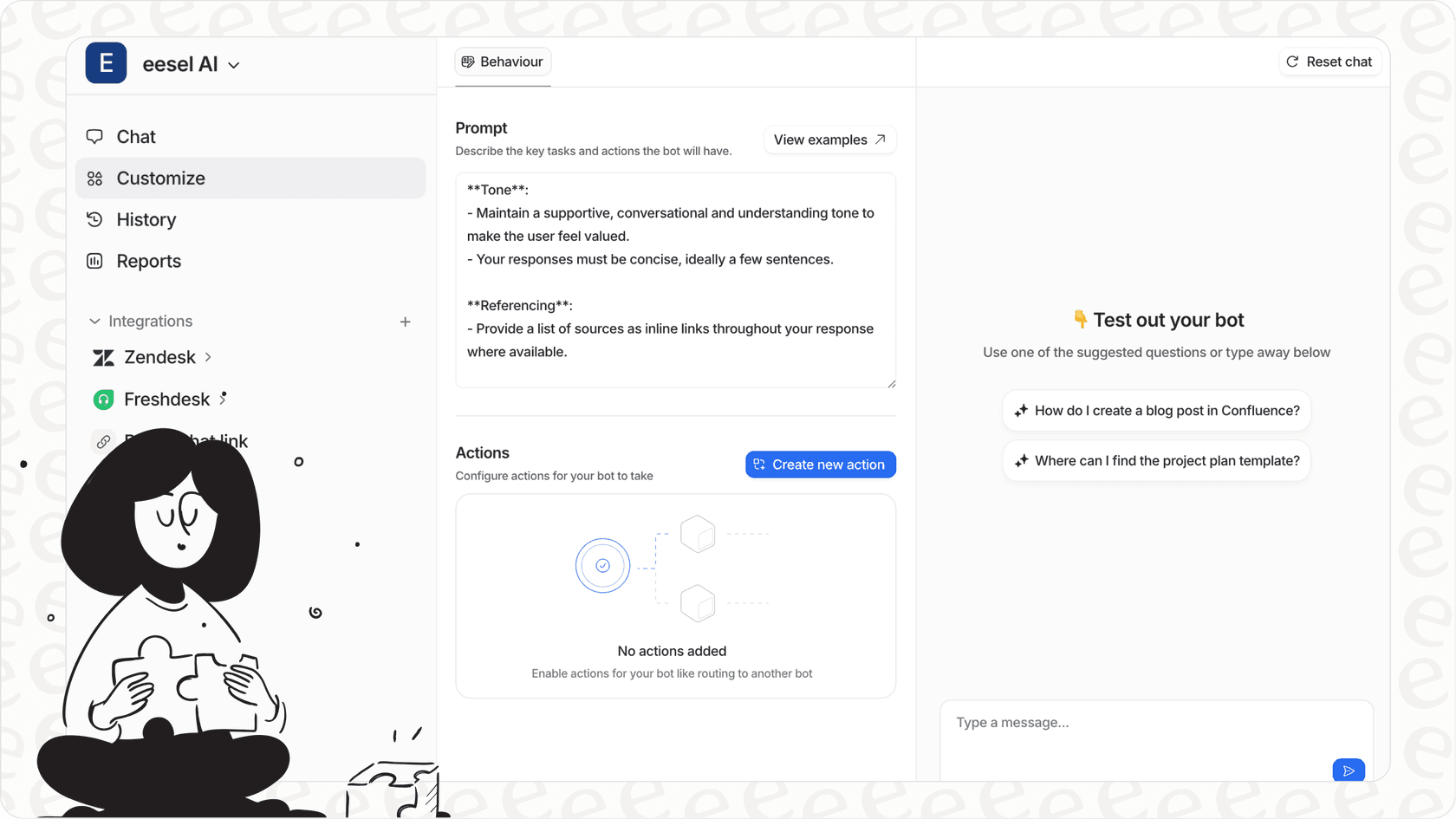
Here's what sets it apart:
- Learns from past tickets. eesel analyzes your historical support conversations to understand how issues are actually resolved, not just what's in your help center.
- Simulation mode. You can test the AI on past tickets before going live, so you know exactly how it will perform.
- Broader knowledge sources. Connect Confluence, Google Docs, Notion, and PDFs alongside your help center.
- Per-interaction pricing. Instead of paying per agent per month, you pay for what you use. This can be more predictable for teams with fluctuating ticket volumes.
eesel AI integrates directly with Zendesk, so you don't need to switch help desks. You can start with eesel's AI Copilot for draft suggestions, then level up to full AI Agent automation as you gain confidence.
Start improving your agent efficiency with Zendesk Copilot suggested first replies
Setting up suggested first replies is straightforward, but getting real value from it takes work. You need quality source content, engaged agents willing to try the suggestions, and a process for monitoring and improvement.
Start with a pilot group, measure acceptance rates and first reply times, and iterate on your macros and help center based on what you learn. If the feature delivers the efficiency gains you're looking for, roll it out more broadly. If it doesn't, evaluate whether your content needs work or if a different approach might serve you better.
For teams that want AI assistance but need more flexibility than Zendesk's native Copilot offers, eesel AI's Copilot provides an alternative that learns from your full support history and lets you test before you deploy. Whichever path you choose, the goal is the same: give your agents tools that actually help them work faster and more consistently, so they can focus on the conversations that matter most.