
Your help center URL says something about your brand. When customers see support.yourcompany.com instead of yourcompany.zendesk.com/hc, it signals professionalism and brand consistency. That's what Zendesk brand host mapping makes possible.
Host mapping lets you replace the default Zendesk subdomain with a custom domain you own. It's a straightforward DNS configuration that creates a more cohesive customer experience. This guide walks through everything you need to set it up, from DNS records to SSL certificates, plus how to handle multiple brands if you're running a multi-product operation.
If you're looking to enhance your Zendesk setup further with AI-powered support, eesel AI integrates seamlessly with host-mapped domains to provide intelligent ticket handling across all your brands.
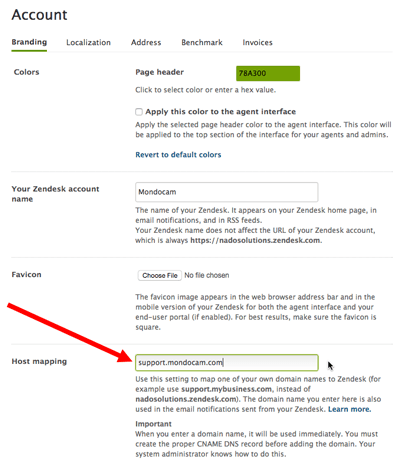
What is Zendesk brand host mapping?
By default, your Zendesk help center lives at a subdomain like mycompany.zendesk.com/hc. Host mapping changes this to something like support.mycompany.com or help.mycompany.com (your domain, your choice).
The feature works by creating a CNAME record that points your custom subdomain to Zendesk's servers. When visitors type your custom URL, they see your help center. Behind the scenes, Zendesk handles the routing.
Here's the important limitation to understand: host mapping only affects what customers see. Your agents'll continue using the original mycompany.zendesk.com URL for the agent interface. If an agent tries to access a ticket through the custom domain (like support.mycompany.com/agent/tickets/123), Zendesk automatically redirects them to the standard URL.
You also can't map to second-level domains (like mycompany.com itself) or subdirectories (like mycompany.com/support). It's got to be a subdomain.
What you'll need before you start
Before diving into configuration, make sure you've got:
- Zendesk Suite Team or higher - Host mapping isn't available on Support Team plans. You also need Guide Professional or Enterprise for help center customization.
- Admin permissions - Only administrators can configure host mapping and SSL certificates.
- A registered domain - You need to own the domain you want to use (e.g.,
mycompany.com). - DNS management access - You must be able to create CNAME records with your domain registrar or DNS provider.
- Patience for DNS propagation - Changes can take anywhere from a few minutes to 24 hours to take effect.
Plan limits matter here. Suite Team supports one brand. Suite Professional handles up to five brands. Suite Enterprise scales to 300 brands. Each brand can have its own host-mapped domain.
Step 1: Configure your DNS records
The first step happens outside Zendesk, with your domain registrar or DNS provider.
-
Choose your subdomain - Common choices include
support,help, ordocs. So you'd havesupport.mycompany.com. -
Create a CNAME record - In your DNS settings, create a CNAME record pointing your chosen subdomain to your Zendesk subdomain:
- Host/Name:
support(or your chosen subdomain) - Points to/Target:
mycompany.zendesk.com - TTL: Leave default or set to 300 seconds (5 minutes) for faster testing
- Host/Name:
-
Wait for propagation - DNS changes don't happen instantly. Use a tool like
digor an online DNS checker to verify the CNAME's resolving correctly before moving to the next step.

One common mistake is using an A record instead of a CNAME. Zendesk requires CNAME records because their server IPs can change. A records point to specific IP addresses, which break if Zendesk updates their infrastructure.
Step 2: Set up host mapping in Zendesk
Once your DNS is configured and propagated, it's time to tell Zendesk about your custom domain.
For single-brand accounts:
- Go to Admin Center > Account > Appearance > Branding
- Scroll to the Host Mapping section
- Enter your full custom domain (e.g.,
support.mycompany.com) - Click Save
For multi-brand accounts:
- Go to Admin Center > Account > Brand management > Brands
- Select the brand you want to configure
- Enter your custom domain in the Host Mapping field
- Click Save
Zendesk automatically tests the mapping when you save. You'll see a notification indicating whether it's working. If it shows as not working, double-check your DNS configuration and wait a bit longer for propagation.
Step 3: Configure SSL certificates
Without SSL, browsers'll show security warnings when visitors access your custom domain. Zendesk offers two options for securing host-mapped domains.
Option 1: Zendesk-provisioned SSL (recommended)
This is the easiest approach and it's free. Zendesk generates and manages SSL certificates through Let's Encrypt.
- Go to Admin Center > Account > Security > More settings
- Click the SSL tab
- In the Hosted SSL section, click Enable Zendesk-provisioned SSL
- Click Save
Processing takes up to an hour. The certificate covers up to 100 host-mapped domains and auto-renews before expiration.
Option 2: Upload your own certificate
If your organization requires specific certificate providers or custom SSL configurations:
- Purchase an SNI-based SSL certificate from your preferred certificate authority
- Generate a certificate signing request (CSR) if needed
- In the Hosted SSL section, click I have a certificate > Upload certificate
- Upload your PEM file and private key
- Click Save
Note that Zendesk only supports SNI-based certificates. IP-based SSL certificates won't work.
Multi-brand host mapping considerations
Running multiple brands in Zendesk? Each brand can have its own host-mapped domain. A software company might have:
support.product-a.comfor their main producthelp.product-b.comfor their secondary productdocs.enterprise.comfor their enterprise documentation
Each domain needs its own CNAME record pointing to its respective brand subdomain in Zendesk. So support.product-a.com points to producta.mycompany.zendesk.com, while help.product-b.com points to productb.mycompany.zendesk.com.
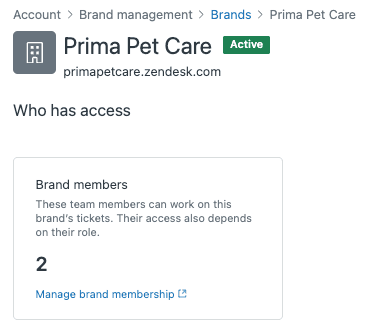
Important: When you add new host-mapped brands, you've got to regenerate your SSL certificate. The good news is that one regeneration covers all new brands added at once. Add three brands, regenerate once. Add two more later, regenerate again.
Brand membership also becomes relevant here. With Department Spaces enabled, agents only see tickets for brands they're members of. Make sure to assign agents to the appropriate brands so they can access the tickets they need to handle.
Common issues and troubleshooting
Even with straightforward DNS configuration, things sometimes don't work as expected. Here are the most common issues and how to fix them.
SSL errors after setup If visitors see security warnings, the SSL certificate probably hasn't finished processing. Zendesk-provisioned certificates can take up to an hour. Custom certificates might've configuration issues. Check the SSL status in Admin Center and verify your certificate format.
DNS not resolving If your custom domain doesn't load at all, the CNAME record might still be propagating. Use online DNS lookup tools to verify the record's visible globally. Some DNS providers take longer than others.
Mixed content warnings If your help center loads but shows mixed content warnings, you've likely got hardcoded HTTP links in your theme or articles. Update these to use HTTPS or relative URLs.
HSTS configuration For enhanced security, you can extend HTTP Strict Transport Security from the default 1 day to 1 year. This tells browsers to always use HTTPS for your domain. You'll find this option in the same SSL settings panel.
CAA record conflicts If you use Certification Authority Authorization (CAA) records to restrict which certificate authorities can issue certificates for your domain, make sure to add Let's Encrypt (for Zendesk-provisioned certificates) or your chosen CA (for custom certificates) to your CAA records.
Connecting host mapping to AI support
Once your custom domains are configured, you might consider how AI fits into your multi-brand support strategy. Here's where things get interesting.
Zendesk's native AI agents are configured per brand. Each AI agent can only access one brand's help center content. If you have three brands with distinct knowledge bases, you need three separate AI agents. This works fine for completely separate brand experiences, but it creates overhead.
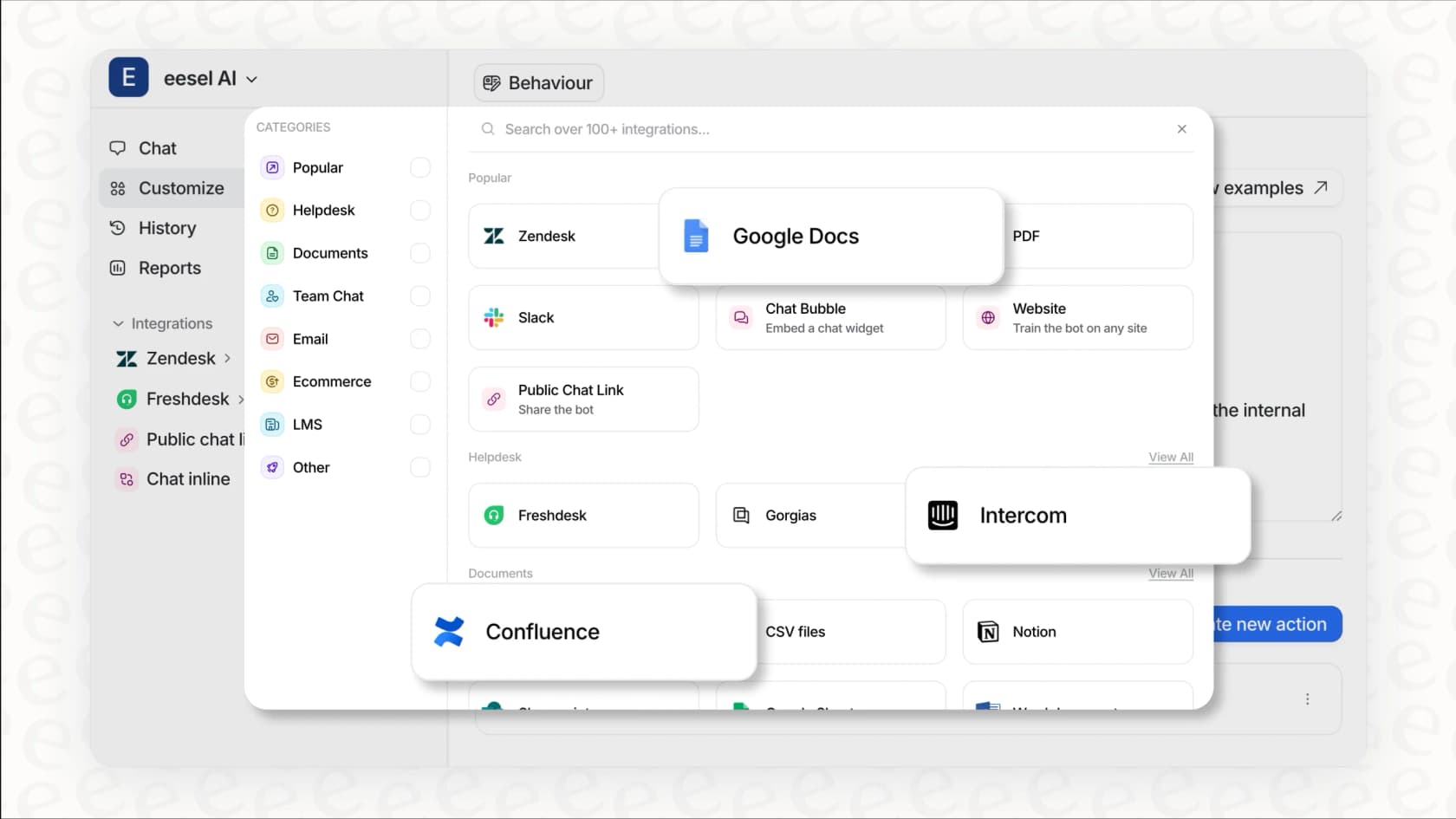
We approach multi-brand support differently at eesel AI. Our AI can train on multiple help centers, past tickets from all brands, and external sources like Confluence or Google Docs simultaneously. Instead of creating separate AI agents for each brand, you get one AI teammate that understands your entire support ecosystem.

Our Zendesk integration plugs directly into your existing setup. The AI learns from your macros, past tickets, and help center articles across all brands. When customers reach out through any of your host-mapped domains, the AI provides consistent, informed responses.
Pricing works on interactions rather than per-agent or per-brand fees. The Team plan starts at $239/month annually for 1,000 interactions across up to 3 bots. The Business plan at $639/month annually includes unlimited bots and 3,000 interactions, plus features like bulk simulation over past tickets and AI triage actions.
If you're managing complex multi-brand support and finding Zendesk's one-AI-per-brand model restrictive, try our AI agent and see how a unified knowledge approach might work for your team. You can find full details about eesel's Zendesk integration and how it supports multi-brand setups.