
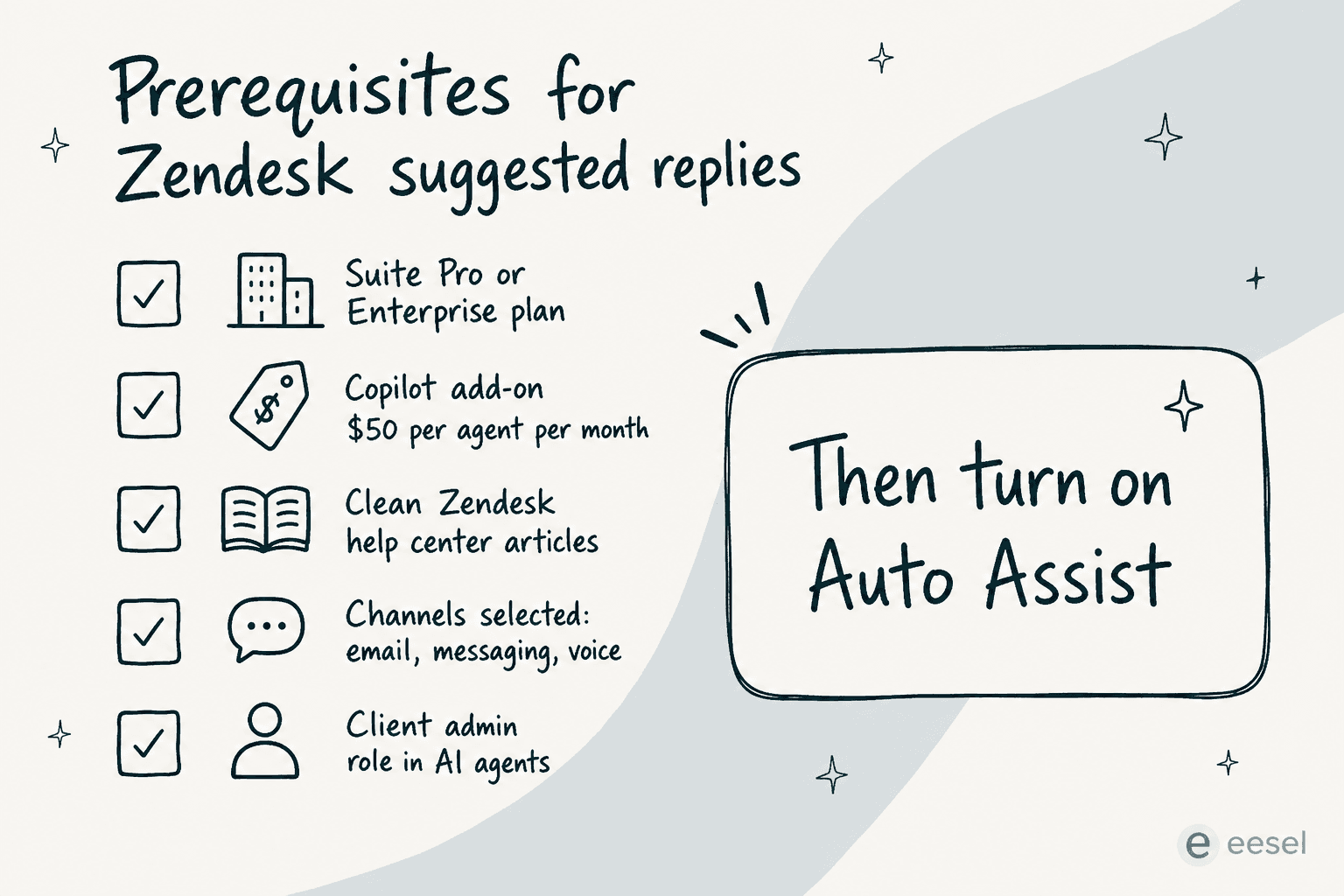
"AI suggested replies" in Zendesk live inside Copilot, specifically the feature called Auto Assist. Turning them on is less of a setting and more of a stack: you need a Suite plan, the Copilot add-on (about $50/agent/month) or Enterprise tier, Intelligent Triage configured per channel, a clean help center, and a client admin role. Once that's in place, Auto Assist drafts a reply on every public ticket and the agent either edits, approves, or sends it as-is.
What goes wrong is rarely the wizard. It's the prerequisites: messy KB articles, channels left unchecked, custom topics that overlap, and the silent industry/model-fit gate on topic detection. We'll walk through configuration step by step, then show how eesel AI does the same job with fewer prerequisites and a simulation step before anything goes live.
What "AI suggested replies" actually means in Zendesk
The phrase gets used loosely. In 2026 Zendesk packages "AI" into three different products, and only one of them is what teams usually mean by suggested replies:
| Zendesk product | What it does | Who it talks to |
|---|---|---|
| AI Agents | Resolves customer conversations end-to-end, autonomously | Customer |
| Copilot / Auto Assist | Drafts a reply for the human agent to edit or approve | Human agent |
| Copilot AI writing tools | Rewrites or expands an agent's draft (tone, length, grammar) | Human agent |
"AI suggested replies" is Auto Assist, the agent-facing feature inside Zendesk Copilot. Zendesk describes it like this on the product page:
"Give your team AI-powered guidance directly within the agent workspace. Let it suggest next steps, draft responses, and execute approved actions based on your knowledge and procedures." (Zendesk Copilot)
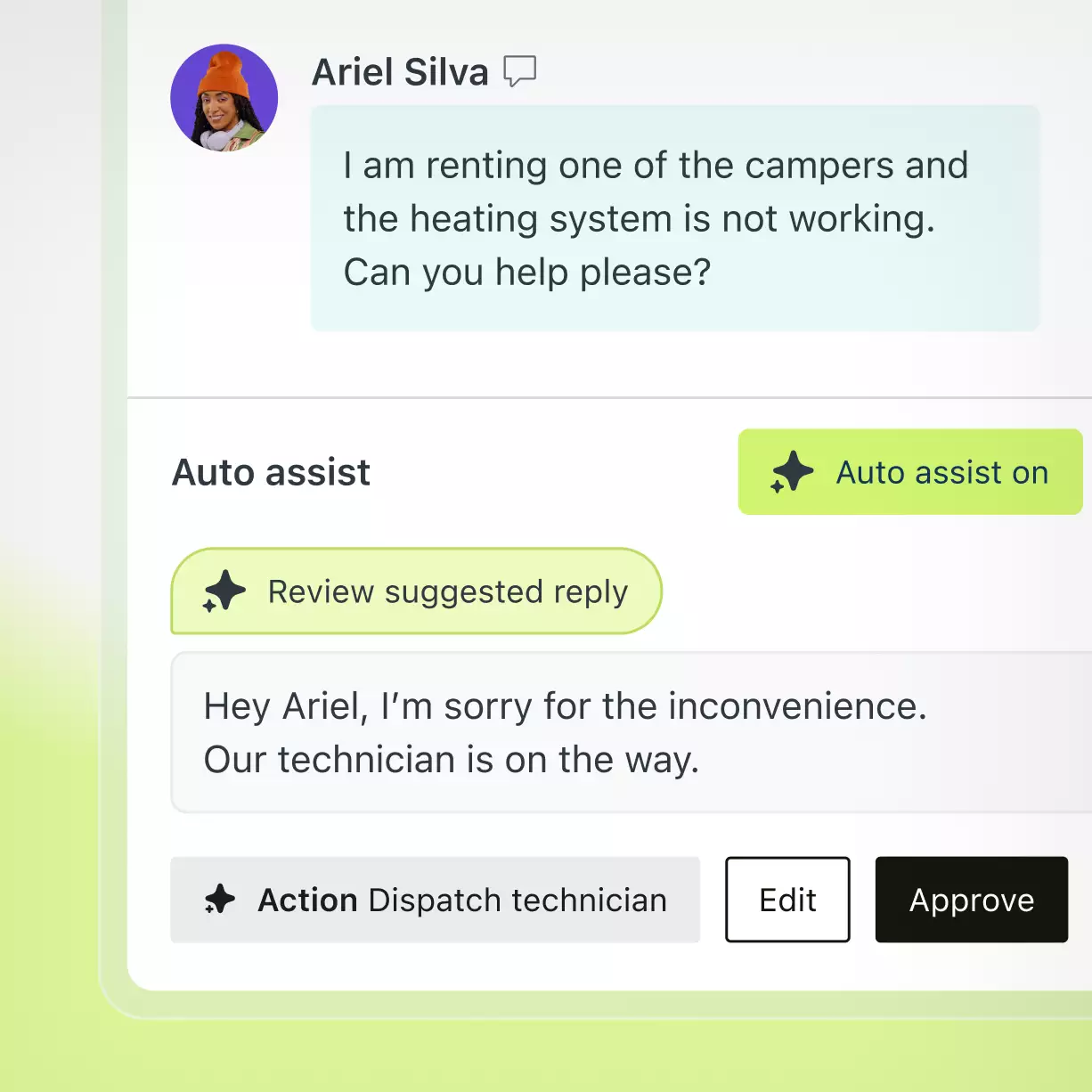
Once you turn it on, every new public-comment ticket lands with a Review suggested reply prompt next to the composer. The agent reads the draft, edits if needed, and clicks Approve.
The reason this matters before you start configuring: the rest of this guide only covers Auto Assist. The free "Copilot AI writing tools" on Professional plans are a different (much smaller) product, and customer-facing AI Agents have their own wizard documented in our Zendesk AI agents setup guide.
Prerequisites
This is where most teams stall. Auto Assist itself takes minutes to enable, but it depends on four things being in place first.
1. The right plan and add-on
Per the Zendesk pricing page, here's the lay of the land in 2026:
| Plan (annual) | Suggested-reply capability |
|---|---|
| Support Team - $19/agent/mo | None |
| Suite Team - $55/agent/mo | None (only the lighter AI Writing Tools at Professional and above) |
| Suite Professional - $115/agent/mo | Copilot AI Writing Tools included; full Auto Assist requires the add-on |
| Suite Enterprise + Copilot | Auto Assist bundled in |
| Copilot add-on | ~$50/agent/month on any Suite plan below Enterprise |
The widely-referenced $50/agent/month number is consistent across third-party teardowns including Twig, Salto, and getMacha, although Zendesk itself punts to "contact your account executive" on the Copilot page.
A practical worked example: a 20-agent team on Suite Professional is looking at $115 × 20 = $2,300/month for the base plan plus $50 × 20 = $1,000/month for Copilot, so $3,300/month all-in before any per-resolution AI Agents fees. The Capterra reviewer Vibhore S. put the configuration cost the other way: "Pricing is a bit of a con and setting up add ons can add more to it and could feel like a full time job in the backend." (Capterra review, April 2026)
2. A help center Auto Assist can actually read
Auto Assist drafts from your knowledge base, ticket context, current conversation, procedures, and macros. If those sources are thin, you get vague drafts the agent has to rewrite anyway, which defeats the point.
The community signal on this is unambiguous. From a Reddit thread cited across multiple 2026 Zendesk-AI teardowns:
"The Co-Pilot stuff is decent, but we found its effectiveness really depends on having a perfectly curated Zendesk knowledge base, which... ours isn't, lol."
u/ToastBix, r/Zendesk

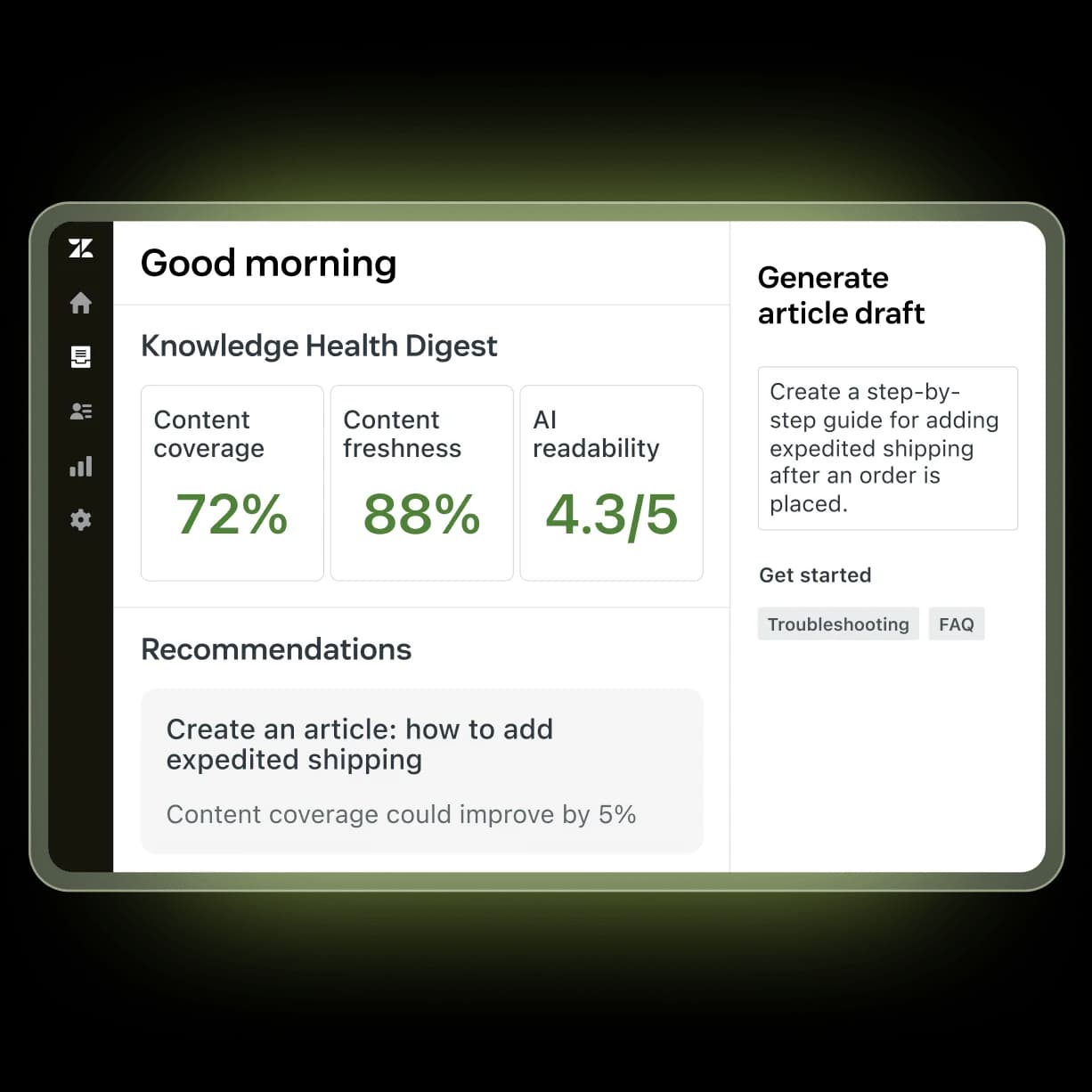
Zendesk's own help-center prep doc and Copilot's built-in Knowledge Health Digest both push the same point: content coverage and freshness directly cap reply quality. Run a readiness pass before you turn anything on.
3. Intelligent Triage on the channels you care about
Auto Assist sits downstream of Intelligent Triage, which classifies each ticket by topic, sentiment, and language the moment it lands. Without triage active on the channel, Copilot has nothing to scaffold the suggested reply against.
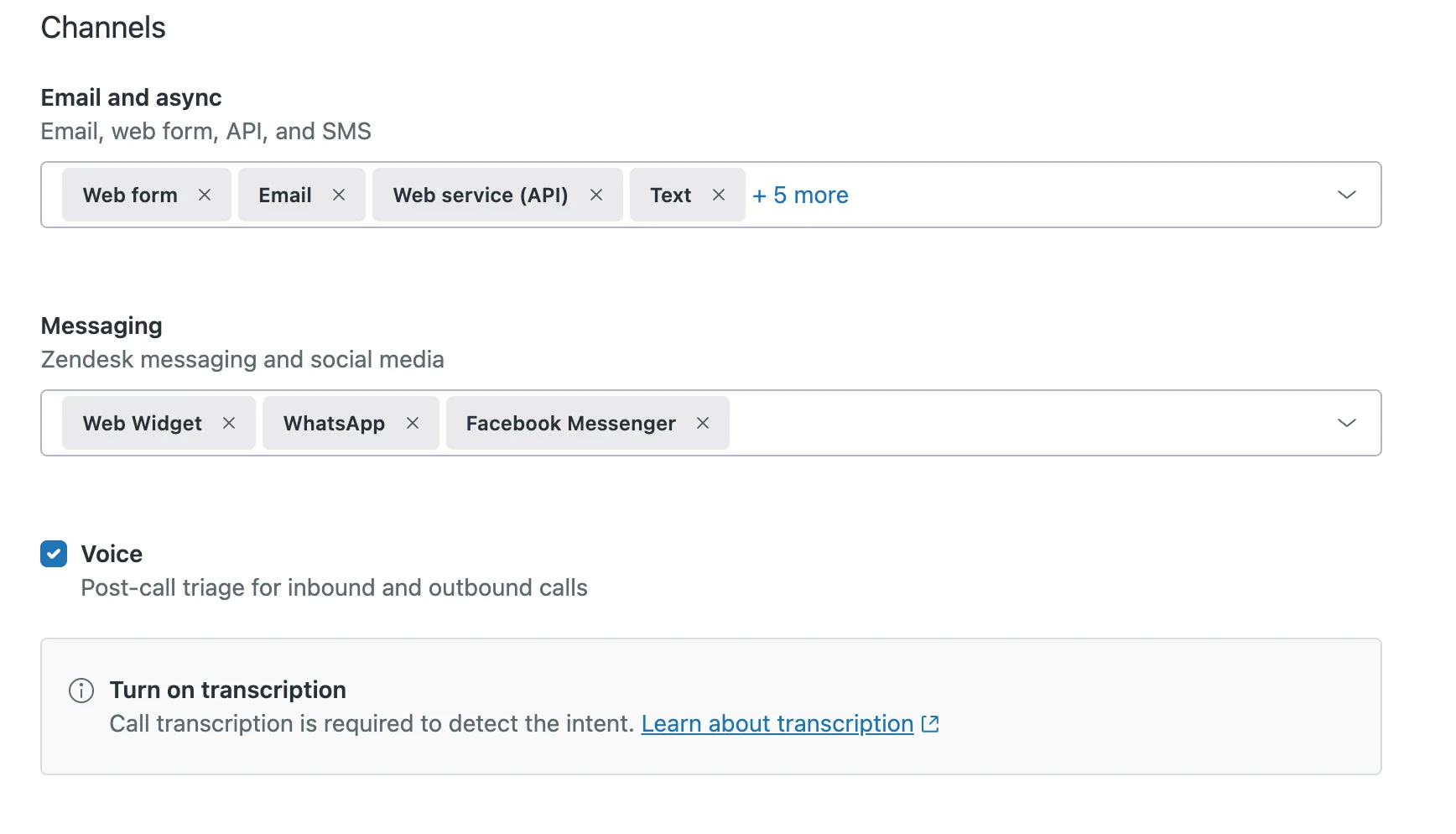
You'll configure triage per channel under Admin Center > AI > Intelligent triage. Email/async (Web form, Email, API, Text), Messaging (Web Widget, WhatsApp, Facebook Messenger and the SDK channels), and Voice (post-call transcripts, requires transcription on) are the three groups. Defaults are sensible; the only switch that bites teams later is Ignore agent-initiated tickets.
4. A client admin role and the right channels enabled
The AI agents setup doc is explicit: you need a client admin role in AI agents to create or activate anything, and the underlying channels (messaging, email, web form, API, voice EAP) have to be set up before the AI layer can reach them.
Step-by-step: turning on Zendesk AI suggested replies
With the prerequisites green, the actual configuration is a handful of screens. The flow below is the post-May-2026 unified path; the legacy "AI agents - Essential" route is being sunset on December 10, 2026 and can't be created on net-new accounts.
Step 1 - Enable Intelligent Triage
In Admin Center, head to AI > Intelligent triage. The first-run onboarding walks you through three settings:
- Topic, sentiment, language toggles - all on by default. Leave them on; Copilot uses all three.
- Dynamic detection (Topic and Sentiment only) - re-classifies tickets when the customer replies. Useful for long threads where the conversation drifts.
- Channels - pick what's in scope. Web form, Email, and API are selected by default for email/async; Messaging defaults to Web Widget, WhatsApp, and Facebook Messenger.
A heads-up most setup guides skip: topic detection has an industry/model-fit gate that language and sentiment don't. Per Zendesk's troubleshooting doc, if your account doesn't qualify, you'll still see language and sentiment predictions but no topic. The doc doesn't define "qualify" precisely; it's a function of ticket volume and industry match against Zendesk's pre-trained Topic Model.
Step 2 - Verify triage is firing on tickets
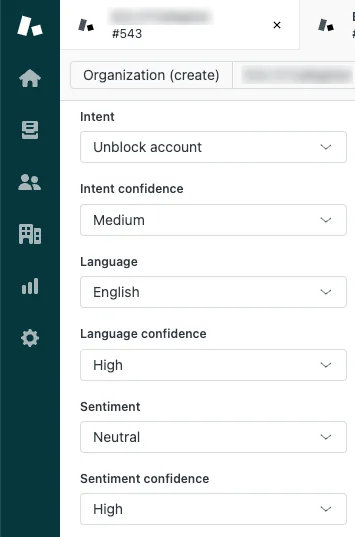
Open a freshly created public-comment ticket and look at the ticket properties panel. You should see Topic (or Intent on accounts that bought Copilot before June 11, 2026), Topic confidence, Language, Language confidence, Sentiment, and Sentiment confidence. Each has a High/Medium/Low confidence stamp.
Two caveats from Zendesk's own Viewing classifications doc that change how you operate:
- Most classifications are based on the ticket's first message only, so manual edits should also be based on the first message.
- Updating these fields does NOT train the machine-learning model, so agent corrections won't improve future predictions.
Step 3 - Train (or accept) the topic taxonomy
Out of the box, Zendesk ships a pre-trained Topic Model with industry-specific topics. You'll see two things on the Topic page: coverage (count of tickets assigned to each topic over the last 30 days) and a Recommendations panel that suggests new topics based on patterns in your data.
To add a custom topic, go to AI > Intelligent triage > Topic > Create topic and provide:
- Name - no special characters (no dashes, underscores, colons)
- Description - Zendesk's exact framing is "written as if you're explaining an issue to an agent on their first day"
- Category and subcategory - placed in the existing three-level hierarchy (category → subcategory → topic)
Zendesk's own guardrail, lifted verbatim from the custom topics doc:
"Creating a high number of custom topics can lead to performance issues."
So go narrow before you go wide. If your team is on a Zendesk forum, you've probably seen the version of this complaint reviewers keep flagging:
"The predefined categories for Intents are severely lacking. We need the ability to create our own top level and sub level categories… A lot of the predefined ones seem sales oriented and we do not do sales at all."
Richard McConniel, comment on Zendesk's setup doc, Sep 18, 2025
If the prebuilt taxonomy doesn't fit your business, expect a few rounds of custom-topic iteration before suggested replies feel relevant.
Step 4 - Connect the knowledge sources Auto Assist will draft from
Copilot's drafts pull from your help center, ticket context, current conversation, procedures, and macros. Two specific things to do here:
- Activate the help center for the brand you're rolling Auto Assist out on, and make sure auth is configured for messaging conversations.
- Audit your macros. Auto Assist will lean on them to copy phrasing patterns. Stale or contradictory macros generate stale or contradictory drafts.
If you have content in Google Drive, Confluence, or PDFs, Zendesk's unified knowledge graph can ingest those too, although in practice teams report this as the messiest part of the setup. Multiple Capterra reviewers describe agent-side usability as great but admin-side configuration as "burdensome" (search-derived G2 quote: "the way that they are set up is a little burdensome to actually onboard", G2 Zendesk reviews).
Step 5 - Pick a tone of voice
The AI agent creation wizard offers four tone presets:
- Professional (default) - polite and direct.
- Enthusiastic - upbeat and friendly.
- Informal - casual and friendly.
- Custom - a short, hand-written style guide (Zendesk's own example: "You maintain a polite, approachable, and conversational tone throughout the conversation.").
The Business profile field above the tone selector is where teams routinely overshoot. Zendesk explicitly warns against putting instructions or marketing copy in there, since it destabilises Copilot's behaviour. Keep it factual: "We sell standing desks and ergonomic office chairs to small businesses in North America."
Step 6 - Enable Auto Assist for agents
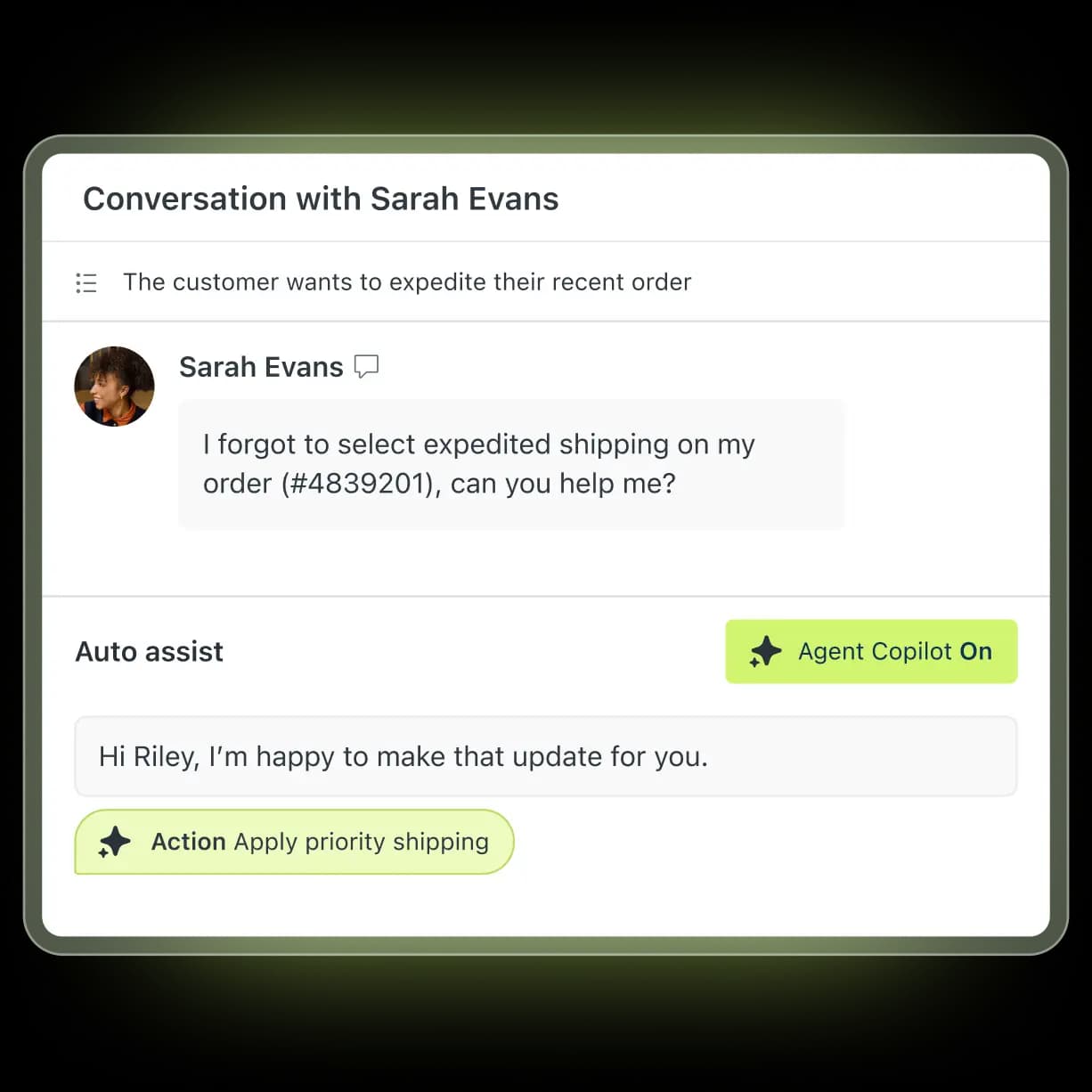
Once triage is firing and knowledge is connected, Auto Assist lights up in the agent workspace. The agent sees the Auto assist on badge in the ticket header and a Review suggested reply prompt next to the composer.

Auto Assist can also execute pre-approved actions, like adjusting a shipping field, applying a discount, or escalating to a queue, before sending the reply. Those actions are scoped through the same actions/entities/API-integrations layer documented in Zendesk's advanced AI agents help.
Step 7 - Watch the Copilot dashboards for a week
Before declaring success, pull the pre-built Copilot dashboards under Reporting > Copilot. The metrics that matter early:
- Suggested reply acceptance rate - what share of drafts agents send without edits.
- Edit rate - what share they keep but rewrite.
- Discard rate - what share they throw out entirely.
If acceptance is below 50% after a week of warm-up, the gap is almost always knowledge: missing articles, contradictory macros, or topics that overlap. Zendesk recommends a 48-hour warm-up window before reading performance signals on the legacy Essential path, and the same rule-of-thumb applies to the current unified flow.
How a suggested reply gets drafted
The mental model worth carrying into tuning: every suggested reply is the product of four upstream steps, and an underperforming draft is almost always a problem at one of them.
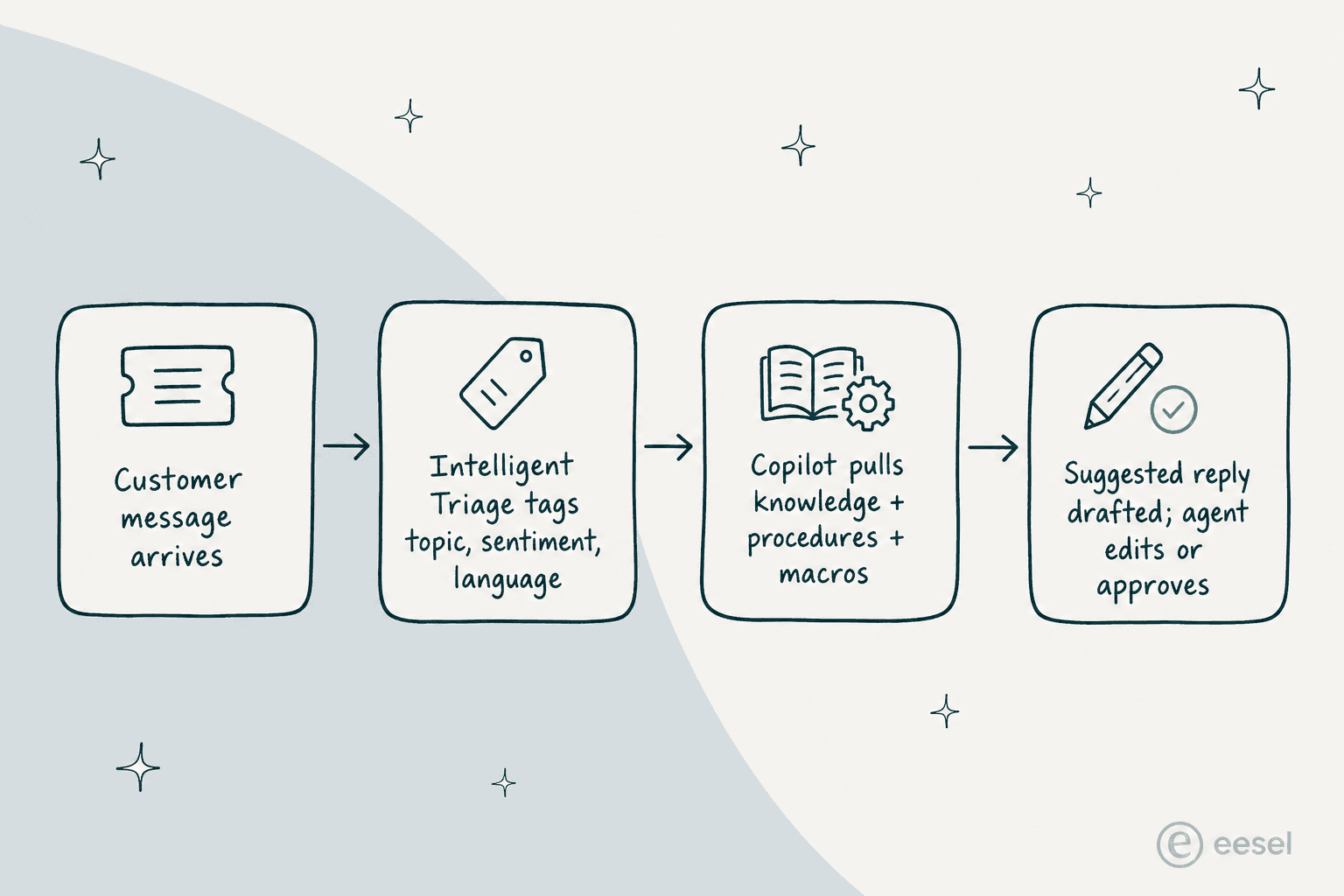
If acceptance is low, walk this pipeline backwards. Bad draft → check the matched topic and confidence on the ticket. Wrong topic → check your custom topics for overlap and the industry/model-fit gate. Right topic but generic copy → check the help center articles tied to that topic.
Known limitations
Zendesk's docs are honest about what suggested replies don't do, and a few of these matter more than the marketing pages suggest.
| Limitation | Source | Why it matters |
|---|---|---|
| Agent corrections to predictions don't train the model | Viewing classifications doc | No human-in-the-loop learning, so the same low-confidence misses repeat |
| Workflow values (triggers, views, reports) are English-only | Workflows doc | Classifier handles ~150 languages, but downstream automation reads English |
| No retroactive analysis | Troubleshooting doc | Only tickets created after triage is enabled get classified |
| Topic detection has an industry/model-fit gate | Troubleshooting doc | Some accounts get language + sentiment but no topic, silently |
| Tickets opened with an internal note get nothing | Troubleshooting doc | Agent-initiated tickets won't trigger suggested replies |
| Dynamic detection can over-trigger on the last message | User comment, Mar 2026 | Late "spam" or "thanks" replies recategorise long threads |
| No pre-launch simulation against past tickets | None published | You discover quality issues on live customers, not historical data |
| Per-resolution AI Agents pricing on top of Copilot | Pricing | Auto Assist is per-seat ($50), but AR overages add up fast on the Agents side |
The dynamic-detection complaint is worth quoting verbatim, because it's the kind of edge case the marketing pages skip:
"Dynamic detection could be a great feature but it has been poorly implemented. Definitely too sensitive. It will switch on another intent simply based on the content of the very last message and completely disregards previous ones for additional context… if the very last message from the user falls into one of your more generic intents (e.g. 'spam'), Dynamic detection will naively recategorize the ticket."
Habib-Sylvain Gourguet, comment on Zendesk setup doc, Mar 5, 2026
There's also the abandonment signal worth flagging up front: at ProductLab Conference 2025, a Zendesk-run live poll found only ~10% of AI agents built in the prior six months were still in use (eesel AI's Zendesk AI agent review). That number isn't about Auto Assist specifically, but it tracks with the broader pattern: configuring the AI layer in Zendesk is heavy enough that teams quietly switch it off when the lift doesn't materialise.
How eesel handles the same job differently
If you've read this far and the prerequisites are starting to feel like a second job, you're not alone, this is the most common reason teams reach for a third-party AI on top of Zendesk rather than the first-party stack. eesel AI is one of those, and worth understanding because it inverts most of the configuration friction above.
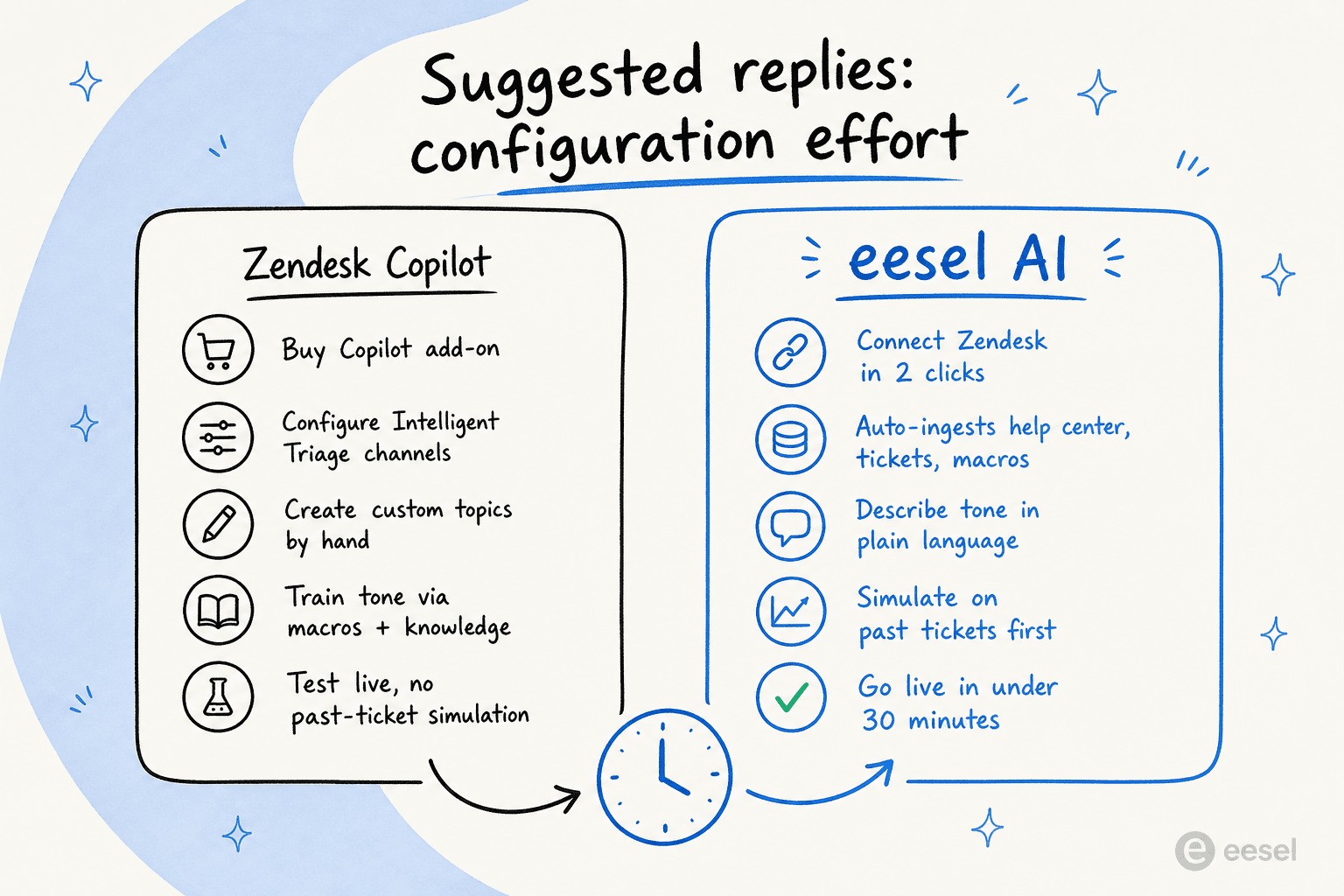
A few specific differences that change the setup experience:
- Installation is a Zendesk Marketplace install plus a two-click OAuth, not a multi-week add-on procurement. Ecosa, a long-time eesel customer, reports under an hour to full integration (Ecosa case study).
- Knowledge ingestion is automatic. eesel reads help center articles, past Zendesk tickets, and macros on connect, so you don't audit them before suggested replies start working, the AI uses your existing history as its training signal.
- Tone is plain-language. You describe the voice you want in a sentence, not a four-option preset menu. No custom-topics taxonomy to maintain.
- Past-ticket simulation. Before any reply touches a live customer, eesel runs the agent against a backlog of historical Zendesk tickets and shows where it would have been right, where it would have escalated, and where it would have left a knowledge gap. Zendesk's own flow has no equivalent step.
- Pricing is per-credit, not per-seat. From $299/month for 500 credits (1 credit per Zendesk ticket handled), with no platform fee, no per-seat fees, and no per-resolution overage surprises. The Wesley Wang quote captures the why:
"We chose eesel AI because it offers multi-channel data input options. Customers can get instant responses with real-time pricing info, and tough questions are automatically triaged. By linking our CSVs, Zendesk, and Google Docs as sources, we can make the most of our vast documentation."
Wesley Wang, CTO, Ecosa (case study)
For Smava, the German finance comparison platform, eesel runs a fully automated Zendesk agent processing 100,000+ tickets per month in German. For Ecosa, it's 10,000+ tickets per month across Zendesk, Slack, and the website with 75% of tier-1 tickets handled by AI (case study).
The honest framing: if you're already on Suite Enterprise + Copilot and your help center is mature, Zendesk's first-party Auto Assist is a reasonable default. If you're trying to ship suggested replies this quarter without buying an add-on or rebuilding your KB, the third-party route is faster.
Try eesel for Zendesk
eesel AI installs as a native Zendesk integration in under 30 minutes, auto-imports your help center, past tickets, and macros, and starts producing ready-to-send drafts inside the same Zendesk agent workspace your team already uses. You can run it as an AI Assistant (suggested replies that humans approve) or as an autonomous AI Agent, and switch between modes per ticket type.
Start free (no credit card, 100 free credits) or book a 30-minute demo and we'll walk through past-ticket simulation against your actual Zendesk backlog.