

What does “Slack code” mean?
Slack does not have one product officially named “Slack Code.” In practice, people use the phrase for three related ways to share technical text inside a message:
| Format | Best for | What it gives you | What it does not give you |
|---|---|---|---|
| Inline code | Commands, paths, variable names | A small monospaced span inside a sentence | Multiple readable lines |
| Code block | Short examples, errors, query fragments | A separate multiline block | Language-specific highlighting |
| Snippet | Longer code, configuration, logs | A title, file type, highlighting, comments, raw view | Mobile creation or a full review workflow |
| Repository link | Pull requests, commits, issues, Gists | History, surrounding files, revisions, line-level review | The whole answer at a glance in Slack |
This distinction matters because a 12-line stack trace and a single environment variable are not the same communication problem. Putting both in a regular message is how a quick question turns into a small archaeological dig.
Slack's formatting guidance exposes Code and Code block controls in the composer. Its separate markup mode uses backticks. If you already use Slack AI, the formatting rules still matter because readable inputs make summaries and follow-up questions easier for humans to check.
How to use inline code in Slack
Inline code belongs inside a normal sentence. Use it when the reader needs to identify an exact string without losing the surrounding explanation.
Good candidates include:
- A command such as
npm run build - A filename such as
config.yaml - A variable such as
DATABASE_URL - A function such as
createTicket() - A short response value such as
401 Unauthorized
In markup mode, place one backtick on either side:
Run `npm run build` before opening the pull request.
You can also select existing text and apply the Code control. Slack lists Command-Shift-C on Mac and Ctrl-Shift-C on Windows or Linux in its keyboard shortcuts.
Inline code is also useful when ordinary formatting might reinterpret the characters. Slack users specifically report wrapping underscore-heavy variable names in code so the underscores remain literal rather than becoming emphasis markers in the composer (Reddit discussion).
The rule is simple: if the reader can understand the code without leaving the sentence, keep it inline.
How to create a Slack code block
A code block separates a short multiline example from the surrounding conversation. In markup mode, put three backticks before and after it:
```
const status = await getStatus();
console.log(status);
```
You can also paste the text, select it, and choose Code block in the formatting toolbar. Slack's current shortcuts list Command-Option-Shift-C on Mac and Ctrl-Alt-Shift-C on Windows or Linux for a selected block (Slack shortcuts).
Code blocks work best for examples short enough to discuss immediately in the thread. Think five lines of a failing query, the relevant part of an error, or a tiny configuration fragment. Once readers need scrolling, syntax colors, or surrounding files, the message is doing too much.
A paste workflow that fails less often
Slack users have reported fenced Markdown copied from other tools remaining literal or formatting only part of a paste (paste report, formatter report). Composer behavior can differ by client and preference, so teach a recovery path, not one magical keystroke:
- For a new message, create the code block first and paste inside it.
- If you already pasted, select the full range and apply Code block.
- Check the first and last lines before sending.
- If the example is long, stop and create a snippet instead.
One more practical habit: compose a long example in an editor before pasting it into Slack. A developer who used fenced blocks daily described a preference change that made an expected newline send the unfinished message instead (composer discussion). Previewing is faster than sending “sorry, one sec” three times.
When to use a Slack code snippet
Use a snippet when the code is still part of the conversation but a regular block has become cramped. Slack describes snippets as a way to share code, configuration files, and logs, with a selectable file type for language-specific syntax highlighting (Slack snippet help).
On desktop:
- Select the plus control beside the message field.
- Choose Create a text snippet.
- Add an optional title.
- Choose a file type if you want syntax highlighting.
- Paste the content.
- Choose a conversation now, or share the snippet later.
- Select Create Snippet.
If text is already in the composer, Slack documents Command-Shift-Enter on Mac or Ctrl-Shift-Enter on Windows or Linux to convert it into a snippet. The /snippet shortcut offers another route, though Slack says that shortcut is unavailable in its mobile apps (shortcut guidance).
Snippets have a few useful collaboration features. Recipients can download them, open a raw view, and comment. The creator can edit the snippet later. You can also find workspace snippets under Files by filtering the file type to Snippets (Slack snippet help).
The trade-off is mobile. Slack's current help text says snippets cannot be created or shared from mobile apps. If you are working from a phone, send the smallest readable block you can or link to the source.
Practitioners make the highlighting distinction clearly: a normal message block stays plain, while a snippet lets you choose the language when automatic detection is not enough (Reddit thread). That is the main reason to move from block to snippet, not merely the number of lines.
Slack code shortcuts worth remembering
You do not need to memorize Slack like a flight cockpit. These four shortcuts cover most developer conversations:
| Action | Mac | Windows/Linux |
|---|---|---|
| Inline code | Command-Shift-C | Ctrl-Shift-C |
| Code block | Command-Option-Shift-C | Ctrl-Alt-Shift-C |
| Convert composer text to snippet | Command-Shift-Enter | Ctrl-Shift-Enter |
| Create a snippet | /snippet | /snippet |
Slack changes editor details over time, and workspace preferences affect sending and newlines. If a shortcut behaves differently in your client, use the toolbar and check the current shortcut reference.
Formatting code from Slack apps and bots
Human-written messages and app-generated messages look similar, but the implementation is different. Slack apps commonly send text using mrkdwn. In that syntax, one backtick produces inline code and triple backticks produce a multiline block. Slack's developer documentation also notes that text inside inline code is not processed for other formatting.
That becomes important when you build Slack automated messages, use Workflow Builder, or connect an external coding tool. A raw error value should be escaped and wrapped deliberately, while the explanation around it stays ordinary text.
For example, an app could send:
Build failed in `checkout-service`.

```timeout while waiting for database```

Open the linked run for the full log.
Keep the app's message shorter than the artifact it points to. This is especially useful in Cursor integrations and Codex workflows, where the durable work belongs in the repository or coding environment and Slack carries the alert, summary, and next action.
If you are choosing tools, our guide to Slack AI integrations covers the broader connection layer. The same principle applies across them: format exact machine output as code, but write the decision for a human.
Common Slack code mistakes
Pasting a whole log into the channel
A long log makes the thread harder to scan and hides the one line that matters. Put the relevant excerpt in a block, attach the full log as a snippet, and say what you think failed. For recurring alerts, Slack automation should extract the service, severity, error, and run link instead of dumping raw output.
Expecting a code block to highlight syntax
Plain message blocks preserve a separate multiline presentation, but they are not a mini code editor. Move to a snippet and choose the file type when color helps the reader parse the example.
Trusting formatting to validate the payload
Code formatting protects presentation. It does not prove that a JSON payload is valid, that a shell command is safe, or that smart quotes were not introduced before the text reached Slack. In one JSON report, commenters traced the character substitution to Chrome or macOS rather than Slack (JSON discussion). Validate executable text before running it.
It also does not remove secrets. Never paste API keys, tokens, passwords, customer data, or production credentials into a block or snippet. Monospace is a font, not a security control.
Sending a repository link with no explanation
A bare pull-request link asks everyone else to rebuild your context. Add one sentence that names the problem, the exact file or behavior to inspect, and the decision you need. That small summary makes the difference between a useful handoff and a purple bookmark.
When Slack is the wrong place for the code
Slack is good at immediate coordination. It is weaker as a durable code-review system. Use a commit, pull request, issue, or Gist when the conversation needs:
- Line-level comments
- Revision history
- Surrounding files
- Ownership and approval state
- A record that should remain discoverable months later
Then bring only the useful context back to Slack: what changed, where reviewers should look, what risk you see, and what decision is needed. This gives you the speed of chat without turning your message history into the only copy of the reasoning.
The same boundary matters beyond engineering. Slack conversation summaries can help people catch up, but a summary is not a replacement for the source artifact. Daily recaps are useful for movement; repositories and docs remain the record.
Turn Slack questions into answers with eesel
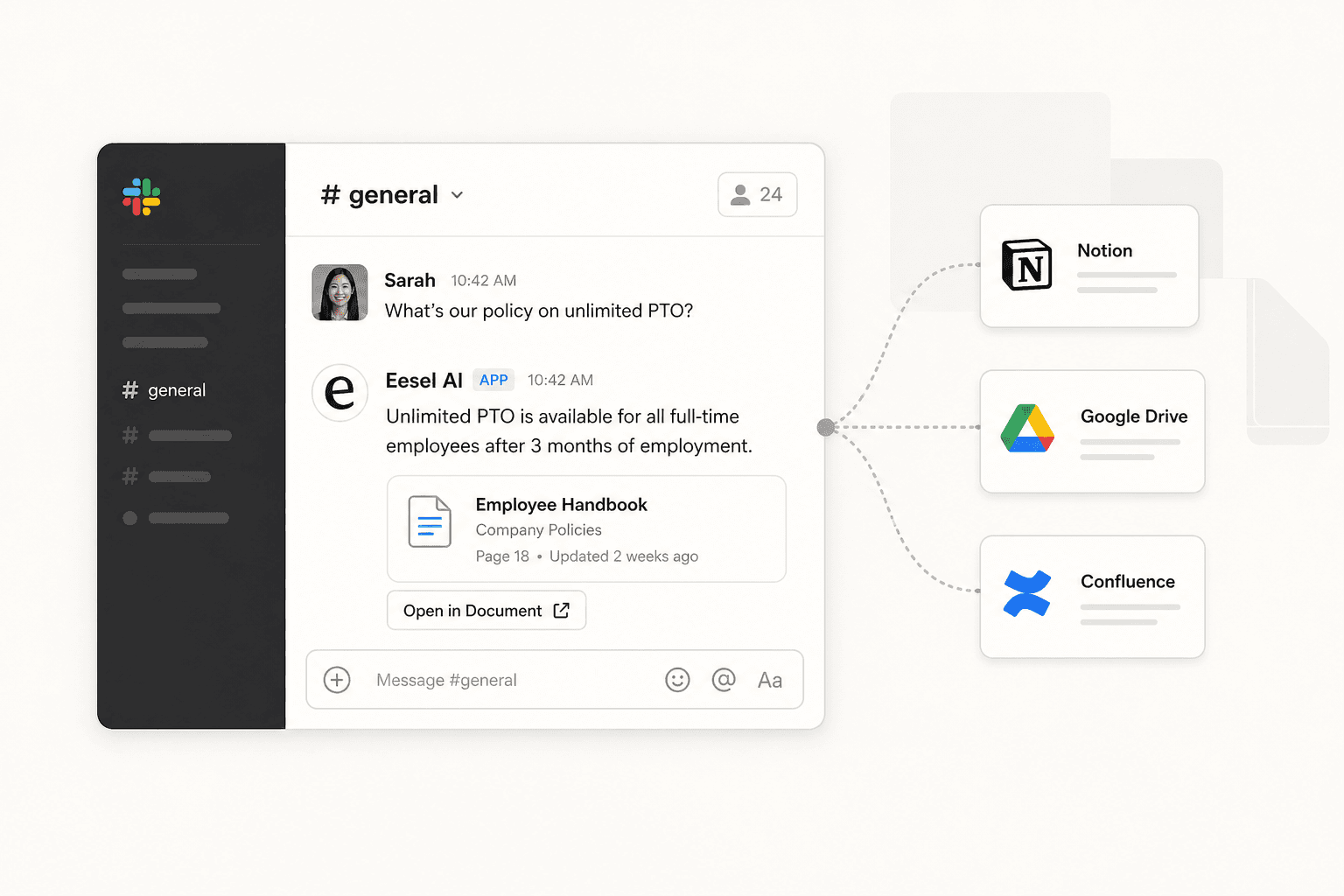
Code formatting makes a technical question readable. eesel for Slack handles the next problem: finding the answer across your docs, wikis, past tickets, and connected tools, then replying in the same Slack thread with sources. It works like one teammate across Slack and your helpdesk, so your team can ask for an explanation, lookup, draft, or action without learning a new workflow.
If repetitive technical questions keep landing in the same channels, connect the sources that already contain the answers and start in one room. Try eesel free, or see our guide to an AI Slack knowledge bot for the full setup.
Frequently Asked Questions
How do I format code in Slack?
How do I create a Slack code block?
Does Slack code formatting support syntax highlighting?
Can I create a Slack code snippet on mobile?
Can an AI bot format code in Slack?
mrkdwn with single backticks for inline code and triple backticks for multiline blocks. If your team also wants answers grounded in internal docs, an AI Slack agent can reply in threads with source citations.