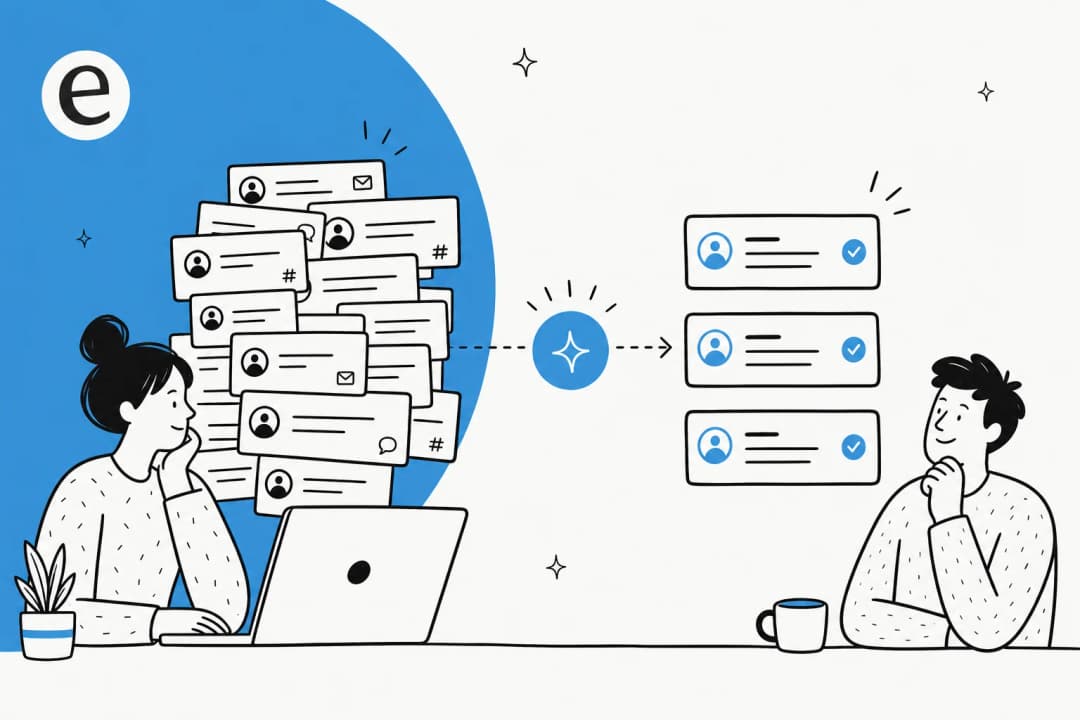

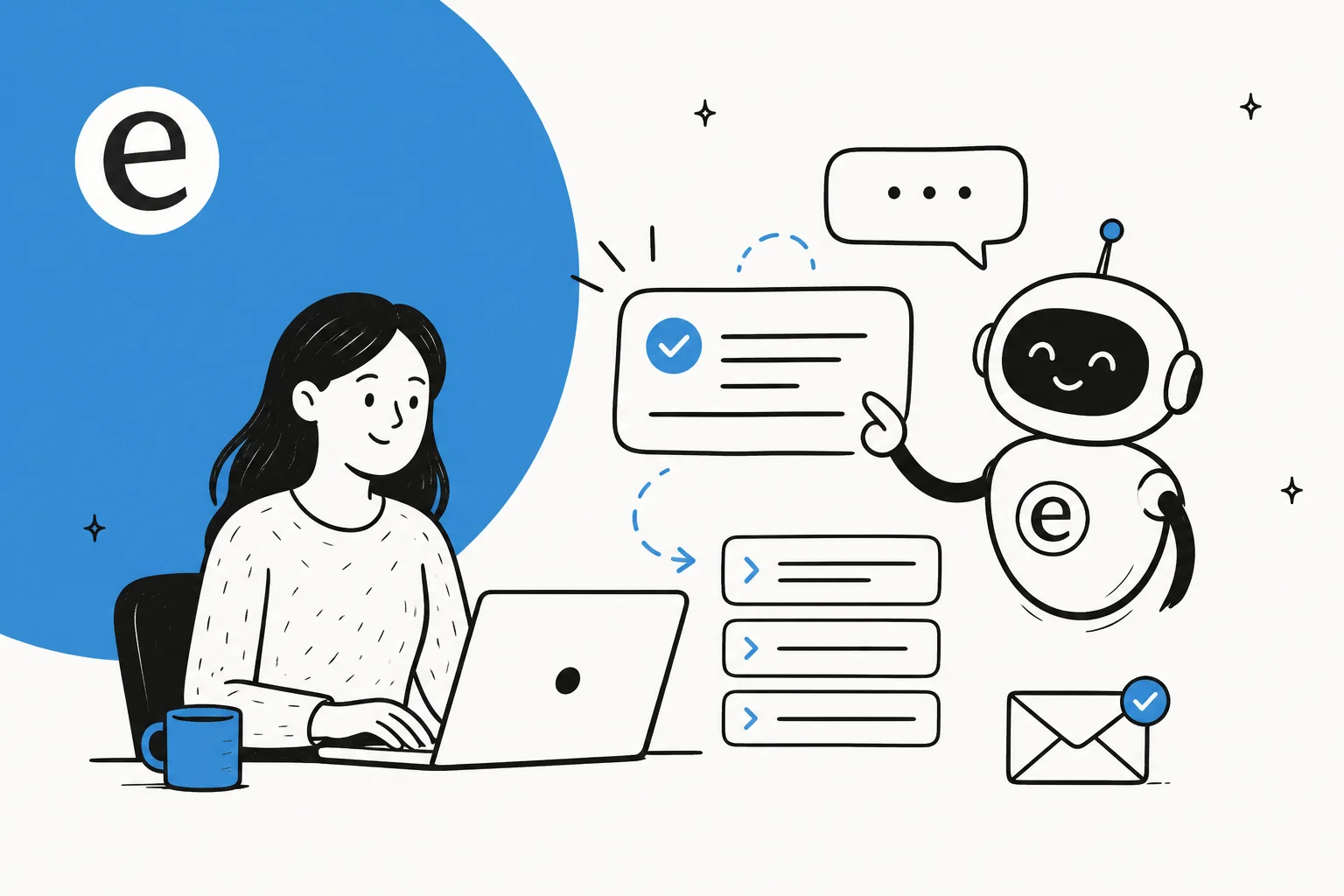
What "automating canned responses" actually means
Let me start from the support seat, because that's where I spend my days. A canned response, a macro, a saved reply, whatever your helpdesk calls it, is a pre-written answer to a question you get a hundred times: "where's my order," "how do I reset my password," "what's your refund window." They're great. They're also where a surprising amount of an agent's day quietly disappears.
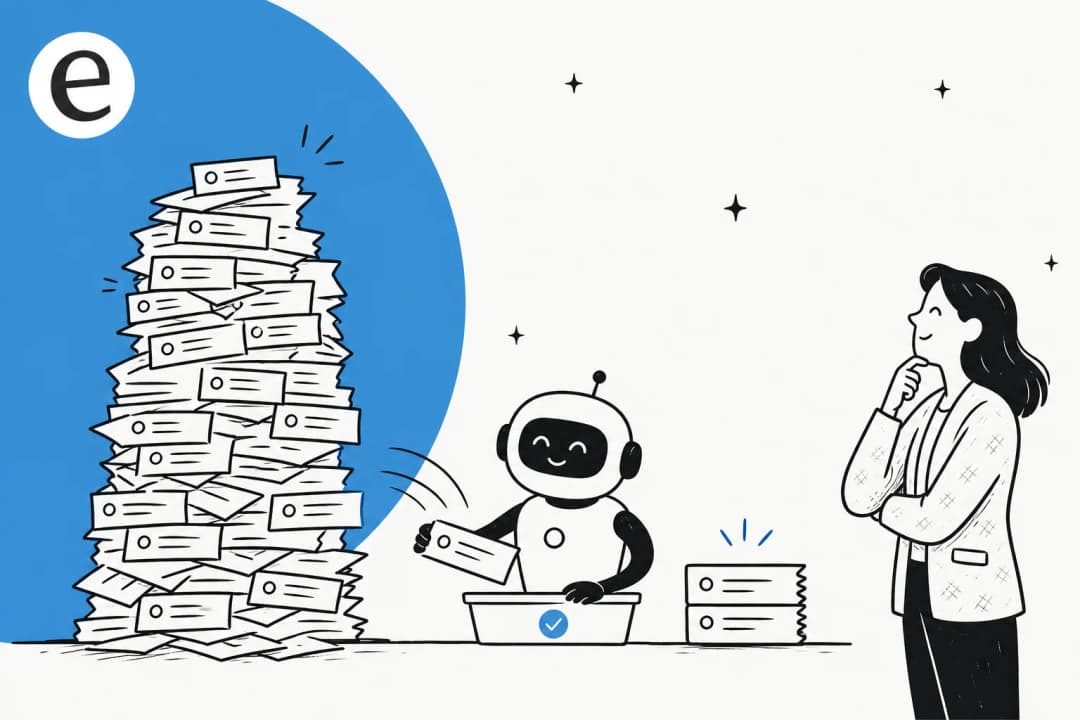
The problem isn't the templates, it's everything around them. You still have to read the ticket, decide which of your forty macro templates fits, search for it, paste it, then edit the placeholders, the order number, the customer's name, the bit of the template that doesn't quite apply this time. Multiply that by a full queue and the "time-saver" is doing a lot less saving than it looks.
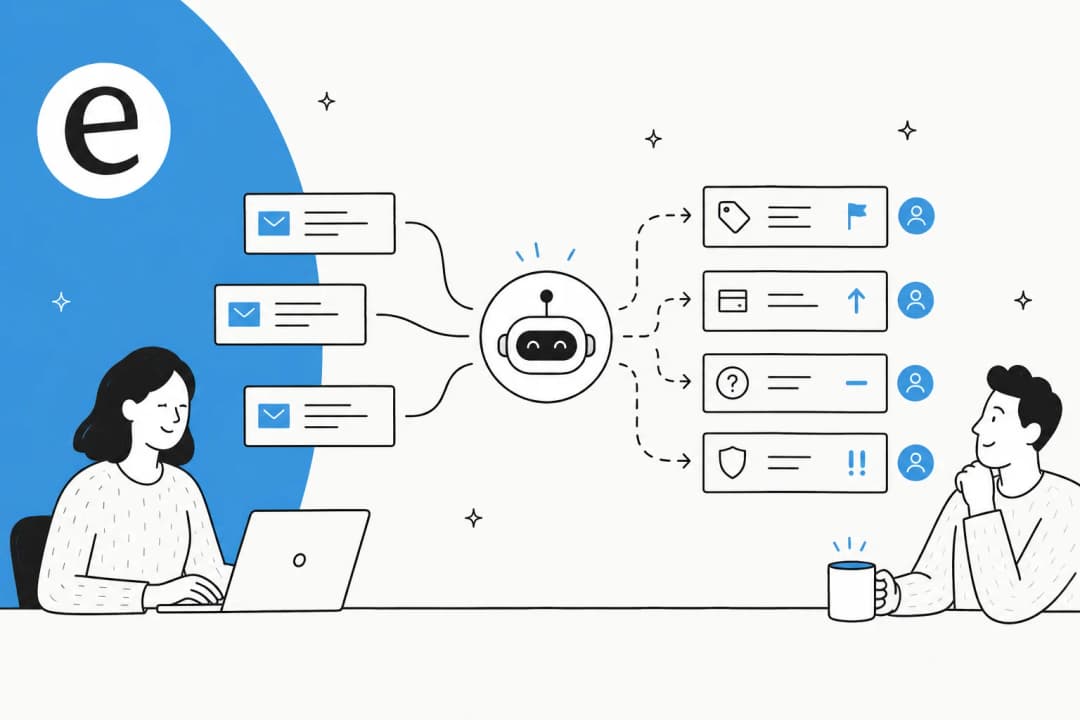
Automating canned responses with AI removes that middle layer. Instead of you matching the question to a template, the AI does it: it reads the incoming ticket, works out the intent, pulls the relevant answer from your macros, help center, and resolved tickets, then writes a reply that's already personalized to that customer. You're no longer the router. You're the reviewer, or, on the easy stuff, you're not in the loop at all.
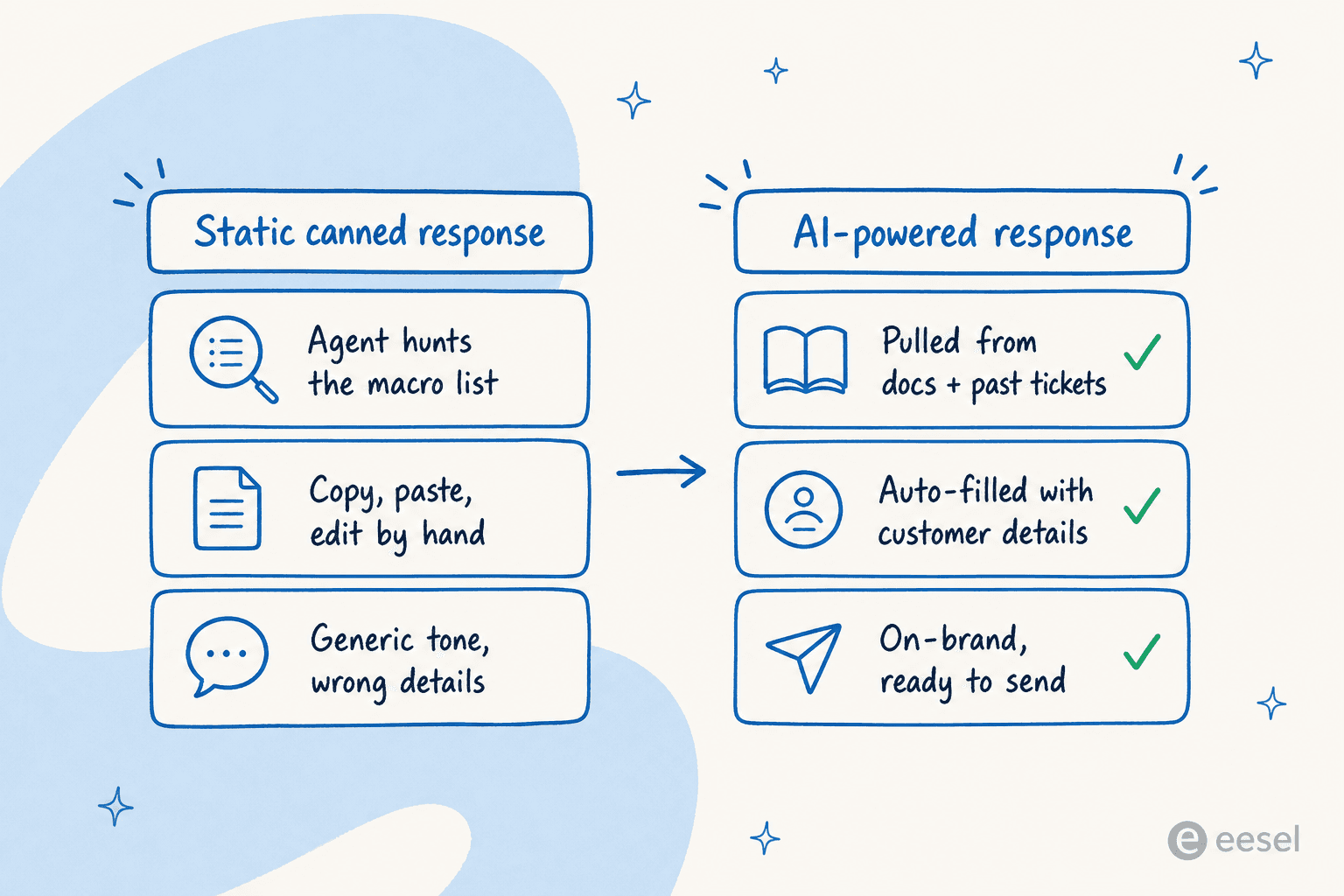
This is the difference between a static macro and a dynamic one. A macro is a fixed string. An AI canned response is the same intent, regenerated for each ticket, with the right facts pulled in. That's also why it doesn't read like a robot: it isn't pasting the same paragraph, it's answering the actual question.
Before you start: what you'll need
This isn't a heavy lift, but a clean setup saves you a painful one later. Here's the checklist I'd run through first:
- A helpdesk with macros or saved replies. Zendesk, Freshdesk, Gorgias, Help Scout, Front, HubSpot, it doesn't much matter. If you've already built canned responses, you've done the hardest part: you know your repetitive questions.
- Somewhere your answers actually live. A help center, a Notion or Confluence space, a knowledge base, even Google Docs. The AI needs sources to ground its replies in, otherwise it's guessing.
- Access to your past tickets. This is the cheat code. Your resolved tickets are a record of how your team actually answers, in your tone, and they're the single most-requested training input we hear about. Training on them is what makes an AI trained on your knowledge base sound like you instead of a generic chatbot.
- An honest list of what's safe to automate. Order status, shipping windows, password resets: yes. Anything involving a refund decision, a legal question, or an angry escalation: not yet. Knowing the line up front shapes everything else.
If you've got those four, you're ready.
How to automate canned responses with AI, step by step
Step 1: Audit the macros you already have
Open your macro list and be ruthless. Most teams have a graveyard of templates nobody's used in a year, plus a handful that carry 80% of the volume. You want the live ones.
For each keeper, note two things: the question it answers, and whether the answer is stable (your refund window) or dynamic (this customer's order status). Stable answers are the easiest wins for automation. Dynamic ones are still automatable, they just need the AI connected to the system that holds the live data. This audit is also a good moment to think about macro actions, the tagging, assignment, and status changes your macros trigger, because a good AI setup can fire those too.
The output of this step is a shortlist: the 10 or 15 canned responses that, if automated well, would actually move your numbers.
Step 2: Connect your knowledge and your tickets
Now you point the AI at your sources. This is where the quality of the whole thing is decided, so don't rush it.
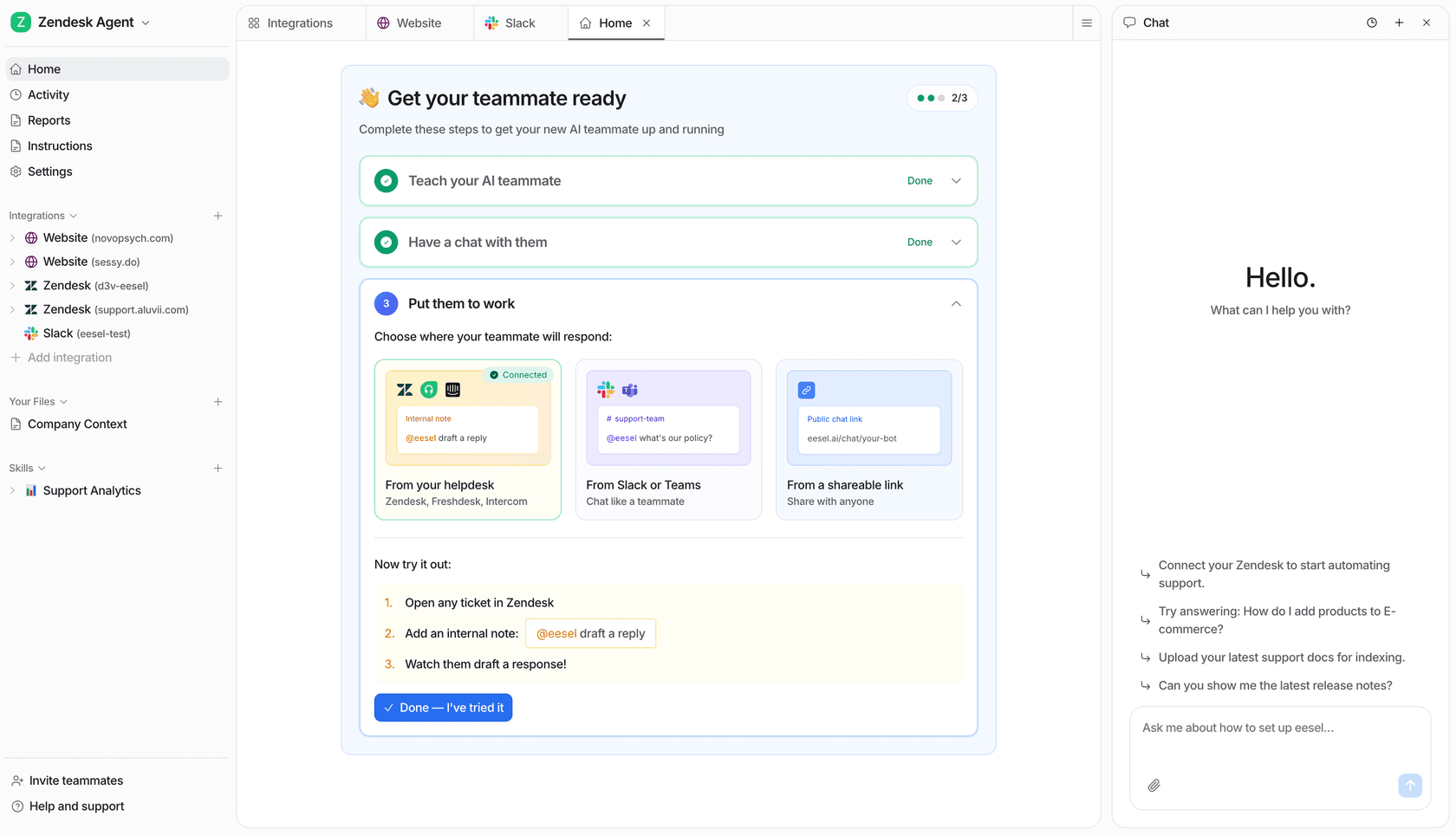
Connect three layers, in order of value:
- Your macros and saved replies. These give the AI your preferred structure and tone for common answers, the scaffolding.
- Your help center and docs. These are the source of truth for facts, policies, and steps.
- Your resolved tickets. These teach the AI how your team actually phrases things, handles edge cases, and where the help docs are silent.
That third layer is the one teams underestimate. One support team at a meeting-productivity SaaS told us their agents can now "instantly draft replies to customers" and no longer "look through all our documentation on Notion, Google Docs or our help center anymore because eesel AI does it for us." The AI is doing the digging your agents used to do by hand. Tools like eesel AI connect to over 100 sources and pull all three layers together, so a single reply can draw on a macro, a help article, and the way a senior agent answered the same thing last month. If you're on Zendesk specifically, this maps directly onto Zendesk AI reply configuration.
Step 3: Let the AI draft, don't let it loose
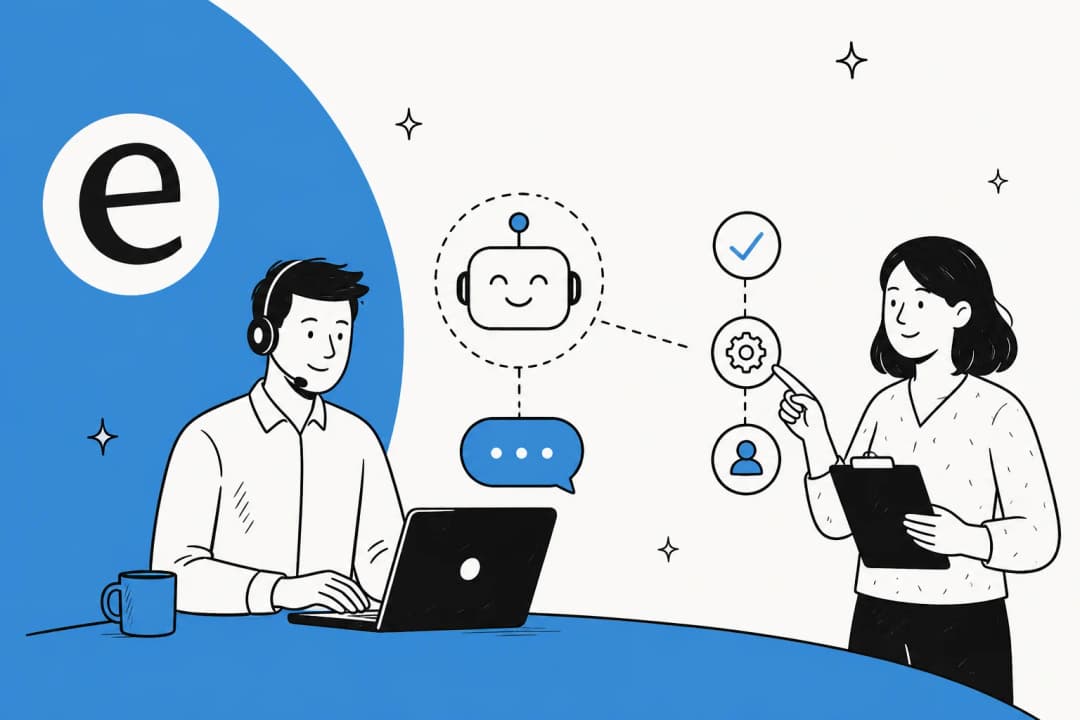
Here's the step everyone wants to skip and shouldn't: start in copilot mode. The AI drafts the reply, your agent reviews and sends. Nobody's getting an auto-reply yet.
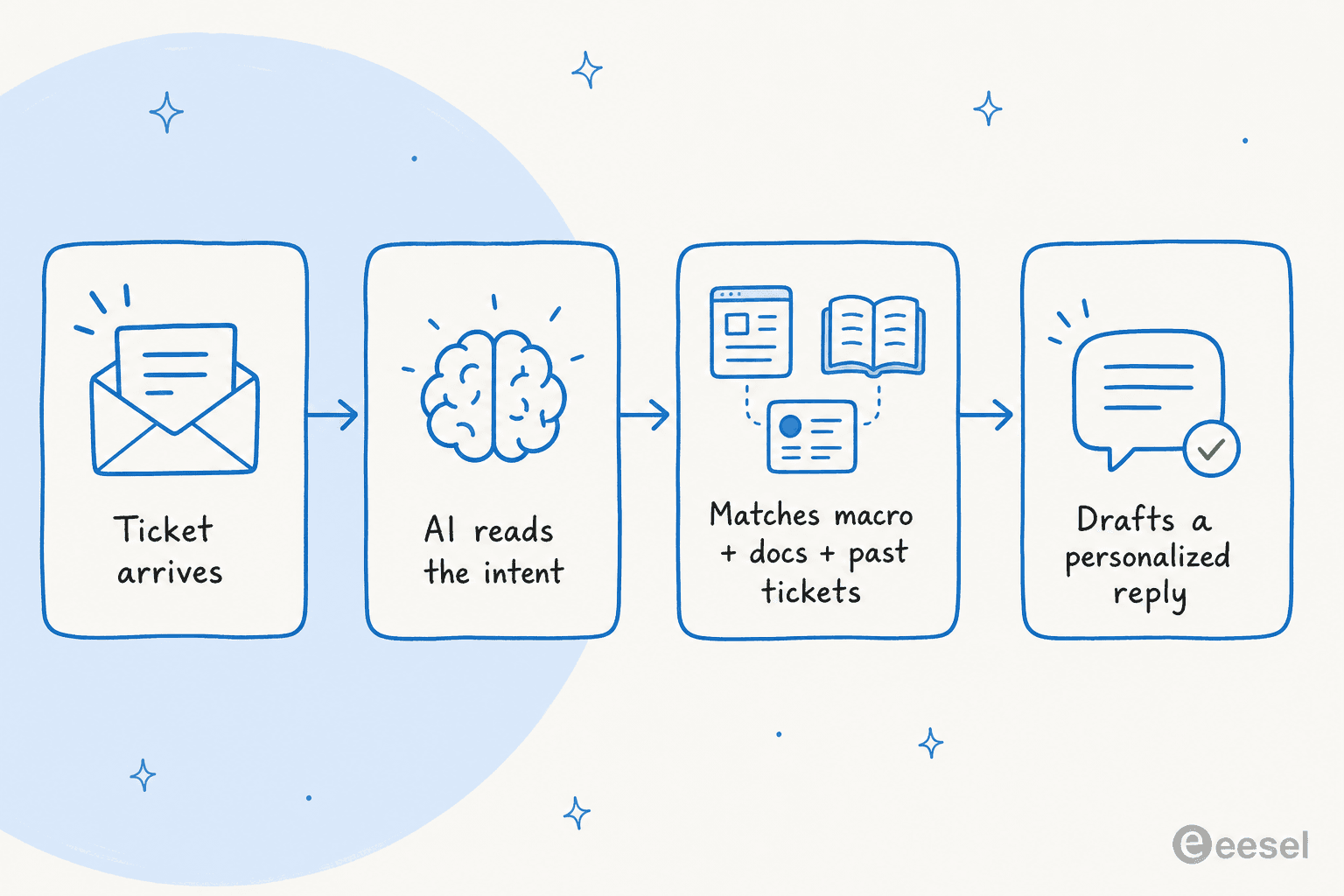
This is the flow under the hood: ticket comes in, the AI reads the intent, matches it against your macros plus docs plus past tickets, and drafts a personalized reply. The "copilot first, full automation later" pattern is the one nearly every team we work with lands on, and for good reason. Draft mode lets you see the AI's answers against real tickets without any risk, and every edit your agents make is a correction the AI learns from. You're training it on the job. This is exactly what good AI agent assist looks like, and it's a far gentler on-ramp than flipping a switch and hoping.
A logistics service desk lead described what good drafts feel like: the AI is "curating well-formed responses with consistent, on-brand tone, still keeping our own style and still keeping that human touch." That "human touch" line is the whole game. The drafts should sound like your team on a good day, not like a template.
Step 4: Set the guardrails, tone, confidence, and escalation
Before you let anything send on its own, you decide the rules. This is the part that separates a setup you trust from one that embarrasses you.
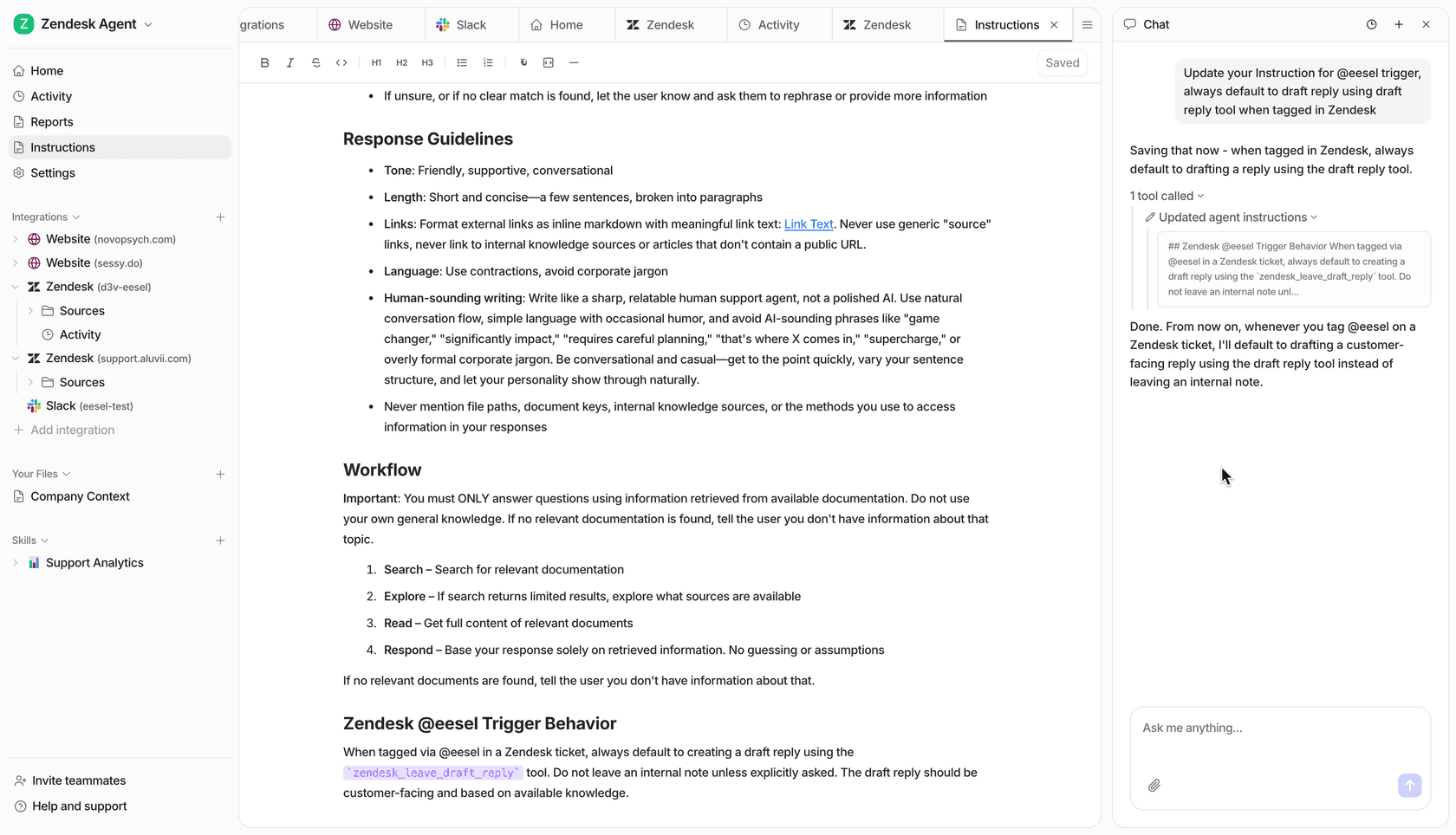
Three things to lock down:
- Tone. Tell the AI how to sound, formal, warm, concise, and feed it your brand voice. With a good tool you do this in plain language, not a settings maze.
- Scope. Be explicit about what it should not touch. One digital-media support admin we work with encoded a "troubleshoot before you cancel" policy and even told the agent to skip a known test-ticket sender entirely, all in plain English. Durable rules like that are how you keep the AI in its lane.
- Confidence-based routing. This is the safety valve.
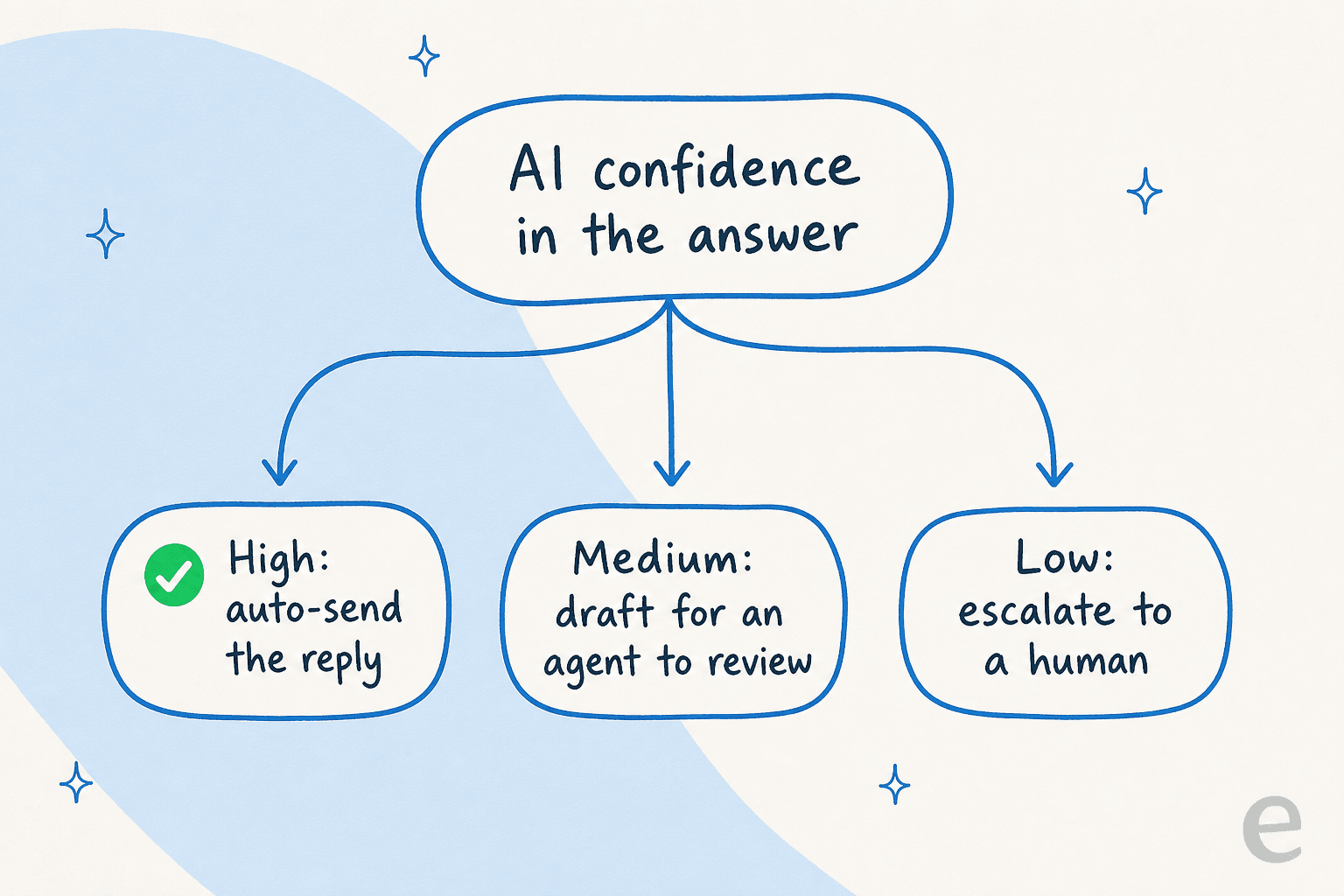
Confidence routing means the AI only acts on what it's sure about. High confidence on a repetitive question? Auto-send. Medium? Draft it for an agent. Low, or anything outside its scope? Escalate to a human, untouched. A CX lead at a DTC supplements brand summed up the mindset perfectly: "the AI will never be able to answer 100% of the questions... I need an AI who is only handling the tickets that it's confident to handle and all the other ones, leave them alone." That's the correct ambition. Not "automate everything," but "automate the slice you can trust, and route the rest cleanly." It's also your best protection against AI hallucinations in support, since a low-confidence answer never reaches the customer.
Step 5: Simulate on past tickets before you go live
This is the step I'd fight to keep. We've watched confident-sounding bots quietly give wrong answers, which is exactly why every rollout should be tested against real history first.
Before turning anything on, run the AI against a few thousand of your past tickets and look at what it would have replied. You get coverage by topic, the gaps where it would have struggled, and a realistic resolution estimate, all without a single customer seeing a thing. Fill the gaps it surfaces, re-run, and repeat until the numbers hold up. It turns "we think this will work" into "we know it handles 60% of order-status tickets at 94% quality." That's the difference between a leap of faith and a support ticket automation plan you can defend in a meeting.
Step 6: Go live gradually and keep tuning
Don't flip everything at once. Pick your safest, highest-volume category, order status is the classic, and let the AI auto-handle just that. Watch it for a week.
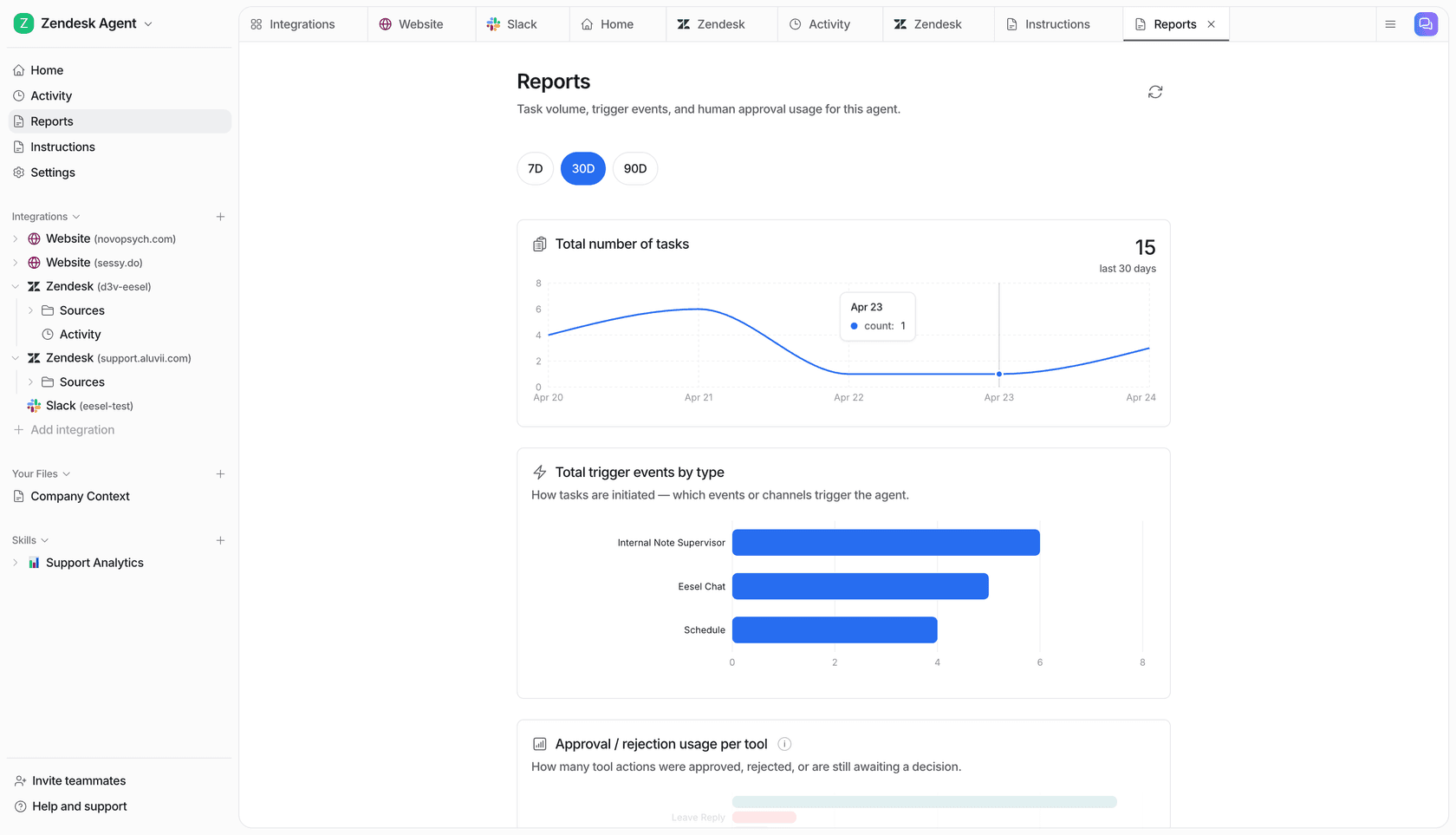
Watch your customer service metrics, resolution rate, the edits agents are still making, any escalations that shouldn't have escalated. Then expand category by category. Each step is small enough to undo, and the AI gets better at each one as your team corrects it. This is also where the payoff compounds: one UK support team on Zendesk drove 56 resolved tickets from just 9 synced macros, and a gig-economy analytics app saw the curve fast:
"In the first month, eesel is resolving 73% of our tier 1 requests... Our team implemented and achieved results quickly during our 7-day trial."
Kim Simpson, Gridwise
Common mistakes to avoid
A few traps I see teams fall into, all of them avoidable:
- Automating raw templates. If the AI just pastes the macro verbatim, you've automated the worst part of canned responses. The value is in the regeneration and personalization, let it do that.
- Skipping the past-ticket training. Without your resolved tickets, the AI only knows your help docs, which are often written for the wrong audience. Tickets are how it learns your voice.
- Going straight to full auto. Draft mode first. Always. It's free training and zero risk.
- No confidence threshold. An AI with no "I'm not sure" setting will confidently answer questions it shouldn't. Confidence routing is non-negotiable.
- Set-and-forget. Your products, policies, and macros change. Review the AI's answers monthly and keep feeding it corrections, the same way you'd coach a new hire. A bit of ticket classification hygiene helps here too.
Get those right and automated canned responses stop being a risk and start being the most reliable agent on your team.
Try eesel for automating canned responses
If you want to do all of this inside the helpdesk you already use, this is exactly what eesel AI is built for. It plugs into Zendesk, Freshdesk, Gorgias, Front, and HubSpot in minutes, learns from your existing macros and past tickets on day one, and lets you simulate the whole thing on your history before a single reply goes out.
The differentiator that matters most here: you stay in control of how much it does. Start it as a copilot drafting AI replies for your agents, then hand it the repetitive tickets once you trust it, with confidence routing making sure it only acts on what it's sure about. Pricing is usage-based with no per-seat fees, so automating more replies doesn't inflate your bill. You can run a free trial and watch it handle your real tickets before you commit.
Frequently Asked Questions
What does it mean to automate canned responses with AI?
How do I turn my existing macros into AI canned responses?
Will automated canned responses make my support sound robotic?
Is it safe to let AI send canned responses automatically?
How much does it cost to automate canned responses with AI?


Article by
Riellvriany Indriawan
Riell is a designer and writer at eesel AI with about two years of experience researching CX platforms, AI chatbots, and helpdesk software. She combines her design background with a sharp eye for how these tools actually look and feel in practice — making her comparisons unusually visual and user-focused.