
If you've ever watched a ticket get assigned to the wrong group, or seen a customer receive a notification before their ticket was properly categorized, you've experienced the effects of trigger order gone wrong. Understanding how Zendesk trigger order of execution works is fundamental to building reliable automation in your help desk.
Here's exactly how triggers run, why their sequence matters, and how to organize them so your support operations work the way you intend.
What is Zendesk trigger order of execution?
Zendesk triggers are business rules that run automatically when tickets are created or updated. The "order of execution" refers to the sequence in which Zendesk checks and fires these triggers.

Here's the key concept: triggers run from top to bottom, in the exact order they appear in your triggers list. When you create a new trigger, it gets added to the bottom by default. This matters because each trigger's actions can change the ticket in ways that affect whether subsequent triggers fire.
It's worth distinguishing between two terms Zendesk uses:
- Running means the trigger's conditions are being evaluated
- Firing means the trigger's conditions matched and its actions are executing
All active triggers run (are checked) every time a ticket is created or updated. Only those whose conditions match actually fire.
For teams managing dozens of triggers with complex interdependencies, there are alternatives worth considering. eesel AI's Zendesk integration handles automation through natural language instructions rather than rigid condition-action rules, which simplifies things significantly as complexity grows.
Why trigger order matters in Zendesk
The order of your triggers directly impacts what happens to tickets. Actions from one trigger can change ticket properties that subsequent triggers evaluate.
Consider this common scenario:
Trigger A (early in the list) sets ticket priority to "High" based on keywords in the subject line. Trigger B (later in the list) routes tickets to the "Urgent Support" group when priority is "High."
If Trigger A runs before Trigger B, the ticket gets routed correctly. But if someone reorders them and Trigger B runs first, the priority is still the default when the routing decision happens, and the ticket goes to the wrong team.
This cascading effect is both a feature and a challenge. Later triggers can overwrite changes made by earlier ones, which is useful when you need to override a default routing decision for VIP customers. But it also means trigger conflicts can be difficult to troubleshoot.
The looping behavior adds another layer of complexity. Ticket triggers don't just run once. After all triggers have been checked, if any fired and made changes to the ticket, the entire cycle starts over. This continues until a full pass completes with no new triggers firing. This lets you chain multiple triggers together to build complex workflows.
Performance is also a consideration. While Zendesk handles the processing, an excessive number of triggers or complex looping can slow down ticket operations. Keeping your trigger list organized and efficient helps maintain responsiveness.
How triggers execute: The complete lifecycle
Understanding the trigger execution lifecycle helps you design automation that works reliably.
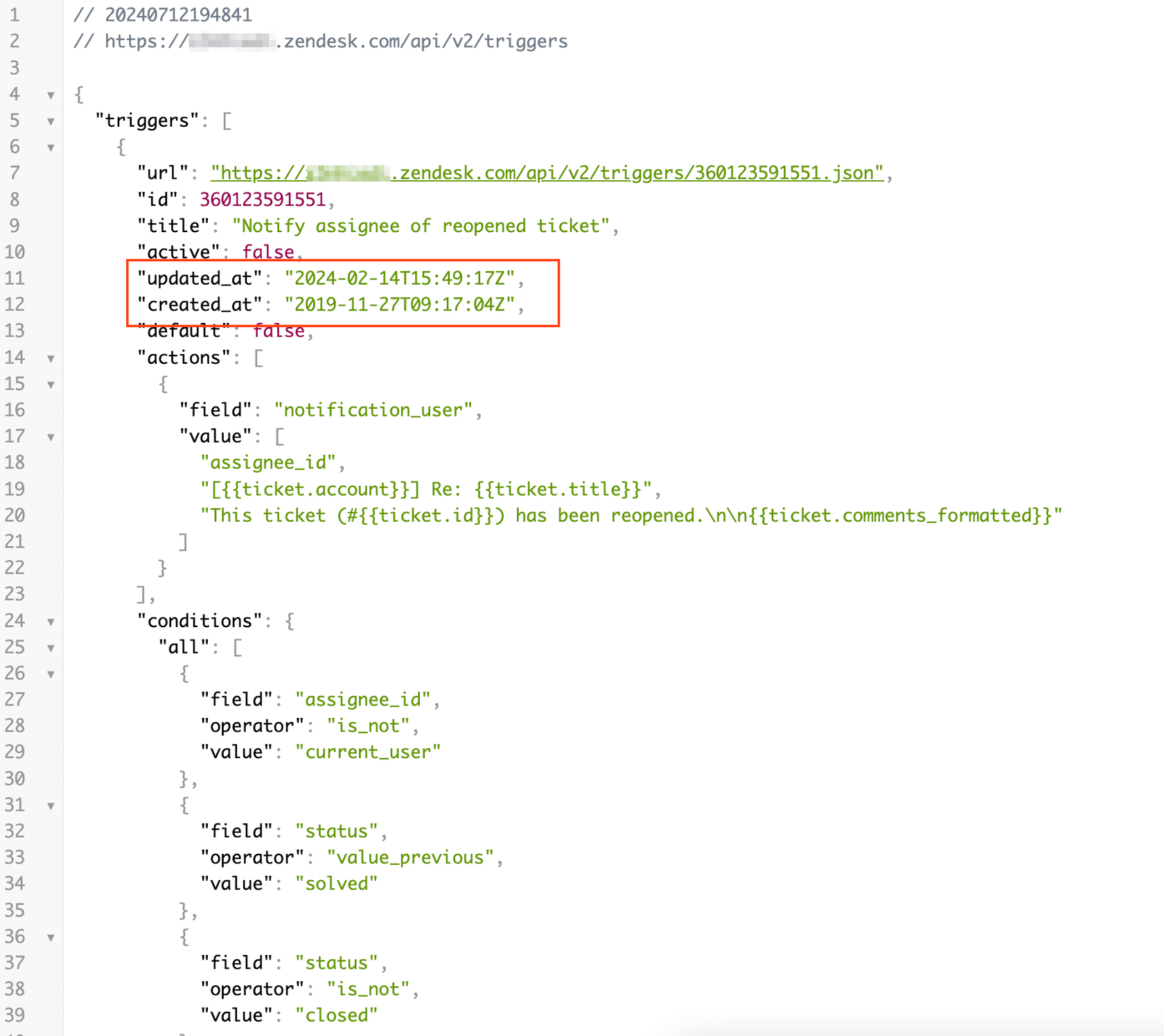
The trigger execution cycle
When a ticket is created or updated, here's what happens:
- Zendesk starts at the top of your active triggers list
- Each trigger's conditions are evaluated against the current ticket state
- If conditions match, the trigger fires and executes its actions
- Actions may modify the ticket (changing fields, adding tags, sending notifications)
- After reaching the bottom of the list, Zendesk checks if any triggers fired
- If yes, the cycle restarts from the top with the updated ticket state
- If no triggers fired on a complete pass, execution ends
This cycle means a single ticket update can cause triggers to run multiple times. A trigger near the bottom might fire on the second or third pass after earlier triggers have made their changes.
Types of triggers and when they run
Zendesk has several trigger types, each with different execution timing:
Ticket triggers run when a ticket is created or updated. These are the most common and follow the execution cycle described above. They are managed in Admin Center under Objects and rules > Business rules > Triggers.
Messaging triggers run when specific events occur in messaging conversations, such as when a customer requests a conversation or sends a message. These are managed separately and run on different events than ticket triggers.
Chat triggers run on events in live chat sessions, like when a chat starts or an agent joins.
Object triggers run when custom object records are created or updated. These require custom objects to be configured in your Zendesk instance.
The key difference is that ticket and object triggers run automatically on any record change, while messaging and chat triggers run only on the specific events you configure.
Conditions that stop trigger execution
Several conditions can prevent triggers from running:
Closed tickets: Once a ticket is closed, triggers no longer run on it. The exception is when a ticket is being set to closed (triggers can fire during that update), but not on tickets already in closed status. Note that tickets automatically closed by the system after 28 days do not trigger this exception.
Inactive triggers: Only active triggers run automatically. Inactive triggers must be run manually through the "Run triggers" option.
Maximum cycle protection: Zendesk has built-in limits to prevent infinite loops. If triggers keep firing and changing the ticket indefinitely, the system will eventually stop the cycle.
Recommended trigger order and organization
Getting your trigger order right starts with understanding the ticket lifecycle. Here's a framework that works for most support operations.
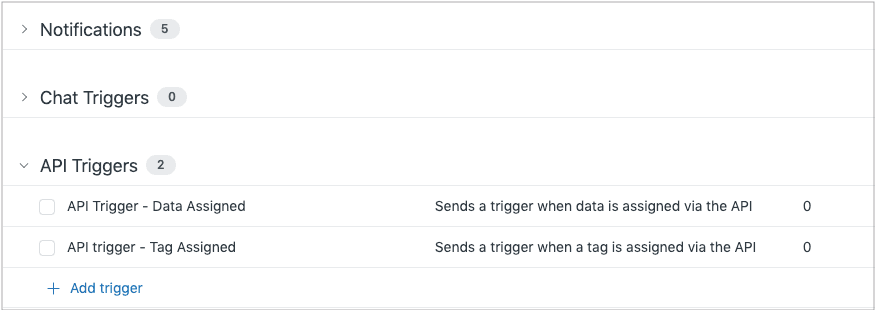
The standard lifecycle approach
Zendesk's official documentation recommends this general order:
-
Set defaults: Triggers that establish baseline values like priority, ticket type, brand, and schedule. These should run first so subsequent triggers have complete data to work with.
-
Categorize and tag: Triggers that analyze ticket content and set categories, tags, or custom fields based on subject, description, or sender information.
-
Route and assign: Triggers that assign tickets to groups or individual agents based on the categorization that happened in step 2.
-
Workflow actions: Triggers that handle status changes, side conversations, or other operational workflows.
-
Notifications: Triggers that send emails, webhooks, or other notifications. These should run last so all categorization and routing is complete before anyone gets notified.
This sequence ensures that by the time a customer receives an email, their ticket's been properly categorized, prioritized, and routed to the right team.
The "one trigger, one job" principle
Experienced Zendesk consultants advocate for keeping triggers focused on single outcomes. Instead of one trigger that categorizes a ticket, assigns it, and sends a notification, create three separate triggers:
- One that sets the category
- One that assigns based on category
- One that sends the notification
This approach has several advantages:
- Easier troubleshooting: When something goes wrong, you can identify exactly which trigger is misbehaving
- Simpler updates: Changing your notification template doesn't risk breaking your routing logic
- Better visibility: Trigger names can clearly describe their single purpose
- Reusability: The same assignment trigger can handle tickets categorized by multiple different triggers
The trade-off is that you'll have more triggers to manage. But with proper categorization and naming conventions, a longer list of focused triggers is easier to maintain than a shorter list of complex ones.
Using trigger categories for organization
Zendesk allows you to organize triggers into categories. This is not just for visual organization; categories affect execution order too.
When you reorder categories, all triggers within them move together. This makes it easy to shift entire phases of your workflow (like moving all notification triggers after all routing triggers) without adjusting individual trigger positions.
For more on optimizing your Zendesk setup, see our guide on how to connect Zendesk to Slack using AI apps.
Best practices for naming:
- Use clear, descriptive names that explain what the trigger does
- Include the business reason in the description field
- Consider a naming convention like "[Category] - [Action] - [Condition]"
- Examples: "Routing - Assign to Finance - Refund Category" or "Notify - Auto-Reply - Business Hours"
Common trigger order mistakes and how to fix them
Even experienced admins run into these issues. Here's how to recognize and resolve them.
The notification-before-assignment problem
The symptom: Customers receive emails saying "Your ticket has been received" but the ticket hasn't been assigned to any team yet. Agents are confused about who should handle it.
The cause: Your notification triggers are running before your routing triggers. The customer gets notified immediately upon ticket creation, before the routing logic has assigned the ticket to a group.
The fix: Move all notification triggers to the end of your trigger list, after routing and assignment triggers. This ensures tickets are properly routed before anyone's notified.
Overwriting trigger changes
The symptom: A ticket field keeps ending up with the wrong value, even though your triggers appear correct individually.
The cause: Multiple triggers are modifying the same field. Trigger A sets the priority to "High," but Trigger B (running later) sets it to "Normal" based on different conditions.
The fix: Review all triggers that modify the same fields. You've got a few options:
- Consolidate the logic into a single trigger
- Use "is not set" conditions so later triggers only set values when earlier ones haven't
- Reorder so the most specific triggers run last (their changes will stick)
Infinite trigger loops
The symptom: Tickets take a long time to save, or you see unusual system behavior when updating tickets.
The cause: Triggers are creating a loop. Trigger A adds a tag, Trigger B removes it, and the cycle repeats.
The fix: Add exit conditions to break the loop:
- Use tags to mark that a trigger has already fired ("Trigger A already processed")
- Check for the absence of tags before applying actions
- Review trigger logic to ensure actions don't undo each other
Conflicting routing rules
The symptom: Tickets end up assigned to unexpected groups, or bounce between groups.
The cause: Multiple routing triggers could apply to the same ticket, and they are firing in an order that produces unexpected results.
The fix: Order routing triggers from most specific to least specific. Put your VIP customer routing before general routing. Use a fallback trigger at the end that catches anything not matched by earlier rules and assigns it to a default group with a tag for review.
How to reorder triggers in Zendesk
Here's the step-by-step process for adjusting trigger order.
Step 1: Access the triggers list
Navigate to Admin Center > Objects and rules > Business rules > Triggers. Click the Tickets tab to see your ticket triggers.
Step 2: Enter edit mode
Click the "Edit order" button in the upper right. This enables drag-and-drop reordering of your triggers.
Step 3: Reorder your triggers
Drag triggers into position based on your organization framework. You can select multiple triggers and move them together. If you are using categories, you can also drag entire categories to reorder them.
Step 4: Save changes
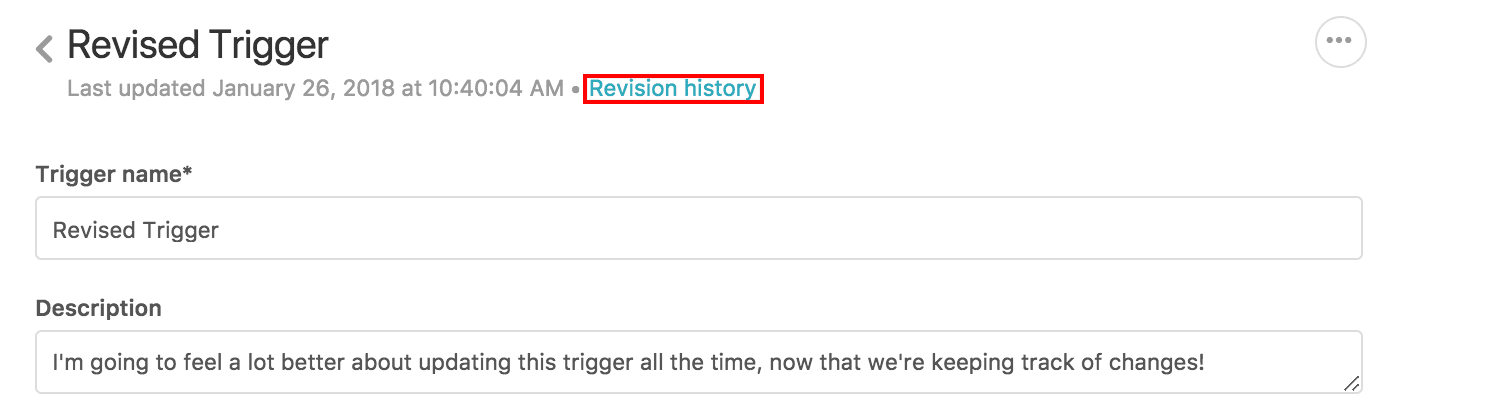
Click Save to apply the new order. Note that trigger reordering is not reflected in revision history, though the last updated timestamp on affected triggers will change.
Step 5: Test thoroughly
Create test tickets that should trigger your automation. Verify that:
- Triggers fire in the expected sequence
- Each trigger's actions apply correctly
- The final ticket state is what you expect
- Notifications go out with correct information
If you encounter a "Trigger order wasn't updated" error, check that all triggers reference valid fields and values. Invalid references can prevent reordering from saving.
Troubleshooting trigger order issues
When triggers are not behaving as expected, the Event Viewer is your best diagnostic tool.
Using the Event Viewer
In the Agent Workspace, open any ticket and click the clock icon in the upper right. This shows the ticket's event history, including which triggers fired and in what order.
Look for:
- Triggers firing in an unexpected sequence
- Triggers you expected to fire that did not (conditions not met)
- Triggers firing multiple times (indicating multiple execution cycles)
- Field values changing in ways you didn't anticipate
Reading the trigger activity log
The activity log shows each trigger evaluation and action. If a trigger didn't fire, check whether its conditions were met at the moment it was evaluated. Remember that earlier triggers may have changed the ticket state before later triggers ran.
When to deactivate vs delete
If you've got conflicting triggers and aren't sure which to keep:
- Deactivate triggers you might need later. Deactivated triggers can be reactivated without losing their configuration.
- Delete triggers you're certain you no longer need. Deleted triggers cannot be recovered.
Before making changes in production, test in a sandbox environment if your plan includes one. This is especially important for large teams where trigger changes can affect many tickets.
Looking for more ways to optimize your support workflow? Check out our guide on using AI to classify or tag support tickets.
Beyond manual trigger management
There comes a point where trigger complexity becomes difficult to manage. If you find yourself with dozens of triggers, complex interdependencies, and frequent troubleshooting, it might be time to consider alternatives.
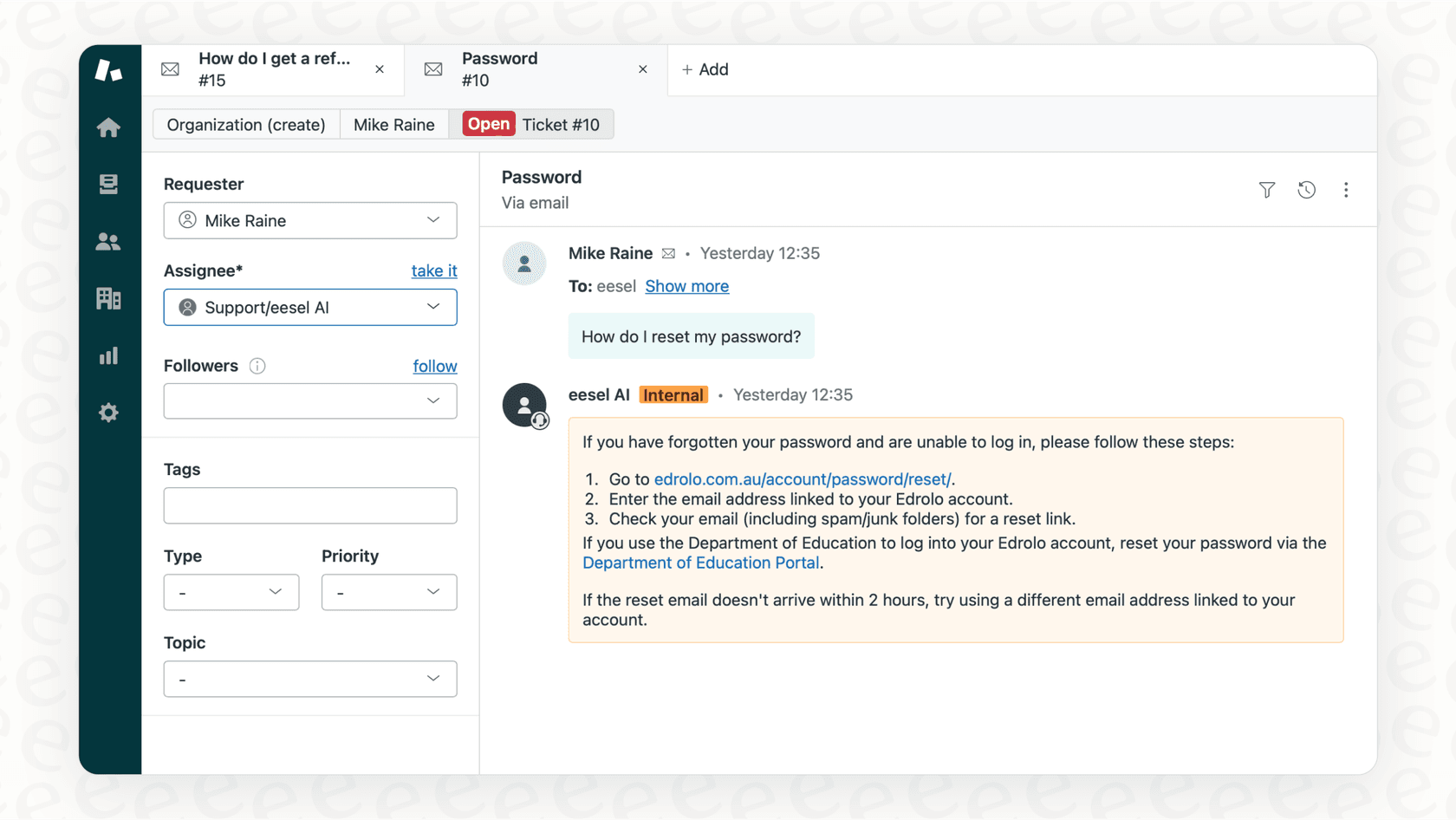
Rule-based triggers work well for straightforward automation, but they have limitations:
- They require explicit conditions for every scenario
- They cannot understand context or intent beyond the conditions you define
- Managing multiple languages or complex routing logic requires many triggers
- Changes require manual updates to trigger configurations
AI-powered automation approaches the problem differently. Instead of defining every possible condition and action, you train an AI on your existing knowledge (past tickets, help center articles, macros) and provide high-level instructions in plain English.
eesel AI works alongside or replaces complex trigger setups. Rather than dozens of condition-action rules, you define what the AI should handle and when it should escalate to humans. The AI learns your business from your existing data and improves over time based on corrections.
The key difference is flexibility. Triggers do exactly what you configure them to do, nothing more. An AI agent can adapt to variations in customer requests that you did not explicitly anticipate.
If your trigger list keeps growing and maintenance is taking more time than it should, graduating from rule-based automation to AI agents might be worth considering.


