
When a ticket lands in your queue, your agents need to know immediately. Without timely notifications, response times slip and customers wait longer than they should. That's where the Zendesk trigger notify assignee on assignment comes in.
This trigger is one of Zendesk's default configurations, but many administrators need to customize it, recreate it, or simply understand why it works the way it does. Whether you are setting up a new help desk or troubleshooting why agents are not getting notified, this guide walks you through everything you need to know.

Let's break down how this trigger works, how to configure it properly, and what to do when it does not behave as expected.
What this trigger does and why you need it
The "Notify assignee of assignment" trigger sends an email notification to an agent whenever a ticket is assigned to them. It's a straightforward concept that has a real impact on response times and agent productivity.
Here is the business case: In a busy support environment, tickets get assigned through multiple channels. A manager might manually assign urgent issues. A Zendesk trigger might route tickets based on category. Or round-robin assignment might distribute the workload evenly. In every scenario, the assigned agent needs to know the ticket is now theirs.
Without this notification, agents must constantly check their views or dashboards. Tickets sit unnoticed. Customers wait. SLAs are breached.
Zendesk includes this trigger by default in new accounts, but there are legitimate reasons you might need to rebuild it:
- You accidentally deactivated it while troubleshooting
- You need different logic for specific teams or brands
- You want to customize the email template with additional context
- You are migrating from another system and need to recreate your workflow
The trigger is particularly valuable for teams using skills-based routing or automatic assignment. When tickets flow to agents without manual intervention, notifications become the only signal that new work has arrived.
While Zendesk handles the basic notification, modern AI teammates can take this further. Instead of just alerting agents that they have a ticket, AI can pre-categorize the issue, draft an initial response, and deliver all of that context in the notification itself. But before we explore alternatives, let us make sure your basic trigger is working correctly.
If you're looking for a smarter approach to assignment workflows, eesel AI integrates with Zendesk to add intelligent triage and auto-drafting capabilities to your existing setup.
Understanding the trigger logic
The "Notify assignee of assignment" trigger uses two specific conditions that often confuse administrators. Understanding why both conditions exist will save troubleshooting time later.
The two conditions explained
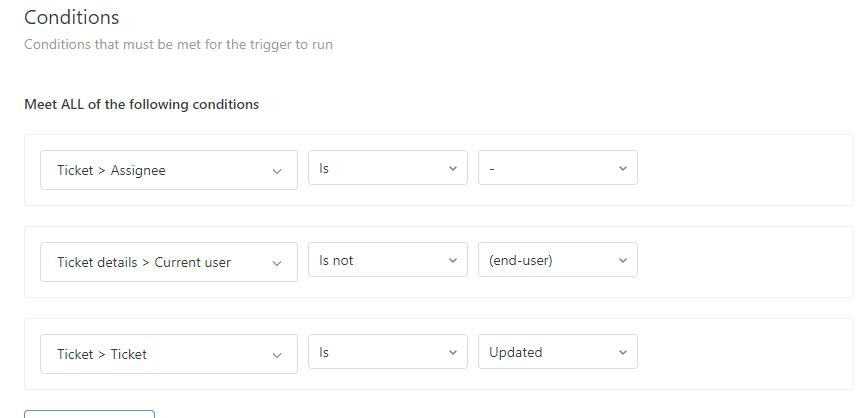
The standard trigger has these conditions under "Meet ALL":
- Assignee > Changed - This fires the trigger whenever the assignee field changes value
- Assignee > Is not > (current user) - This prevents the trigger from firing when an agent assigns a ticket to themselves
Let us walk through two scenarios to see how this plays out.
Scenario A: Manager assigns to Agent
- Sarah (support manager) opens a ticket and assigns it to Mike
- The assignee changed from empty/unassigned to Mike
- The current user is Sarah
- Mike is not Sarah, so the condition "Assignee is not (current user)" is met
- Result: Mike receives a notification email
Scenario B: Agent self-assigns
- Mike is viewing an unassigned ticket and clicks "Take it" to assign it to himself
- The assignee changed from empty to Mike
- The current user is Mike
- Mike IS the current user, so the condition "Assignee is not (current user)" fails
- Result: No notification is sent
This second scenario is where confusion often happens. Many administrators look at the trigger and think: "Shouldn't it be 'Assignee IS current user' to notify the person who was just assigned?"
The answer is no. The "is not current user" condition exists specifically to prevent notification spam when agents self-assign. When Mike clicks "Take it," he already knows he has the ticket. He does not need an email telling him what he just did.
When the trigger fires vs. when it doesn't
The trigger fires when:
- Any user (agent, admin, or system) assigns a ticket to an agent
- The assignment happens via manual selection, another trigger, or automation
- The ticket is being assigned for the first time or reassigned to a different agent
The trigger does NOT fire when:
- An agent assigns a ticket to themselves
- The assignee field is updated but remains the same agent (no actual change)
- The trigger is positioned below another trigger that already modified the ticket in a way that prevents this one from matching
This last point about trigger order is worth emphasizing. Zendesk triggers run from top to bottom. If you have a trigger that modifies the assignee field positioned above your notification trigger, the notification might fire on the wrong value or not fire at all. Best practice is to place notification triggers toward the end of your trigger list. According to Zendesk's documentation on trigger organization, the order in which triggers execute can significantly affect your workflow outcomes.
Step-by-step setup guide
If you need to create this trigger from scratch, here is the complete process.
Step 1: Access the Triggers page
Navigate to Admin Center, then Objects and rules, then Business rules, then Triggers. This is where all your ticket automation lives. For more details on navigating the Zendesk admin interface, refer to the official Zendesk documentation.
Step 2: Create a new trigger
Click "Add trigger" at the top of the page. Give it a clear, descriptive name like "Notify agent when assigned" or "Assignment notification to assignee." Add a description that explains what this trigger does, which will help other administrators understand your setup later.
Select an appropriate category for organization. Most teams use "Notifications" or create a custom category like "Agent Alerts." Proper categorization makes it easier to manage triggers as your Zendesk instance grows.

Step 3: Set the conditions
Under "Meet ALL of the following conditions," add these two conditions:
- Ticket > Assignee > Changed
- Ticket > Assignee > Is not > (current user)
The first condition ensures the trigger only fires when assignment actually changes, not on every ticket update. The second condition prevents the self-assignment notification spam we discussed earlier.
If you want this trigger to only fire for specific groups or brands, you can add additional conditions here. For example, you might add "Group > Is > Premium Support" to only notify agents in your premium tier. You can find more information about condition options in the Zendesk trigger documentation.
Step 4: Configure the notification action
Under "Actions," select:
Notifications > Email user > (assignee)
This tells Zendesk to send an email to whoever appears in the assignee field after the conditions are met.
Now customize the email subject and body. Here are the most useful placeholders for assignment notifications:
| Placeholder | What it shows |
|---|---|
| {{ticket.id}} | The ticket number |
| {{ticket.title}} | The ticket subject line |
| {{ticket.requester.name}} | The customer's name |
| {{ticket.description}} | The initial ticket content |
| {{ticket.priority}} | Priority level (Low, Normal, High, Urgent) |
| {{ticket.status}} | Current status |
| {{ticket.url}} | Direct link to the ticket |
A good email subject might be: "Ticket #{{ticket.id}} assigned to you: {{ticket.title}}"
For additional placeholder options and advanced customization, see Zendesk's placeholder reference documentation in your Zendesk admin panel under Settings > Objects and Rules > Triggers.
For the body, include enough context that the agent can understand the issue without opening the ticket:
Hi {{ticket.assignee.first_name}},

You've been assigned ticket #{{ticket.id}}.

Customer: {{ticket.requester.name}}
Priority: {{ticket.priority}}
Subject: {{ticket.title}}

{{ticket.description}}

View ticket: {{ticket.url}}
Step 5: Save and test
Click "Create" to save your trigger. Now test it:
- Create a test ticket or use an existing one
- Have another agent (not yourself) assign it to you
- Check your email for the notification
- Verify the email contains all the information you configured
If you do not receive the email within a few minutes, check your spam folder and verify your agent profile has email notifications enabled.
Common variations and customizations
Once you have the basic trigger working, you might want to adapt it for specific workflows. The following customizations can help you tailor notifications to your team's needs.
Notify on self-assignment
If your team wants notifications even when agents take tickets themselves, simply remove the "Assignee is not (current user)" condition. This is useful in environments where agents need a record in their inbox of every ticket they handle, or where email notifications trigger other workflows through forwarding rules. This modification is common for teams using external ticketing systems or compliance tracking that requires complete email records.
Add group-specific notifications
Add a condition like "Group > Is > [specific group name]" to create different notification templates for different teams. Your billing team might need different context than your technical support team. For example, billing notifications could include invoice amounts while technical notifications might emphasize error codes and affected systems.
Include ticket details in notifications
Beyond the basic placeholders, you can include:
- Custom field values using {{ticket.custom_field_fieldname}}
- Tags using {{ticket.tags}}
- Organization details using {{ticket.organization.name}}
- Satisfaction rating status using {{ticket.satisfaction_rating.score}}
Notify multiple people
If managers or team leads need to know about assignments, you have two options:
- Use "Add CC" action to include additional recipients on the same email
- Create a separate trigger that emails the group when tickets are assigned to their members
The second option gives you more control over the message content for different audiences.
Troubleshooting when notifications don't work
When agents report they are not getting assignment notifications, work through this checklist.
Check trigger position
Triggers execute in the order they appear on the Triggers page. If another trigger modifies the assignee after your notification trigger runs, the notification might contain outdated information or not fire at all.
Best practice: Place notification triggers near the end of your trigger list, after all categorization, routing, and field-updating triggers.
Verify agent email settings
Each agent controls their own notification preferences. In their agent profile, they can disable email notifications entirely or for specific ticket events. If an agent is not receiving notifications:
- Have them check their profile settings
- Verify "Email" is selected as a contact method
- Confirm they have not opted out of ticket notifications
Check spam folders
Zendesk notification emails can end up in spam, especially for new implementations. According to deliverability best practices, email authentication and domain configuration play a critical role in ensuring notifications reach agent inboxes. Ask agents to:
- Check spam/junk folders
- Add your Zendesk email domain to their safe sender list
- Whitelist emails from support@yourdomain.zendesk.com (or your custom domain)
Test with trigger preview
Zendesk's "Preview match" feature lets you test your trigger conditions against existing tickets without actually sending emails. Use this to verify your conditions work as expected.
- Edit your trigger
- Click "Preview match"
- Select a recent ticket that should have triggered the notification
- See if the conditions match
If the preview shows the conditions do not match, your logic needs adjustment.
Common condition mistakes
-
Using "Assignee is" instead of "Assignee Changed" - "Is" checks the current value, not whether it changed. The trigger would fire on every update, not just assignment changes.
-
Confusing "current user" with specific agent names - "(current user)" is a dynamic reference to whoever made the change. It is not a placeholder for typing an agent's name.
-
Not accounting for ticket updates that change other fields - If your trigger has additional conditions beyond the two standard ones, make sure those conditions are being met when assignments happen.
Going beyond basic assignment notifications
Zendesk triggers handle the fundamental task of notifying agents about assignments. But modern support teams are moving beyond simple notifications toward intelligent workflow automation.
Here's the difference: A trigger tells an agent "You have a ticket." An AI teammate tells an agent "You have a ticket, it's about a billing issue, the customer is frustrated, here's a draft response, and similar tickets were resolved this way."
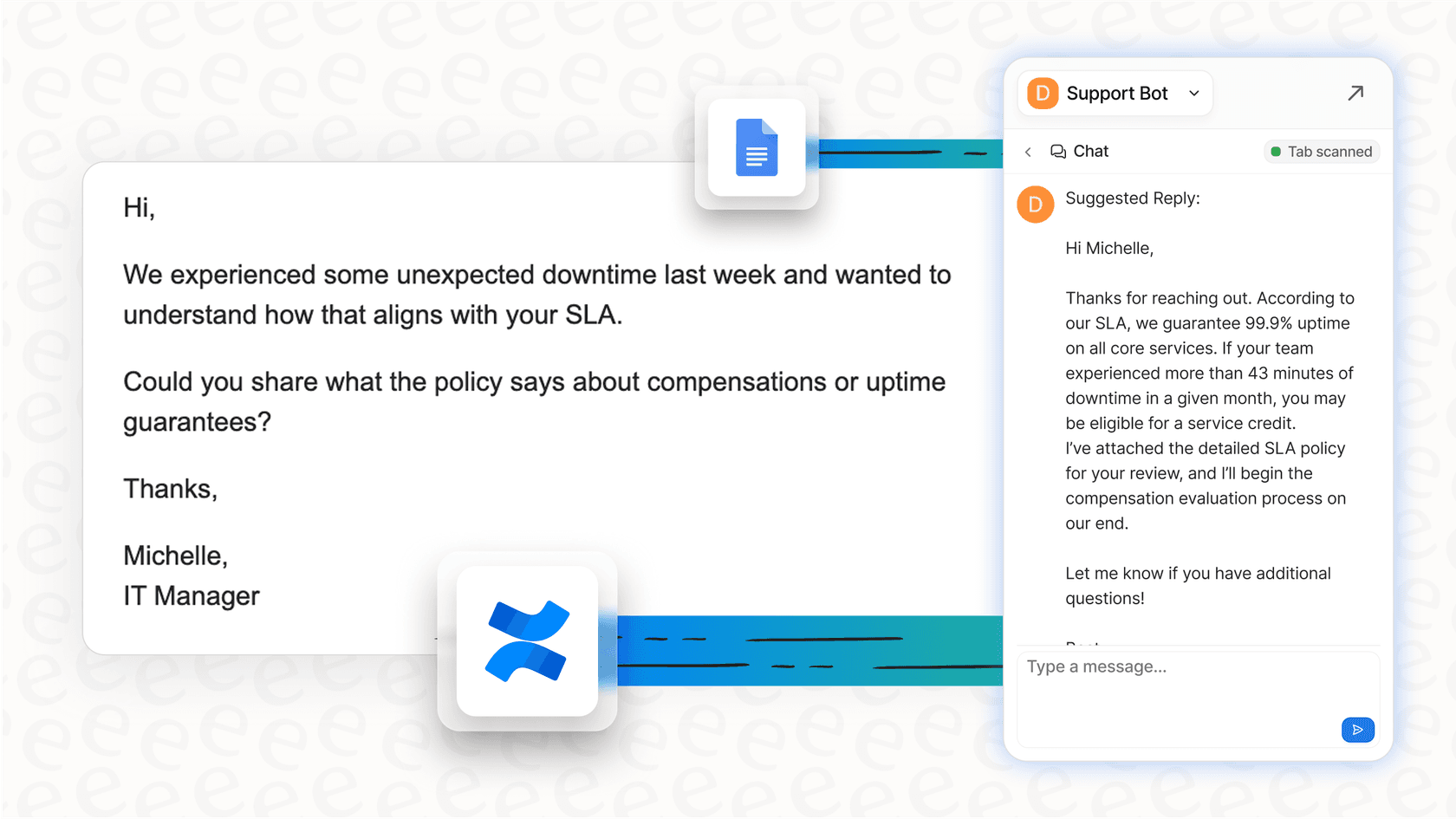
At eesel AI, we approach this as a teammate you hire, not a tool you configure. Our AI Agent for help desks can resolve up to 81% of tickets autonomously in mature deployments. Instead of just routing and notifying, our AI can:
-
Smart triage before assignment: The AI reads incoming tickets, categorizes them by topic and urgency, and routes them to the right specialist based on content, not just availability. This means your billing expert gets billing questions, and your technical team gets bug reports. Learn more about AI Triage capabilities.
-
Context-rich notifications: Rather than just sending the ticket subject, our AI Copilot generates a summary of what the customer is asking, identifies the sentiment, and flags any urgency indicators.
-
Auto-draft responses: Agents receive a drafted reply along with the assignment notification. The draft is grounded in your knowledge base and past tickets, so it sounds like your team wrote it.
-
Intelligent escalation: The AI identifies which tickets actually need human attention versus which ones it can resolve autonomously. This means agents only get notified about tickets that truly require their expertise. For teams looking to reduce ticket volume, our AI Agent can handle routine inquiries without human involvement.
The result is that when your agents get a notification, they are not starting from zero. They have context, a draft response, and confidence that this ticket truly needs their attention.
If you are spending significant time configuring Zendesk triggers to get basic notifications working, it might be worth exploring whether an AI teammate could handle the notification workflow more intelligently while also reducing your overall ticket volume through autonomous resolution.
Ready to see how an AI teammate can transform your support workflow? Try eesel AI free or book a demo to see it in action on your Zendesk instance.


