Tracking how many times your agents respond to tickets is useful for quality assurance, escalation workflows, and understanding ticket complexity. Zendesk provides a built-in condition for this, but it comes with some quirks you'll want to understand before building your automation.
This guide walks you through exactly what the agent replies condition does, how to set it up, common use cases, and the limitations you should know about. We'll also cover workarounds for when the native functionality doesn't quite meet your needs, including how tools like eesel AI can help you overcome these limitations.

What is the agent replies condition in Zendesk?
The Ticket > Agent replies condition in Zendesk measures the number of public comments an agent has added to a ticket. It only counts replies to comments from another customer or agent, not internal notes or the initial ticket creation.
Here's how it works in practice:
- A customer submits a ticket (this doesn't count as a reply)
- An agent adds a public comment (this counts as 1 agent reply)
- The customer responds
- The agent responds again (this counts as 2 agent replies)
It's important to distinguish this from related metrics:
| Metric | What it counts | Use case |
|---|---|---|
| Agent replies | Public agent comments to customer/agent messages | Tracking back-and-forth conversation volume |
| Agent updates | Any ticket update by an agent (comments, field changes, status updates) | Measuring total agent touches |
| Comments | All comments including internal notes | Full conversation audit |
The agent replies condition is available on Zendesk Suite Team plans and higher. It's not included in the basic Support Team plan, so you'll need to upgrade if you're on the entry-level tier. According to Zendesk's documentation, this condition has been a staple of their automation system for years, helping teams identify complex tickets that need additional attention.
Setting up a trigger with agent replies condition
Creating a trigger that uses the agent replies condition follows the same process as any other Zendesk trigger. Here's the step-by-step breakdown.
Step 1: Access ticket triggers in Admin Center
Navigate to Admin Center > Objects and rules > Business rules > Triggers. You'll see a list of existing triggers if you have any configured.

Step 2: Create a new trigger
Click Create trigger and give it a descriptive name. Good naming conventions help when you have dozens of triggers to manage. Something like "Escalate after 3 agent replies" or "Flag high-touch tickets" works well.
Step 3: Configure the agent replies condition
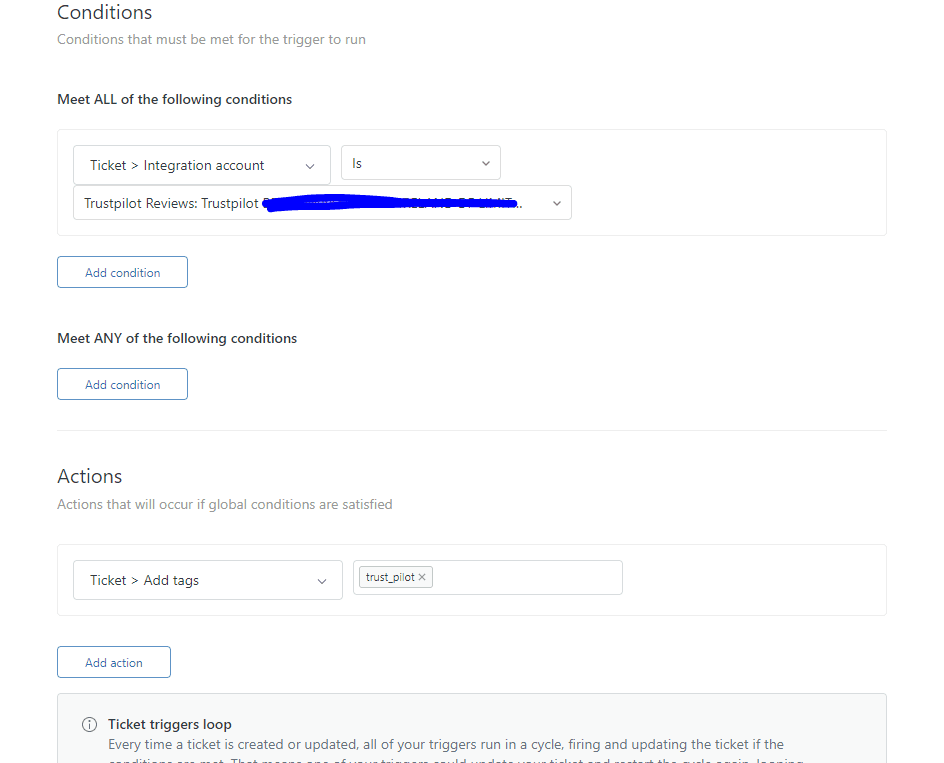
Under Meet ALL of the following conditions, add your agent replies condition:
- Click Add condition
- Select Ticket > Agent replies
- Choose your operator: Is, Is not, Less than, or Greater than
- Enter the numeric value
For example, if you want to escalate tickets after 3 agent replies, you'd set: Agent replies > Greater than > 2
Step 4: Add supporting conditions
You'll usually want additional conditions to prevent your trigger from firing inappropriately. Common additions include:
- Ticket > Status is not Closed (triggers don't run on closed tickets anyway, but this adds clarity)
- Ticket > Assignee is not "-" (ensures the ticket is assigned)
- Ticket > Tags contains none of the following: "escalated" (prevents re-escalation)
Step 5: Define trigger actions
Now choose what happens when your conditions are met. Common actions for agent reply triggers include:
- Add tags: Tag the ticket with something like "high_touch" or "escalated"
- Change assignee: Reassign to a senior agent or specialized team
- Add internal note: Notify the team about the escalation
- Set status: Change to "Escalated" if you use custom statuses
Step 6: Save and test
Save your trigger and create a test ticket to verify it fires correctly. Zendesk's trigger testing can be finicky, so manual testing is often the most reliable approach. As noted in Zendesk's trigger documentation, testing with real ticket scenarios helps ensure your automation works as expected in production.
Common use cases for agent replies triggers
Teams use the agent replies condition in several practical ways. Here are the most common scenarios.
Escalating complex tickets
Some tickets just take more back-and-forth than others. You can automatically escalate tickets after a certain number of agent replies to ensure complex issues get senior attention.
For example, set a trigger for Agent replies > Greater than > 3 to move tickets to a senior support queue. This catches issues that are dragging on before they become problems.
Quality assurance workflows
Tickets with unusually high reply counts often indicate confusion, difficult customers, or agents struggling to resolve the issue. Flagging these for QA review helps identify coaching opportunities.
A trigger with Agent replies > Greater than > 5 can add a "qa_review" tag and assign the ticket to a team lead for post-resolution analysis.
SLA management
High reply counts can signal tickets at risk of breaching SLA commitments. You might create a trigger that adds an "sla_at_risk" tag when agent replies exceed 2, prompting faster response times.
According to Zendesk's SLA documentation, combining reply counts with SLA policies gives you a more complete picture of ticket health.
Auto-assign on first reply
A clever use of the agent replies condition is auto-assigning unassigned tickets when an agent first responds. Set Agent replies > Is > 0 combined with Assignee is "-" and an action of Assignee > (Current user).
This ensures the agent who first engages owns the ticket, preventing orphaned conversations.
Understanding the limitations
Before you build your entire workflow around agent reply counts, you should know about several documented limitations.
Race conditions with API
If you're using the Zendesk API or webhooks alongside triggers, you may encounter race conditions. This happens when a trigger and an API call try to update the same ticket simultaneously.
A Zendesk community member described this exact issue:
We created a trigger that counts number of times an agent makes update to ticket, using this trigger via webhook. The trigger is firing fine. However, when the status is selected as On_hold the agent reply count doesn't get updated unless another response is sent and the status is updated as Open, Pending or Solve. We have been told that this is due race condition that occurs with usage of business rules (ex. Trigger, Automation) and the API simultaneously.

This means if you're building custom integrations that rely on accurate reply counts, you may need additional error handling or retry logic. For more details on this issue, see the Zendesk community discussion.
On-hold status complications
When a ticket status is set to On-hold, agent reply counts may not update correctly until another response is sent and the status changes to Open, Pending, or Solved.
This is particularly problematic if you use the On-hold status for third-party dependencies or waiting periods. Your reply count triggers may not fire as expected during these periods.
Public vs. internal comments
The agent replies condition only counts public comments. Internal notes don't count toward the total, which is usually what you want. But if your agents frequently use internal notes before public responses, the count might not reflect the actual effort invested.
If you need to track all agent activity including internal notes, use the Agent updates metric in Zendesk Explore instead.
One comment per trigger limit
Zendesk limits triggers to adding a maximum of one public comment and one internal note per ticket event. If you have multiple triggers that could fire on the same update, only the first one's comment actions will execute.
This matters if you're building complex automation where multiple triggers might try to add comments based on reply counts.
Trigger size limit
All Zendesk business rules, including triggers, must be smaller than 65 KB. Complex triggers with many conditions and actions can hit this limit. If you're building sophisticated reply-based workflows, you may need to split logic across multiple triggers.
API and webhook workarounds
When the native agent replies condition doesn't meet your needs, you have a few options for building custom solutions.
Custom counter with webhooks
You can set up a webhook that sends ticket data to an external system whenever a trigger fires. This external system can maintain its own reply count, bypassing Zendesk's native limitations.
The workflow looks like this:
- Trigger fires on ticket update
- Webhook sends ticket ID and current data to your system
- Your system queries the Zendesk API for full comment history
- Your system calculates its own reply count
- Your system updates a custom field in Zendesk via API
This approach requires development resources but gives you complete control over how replies are counted.
Using Zendesk API to track updates
For reporting and analytics, you can query ticket comment history directly via the Zendesk Tickets API or the Zendesk developer documentation conditions reference. This lets you count public agent comments programmatically without relying on the trigger condition.
This is useful for:
- Building custom dashboards
- Generating reports that Zendesk Explore can't handle
- Integrating with external workforce management tools
Third-party solutions
If building custom integrations sounds like overkill, tools like eesel AI handle reply-based automation without these limitations. Because eesel AI processes ticket updates in real-time through its own infrastructure, it avoids the race conditions and timing issues that affect native Zendesk triggers.
How eesel AI handles reply-based automation differently
Native Zendesk triggers work well for simple automation, but they break down when you need sophisticated reply-based workflows. Here's how we approach the same problems.
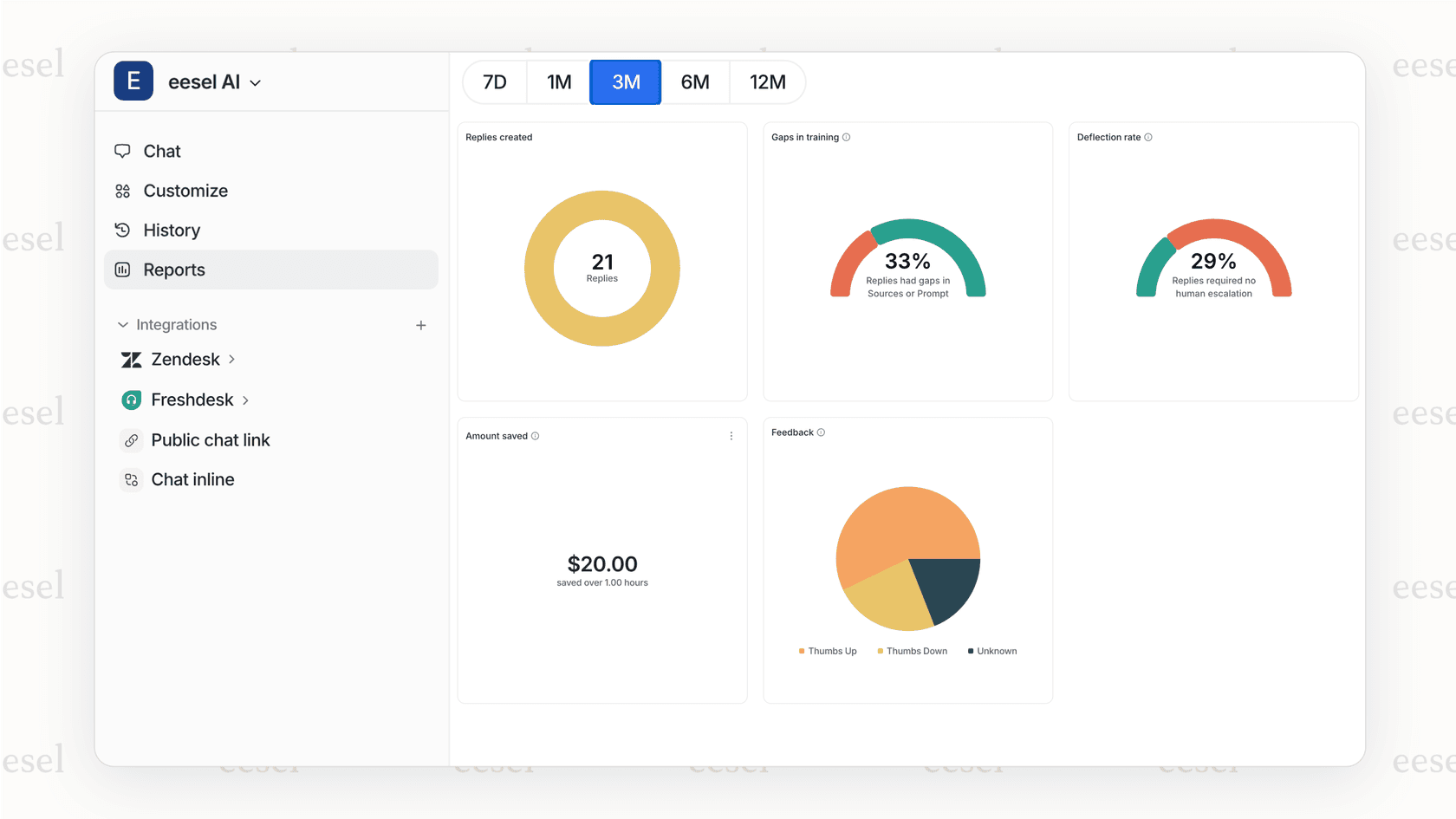
No race conditions. We process ticket updates through our own infrastructure, so there's no conflict with API calls or webhooks. Reply counts are accurate regardless of ticket status or update source.
Plain English rules. Instead of configuring complex trigger logic with multiple conditions, you define escalation rules in natural language. For example: "If an agent has replied more than 3 times and the ticket is still open, escalate to the senior team."
Automatic learning. Our AI learns from your past tickets to identify patterns. It might notice that tickets with certain tags or from specific customers tend to need more replies, and proactively suggest escalation before you hit a threshold.
Real-time awareness. Unlike triggers that only fire on ticket updates, eesel AI continuously monitors ticket state. This means it can take action based on reply counts even when the ticket hasn't just been updated.
We integrate directly with Zendesk and can operate as a frontline AI Agent handling tickets autonomously, an AI Copilot drafting replies for agent review, or both. You define the escalation rules, and our AI follows them without the technical limitations of native triggers.
If you're interested in seeing how this works, you can try eesel AI free or book a demo to discuss your specific workflow needs.
Best practices for agent reply triggers
Based on common pitfalls and Zendesk's own recommendations, here are some tips for building reliable reply-based automation.
Keep trigger logic simple. The more conditions you add, the harder it is to troubleshoot when things go wrong. If you need complex logic, consider using multiple triggers with clear naming conventions rather than one massive trigger.
Test thoroughly before deploying. Zendesk's trigger testing tools are limited. Create real test tickets and walk through the exact scenarios your trigger is designed to handle.
Document your triggers. When you have dozens of triggers, it's easy to forget why each one exists. Add descriptions explaining the business logic, and consider maintaining a separate documentation sheet for complex workflows.
Monitor for unintended side effects. Triggers can interact in unexpected ways. After deploying a new reply-based trigger, watch your ticket flow for a few days to ensure it's not firing inappropriately.
Consider automations for time-based follow-ups. Triggers fire on ticket updates, but sometimes you need time-based logic. Pair your reply triggers with Zendesk automations for complete coverage. For example, a trigger might tag a ticket after 3 replies, and an automation might escalate it if that tag is present for 24 hours without resolution.