
Keeping track of tickets as they move through your support workflow is essential for maintaining clean metrics and happy customers. But once a ticket is marked solved, it doesn't just disappear. It sits in a transitional state where customers can reopen it, automations can close it, and agents need visibility into what's happening.

This guide walks you through creating Zendesk ticket views that help you monitor solved tickets and catch reopened ones before they slip through the cracks. We'll cover the difference between solved and closed statuses, how to set up views that filter by these states, and some best practices for managing the inevitable "thank you" replies that reopen tickets unnecessarily.
If you're looking for ways to reduce this overhead entirely, we offer an alternative approach. Our AI Agent handles ticket lifecycle decisions intelligently, so you spend less time configuring views and more time actually helping customers.
| Status | Description | Set by |
|---|---|---|
| New | Ticket created, no agent action yet | System |
| Open | Agent actively working on the ticket | Agent |
| Pending | Waiting for customer response | Agent |
| On-hold | Waiting for third party (optional) | Agent |
| Solved | Issue resolved, awaiting closure | Agent |
| Closed | Locked by system, read-only | System only |
Source: Zendesk Ticket Lifecycle Documentation
Solved vs closed: what is the difference?
The distinction between solved and closed trips up a lot of teams. Here's the breakdown:
Solved tickets are resolved but still active. The customer can reply and reopen the ticket. Agents can still update fields, add comments, and change the status. Think of solved as "resolved pending customer confirmation."
Closed tickets are locked. When a ticket closes, it becomes read-only for most purposes. If a customer replies to a closed ticket, Zendesk creates a new follow-up ticket rather than reopening the original. Only admins can modify certain fields on closed tickets, and even then, only through the API or Agent Workspace.
| Aspect | Solved | Closed |
|---|---|---|
| Can customer reopen? | Yes | No (creates follow-up) |
| Agent updates allowed? | Full access | Limited (tags only) |
| Who can set? | Agents | System/automation only |
| Auto-transition | To Closed after 4-28 days | To Archived after 120 days |
Source: Zendesk Support
The default automation closes tickets four days after they're solved. You can adjust this anywhere from one hour to 28 days depending on your workflow needs.
Creating a view for solved tickets
Now let's build a view that shows you solved tickets before they close. This helps you catch any last-minute issues and gives you visibility into what's about to leave your active queue.
What you'll need
- Administrator access to your Zendesk account
- A clear idea of which solved tickets you want to track (all of them, just yours, specific groups, etc.)
Step 1: Access the Views management page
Navigate to Admin Center > Objects and rules > Business rules > Views.
This is where all your ticket views live. You can see which views are active, who has access to them, and how they're ordered.
Step 2: Create a new view
Click Add view. Give it a descriptive name like "Recently Solved - Awaiting Closure" so agents know exactly what they're looking at.
Set the access permissions. You can make this:
- Available to all agents
- Just for you
- Limited to specific groups
Step 3: Set view conditions
Here's where you define which tickets appear. For a solved tickets view, use these conditions:
- Condition 1: Ticket: Status category | Is | Solved
- Condition 2 (optional): Ticket: Hours since solved | Less than | 96 (shows tickets solved within the last 4 days)
- Condition 3 (optional): Ticket: Assignee | Is | Current user (for personal views)
The "Hours since solved" condition is particularly useful. If your auto-close automation runs after 96 hours (4 days), setting this to "Less than 96" shows you tickets that haven't been closed yet.
Step 4: Configure columns
Add these columns to give agents useful context:
- Ticket ID
- Subject
- Requester
- Assignee
- Status
- Hours since solved
The "Hours since solved" column helps agents see which tickets are approaching auto-close. If something's been solved for 90 hours and the customer hasn't responded, it's probably safe. If it's only been 12 hours, the agent might want to keep an eye on it.
Creating a view for reopened tickets
Reopened tickets deserve special attention. They indicate the original solution didn't work, which might mean an unhappy customer or a complex issue that needs escalation.
Why reopened tickets need their own view
When a customer replies to a solved ticket, Zendesk automatically changes the status back to Open. This is the reopen event you're tracking. These tickets often need:
- Priority handling (the customer is following up because something's still wrong)
- Different agent assignment (maybe the original agent isn't available)
- Escalation (if the issue wasn't resolved the first time)
Step 1: Create the reopened tickets view
Navigate to Admin Center > Objects and rules > Business rules > Views > Add view.
Name it something clear like "Reopened Tickets - Needs Attention".
Step 2: Set conditions for reopened tickets
Use these conditions to catch reopened tickets:
- Condition 1: Ticket: Status | Is | Open
- Condition 2: Ticket: Comment | Is | Public (indicates customer replied)
- Condition 3 (optional): Ticket: Tags | Contains none of the following | closure_reminder_sent
The "Comment is Public" condition helps filter out internal notes that might change a ticket's status. You want to catch customer replies specifically.
An alternative approach uses the status change condition:
- Condition: Ticket: Status changed from | Solved
This catches tickets that were solved and then moved back to Open, which is exactly what happens on a reopen.
Step 3: Add helpful columns
Configure these columns for your reopened tickets view:
- Ticket ID
- Subject
- Requester
- Previous assignee (who solved it originally)
- Last comment date
- Priority level
The previous assignee column is useful because Zendesk automatically reassigns reopened tickets to the agent who solved them. If that agent is out of office or swamped, you might want to redistribute these.
Managing the "thank you" reopen problem
Here's a scenario every support team knows: you solve a ticket, the customer replies "thanks," and now the ticket is reopened and back in your queue. It's a waste of time, but customers are just being polite.
The scope of the problem
A Spiceworks community member put it well: "Don't get me wrong, users saying thank you or something of the like is always welcomed but having to go back and close/solve a ticket each time this happens can really add up in time."
Solution 1: Trigger-based auto-resolution
Create a trigger that detects common "thank you" phrases and auto-solves the ticket again. Here's the basic setup:
Conditions:
- Ticket: Status | Changed from | Solved
- Ticket: Comment text | Contains the following string | thank you
Actions:
- Ticket: Status | Solved
- Notifications: Email user | (requester) | "You're welcome! No need to reply."
Add variations like "thanks," "ty," and "appreciate it" to catch different phrasings.
Solution 2: Customer education
Update your solved ticket notifications to explain what happens next:
"Your ticket has been resolved. If you need further assistance, simply reply to this email. If everything is working as expected, no further action is needed. Your ticket will automatically close in a few days."
This sets expectations and reduces unnecessary replies.
Solution 3: Using AI for intelligent handling
The problem with trigger-based solutions is they're rigid. They can't tell the difference between "thanks, all good" and "thanks, but there's still an issue."
This is where AI teammates make a difference. Our AI Triage understands intent, not just keywords. It can distinguish between a polite closing and a genuine reopen request, handling routine replies without creating work for your team.

Instead of building increasingly complex trigger chains, you can let the AI learn from your historical tickets and make context-aware decisions about which replies actually need agent attention.
Best practices for ticket lifecycle management
Getting your views set up is just the start. Here are some practices that keep your workflow running smoothly.
View organization tips
- Limit active views: Too many views overwhelm agents. Keep shared views focused and relevant. Ten to fifteen active views per team is a good target.
- Use naming conventions: Structure names like "[Status] - [Purpose]" so agents can scan quickly. Examples: "Solved - Pending Closure" or "Open - Reopened Today."
- Order views strategically: Put the most-used views at the top of the list. Agents shouldn't have to scroll to find their primary workflow views.
Automation recommendations
- Notify on reopen: Set up a trigger that emails the assigned agent when a ticket is reopened. This ensures nothing sits unnoticed.
- Alert on aging solved tickets: Create an automation that tags tickets solved for more than 72 hours, giving you a heads-up before auto-close kicks in.
- Track reopen rates: Use tags or custom fields to mark reopened tickets. This data helps identify training needs or process gaps.
Reporting considerations
Reopened tickets affect your metrics in specific ways:
- First-contact resolution: A reopened ticket typically counts as not resolved on first contact
- Agent performance: High reopen rates by specific agents might indicate training opportunities
- Time-to-close: Tickets that get reopened have longer resolution cycles
Track these metrics in your Zendesk Explore dashboards to spot trends.
When to consider AI alternatives
If you find yourself building increasingly complex view and automation chains, it might be time to step back. Some signs that traditional workflow management is hitting limits:
- You're managing 20+ views and agents still can't find what they need
- Your trigger list is hundreds of rules long
- Reopen rates aren't improving despite process changes
- Agents spend more time navigating views than helping customers
Our AI Agent integrates directly with Zendesk and handles the nuanced decisions about when a ticket is truly resolved versus when it needs more attention. It learns from your existing tickets and help center, so you don't have to codify every edge case into a trigger.
Streamline your ticket lifecycle with smarter tools
Managing ticket views, statuses, and reopen workflows takes significant admin time. While Zendesk's native tools work well for straightforward workflows, teams with complex needs or high ticket volumes often find themselves building increasingly elaborate trigger and automation chains.
We approach ticket lifecycle management differently. Instead of relying solely on time-based rules and status filters, our AI learns from your existing tickets, macros, and help center content. It understands when a ticket's truly resolved versus when it needs more attention, handling follow-ups with more nuance than rigid views allow.
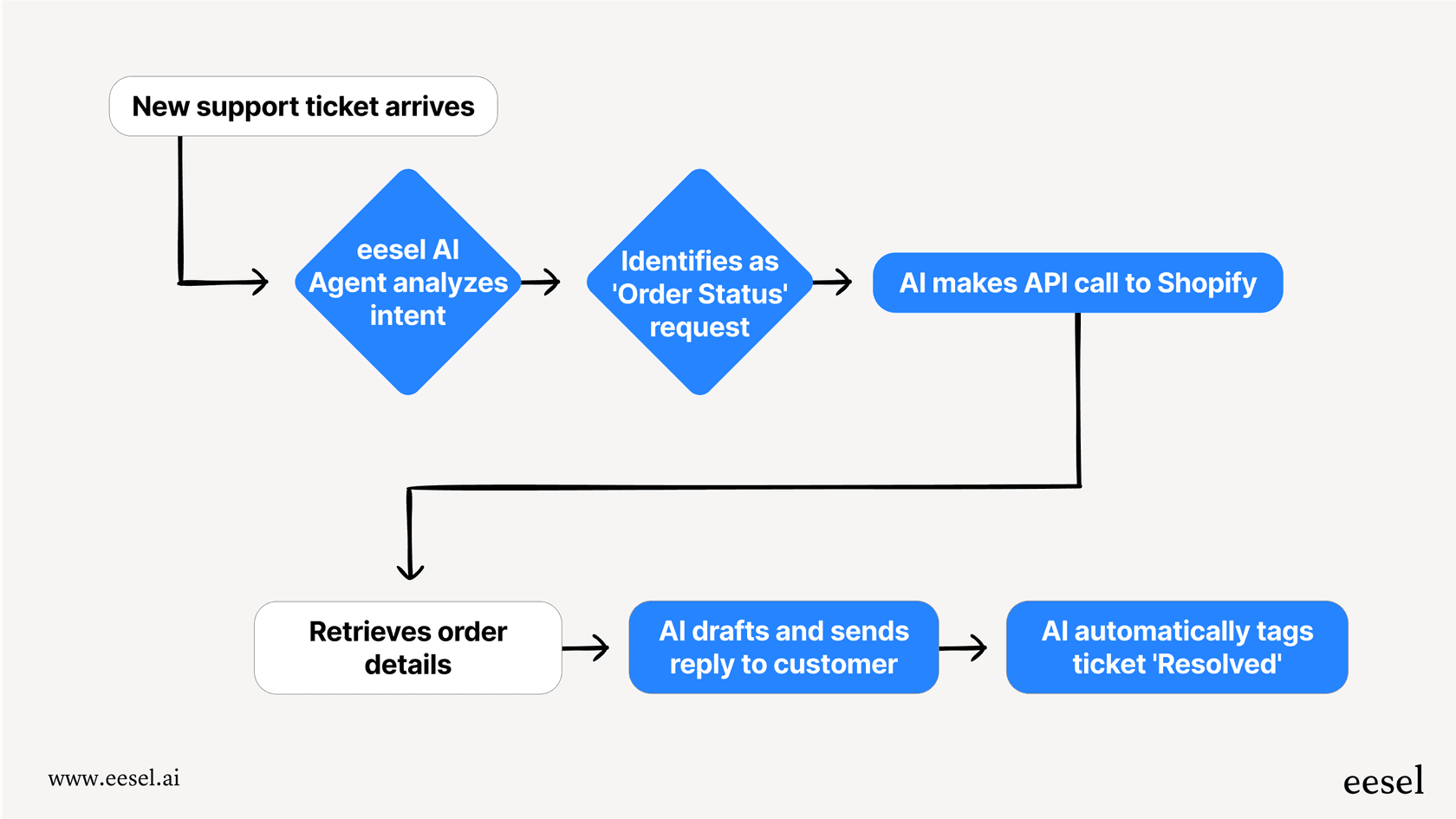
The Zendesk integration connects directly to your instance. The AI reads your tickets, learns your processes, and handles post-resolution workflows without disrupting your existing setup.
If you're spending more time managing ticket views than improving customer outcomes, it might be time to explore how an AI teammate can help.


