
Getting your ticket categorization right is essential for an efficient customer support team. When it works well, you get faster resolutions, clearer reporting, and ultimately, happier customers. The Zendesk ticket type is a core feature designed to bring order to your support queue.
While the default settings are highly effective for many, growing teams often look for ways to further tailor these settings to their specific business needs. In this guide, we'll walk through what the standard Zendesk ticket types are, look at common ways teams customize them, and show you how AI can complement the process, moving you from manual sorting to smart, automated triage.
What are Zendesk ticket types?
So, what exactly is the Zendesk ticket type field? Think of it as Zendesk's built-in, first-pass sorting system. It's a standard field that comes with four preset options, providing a stable foundation for your reporting. The goal is to give agents and admins a quick way to classify tickets at a high level. When a new ticket lands in the queue, selecting the right type is usually the first step, helping to decide what happens next.
Ticket types differ from ticket status (New, Open, Pending, Solved, Closed) and priority (Low, Normal, High, Urgent). While status tracks where a ticket is in its lifecycle and priority indicates urgency, ticket type categorizes the nature of the request itself. This distinction matters because it affects how tickets are routed, reported on, and resolved.
For teams looking to streamline their workflow further, eesel AI integrates with Zendesk to automatically suggest ticket types based on the content of incoming requests. This reduces the manual sorting burden on agents and ensures more consistent categorization across your team.
The four Zendesk ticket types defined
Zendesk gives you four default options to work with: Question, Problem, Incident, and Task. Let's break down what each one means and when to use it.
Question
The Question ticket type is for general inquiries and information requests that don't point to a failure or issue. This is your catch-all category for customers who simply need information.
Common examples include:
- "How do I reset my password?"
- "What are your business hours?"
- "Do you offer discounts for annual subscriptions?"
Question tickets are typically the easiest to resolve because they don't require troubleshooting or technical investigation. They're also prime candidates for deflection through a well-organized help center.
Problem
A Problem ticket represents a bigger, underlying issue that's hitting multiple customers. This is the main "parent" ticket in the problem-incident relationship. You create a Problem ticket when you identify a systemic issue that needs root cause analysis.
Examples include:
- "The login page is down for all users in the EU."
- "Payment processing is failing for Visa cards."
- "The mobile app crashes on iOS 17 when users try to upload photos."
The key thing to remember is that a Problem ticket tracks the root cause, not individual customer complaints about that cause. When you solve the Problem ticket, you can automatically resolve all linked Incident tickets at once.
Incident
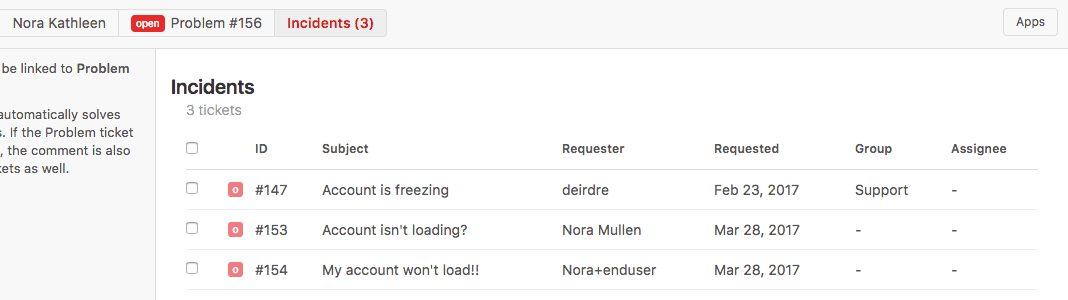
An Incident ticket is a single customer's report of a larger Problem. These tickets get linked to the main Problem ticket as "children." When multiple customers report the same underlying issue, each individual report becomes an Incident.
For example:
- "I'm in Germany and I can't log in." (This would be linked to the EU outage Problem)
- "My payment won't go through with my Visa card."
- "The app crashes every time I try to upload a photo."
The power of Incident tickets comes from their relationship to Problem tickets. Instead of handling each customer complaint separately, you link them to the parent Problem and solve them all at once when the root cause is fixed.
Task
The Task ticket type is used for internal to-do items that need to be completed by a specific date. Unlike the other types, Task tickets include a due date field, making them perfect for tracking work that has a deadline.
Examples include:
- "Follow up with the engineering team about the server outage by 5 PM."
- "Schedule a call with the customer to review their account setup by Friday."
- "Update the knowledge base article about the new feature before launch."
Task tickets are particularly useful for managing follow-up work that isn't directly related to resolving a customer issue but still needs to be tracked and completed.
Understanding the problem-incident workflow
The relationship between Problem and Incident tickets is where Zendesk's ticket type system really shines. Let's walk through how this works in practice.
Here's the general workflow:
- Identify the problem: You notice multiple customers reporting the same issue, or you discover a systemic problem through monitoring.
- Create a Problem ticket: This becomes your parent ticket for tracking the root cause.
- Link Incidents: As customers report the issue, create Incident tickets and link them to the Problem ticket.
- Solve once: When you resolve the root cause in the Problem ticket, all linked Incident tickets are automatically marked as solved.
The benefits are clear. Instead of updating 50 different tickets individually when a service outage is resolved, you update the single Problem ticket and Zendesk handles the rest. The comment you add when solving the Problem ticket gets added to all unsolved linked Incident tickets, so every affected customer gets notified.
Let's look at a real-world example. Say your company makes games for mobile devices. You start getting multiple reports from customers saying the app closes each time they try to upload a new avatar. Instead of managing these requests separately (time-consuming and potentially confusing), you create a Problem ticket called "Avatar Upload Problem." Each customer report gets logged as an Incident tied to this Problem.
Now you can easily see that this issue has been reported by, say, 47 customers. As your team makes progress, you update the Problem ticket, and those updates flow to all affected customers. When the fix is deployed, you solve the Problem ticket and all 47 Incident tickets are resolved automatically. Your agents save time, and customers get consistent communication throughout.
When to use each ticket type: a decision framework
Choosing the right ticket type doesn't have to be complicated. Here's a simple framework to help your team make consistent decisions:
Start with these questions:
- Is this a general information request? → Use Question
- Is this a single customer reporting an issue that affects only them? → Use Question or create a Problem if it's a new systemic issue
- Are multiple customers affected by the same root cause? → Create a Problem and link Incidents
- Is this an internal task with a deadline? → Use Task
Common mistakes to avoid:
- Using Problem tickets for single-customer issues (creates unnecessary overhead)
- Creating Incidents without linking them to Problems (defeats the purpose)
- Using Question for issues that should be Problems (missed opportunity for efficient resolution)
- Forgetting to set due dates on Task tickets (defeats the purpose of using Task)
Tips for maintaining consistency:
- Create a simple decision tree and share it with your team
- Include ticket type selection in your agent training
- Use Zendesk's required field settings to ensure ticket type is always selected
- Review ticket type usage in your reporting to catch inconsistencies
Automating ticket type classification with AI
Manual ticket sorting takes time. Even experienced agents can categorize the same ticket differently based on interpretation. This is where AI-powered triage can help.
eesel AI's AI Triage works alongside Zendesk to understand customer intent more deeply. When a new ticket arrives, eesel AI analyzes the content and automatically suggests the right ticket type based on what the customer is actually asking about.
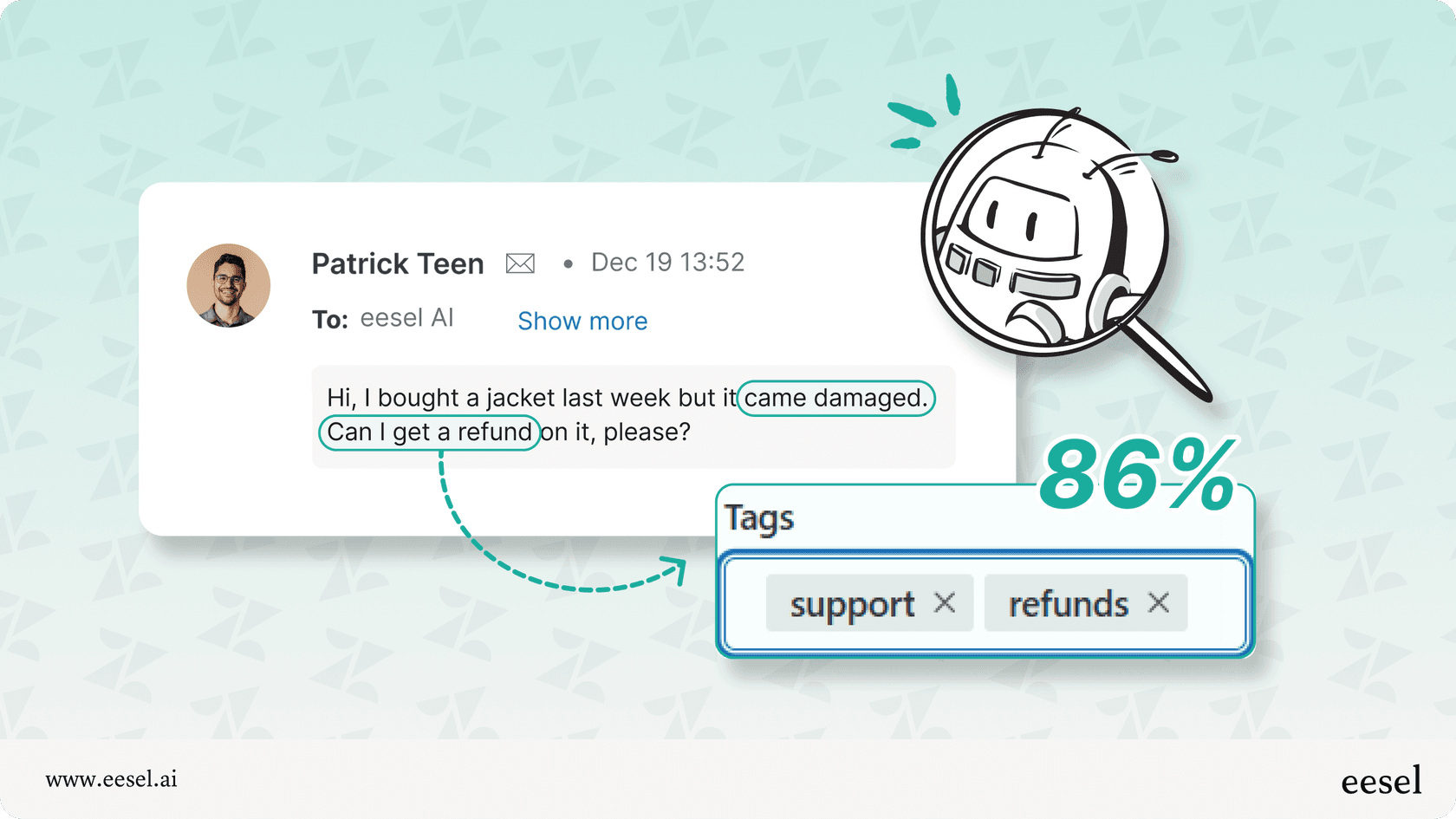
What makes this different from simple keyword matching? eesel AI learns from your team's historical data. From the moment you connect it, it begins to understand your unique business context: how your team categorizes different issues, what language your customers use, and which types of requests typically become Problems versus Questions.
The setup is straightforward. With a one-click Zendesk integration, you can connect eesel AI and start running simulations on your past tickets in minutes. This gives you a data-driven look at the efficiency gains you can expect before making any changes to your live workflow.
For teams dealing with high ticket volumes, this automation can save significant time while improving categorization consistency. Agents spend less time on manual sorting and more time actually solving customer problems.
Getting the most from Zendesk ticket types
Ticket types are only useful if your team actually uses them consistently. Here are some practical tips for making them part of your daily workflow:
Team training:
- Include ticket type selection in your onboarding process
- Create internal documentation with clear examples for each type
- Share success stories when Problem-Incident workflows save time
Custom fields: Many teams supplement the native Type field with custom dropdown fields for more granular categorization. Just remember that the native Problem-Incident linking only works with the built-in Type field, so keep that active even if you add custom fields.
Views and automations: Set up Zendesk views filtered by ticket type so agents can focus on specific categories. Use automations to trigger different workflows based on type: different SLAs for Problems versus Questions, automatic assignment rules, or escalation paths.
Reporting: Track ticket type distribution in your reporting to understand what kinds of issues your team handles most. This data can inform staffing decisions, training priorities, and product improvements.
For teams looking to take their customer support automation further, combining Zendesk's native ticket types with AI-powered triage creates a powerful system that scales with your growth. If you want to see how AI triage fits into a broader Zendesk workflow, the eesel AI integration for Zendesk page has a good overview of what's possible.


