How to notify managers when Zendesk SLA breaches: Complete guide

Stevia Putri
Written by

Stevia Putri

Reviewed by

Stanley Nicholas

Last edited February 20, 2026

Expert Verified

Banner image for How to notify managers when Zendesk SLA breaches: Complete guide

When a support ticket is about to breach its SLA, every minute counts. But Zendesk doesn't make it obvious how to notify managers or escalate urgent tickets before it's too late.

You could lose a valuable customer because no one realized a ticket was sitting unattended. Or you might discover SLA breaches hours after they happened, when it's too late to recover.

Fortunately, you can set up automated notifications that alert your team when tickets are approaching SLA limits. This guide covers three methods to notify managers about Zendesk SLA breaches, from simple automations to advanced integrations.

Zendesk homepage showing the main support platform interface

Understanding Zendesk SLA breach notifications

Before we dive into setup, let's clarify what we're working with. An SLA policy in Zendesk defines response and resolution targets based on ticket priority. When your team doesn't respond within those timeframes, the SLA breaches.

Native Zendesk tracks SLA performance, but it doesn't proactively notify managers when things go wrong. Agents can see SLA timers in ticket views, but managers often don't know about problems until they run reports or customers complain.

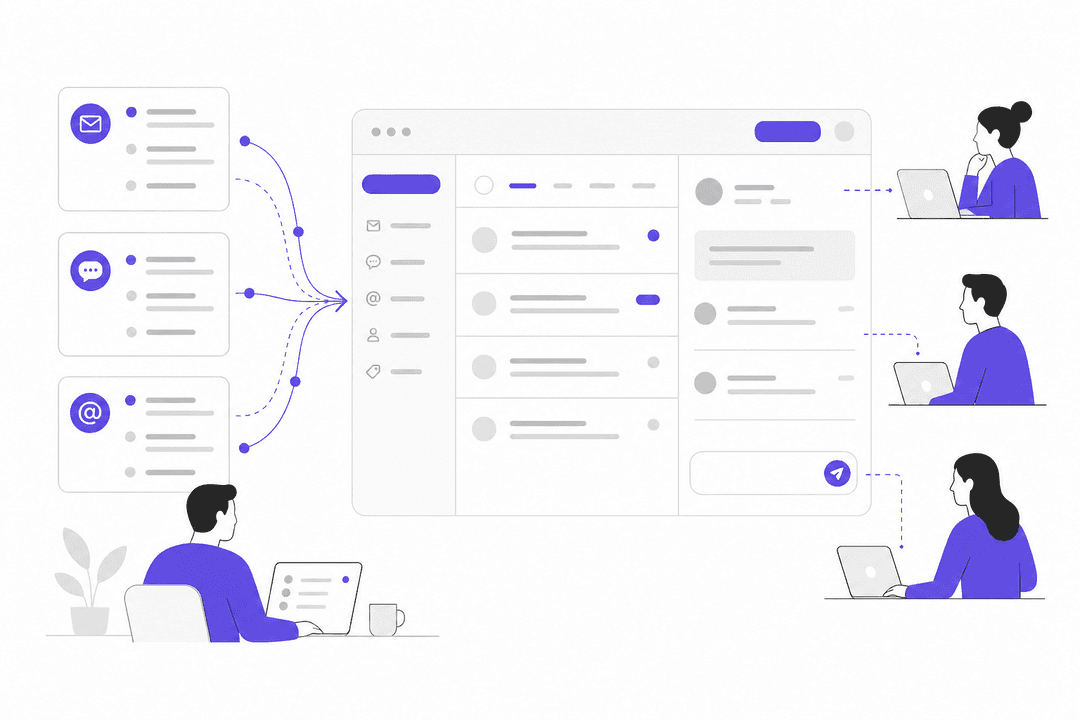
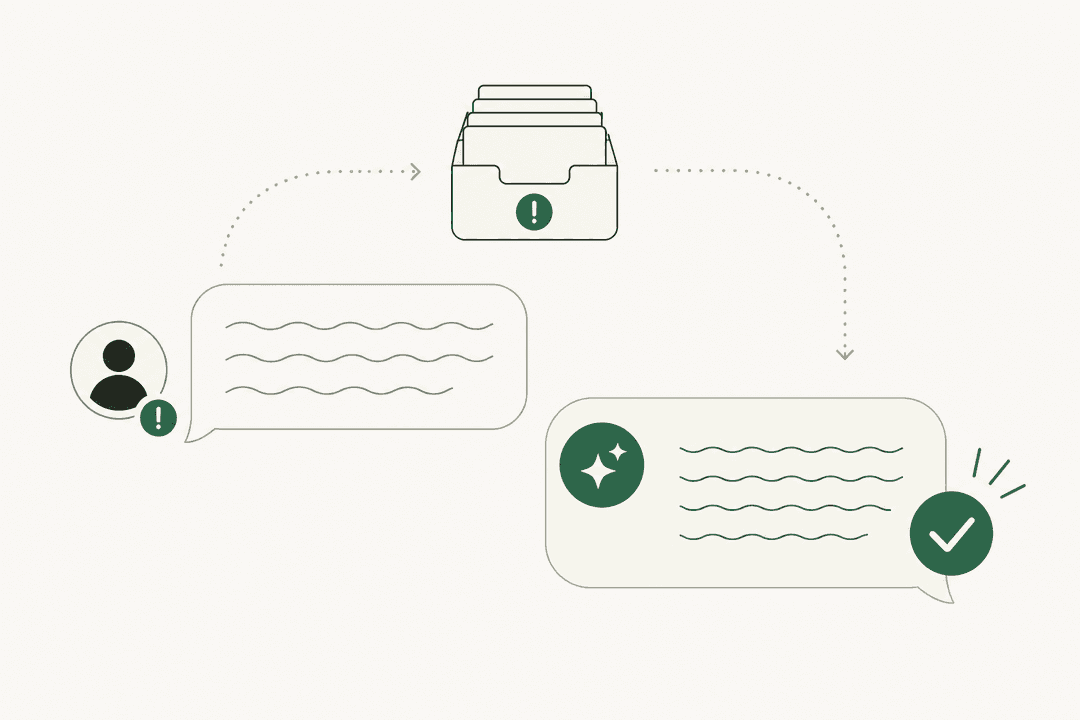
The visibility gap in SLA management that notification workflows solve

This visibility gap is why notification workflows matter. Instead of discovering breaches after the fact, you can get alerts that give your team time to act. The approach you choose depends on your team's size, technical resources, and how urgently you need to respond.

Method 1: Using Zendesk automations for SLA alerts

The most common approach uses Zendesk automations. These are time-based business rules that check conditions hourly and take action when met.

Important limitation to understand: Automations run once per hour. This means you can't get notified at the exact moment an SLA breaches. You'll be notified within an hour of the condition being met.

Zendesk automation rule builder showing conditions and actions for creating a new automation

Step 1: Create a new automation

Navigate to Admin Center > Objects and rules > Business rules > Automations, then click Add automation.

Give it a clear name like "Notify team of approaching SLA breach" so other admins understand its purpose.

Step 2: Configure the conditions

Under Meet all of the following conditions, add these conditions:

ConditionOperatorValue
Ticket: Hours until next SLA breachLess than2
Ticket: Status categoryLess thanSolved
Ticket: TagsContains none of the followingsla_alert

The Hours until next SLA breach condition is the key. Change the value (2 hours in this example) based on how much warning you need. For urgent tickets, you might want 1 hour. For normal priority, 4 hours might work.

The Status category Less than Solved condition is required. Automations won't save without this condition or something similar (like specific Type, Group, or Assignee conditions).

The Tags condition prevents duplicate notifications. We'll add the sla_alert tag when the automation fires, so it won't run again on the same ticket.

Step 3: Set up notification actions

Under Perform these actions, add:

For group email notifications:

  • Notifications: Group email | (assigned group)
  • Email subject: SLA about to breach: {{ticket.id}}
  • Email body:
This is a notification to inform you that a ticket assigned to your group
is approaching its SLA breach time.

Ticket: {{ticket.link}}

Time remaining until SLA breach: Less than 2 hours

Prioritize this ticket to ensure it is resolved or addressed promptly.

For individual manager notifications:

  • Notifications: User email | (select specific manager)

Add the deduplication tag:

  • Ticket: Add tags | sla_alert

This tag ensures the automation only fires once per ticket. Without it, your managers would get hourly notifications about the same ticket.

Step 4: Create a post-breach notification (optional)

You might also want to know when an SLA has already been breached. Create a second automation with these conditions:

ConditionOperatorValue
Ticket: Hours since last SLA breachLess than1
Ticket: Status categoryLess thanSolved
Ticket: TagsContains none of the followingsla_breach_alert

Use a different tag (sla_breach_alert) to track tickets where the breach already happened. This helps you identify tickets that need immediate attention and post-breach customer communication.

Method 2: Manager-specific escalation workflows

Basic automations notify everyone. But what if you want different alerts for agents versus managers? Or escalation chains where the agent gets warned first, then the manager if nothing happens?

Escalation chain workflow showing multi-level notification timing

Step 1: Set up group-based notifications

Instead of notifying everyone, route notifications to specific groups. In Zendesk, you can create a "Managers" group or use your existing team lead groups.

When setting up your automation action:

  • Notifications: Group email | Managers (instead of the assigned group)

This ensures only managers receive the alert, not the entire team.

Step 2: Build escalation chains with tags

For sophisticated escalation, create multiple automations that fire at different times:

Automation 1: Agent warning (4 hours before breach)

  • Condition: Hours until next SLA breach | Less than | 4
  • Action: Email assigned agent
  • Tag: sla_agent_alert

Automation 2: Manager escalation (1 hour before breach)

  • Condition: Hours until next SLA breach | Less than | 1
  • Condition: Tags | Contains | sla_agent_alert (ensures agent was already notified)
  • Action: Email manager group
  • Tag: sla_manager_alert

This pattern gives agents time to resolve tickets before managers get involved. If the agent handles the ticket within 4 hours, the manager never gets alerted.

Step 3: Use custom fields for advanced routing

For even more control, create a custom dropdown field called "Escalation Tier" with values like:

  • Standard (notify team lead)
  • VIP (notify manager immediately)
  • Critical (notify director + manager)

Then add conditions to your automations:

  • Ticket: Escalation Tier | Is | VIP

This lets you route different customers to different escalation paths within the same automation framework.

Using the "Triggers before SLA breach" feature

Recently, Zendesk has been rolling out a new capability that allows triggers (which fire immediately) to work with SLA conditions. This would solve the hourly delay problem with automations.

Check your Zendesk instance: go to Admin Center > Objects and rules > Business rules > Triggers and look for SLA-related conditions. If you see "Hours until next SLA breach" available in triggers, you can use real-time notifications instead of hourly batches.

The setup is similar to automations, but triggers fire immediately when conditions are met. This gives you true real-time escalation instead of the hourly cadence limitation.

Method 3: Slack and third-party integrations

Email notifications get buried. If your team lives in Slack, you might want alerts there instead (or in addition to email).

Option A: Native Zendesk Slack integration

Zendesk offers a native Slack integration that connects with Slack, but it has limitations for SLA notifications. It can notify about ticket events, but SLA-specific threshold alerts aren't built in.

If you just need basic ticket notifications in Slack, this works. For SLA breach warnings, you'll need something more sophisticated.

Option B: Geckoboard for threshold-based Slack alerts

Geckoboard connects to Zendesk and pushes notifications to Slack when metrics cross thresholds you define.

The setup process:

  1. Connect your Zendesk account to Geckoboard
  2. Create a widget showing the metric you want to monitor (like "Tickets nearing SLA breach")
  3. Set status indicators that define your warning thresholds
  4. Click Add Slack notification to route alerts to a channel

When your metric breaches a status indicator, the notification goes immediately to Slack.

Use cases for Slack notifications:

  • Queue volume alerts: "Alert when open tickets > 15"
  • Response time alerts: Notify when average first reply time exceeds target
  • SLA breach alerts: Monitor tickets approaching or breaching SLA targets
  • Satisfaction alerts: Track when CSAT drops below threshold

The benefit here is threshold-based intelligence. Instead of getting pinged for every ticket update, your team only gets alerted when operational metrics actually need attention.

Option C: PagerDuty for critical escalation

For urgent SLA breaches that require immediate human response (especially after hours), PagerDuty integration makes sense. This setup requires more technical configuration but provides true escalation management.

Step 1: Create an HTTP target in Zendesk

Go to Admin Center > Settings > Extensions > Add target

  • Name: PagerDuty
  • URL: https://events.pagerduty.com/v2/enqueue
  • Method: POST
  • Content type: JSON

Step 2: Create a trigger that notifies the target

Set conditions for when to escalate (for example, when a ticket is moved to a "Breached SLAs" group).

Under actions, select:

  • Notifications: Notify target | PagerDuty

JSON Body:

{
  "dedup_key": "{{ticket.id}}",
  "routing_key": "YOUR_PAGERDUTY_ROUTING_KEY",
  "event_action": "trigger",
  "payload": {
    "summary": "SLA Breached: {{ticket.title}}",
    "source": "Zendesk",
    "severity": "critical",
    "custom_details": {
      "priority": "{{ticket.priority}}",
      "ticket_id": "{{ticket.id}}",
      "requester": "{{ticket.requester.name}}"
    }
  },
  "client_url": "{{ticket.link}}",
  "client": "Zendesk"
}

PagerDuty then handles on-call routing, escalation policies, and ensuring someone gets woken up if needed.

Option D: SMS via D7 Networks

For teams that need SMS alerts (especially managers who aren't always at their computers), D7 Networks offers an ActiveCampaign integration that can send SMS when Zendesk SLAs breach.

The workflow:

  1. Zendesk ticket SLA is breached
  2. ActiveCampaign workflow triggers
  3. D7 Networks sends SMS to manager's phone
  4. Message includes ticket ID and brief details

Example SMS: Alert: Ticket #12345 has breached its SLA. Immediate attention required.

This is particularly useful for after-hours critical support where email or Slack might be missed.

Comparison of notification integration options for different team needs

Common mistakes and troubleshooting

Even with the right setup, things can go wrong. Here are the most common issues:

Duplicate notifications flooding inboxes You forgot to add the tag condition and tag action. Every automation that sends notifications needs deduplication logic using tags. Check that your condition says "Contains none of the following" and your action adds that same tag.

Automations not firing at all Zendesk requires at least one time-based condition or an action that nullifies a condition. Make sure you have either:

  • Status category | Less than | Solved
  • Or a Type/Group/Assignee condition
  • Plus a corresponding action that changes that value

Notifications arrive too late Remember: automations run hourly. If you set "Less than 1 hour until breach," the notification might arrive after the breach has already occurred. Set your thresholds with the hourly delay in mind.

Confusion between triggers and automations Triggers fire immediately on ticket events. Automations check conditions hourly. For SLA notifications, you generally want automations (unless you have the newer "Triggers before SLA breach" feature enabled).

Testing your setup Always test with a sample ticket before relying on these notifications:

  1. Create a test ticket
  2. Set the priority to trigger your SLA policy
  3. Wait for the automation to run (or use the "Preview match" feature)
  4. Verify the notification was received
  5. Check that the tag was added to prevent duplicates

Preventing SLA breaches with AI automation

Notifications are reactive. The real goal is preventing breaches altogether. This is where eesel AI comes in.

eesel AI dashboard for configuring the AI supervisor agent

At eesel AI, we've built an AI teammate that integrates directly with Zendesk to handle frontline support automatically. Instead of just alerting you about tickets nearing breach, our AI Agent responds to customers within seconds. You don't configure eesel. You hire it, and it learns your business in minutes instead of weeks.

Here's how it works:

Instant first replies eliminate FRT breaches When a ticket comes in about a password reset, order status, or common troubleshooting question, our AI Agent responds within seconds. Your first reply time becomes effectively zero for these tickets.

AI Copilot reduces resolution time For complex issues that need human agents, our AI Copilot drafts replies by pulling from your help center, past tickets, and connected knowledge sources. Agents spend less time hunting for answers and more time actually solving problems.

eesel AI Copilot sidebar showing a suggested reply in a help desk interface

Simulation mode de-risks the transition Before going live, you can run eesel AI on your historical tickets to see exactly how it would perform. Measure the impact on your SLA metrics before customers ever see an AI response.

The result? Fewer tickets approaching SLA limits in the first place. Notifications become backup rather than primary defense.

eesel AI connects to Zendesk in minutes. We learn your tone from existing tickets and macros, so responses sound like your team, not a generic chatbot. And with our simulation mode, you can verify performance on your actual ticket history before enabling automatic responses.

Set up your SLA breach notifications today

You now have three approaches for notifying managers about Zendesk SLA breaches:

  1. Native automations work for most teams. They're free, built-in, and handle basic escalation. Just remember the hourly delay limitation.

  2. Manager-specific workflows give you finer control. Use group routing and escalation chains to notify the right people at the right time.

  3. Third-party integrations like Slack, PagerDuty, or SMS provide real-time alerts and after-hours coverage when email isn't enough.

Which one should you choose? Start with native automations if you have a small team and business-hour coverage. Add Slack or PagerDuty integrations if you need faster response or 24/7 escalation. And consider eesel AI if you want to reduce the number of tickets that ever reach SLA risk.

The key is getting visibility before breaches happen, not discovering them in tomorrow's report. Set up your notifications this week, test them with a few tickets, and give your team the early warning system they need.

Ready to prevent SLA breaches instead of just tracking them? Try eesel AI for free and see how AI-powered responses can improve your first reply times today.

Frequently Asked Questions

The primary condition for SLA notifications is 'Hours until next SLA breach' or 'Hours since last SLA breach.' You can combine these with other conditions like ticket priority, group assignment, or custom fields to create targeted notifications. Some newer Zendesk instances may also support SLA conditions in triggers for real-time notifications.
Use tag-based deduplication. Add a condition 'Ticket: Tags contains none of the following: [your_tag_name]' and include an action 'Ticket: Add tags: [your_tag_name]' in the same automation. This ensures the automation only fires once per ticket.
Triggers fire immediately when ticket events occur, while automations run once per hour. For SLA notifications, automations are traditionally used because they can check time-based conditions like 'Hours until next SLA breach.' However, newer Zendesk features may allow SLA conditions in triggers for real-time notifications.
Native Zendesk doesn't support SMS notifications directly. To send SMS alerts for SLA breaches, you need third-party integrations like D7 Networks via ActiveCampaign, PagerDuty with SMS notification policies, or webhook-based solutions that connect to SMS gateways.
Zendesk automations run once per hour. This means notifications can be sent as close as the hour before or the hour after an SLA breach, but not at the exact moment of breach. Plan your notification thresholds accordingly, setting them earlier than the actual breach point you want to know about.
Include the ticket ID with a link ({{ticket.link}}), time remaining until breach, ticket priority, assigned group or agent, and a clear call to action. Use Zendesk placeholders to make the notification actionable so managers can click directly to the ticket.

Share this post

Stevia undefined

Article by

Stevia Putri

Stevia Putri is a marketing generalist at eesel AI, where she helps turn powerful AI tools into stories that resonate. She’s driven by curiosity, clarity, and the human side of technology.