
When a critical support ticket sits unresolved past its deadline, the fallout can be costly. Missed SLAs damage customer relationships, hurt team morale, and can even trigger contractual penalties. The problem isn't that support teams don't care. It's that they often don't see the warning signs until it's too late.
Zendesk's "hours until next SLA breach" condition offers a way to get ahead of these situations. Instead of discovering breaches after they happen, you can build automations that alert your team while there's still time to act. This guide walks you through exactly how to set up these proactive notifications, what to watch out for, and when you might need something more sophisticated than Zendesk's native tools.
What is the Zendesk SLA breach hours remaining condition?
Zendesk's SLA (Service Level Agreement) policies let you set targets for response and resolution times. By default, agents can see these deadlines in ticket views, but there's no built-in warning system that proactively alerts anyone when a breach is approaching.
The "hours until next SLA breach" condition fills this gap. It's available in Zendesk automations and lets you trigger actions based on how much time remains before an SLA target expires. You set a threshold (like "less than 2 hours") and define what should happen when tickets cross that line.
This differs from the "hours since last SLA breach" condition, which only fires after a breach has already occurred. The "hours until" condition is about prevention; the "hours since" condition is about cleanup.
Why does this matter? Because catching tickets at the two-hour mark gives you options. You can reassign to a senior agent, escalate to a manager, or notify the customer. Once that SLA breach happens, you're in damage control mode.
For teams that have outgrown Zendesk's automation limits, we offer an alternative approach at eesel AI. Our AI agents can monitor SLA risk in real-time and take intelligent actions beyond simple notifications, but let's look at what you can accomplish with Zendesk's native tools first.
Prerequisites and what you'll need
Before building your first SLA breach warning automation, make sure you have the following in place:
Zendesk plan requirements: SLA policies, including automation conditions, are only available on Suite Professional ($115/agent/month) and Suite Enterprise ($169/agent/month) plans. The Support Team and Suite Team plans do not include SLA features.
Administrative access: You'll need Admin permissions or a custom role with permissions to create and manage automations. If you're not an admin, you'll need to coordinate with someone who is.
Configured SLA policies: The "hours until next SLA breach" condition only works if you have active SLA policies applied to tickets. If you haven't set these up yet, you'll need to do that first through Admin Center > Objects and rules > Service level agreements.
Understanding of business hours: Zendesk can calculate SLA times using either business hours (respecting your schedule) or calendar hours (24/7). The automation condition respects whichever schedule is applied to the ticket, so make sure you understand which one you're using.
Basic automation familiarity: You should understand how Zendesk automations work, including the requirement that all automations need a nullifying condition (a condition that stops the automation from running repeatedly).
Step-by-step: Creating an SLA breach warning automation
Let's build a practical automation that warns your team when tickets are approaching their SLA breach point.
Step 1: Navigate to automations
Start by accessing your Zendesk Admin Center. Click on Objects and rules in the left sidebar, then select Business rules and finally Automations. Click the "Create automation" button to begin.
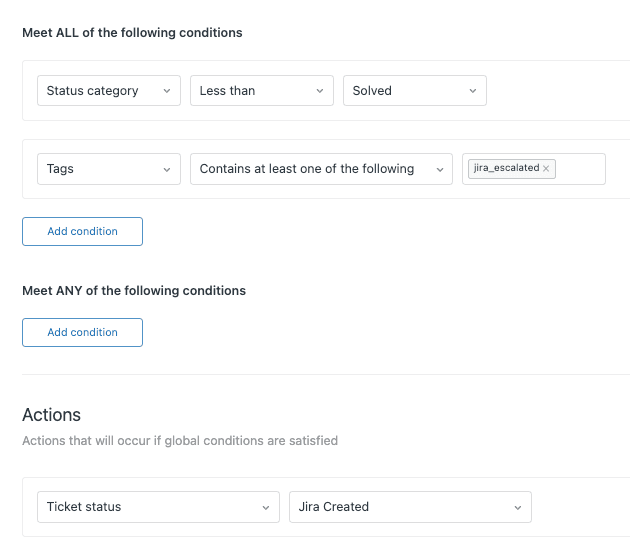
You'll see the automation editor with two main sections: conditions (what triggers the automation) and actions (what happens when it triggers).
Step 2: Configure the conditions
Under "Meets all of the following conditions," add these three conditions:
Condition 1: Ticket: Hours until next SLA breach | Less than | 2
This sets your warning threshold at 2 hours before breach. You can adjust this number based on your team's needs, but 1-2 hours typically gives agents enough time to respond without creating alert fatigue.
Condition 2: Ticket: Status category | Less than | Solved
This ensures the automation only runs on tickets that haven't been resolved yet. Without this, your automation would try to act on already-solved tickets.
Condition 3: Ticket: Tags | Contains none of the following | sla_warning
This is your nullifying condition. It prevents the automation from firing repeatedly on the same ticket. We'll add this tag when the automation fires.
Step 3: Set up the notification actions
Now define what happens when those conditions are met. Under "Perform these actions," add:
Action 1: Notifications: Email group | (assigned group)
For the subject line, use something like:
SLA breach warning: Ticket #{{ticket.id}} - {{ticket.title}}
For the email body:
This ticket is approaching its SLA breach time.

Ticket: {{ticket.link}}
Priority: {{ticket.priority}}
Time remaining: Less than 2 hours

Please prioritize this ticket to prevent an SLA breach.
Action 2: Ticket: Add tags | sla_warning
This tag ensures the automation won't fire again on this ticket. Without this step, your team would get an email every hour until the ticket is solved.
Step 4: Save and test
Give your automation a descriptive name like "SLA breach warning notification." Click Create automation to save it.
To test, create a test ticket with a short SLA target (you may need a temporary test SLA policy), let it age close to the breach point, and verify you receive the notification. Remember that automations run hourly, so you may need to wait up to an hour for the first test run.
Common automation recipes for SLA management
Once you understand the basics, you can build more sophisticated workflows. Here are four practical recipes to consider:
Recipe 1: VIP customer escalation
For high-value customers, standard warnings may not be enough. Build an automation that escalates more aggressively:
| Condition | Operator | Value |
|---|---|---|
| Organization | Is | [Your VIP org] |
| Hours until next SLA breach | Less than | 1 |
| Status category | Less than | Solved |
| Tags | Contains none | vip_escalated |
| Action | Type | Value |
|---|---|---|
| Notifications | Notify target | [Slack webhook for priority channel] |
| Group | [Senior support team] | |
| Add tags | vip_escalated |
Recipe 2: Manager alert for breached tickets
Sometimes breaches happen despite warnings. Use the "hours since" condition to notify managers when cleanup is needed:
| Condition | Operator | Value |
|---|---|---|
| Hours since last SLA breach | Less than | 1 |
| Status category | Less than | Solved |
| Tags | Contains none | breach_notified |
| Action | Type | Value |
|---|---|---|
| Notifications | Email user | [Manager email] |
| Add tags | breach_notified |
Recipe 3: Auto-prioritize at-risk tickets
Instead of just notifying, you can automatically change ticket priority when time runs short:
| Condition | Operator | Value |
|---|---|---|
| Hours until next SLA breach | Less than | 1 |
| Priority | Is not | Urgent |
| Status category | Less than | Solved |
| Action | Type | Value |
|---|---|---|
| Priority | High | |
| Add tags | auto_escalated |
Recipe 4: Customer proactive communication
Sometimes the best approach is communicating with the customer before the breach:
| Condition | Operator | Value |
|---|---|---|
| Hours until next SLA breach | Less than | 4 |
| Status category | Less than | Solved |
| Tags | Contains none | customer_notified |
| Action | Type | Value |
|---|---|---|
| Notifications | Email user | (requester) |
| Add tags | customer_notified |
Use placeholder text like: "We wanted to update you that we're actively working on your request and expect to have an update shortly."
Important limitations and considerations
Before you roll out SLA breach automations across your organization, understand these limitations:
Hourly execution, not real-time: Zendesk automations run once per hour. This means your "2 hours until breach" notification might fire anywhere from 2 hours to 1 hour before the actual breach. If you need minute-level precision, Zendesk's native tools won't suffice.
Tag deduplication is mandatory: Every automation using time-based conditions must include a nullifying mechanism (typically a tag). Without this, you'll spam your team with hourly notifications until the ticket resolves.
Whole numbers only: The condition only accepts whole numbers. You cannot set "1.5 hours" as your threshold; it's either 1 hour or 2 hours.
Schedule-dependent calculations: The "hours until" calculation respects the business hours schedule applied to the ticket. If your ticket uses a 9-to-5 schedule, the automation won't count overnight hours. This is usually what you want, but verify your schedules are configured correctly.
Automation-only, not triggers: You cannot use SLA breach conditions in Zendesk triggers. This limits your options for real-time responses. Triggers fire immediately on ticket events; automations only fire on the hourly check.
No closed ticket updates: Because automations cannot update closed tickets, there's no "hours since closed" condition. Once a ticket closes, it drops out of automation scope entirely.
Alternative approaches with eesel AI for real-time SLA monitoring
If Zendesk's hourly automation cycle doesn't meet your needs, consider these alternatives:
Zendesk views with SLA columns: The simplest native workaround is adding "Next SLA breach" and "SLA metric" columns to your ticket views. Agents can sort by these columns to see at-risk tickets. The downside is that it requires agents to actively check views; there's no push notification.
Geckoboard for dashboard monitoring: Geckoboard offers real-time Zendesk dashboards that refresh every 10 minutes for Support metrics (and even faster for Chat and Talk). Unlike Zendesk Explore, which refreshes hourly or daily depending on your plan, Geckoboard gives you near real-time visibility. Plans start at $60/month, and they offer a 14-day free trial.
SweetHawk Timers app: Available on the Zendesk Marketplace, SweetHawk's Timers app provides more flexible SLA enforcement workflows within Zendesk. At $2 per agent per month (or $12 for their full suite), it's an affordable way to extend Zendesk's native capabilities. SweetHawk was named Zendesk's 2026 Partner of the Year for Best Collaborator.
Custom API solutions: For teams with development resources, Zendesk's API provides SLA data that you can poll more frequently than the native automation cycle. This requires building and maintaining custom infrastructure.
eesel AI for intelligent SLA management: For teams ready to move beyond simple notifications, our AI agents can monitor SLA risk continuously and take context-aware actions. We can reassign based on agent workload, draft responses to prevent breaches, and escalate only when human judgment is truly needed.

You can see eesel in action or try it free.
Start managing your SLAs proactively
The difference between reactive and proactive SLA management often comes down to timing. Getting an alert two hours before a breach gives you options. Discovering the breach after it happens only gives you an apology to write.
Zendesk's "hours until next SLA breach" condition, despite its hourly execution limitation, provides a solid foundation for basic proactive workflows. Start with a simple warning automation, test it thoroughly, and expand from there.
If you find yourself hitting Zendesk's limitations, whether it's the hourly automation cycle, the lack of intelligent routing, or the inability to take complex actions based on SLA risk, that's where we come in. At eesel AI, we've built AI teammates that handle these challenges differently. Our agents learn your business, monitor SLAs continuously, and take actions that actually prevent breaches rather than just announcing them.
Ready to see what intelligent SLA management looks like? Book a demo and we'll show you how teams are using AI to hit their SLA targets consistently without burning out their agents.


