
Have you ever watched those three animated dots appear in a chat window and felt that small surge of anticipation? That is the typing indicator at work. In Zendesk Messaging, typing indicators serve as subtle but powerful signals that keep conversations flowing naturally. They tell customers that someone is actively engaging with their question, not just letting it sit in a queue.
For support teams, typing indicators are just as valuable from the other side. Agents can see when customers are composing responses, which helps with multitasking and timing replies appropriately. This guide covers everything you need to know about Zendesk messaging typing indicators: what they are, how to configure them, how developers can implement them programmatically, and how to troubleshoot common issues.
What Is a Zendesk Messaging Typing Indicator?
A typing indicator in Zendesk Messaging is a visual cue that appears in the conversation interface when someone is actively composing a message. When an agent starts typing, customers see animated dots (an ellipsis) in the chat window. Conversely, agents can see when customers are typing in the Agent Workspace.
These indicators are built on top of Zendesk's Sunshine Conversations platform, which powers the real-time messaging infrastructure. The feature works across web widgets, mobile SDKs, and integrates with social messaging channels (though capabilities vary by platform).
Here is what makes typing indicators distinct from other messaging features:
- They show activity, not content: The dots indicate someone is typing, but they do not reveal what is being typed
- They are bidirectional: Both agents and customers see when the other party is active
- They tie into conversation states: Typing activity keeps a conversation in an "active" state, which affects routing and agent capacity
- They cannot be customized: The three-dot animation is standard across all implementations
One important clarification: Zendesk typing indicators are fundamentally different from "message preview" features offered by some other chat platforms. Message preview would let agents see what customers are typing in real-time before they hit send. Zendesk explicitly does not offer this due to privacy concerns, a stance their product team has reaffirmed multiple times in community forums.
How to Configure Typing Indicators in Zendesk
For most Zendesk administrators, enabling typing indicators requires no coding. The feature is controlled through the Admin Center interface and applies to your messaging channels automatically.
Accessing the Settings
To configure typing indicators, navigate to Admin Center > Channels > Messaging and social > Messaging. Select your web widget or mobile SDK channel, then click the Style tab. Scroll to the conversation settings section where you will find the toggle for typing indicators.
The setting applies immediately to all conversations on that channel. No widget redeployment or SDK update is required.
What You Can and Cannot Configure
Zendesk keeps typing indicator customization intentionally simple:
| Configurable | Not Configurable |
|---|---|
| Enable/disable the feature | The appearance (always three dots) |
| Which channels show indicators | Animation speed or style |
| Agent visibility of customer typing | Custom text like "Agent is typing" |
This limitation frustrates some administrators who want to match typing indicators to their brand voice or customize the messaging. However, the standardized approach ensures consistency across all Zendesk messaging implementations.
How Agents See Customer Typing
In the Agent Workspace, typing indicators appear alongside conversation status indicators. When a customer is actively typing, agents see a visual cue in the conversation list and within the active chat panel.
This is particularly useful for agents handling multiple concurrent chats. The typing indicator signals that the customer is actively engaged, which helps agents prioritize which conversation needs immediate attention versus which ones can wait a moment.
The green dot next to a conversation indicates an active state (the customer is online and the conversation has had activity within the last 10 minutes). Combined with typing indicators, agents get a complete picture of customer engagement levels.
Developer Implementation Guide
For teams building custom messaging experiences or integrating Zendesk Messaging into mobile apps, the platform provides SDK and API support for typing indicators.
Web SDK Implementation
If you are using the Zendesk Web Widget with custom JavaScript interactions, you can listen for typing events using the messenger API:
zE('messenger:on', 'typing', function(data) {
  if (data.isTyping) {
    console.log('Agent is typing...');
    // Trigger custom UI behavior
  } else {
    console.log('Agent stopped typing');
  }
});
This event fires whenever an agent starts or stops typing. You can use it to trigger custom animations, update your own UI components, or log interaction metrics.
Mobile SDKs (Android and iOS)
For native mobile implementations, both the Android and iOS SDKs provide callbacks for typing indicators.
Android SDK:
chatProvider.addChatListener(new ChatListener() {
    @Override
    public void onAgentTyping(Agent agent, boolean isTyping) {
        if (isTyping) {
            // Show typing indicator in your custom UI
        } else {
            // Hide typing indicator
        }
    }
});
iOS SDK:
func chat(_ chat: Chat, didReceiveTypingIndicator typing: TypingIndicator) {
    if typing.isTyping {
        // Display typing animation
    } else {
        // Remove typing animation
    }
}
Both SDKs handle the underlying WebSocket connections and real-time event delivery automatically. Your implementation just needs to respond to the callbacks and update the UI accordingly.
Programmatic Control via API
For advanced use cases, such as bot integrations or custom automation, you can send typing activities programmatically using the Post Activity API:
POST /sc/v2/apps/{app_id}/conversations/{conversation_id}/activity
{
  "author": {
    "type": "business"
  },
  "type": "typing:start"
}
To stop the typing indicator, send a typing:stop event. The indicator also stops automatically when you send an actual message.
This API is particularly useful when building AI agents or automated responses. You can trigger a typing indicator before the AI generates a response, creating a more natural conversational flow that mimics human response times.
Common Issues and Troubleshooting
Even with a straightforward feature like typing indicators, issues can arise. Here are the most common problems and how to resolve them.
Typing Indicator Not Showing
If typing indicators are not appearing in your conversations:
- Verify the feature is enabled in Admin Center (Channels > Messaging > Your Channel > Style)
- Check your channel type: Typing indicators work on Web Widget and Mobile SDKs but may behave differently on social messaging channels like WhatsApp or Facebook Messenger
- Ensure the conversation is active: Indicators only appear during active conversation states
- Check browser/console logs for JavaScript errors that might prevent widget functionality
Social Messaging Channel Limitations
One frequent source of confusion is that typing indicators do not work consistently across all Zendesk messaging channels. The feature is fully supported on:
- Web Widget
- Android SDK
- iOS SDK
- Unity SDK
However, on social messaging channels like WhatsApp and Facebook Messenger, typing indicators are controlled by those platforms, not Zendesk. The behavior you see depends on the third-party platform's implementation.
The "Message Preview" Confusion
A recurring theme in Zendesk community forums is confusion between typing indicators and message preview. Users frequently request the ability to see what customers are typing before they send the message.
This feature is a HUGE miss on the Zendesk side. Every chat tool we have demo'd or used has the ability to see what the customer is typing before they hit enter. Join the 21st century of chat!
Zendesk Community
Zendesk's product team has consistently stated this feature will not be implemented. In a 2022 response, Product Manager Rajat Garg explained: "We completely understand the need for agents to respond quickly and we are constantly looking for ways to make them more productive. However, previewing what the end user is typing is not something we are planning to support in our immediate roadmap."
The privacy concerns are legitimate. Many customers would be uncomfortable knowing support agents can see their half-formed thoughts, typos, and reconsidered messages. Zendesk has chosen to prioritize customer privacy over agent efficiency in this case.
Developer Implementation Issues
For developers implementing custom solutions, common issues include:
- Authentication errors: Ensure your API keys have the correct scopes for posting activities
- Timing issues: Typing indicators time out automatically after a period of inactivity
- Channel mismatches: The
typing:startevent only works on channels that support typing indicators
If you are building a custom integration and typing indicators are not working, verify that your conversation is using a supported channel type and that your authentication credentials are properly configured.
Best Practices for Using Typing Indicators
Typing indicators are a small feature, but using them well can improve customer experience significantly.
When Typing Indicators Help
- During wait times: When customers are in a queue, seeing an agent typing signals that their turn is coming
- For complex issues: Indicators show that the agent is actively working on a solution, not just ignoring the conversation
- Multitasking scenarios: Agents can type in one conversation while waiting for customer responses in others
When Typing Indicators Might Hurt
- Creating pressure: Constant typing indicators can make customers feel rushed
- Over-automation: If bots overuse typing indicators, they lose their meaning
- Agent training gaps: Agents who start typing then get distracted leave customers watching dots indefinitely
Combining with Messaging Triggers
Typing indicators work well alongside Zendesk messaging triggers. For example, you can create a trigger that sends an acknowledgment message when a customer sends their first message, then follow up with a properly timed agent response (with typing indicator) for a natural conversational flow.
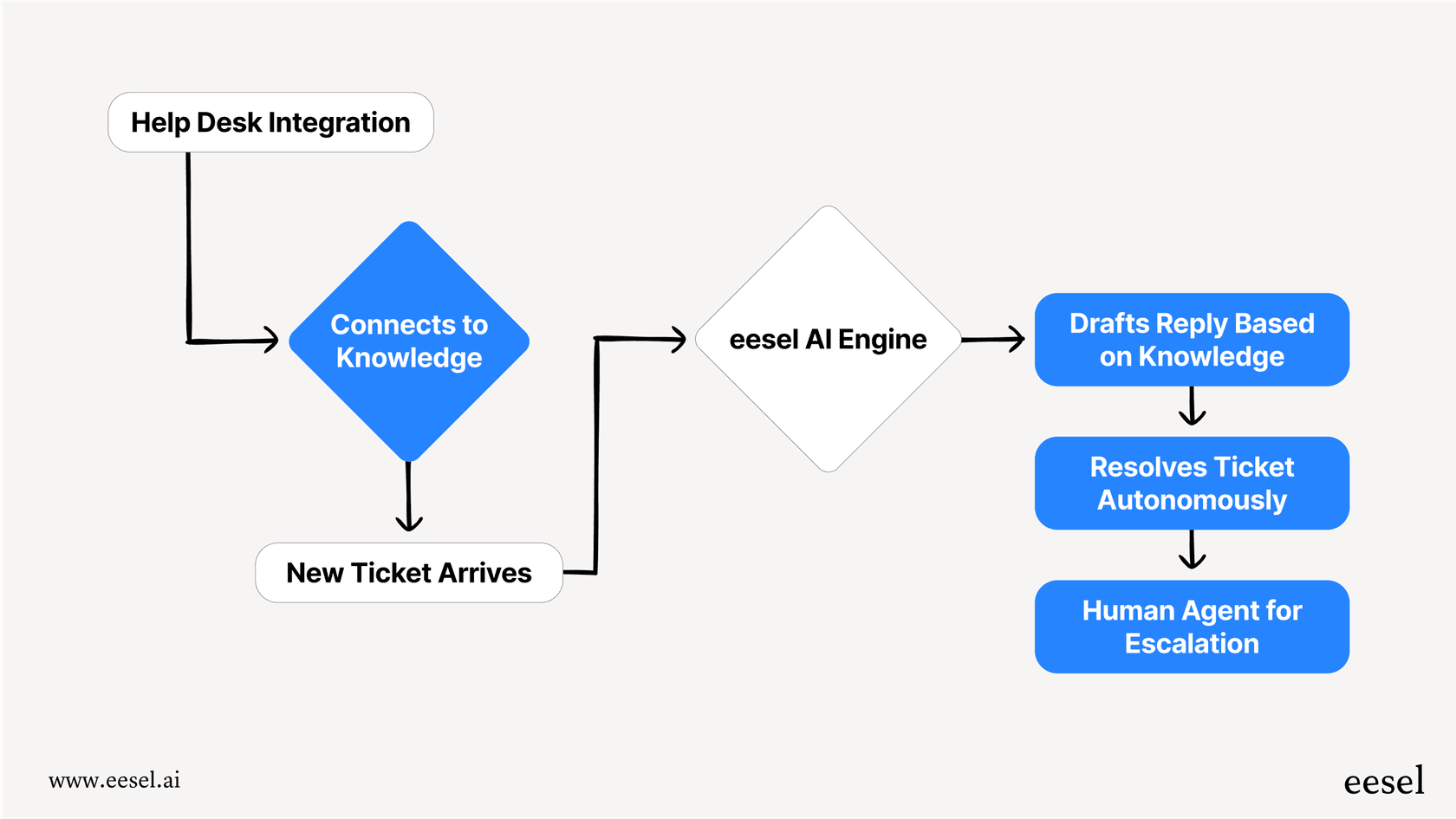
Teams using eesel's AI agent for Zendesk have found that pairing it with typing indicators creates a smoother handoff experience, since the AI can trigger a typing indicator before delivering its first response. At eesel AI, we have seen teams use typing indicators as part of their AI agent handoff strategy. When an AI agent escalates to a human, triggering a typing indicator before the agent's first message creates a smoother transition and sets appropriate expectations.
How eesel AI Enhances Zendesk Messaging Workflows
Zendesk's native typing indicators provide basic transparency between agents and customers. But if you are looking to automate more of your messaging workflow, our AI Agent works seamlessly within the Zendesk ecosystem.
Here is the difference: Zendesk's messaging triggers send static, pre-written messages. Our AI generates contextual responses based on your knowledge base, past tickets, and connected documentation. It can look up orders in Shopify, check shipping status, process refunds, and take real actions, not just send text.

We integrate with Zendesk and 100+ other tools, so when a customer sends a message, our AI can actually solve their problem rather than just acknowledging it. The typing indicator still appears naturally in the conversation, but what follows is a fully formed, helpful response instead of a generic "we will get back to you soon" message.
Our simulation mode lets you test the AI on thousands of your past Zendesk tickets before going live. You will see exactly how it would have responded and what information it used. No surprises when real customers start interacting with it.
And unlike triggers that require complex JSON or rigid condition trees, you control our AI with plain English. "If the refund request is over 30 days, politely decline and offer store credit." No coding required.
If you are hitting the limits of what Zendesk's native triggers and basic typing indicators can do, book a demo or start a free trial to see how intelligent automation can transform your messaging experience.
Choosing the Right Messaging Setup for Your Team
Zendesk messaging typing indicators are a simple but effective tool for improving conversational transparency. They require minimal configuration, work automatically across supported channels, and help both customers and agents communicate more effectively.
The key limitations to remember:
- You cannot customize the appearance (it is always three dots)
- You cannot see what customers are typing (only that they are typing)
- Social messaging channels have limited or different support
- The feature requires an active conversation state
For teams handling straightforward support volumes, Zendesk's native features are often sufficient. But as conversation volumes grow and customer expectations increase, many teams find they need more sophisticated automation.
Whether you stick with Zendesk's native typing indicators or layer in AI-powered responses, test your configuration thoroughly before going live. Your customers will thank you for smooth, helpful interactions that actually address their needs.