Adding interactive elements to your customer conversations can transform a basic support chat into a guided, engaging experience. Instead of asking customers to type out long descriptions, you can show them product carousels. Rather than listing options in text, you can present clickable buttons that lead them directly to solutions.
Zendesk messaging offers several ways to implement these rich content elements. But the path you choose depends on your technical resources, your Zendesk plan, and which channels your customers use. This guide walks through everything you need to implement buttons, links, and other interactive elements in Zendesk messaging.

Understanding Zendesk's rich content options
Zendesk's structured messages go far beyond plain text. Let's break down what's available so you can choose the right format for each situation.

Text messages with action buttons
The simplest form of rich content pairs a text message with one or more buttons. You might send a message like "Need help with your order?" followed by buttons for "Track shipment," "Request refund," and "Talk to an agent."
Carousel messages
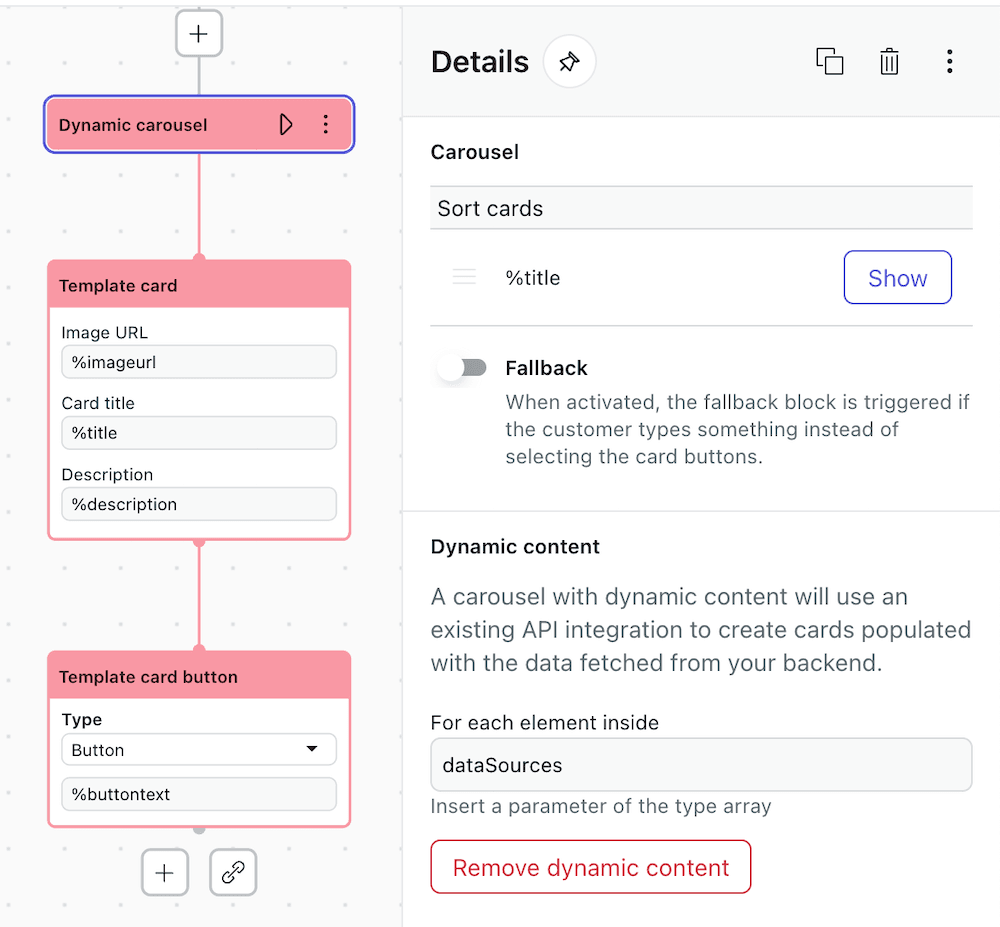
Carousels display a horizontally scrollable set of cards. Each card can include an image, title, description, and up to three buttons. These work well for product showcases, multi-option displays, or navigating through categories.
Quick replies
Quick replies present up to 11 pre-defined response options that customers tap instead of typing. Once tapped, the selected reply appears in the conversation and the other options disappear. These are ideal for guided flows where you want to keep customers on a specific path.
Rich text formatting
For messages that need visual hierarchy, you can use HTML tags including bold, italics, underlines, lists, headings, and hyperlinks. The character limit is 4,096 characters.
Forms
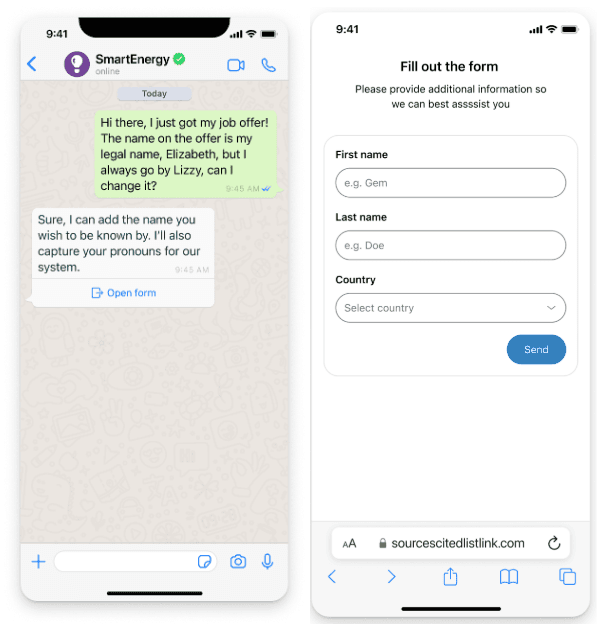
Form messages let you collect structured data through text inputs, email fields, dropdown selects, and more. On Web Widget and Mobile SDKs, forms render inline. On WhatsApp and some social channels, forms convert to hosted web links.
Channel support matrix
| Channel | Rich text | Carousels | Buttons | Forms |
|---|---|---|---|---|
| Web Widget | Full | Full | Full | Full |
| Mobile SDK v2.30.0+ | Full | Full | Full | Full |
| Partial | Fallback | Partial | Web link | |
| Social channels | Plain text | Fallback | Partial | Fallback |
| Unity SDK | Plain text only | No | No | No |
Source: Zendesk support documentation
When a channel doesn't support a specific message type, Zendesk applies fallbacks. A carousel might become a simple text list. Rich text reverts to plain text. Understanding these fallbacks helps you design experiences that degrade gracefully.
Creating link buttons in Zendesk messaging
Link buttons are the simplest interactive element to implement. They open URLs when tapped, making them perfect for directing customers to knowledge base articles, account pages, or external resources.
Step 1: Choose your implementation method
You have three main paths for creating link buttons:
- Sunshine Conversations API: Full control via REST API, requires development resources
- AI Agents - Advanced template builder: Visual interface for creating JSON templates
- Bot Builder (Legacy): No-code interface, but being phased out by Zendesk
Step 2: Configure link buttons via API
Here's the JSON structure for a text message with a link button:
{
  "author": {
    "type": "business"
  },
  "content": {
    "type": "text",
    "text": "Need help with your order?",
    "actions": [
      {
        "type": "link",
        "text": "Track shipment",
        "uri": "https://example.com/track"
      }
    ]
  }
}
The uri field accepts any valid URL, including deep links into mobile apps. Button text has character limits that vary by channel (typically 20-35 characters).
Source: Zendesk Developer Documentation
Step 3: Configure link buttons via template builder
For teams using AI Agents - Advanced, you can create templates through the Admin Center:
- Navigate to Admin Center > Channels > AI agents > Templates
- Click "Create template" and select "Custom (JSON)"
- Enter a template name using hyphens or underscores
- Paste your JSON structure in the template field
- Save and copy the shorthand reference
The shorthand syntax for referencing your template looks like %((template:your_template_name))%. You can also use inline shorthand for simple link buttons: %[Button Text](https://example.com).
Step 4: Test across channels
Before going live, test your link buttons on every channel your customers use. Web Widget and Mobile SDK will render buttons natively. WhatsApp and some social channels may display links as plain URLs instead of styled buttons.
Implementing reply and postback buttons
While link buttons open URLs, reply and postback buttons handle conversation flow within the messaging interface.
Reply buttons (quick replies)
Reply buttons insert predefined text into the conversation when tapped. They're perfect for FAQ navigation, guided troubleshooting, or simple choices.
Here's the JSON for reply buttons:
{
  "content": {
    "type": "text",
    "text": "What do you need help with?",
    "actions": [
      {
        "type": "reply",
        "text": "Track order",
        "payload": "TRACK_ORDER"
      },
      {
        "type": "reply",
        "text": "Return item",
        "payload": "RETURN_ITEM"
      }
    ]
  }
}
The payload uniquely identifies the user's intent. When a customer taps "Track order," your system receives the payload "TRACK_ORDER" and can respond accordingly.
Key limitation: Once a customer taps a reply button, the other options disappear. You can include up to 11 quick replies per message.
Source: Zendesk structured messages documentation
Postback buttons
Postback buttons trigger server-side logic without displaying the user's selection in the conversation. This makes them ideal for actions that don't need to be visible to the customer.
Unlike reply buttons, postbacks:
- Stay visible after being tapped (multi-use)
- Don't echo the user's selection in chat history
- Trigger webhooks via the
conversation:postbackevent
Postback buttons can be mixed with link buttons in the same message. Reply buttons cannot be mixed with any other action type.
Action limits to remember
Every message has a maximum of 10 actions. Some third-party channels have lower limits. If you exceed the channel's limit, Zendesk truncates the action list and ignores extras.
Building carousels with clickable items
Carousels create the most visually engaging experiences in Zendesk messaging. They're perfect for product showcases, service catalogs, or any situation where customers need to browse multiple options.
Carousel structure
A carousel contains up to 10 items (cards). Each card includes:
- An image (publicly accessible URL)
- Title (128 characters on Sunshine Conversations, 150 on Zendesk Chat)
- Description (128 characters on Sunshine Conversations, 140 on Zendesk Chat)
- Up to 3 action buttons per card
Creating the JSON template
{
  "content": {
    "type": "carousel",
    "items": [
      {
        "title": "Espresso Machine",
        "description": "Professional grade home espresso",
        "mediaUrl": "https://example.com/espresso.jpg",
        "actions": [
          {
            "type": "link",
            "text": "View details",
            "uri": "https://example.com/products/espresso"
          },
          {
            "type": "postback",
            "text": "Add to cart",
            "payload": "ADD_ESPRESSO"
          }
        ]
      }
    ]
  }
}
Image requirements
Images must be publicly accessible URLs. Zendesk supports multiple formats including PNG, JPEG, GIF, and WebP. Maximum file size is 10MB.
Carousel limitations by channel
On WhatsApp and some social channels, carousels fall back to plain text lists. Test your carousels across all channels to ensure the experience is acceptable when rich elements aren't supported.
Source: Haptik UI elements documentation
Adding rich text with hyperlinks
Sometimes you need formatted text rather than interactive elements. Rich text messages support HTML formatting for visual hierarchy and embedded links.
Supported HTML tags
| Tag | Purpose |
|---|---|
<a> | Hyperlinks with href and target attributes |
<b>, <strong> | Bold text |
<i>, <em> | Italics |
<u>, <ins> | Underline |
<s>, <del> | Strikethrough |
<code> | Code blocks |
<h1> through <h6> | Headings |
<ol>, <ul>, <li> | Lists |
Source: Zendesk rich text documentation
API implementation
Send rich text using either the htmlText or markdownText parameter (not both):
{
  "content": {
    "type": "text",
    "htmlText": "<b>Bold text</b> and <a href='https://example.com'>a link</a>"
  }
}
The htmlText field has a 4,096 character limit. If you provide markdownText, Zendesk automatically converts it to HTML and stores it in htmlText.
Rich text limitations
Here's the catch: only agents can send rich text. End users cannot apply formatting to their messages. Also, rich text is not supported in Unity SDK or third-party social channels. On these platforms, formatted messages appear as plain text.
Mobile SDK support requires version 2.30.0 or higher. Older SDK versions display rich text as plain text.
Troubleshooting common issues
Even with clear documentation, things don't always work as expected. Here are solutions to the most common problems teams encounter.
"Bot is not authorized" errors
This usually indicates a permission or configuration issue. Check these items in order:
- Verify your AI agent has the correct permissions in Admin Center
- Confirm your Sunshine Conversations integration is active
- Check that your API key credentials are valid
- Ensure your template JSON syntax is valid
Buttons not displaying
If buttons aren't showing up, check:
- Channel compatibility: Some channels don't support buttons natively
- Action limits: You've exceeded the 10 action maximum per message
- Image URLs: Carousel images must be publicly accessible
Rich text appearing as plain text
This typically happens for one of three reasons:
- Mobile SDK is older than version 2.30.0
- The channel doesn't support rich text (Unity SDK, some social channels)
- Unsupported HTML tags were used and stripped out
Template syntax errors
If your templates aren't rendering:
- Validate your JSON structure using a linter
- Check template shorthand format:
%((template:name))%(double parentheses) - Test in the messaging preview before publishing
- Verify your template name uses only hyphens or underscores (no spaces)
Source: Zendesk help center troubleshooting
Simplifying rich messaging with eesel AI
If you've read through this guide and thought, "This is a lot to set up and maintain," you're not alone. Many teams want rich customer experiences without the licensing complexity, JSON configuration, and channel compatibility headaches.
At eesel AI, we take a different approach to rich messaging in Zendesk. Instead of building templates that customers navigate, we train AI that understands your business and handles conversations autonomously. eesel's Zendesk integration handles tickets across every channel without any JSON configuration or Sunshine Conversations licensing.

How we simplify the process
Our Zendesk integration works alongside your existing setup:
- No Sunshine Conversations license required. We integrate directly with Zendesk Agent Workspace.
- No template configuration. Our AI learns from your help center, past tickets, and macros.
- No developer resources needed. Most teams are up and running in minutes, not days.
- Works across all channels with consistent quality.
The difference in approach
| Capability | Zendesk Templates | eesel AI |
|---|---|---|
| Setup time | Hours to days | Minutes |
| Developer required | Often yes | No |
| Additional licensing | Sunshine Conversations ($50+/month for MAUs) | Included |
| Learning curve | Steep (shorthand syntax, JSON) | Minimal (plain-text prompts) |
| Autonomous resolution | Template-based, predefined flows | AI-driven, learns from content |
Results you can expect
Teams using our AI agents for Zendesk see up to 81% autonomous resolution rates in mature deployments. The typical payback period is under 2 months.
Pricing comparison
For a team of 10 agents, Zendesk Suite Professional alone costs $1,150 per month before any add-ons. Our Business plan covers the whole team for $639 per month with AI capabilities included.
If you're evaluating whether Zendesk's rich messaging complexity is worth the investment for your team, it's worth considering alternatives that might get you to the same destination faster.
Getting started with your implementation
Rich messaging can transform your customer experience when implemented thoughtfully. Here's your action plan:
Quick start checklist:
- Verify you have Suite Professional or higher for rich content features
- Choose your implementation method based on technical resources
- Start simple: test link buttons before building complex carousels
- Test across all customer channels before going live
- Monitor engagement metrics after launch
Key decisions to make:
- Which message types best serve your most common support scenarios?
- How will you handle fallback experiences on limited channels?
- Who on your team will maintain templates as your business evolves?
The bottom line is that Zendesk's rich messaging capabilities are powerful, but the implementation overhead is real. Choose the method that matches your team's resources, and don't hesitate to explore alternatives if the complexity feels like more than you can take on right now.